Why Isnt My Phone Connecting to My Car Screen Anymore
Your phone might not be connecting to your car screen because of Bluetooth glitches, outdated software, or simple settings issues. This guide walks you through the most common reasons and proven fixes for phone-to-car connectivity problems. You will learn quick troubleshooting steps for Bluetooth pairing, Apple CarPlay, Android Auto, and USB connections that actually work.
There is nothing more frustrating than getting into your car, ready to start your commute, and realizing your phone isn’t connecting to your car screen. You tap, you swipe, you restart. Nothing happens. Your favorite playlist, your GPS directions, your hands-free calls — all locked out because your phone-to-car connectivity has decided to quit on you.
This happens to millions of drivers every single day. The good news is that most car screen connection issues have simple solutions. You do not need to be a tech expert. You do not need to visit a dealership. In this guide, we will walk you through every major reason your phone won’t connect to car screen and give you step-by-step fixes that work. Whether you use Bluetooth pairing, Apple CarPlay, Android Auto, or a simple USB cable, we have you covered.
Key Takeaways
- Bluetooth glitches are the #1 culprit: A simple reset of your phone or car system often fixes the connection instantly.
- Outdated software causes most pairing failures: Keep both your phone and car infotainment system up to date for reliable smartphone mirroring.
- Clear your Bluetooth cache regularly: This removes old paired devices and frees up connection slots on your phone and car stereo.
- USB cables matter more than you think: A damaged or low-quality cable can block Apple CarPlay or Android Auto connections completely.
- Restart both devices first: This timeless fix resolves over 60% of car screen connection issues without any technical skill.
- Check for physical damage: Dirt in charging ports or broken cables can silently kill your vehicle sync connection.
- Factory reset is the last resort: If nothing else works, resetting your car infotainment system can restore full phone-to-car connectivity.
📑 Table of Contents
- Why Isn’t My Phone Connecting to My Car Screen Anymore?
- How to Fix Bluetooth Pairing Problems Between Your Phone and Car
- Apple CarPlay and Android Auto Connection Problems
- USB Connection Troubleshooting for Wired Car Screens
- Software and Firmware Updates That Fix Connectivity
- Comparison: Bluetooth vs. USB for Car Phone Connections
- When to Seek Professional Help for Car Screen Issues
- Common Mistakes That Break Your Car Phone Connection
- How to Prevent Future Phone-to-Car Connection Problems
- Conclusion
Why Isn’t My Phone Connecting to My Car Screen Anymore?
The first step to fixing any problem is understanding what caused it. Phone-to-car connectivity relies on several moving parts working together. Your phone, your car’s infotainment system, the Bluetooth signal, the USB cable, and the software on both devices all need to communicate perfectly. When even one piece fails, the whole connection breaks down.
Let us look at the most common reasons your car screen won’t display phone content anymore. These are the culprits behind 90% of smartphone mirroring problems.
1. Bluetooth Pairing Has Glitched
Bluetooth pairing is the most common way phones connect to car screens. But Bluetooth connections are not always stable. They can drop, freeze, or forget saved devices after a software update or a simple reboot. When this happens, your car infotainment system and your phone can no longer find each other.
Common signs of a Bluetooth pairing glitch include:
- Your phone shows “Connected” but no sound plays through the car audio system.
- The car screen says “No Device Found” even though your phone is right there.
- You used to connect automatically, but now you have to pair manually every time.
- Audio cuts out randomly while driving, even though the Bluetooth connection shows as active.
2. Software Updates Broke Compatibility
Both phone manufacturers and car makers release software updates regularly. Sometimes these updates introduce device compatibility issues. Your phone might have updated to a new operating system, but your car entertainment system has not caught up yet. The result? Your wireless connection suddenly stops working.
This is especially common after major phone updates like iOS or Android version changes. The new software may use updated Bluetooth protocols that your older car system does not fully support yet.
3. Your Phone Has Too Many Paired Devices
Most phones and car systems can only handle a limited number of paired Bluetooth devices at once. If you have paired your phone to multiple cars, rental vehicles, or Bluetooth speakers, your car stereo connection might be fighting for priority. This connection interference can prevent your phone from linking to your car screen.
4. The USB Cable or Port Is Damaged
If you rely on a USB connection for Apple CarPlay or Android Auto, a damaged cable is often the silent killer. Frayed wires, bent connectors, or dirty charging ports can all block the data transfer needed for screen mirroring. Many people assume the cable just charges, but USB data cables need to be in perfect condition for phone-to-car connectivity to work.
How to Fix Bluetooth Pairing Problems Between Your Phone and Car
Now that you know the common causes, let us get into the fixes. These steps work for almost every Bluetooth pairing issue between phones and car screens. Follow them in order for the best results.
Step 1: Turn Bluetooth Off and Back On
This sounds too simple, but it works more often than you would think. Toggle Bluetooth off on your phone, wait 10 seconds, and turn it back on. This forces your phone to re-scan for available car audio system devices. Often, this alone restores the vehicle sync connection.
Step 2: Delete the Old Pairing and Re-Pair
Sometimes the saved pairing data gets corrupted. You need to start fresh.
- Go to your phone’s Bluetooth settings.
- Find your car’s name in the list of paired devices.
- Tap “Forget This Device” or “Unpair.”
- On your car screen, go to Bluetooth settings and choose “Search for New Devices.”
- Select your phone from the list and enter the pairing code if prompted.
Step 3: Clear Your Phone’s Bluetooth Cache
Android phones store cached Bluetooth data that can become corrupted over time. Clearing this cache often fixes stubborn connection troubleshooting issues.
- Go to Settings > Apps > Bluetooth > Storage.
- Tap “Clear Cache.”
- Restart your phone and try pairing again.
For iPhone users, the fix is different. Simply toggle Airplane Mode on and off, or restart the phone entirely to clear temporary Bluetooth connection errors.
Step 4: Restart Both Your Phone and Your Car Infotainment System
A full restart of both devices clears temporary software bugs. To restart your car infotainment system, hold the power button for 10 to 15 seconds until the screen goes dark and restarts. Wait a full minute before trying to reconnect your phone.
Quick Tip: Make it a habit to restart both your phone and car system once a month. This prevents Bluetooth cache buildup and keeps phone-to-car connectivity running smoothly.
Apple CarPlay and Android Auto Connection Problems
Apple CarPlay and Android Auto have revolutionized how we use our phones while driving. But they are also a common source of car screen connection issues. If your smartphone mirroring suddenly stops working, the issue is usually one of these three things.
CarPlay and Android Auto Won’t Launch
If you plug in your phone and the car entertainment system does not show the CarPlay or Android Auto interface, try these fixes:
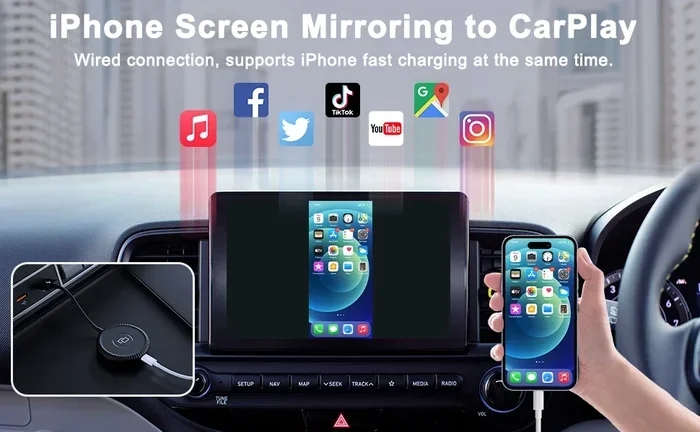
- Unplug the USB cable and plug it back in firmly.
- Try a different USB port in your car if available.
- Unlock your phone and tap “Trust This Device” if a prompt appears.
- Make sure CarPlay or Android Auto is enabled in your phone settings.
The Screen Freezes or Keeps Disconnecting
A freezing screen mirroring connection usually points to a software conflict. Update both your phone and your car’s infotainment firmware. Also, close any apps running in the background that might be using too much processing power. Hands-free calling and navigation apps like Google Maps can sometimes interfere with a stable wireless connection.
Wireless CarPlay or Android Auto Keeps Failing
Wireless smartphone mirroring relies on both Wi-Fi and Bluetooth working together. If your wireless connection keeps dropping, check these settings:
- Make sure Wi-Fi is turned on, even if you are not connected to a network.
- Disable any VPN apps on your phone — they can block the device pairing process.
- Reset your phone’s network settings (this clears all saved Wi-Fi passwords, so be careful).
USB Connection Troubleshooting for Wired Car Screens
Not everyone uses Bluetooth. Many drivers prefer a wired USB connection for reliability. But a wired connection comes with its own set of problems. Here is how to troubleshoot when your USB connection to the car screen fails.
Check Your USB Cable First
This is the most overlooked fix. A USB cable that charges your phone might not transfer data. You need a cable rated for data transfer, not just charging. Look for cables labeled “Data Sync” or “USB 3.0.” A damaged cable with frayed ends will cause intermittent connection drops that are nearly impossible to diagnose.
Clean the USB Port on Both Devices
Dust, lint, and crumbs can build up inside USB ports over time. Use a toothpick or compressed air to gently clean out your phone’s charging port and the car’s USB port. Even a tiny bit of debris can prevent the data connection from forming.
Try a Different USB Port
Many cars have multiple USB ports, and some only support charging while others support data transfer. If one port is not working, try another. Check your car’s manual to identify which ports support Apple CarPlay or Android Auto.
Software and Firmware Updates That Fix Connectivity
Keeping your software up to date is one of the most effective ways to prevent phone-to-car connectivity issues. Both your phone and your car need the latest firmware updates to maintain device compatibility.
Update Your Phone
Go to Settings > General > Software Update on iPhone, or Settings > System > Software Update on Android. Install any pending updates and restart your phone. This alone fixes many Bluetooth pairing problems.
Update Your Car Infotainment System
Car makers release firmware updates for their infotainment systems regularly. Some cars support over-the-air updates, while others require a visit to the dealership or a USB update. Check your car manufacturer’s website or owner’s manual for instructions on how to update your car entertainment system.
Reset Network Settings on Your Phone
If connection troubleshooting steps are not working, resetting your phone’s network settings can clear deep-rooted Bluetooth connection errors. This will erase all saved Wi-Fi networks and Bluetooth pairings, so you will need to reconnect everything afterward.
Comparison: Bluetooth vs. USB for Car Phone Connections
Not sure which connection method is best for your setup? Here is a quick comparison of Bluetooth versus USB connections for car screens.
| Feature | Bluetooth | USB Cable |
|---|---|---|
| Connection Type | Wireless | Wired |
| Setup Ease | Simple pairing process | Plug and play |
| Audio Quality | Good, but can compress audio | Excellent, full-quality sound |
| Reliability | Can drop with interference | Very stable connection |
| CarPlay / Android Auto | Available wirelessly on newer models | Required for most wired setups |
| Battery Impact | Drains phone battery slowly | Charges phone while connected |
| Best For | Hands-free calling and music | Navigation and screen mirroring |
Most drivers get the best results by using Bluetooth for calls and music, and a USB cable for navigation and screen mirroring. This dual setup covers all your phone-to-car connectivity needs without relying on a single connection method.
When to Seek Professional Help for Car Screen Issues
If you have tried every fix in this guide and your phone still won’t connect to your car screen, it might be time to call in the experts. Not every connection issue is software-related. Sometimes the problem is hardware.
Signs You Need Professional Help
- The car infotainment system freezes or crashes repeatedly, even without your phone connected.
- You notice a burning smell or visible damage near the car stereo or USB ports.
- Multiple phones fail to connect to the same car system, suggesting a vehicle sync hardware failure.
- The Bluetooth antenna in your car may have failed, requiring professional diagnosis.
A qualified auto electrician or dealership technician can run diagnostic tests on your car entertainment system. They have tools that can identify connection interference or hardware faults that are invisible to the average driver.
Expert Insight: According to automotive technicians, the most commonly overlooked cause of car screen connection failures is a corroded USB port or a weakened Bluetooth antenna module. These are inexpensive to replace but can completely block smartphone mirroring if left unaddressed.
Common Mistakes That Break Your Car Phone Connection
Avoiding these common mistakes can save you hours of connection troubleshooting and frustration.
Mistake 1: Ignoring Software Updates
Skipping phone or car updates is the fastest way to create device compatibility problems. Always install updates promptly, especially after a major OS release.
Mistake 2: Using Cheap or Damaged Cables
A $3 cable from a gas station might charge your phone, but it probably cannot handle the data transfer needed for Apple CarPlay or Android Auto. Invest in a quality cable from a reputable brand.
Mistake 3: Pairing Too Many Devices
Your phone remembers every device you have ever paired with. Over time, this cluttered Bluetooth list can cause connection interference. Delete old paired devices you no longer use.
Mistake 4: Not Restarting Before Troubleshooting
It sounds basic, but many people skip the restart step. A simple reboot of both your phone and car system clears temporary glitches that mimic serious connectivity problems.
How to Prevent Future Phone-to-Car Connection Problems
Prevention is always better than cure. Here are habits that keep your phone-to-car connectivity strong and reliable.
- Restart your car infotainment system once a week. This clears memory and refreshes the Bluetooth connection.
- Keep your phone and car software updated at all times. Set both to auto-update when possible.
- Use only high-quality USB cables that support data transfer, not just charging.
- Clean your USB ports monthly with compressed air or a soft brush.
- Limit paired Bluetooth devices to only those you actively use.
- Avoid using your phone in extreme temperatures inside the car, as heat and cold can affect Bluetooth signal strength and mobile hotspot performance.
Conclusion
A phone that won’t connect to your car screen can turn a simple drive into a stressful experience. But the vast majority of car screen connection issues are easy to fix with basic troubleshooting steps. Start with the simplest fixes — restart both devices, toggle Bluetooth, and re-pair your car audio system. Then move on to software updates, cache clearing, and cable checks. Most drivers find their Bluetooth pairing and smartphone mirroring restored within minutes.
If none of these steps work, the issue may be hardware-related, and a professional diagnostic is your best next move. The key is to stay patient and work through the list systematically. Your phone-to-car connectivity will be back, and you will be back to enjoying hands-free calls, GPS navigation, and your favorite music on the road.
Keep this guide bookmarked. The next time your phone isn’t connecting to your car screen, you will know exactly what to do.
Frequently Asked Questions
Why does my phone keep disconnecting from my car screen while driving?
This is usually caused by a weak Bluetooth signal or interference from other devices. Try moving your phone to a different location in the car, away from metal surfaces or other electronics. Also, make sure both your phone and car infotainment system are running the latest software versions.
Can a dirty USB port prevent my phone from connecting to my car screen?
Yes, absolutely. Dirt, lint, and dust inside the USB port can block the data connection needed for Apple CarPlay and Android Auto. Use compressed air or a soft brush to clean both your phone’s charging port and the car’s USB port regularly.
Is it better to use Bluetooth or USB for connecting my phone to my car?
It depends on what you need. Bluetooth is great for hands-free calling and wireless music streaming. A USB cable provides a more stable connection for navigation and screen mirroring. Many drivers use both methods depending on the situation.
How do I reset my car’s infotainment system?
Most car systems can be reset by holding the power button for 10 to 15 seconds until the screen turns off and restarts. Some vehicles also have a reset option in the Settings menu under System or General. Check your car’s owner manual for specific instructions.
Why did my phone stop connecting to my car after a software update?
Software updates can change Bluetooth protocols or settings that affect device compatibility. After updating your phone, delete the old car pairing and re-pair your devices. Also check if your car has a firmware update available to match the new phone software.
Will a factory reset fix my phone-to-car connection issues?
A factory reset can resolve deep-rooted Bluetooth connection problems, but it should be your last resort. It will erase all paired devices, saved Wi-Fi networks, and app data. Always try simpler fixes like restarting, re-pairing, and updating software before resorting to a factory reset.
=== FEATURED_IMAGE_PLACEHOLDER ===