How to Reset iPhone Bluetooth and Solve Wireless Problems
Resetting your iPhone Bluetooth is the fastest way to fix wireless connection problems, pairing failures, and audio glitches. This guide walks you through simple reset methods, advanced troubleshooting steps, and expert tips to get your Bluetooth working again. Whether your iPhone won’t connect to headphones, your car, or speakers, these solutions work.
Bluetooth problems on your iPhone can be really frustrating. You are trying to connect to your headphones, your car stereo, or a speaker, and nothing happens. The good news is that resetting iPhone Bluetooth fixes most of these issues in just a few minutes.
Whether you are dealing with a device that won’t pair, audio that keeps cutting out, or a connection that drops randomly, this guide has you covered. We will walk you through every step from the simplest fix to more advanced solutions. You do not need to be a tech expert to follow along.
By the end of this article, you will know exactly how to reset Bluetooth on your iPhone and solve wireless problems for good. Let us dive in and get your connections working smoothly again.
Key Takeaways
- Basic Reset: Turning Bluetooth off and back on solves most minor connection issues quickly.
- Forget and Re-pair: Removing a device and pairing it again fixes stubborn connection problems.
- Network Settings Reset: A full reset of network settings clears deep Bluetooth glitches on your iPhone.
- Update iOS: Outdated software often causes Bluetooth problems that a simple update can fix.
- Check for Interference: Physical obstacles and other wireless devices can disrupt your Bluetooth signal.
- Seek Professional Help: If all else fails, Apple Support or an authorized service provider can diagnose hardware issues.
📑 Table of Contents
Why Does iPhone Bluetooth Stop Working?
Before we jump into the fixes, it helps to understand why Bluetooth problems happen in the first place. Once you know the cause, you can pick the right solution faster. Bluetooth is a short-range wireless technology that connects devices without cables.
Several things can interfere with Bluetooth on your iPhone. Software glitches are the most common culprit. Sometimes a simple update or a background app conflict causes the connection to break. Hardware issues are less common but do happen, especially after drops or water damage.
Interference from other wireless devices is another big reason. Wi-Fi routers, microwaves, and even USB 3.0 ports can disrupt Bluetooth signals. Physical barriers like walls and your own body can also weaken the connection between your iPhone and the paired device.
Common Signs of Bluetooth Problems
How do you know your Bluetooth needs a reset? Here are the most common signs:
- Device won’t pair: Your iPhone cannot find or connect to the other device at all.
- Connection drops randomly: The Bluetooth link keeps breaking even though it was working fine.
- Audio cuts in and out: Music or calls keep glitching or stuttering during playback.
- Slow response time: There is a noticeable delay between pressing play and hearing sound.
- Device shows as paired but won’t connect: The phone lists the device but refuses to establish a link.
If you are experiencing any of these, do not worry. The next sections will walk you through proven fixes that work every time.
How to Reset iPhone Bluetooth: Basic Methods
The simplest fixes often solve the problem. Before trying anything complicated, start with these basic reset methods. Most people find that one of these solves their issue right away.
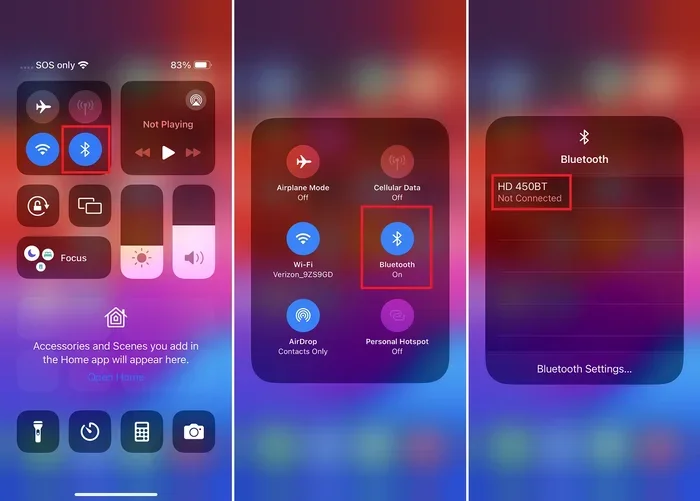
Method 1: Toggle Bluetooth Off and On
This is the easiest and most common way to reset your Bluetooth connection. It clears minor glitches and refreshes the wireless connection. Here is what to do:
- Open the Settings app on your iPhone.
- Tap on Bluetooth.
- Turn the Bluetooth switch to Off.
- Wait about 10 seconds.
- Turn the Bluetooth switch back to On.
That is it. This simple toggle forces your iPhone to refresh the Bluetooth module. It clears temporary cache issues and re-establishes the wireless radio. Many users report that this alone fixes their problem completely.
Quick Tip: If toggling Bluetooth does not work, try turning Airplane Mode on and then off again. This resets all wireless connections including Bluetooth and Wi-Fi at the same time.
Method 2: Forget the Device and Re-Pair
Sometimes the connection between your iPhone and another device gets corrupted. Forgetting the device removes the old pairing data, and re-pairing creates a fresh connection. This method works great when your iPhone is stuck on a previously paired device.
Here is how to do it:
- Go to Settings and tap Bluetooth.
- Find the device giving you trouble in the list.
- Tap the Info icon (the small “i” in a circle) next to the device name.
- Tap Forget This Device.
- Confirm by tapping Forget Device again.
- Put the other device into pairing mode.
- Go back to your iPhone Bluetooth settings and tap the device to pair it again.
This method is especially helpful when you are trying to pair my iPhone to my car and the connection keeps failing. Clearing the old pairing data lets both devices start fresh.
Method 3: Restart Your iPhone
A simple restart can work wonders for Bluetooth problems. Restarting clears your phone’s temporary memory and refreshes all system processes including the Bluetooth module. It is often overlooked but incredibly effective.
To restart your iPhone:
- Press and hold the power button and a volume button together.
- Slide to power off your device.
- Wait 30 seconds.
- Press and hold the power button again until the Apple logo appears.
Once your iPhone turns back on, try connecting your Bluetooth device again. This basic step resolves a surprising number of wireless issues.
Advanced Bluetooth Reset Methods
If the basic methods did not fix your problem, it is time to try more advanced solutions. These steps dig deeper into your iPhone settings and can resolve stubborn Bluetooth issues.
Reset Network Settings
Resetting your network settings clears all saved Wi-Fi passwords, Bluetooth pairings, and VPN configurations. This is a powerful fix for deep Bluetooth glitches. Here is what you need to know:
- Go to Settings and tap General.
- Scroll down and tap Transfer or Reset iPhone.
- Tap Reset and then select Reset Network Settings.
- Enter your passcode if prompted.
- Confirm the reset.
After the reset, your iPhone will restart. You will need to reconnect to your Wi-Fi and re-pair your Bluetooth devices. This method is very effective for persistent Bluetooth problems that basic resets cannot fix.
Important Note: Make sure you know your Wi-Fi password before resetting network settings. You will need to enter it again after the reset.
Update Your iPhone Software
Outdated iOS software can cause Bluetooth compatibility issues. Apple regularly releases updates that fix bugs and improve wireless performance. Keeping your iPhone updated is one of the best ways to prevent Bluetooth problems.
To check for updates:
- Go to Settings and tap General.
- Tap Software Update.
- If an update is available, tap Download and Install.
- Wait for the update to complete and restart your iPhone.
After updating, check if your Bluetooth connection works properly. Many users have found that a simple iOS update resolved their wireless problems instantly.
Reset All Settings
If resetting network settings did not work, you can try resetting all settings on your iPhone. This goes even deeper than a network reset. It restores all system settings to their defaults without deleting your data, photos, or apps.
To reset all settings:
- Go to Settings and tap General.
- Tap Transfer or Reset iPhone.
- Tap Reset and choose Reset All Settings.
- Enter your passcode and confirm.
This method is a great middle ground between a simple reset and a full factory reset. Your personal data stays safe, but all system settings go back to default.
Troubleshooting Bluetooth by Device Type
Different Bluetooth devices cause different kinds of problems. Here are some targeted fixes based on the type of device you are trying to connect.
Bluetooth Headphones and Earbuds
Headphones are the most common Bluetooth devices people use with their iPhones. If your headphones are not connecting, try these steps:
- Make sure your headphones are charged and turned on.
- Put them in pairing mode by holding the power button for 5 to 10 seconds.
- Check that your headphones are not connected to another device nearby.
- Remove them from your iPhone Bluetooth list and pair again.
- Move closer to your iPhone to ensure a strong signal.
Some headphones have a dedicated Bluetooth reset button. Check your headphone manual for specific instructions. Over-ear models like Sony and Bose often have a reset procedure that involves holding multiple buttons at once.
Bluetooth Speakers
Bluetooth speakers can be tricky because they often remember multiple paired devices. If your speaker will not connect to your iPhone, try this:
- Turn the speaker off completely.
- Turn it back on and enter pairing mode.
- On your iPhone, go to Bluetooth settings and look for the speaker.
- Tap to connect.
If the speaker keeps connecting to a different phone, you may need to reset the speaker itself. Most speakers have a reset procedure that clears all stored pairings.
Bluetooth in Your Car
Connecting your iPhone to your car’s Bluetooth system can sometimes be a hassle. If you are having trouble, start by checking that your car’s infotainment system is in pairing mode. You may also want to sync my iPhone to my new car if you recently got a new vehicle. Car Bluetooth systems can be finicky, but a fresh pairing almost always works.
Here are some extra tips for car Bluetooth:
- Make sure your car is stationary and ignition is on.
- Delete old paired phones from your car’s Bluetooth memory.
- Restart both your iPhone and your car’s infotainment system.
- Check that your car’s software is up to date.
Preventing Future Bluetooth Problems
Once you get your Bluetooth working again, you want to keep it working. Prevention is always better than fixing problems after they happen. Here are some simple habits that keep your Bluetooth connections strong and reliable.
Keep Your iPhone Updated
Software updates fix bugs that can cause Bluetooth issues. Make it a habit to check for updates at least once a week. You can also turn on automatic updates so your phone always has the latest version.
Manage Paired Devices
Your iPhone remembers every device you have ever paired with. Over time, this list can get cluttered and cause confusion. Go through your Bluetooth settings every few months and forget devices you no longer use. This keeps your connection list clean and reduces the chance of conflicts.
Reduce Wireless Interference
Other wireless devices can disrupt your Bluetooth signal. If you notice connection problems, try moving away from Wi-Fi routers, microwaves, and USB 3.0 devices. Keeping your iPhone close to the device you are connecting to also helps maintain a strong, stable signal.
Keep Devices Charged
Low battery levels can weaken Bluetooth performance. Make sure both your iPhone and your Bluetooth device have enough charge before trying to connect. A device with a very low battery may not have enough power to maintain a stable Bluetooth link.
When to Seek Professional Help
Most Bluetooth problems are software-related and can be fixed at home. But sometimes the issue is hardware-related and needs professional attention. Here is when you should consider getting help:
- Bluetooth stops working after a drop or physical impact.
- Your iPhone has been exposed to water and Bluetooth fails afterward.
- None of the reset methods in this guide have worked.
- The Bluetooth icon disappears from your iPhone status bar entirely.
- You notice a burning smell or physical damage near the iPhone’s antenna area.
In these cases, contact Apple Support or visit an authorized service provider. They have diagnostic tools that can identify hardware problems you cannot fix on your own. A Bluetooth module failure is rare but does happen, and professionals can replace it quickly.
You can also visit an Apple Store or contact support through the Apple Support app on your iPhone. They can walk you through troubleshooting steps or schedule a repair if needed.
Key Takeaways
- Toggle Bluetooth Off and On: The simplest fix that resolves most minor connection issues in seconds.
- Forget and Re-Pair Devices: Clears corrupted pairing data and creates a fresh connection between devices.
- Reset Network Settings: A powerful deep reset that clears all Bluetooth and Wi-Fi configuration problems.
- Update iOS Regularly: Software updates patch bugs that cause Bluetooth connectivity issues.
- Reduce Interference: Keep your iPhone away from other wireless devices and physical barriers for better signal strength.
- Seek Help When Needed: Hardware issues require professional diagnosis and repair from Apple or authorized service centers.
Frequently Asked Questions
Why won’t my iPhone find any Bluetooth devices?
Your iPhone may not find Bluetooth devices because Bluetooth is turned off, the other device is out of range, or the other device is not in pairing mode. Try toggling Bluetooth off and on, or restart your iPhone. If the problem persists, reset your network settings to clear any deep connection issues.
Does resetting Bluetooth delete my data?
No, resetting Bluetooth does not delete any of your personal data, photos, or apps. It only clears wireless connection settings and paired device information. Your files and content remain completely safe when you reset Bluetooth or network settings on your iPhone.
How often should I reset my iPhone Bluetooth?
You should only reset your iPhone Bluetooth when you experience connection problems. There is no need to reset it regularly. Frequent resets can actually cause more issues by clearing useful connection data. Reset only when troubleshooting a specific problem.
Can Bluetooth interference from other devices cause connection problems?
Yes, Bluetooth interference from Wi-Fi routers, microwaves, and USB 3.0 devices can definitely cause connection problems. These devices operate on similar wireless frequencies and can disrupt your Bluetooth signal. Moving away from these sources of interference often fixes the issue quickly.
What should I do if Bluetooth works but audio keeps cutting out?
If Bluetooth connects but audio keeps cutting out, move closer to the connected device. Check that both devices have sufficient battery. You should also check for software updates on both devices. Reducing the number of active wireless connections in the area can also help stabilize the audio stream.
Is it better to reset network settings or factory reset my iPhone for Bluetooth problems?
Always try resetting network settings before doing a factory reset. Resetting network settings is less drastic and preserves all your personal data. A factory reset should be your last resort. If network settings reset does not fix the problem, contact Apple Support before proceeding with a factory reset.