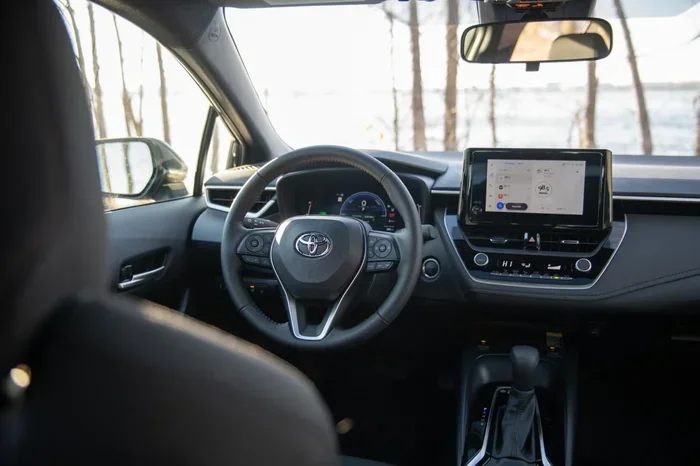
How Do I Remove a Device From My Toyota Corolla Easy
Removing a device from your Toyota Corolla is simple when you follow the right steps. Whether you need to unpair a phone, disconnect a USB device, or reset your Toyota infotainment system, this guide covers everything you need. You will learn how to remove devices from Bluetooth settings, the multimedia screen, and even handle stubborn connections that won’t let go.
Have you ever wanted to remove a device from my Toyota Corolla but didn’t know where to start? Maybe your old phone is still showing up on the screen, or a USB drive is stuck in the system. Whatever the reason, removing a device from your Toyota Corolla is easier than you think.
This guide walks you through every method step by step. You will learn how to disconnect Bluetooth devices, remove USB accessories, and even reset your Toyota infotainment system when things get tricky. By the end, you will feel confident handling any device removal on your own.
Let us be clear—this is not a complicated process. You do not need a mechanic or a dealership visit. A few minutes and your owner’s manual are all you need. So let us get started and make your Toyota Corolla device management simple.
Key Takeaways
- Easy Bluetooth Removal: You can unpair any phone or device from your Toyota Corolla settings in under a minute.
- USB and Aux Devices: Disconnecting USB drives and aux devices is just as straightforward with a few taps.
- Reset When Needed: A simple system reset can clear stuck device connections and refresh your Toyota multimedia system.
- No Tools Required: Most device removals are done through the dashboard screen or phone settings—no special tools needed.
- Re-pairing Is Simple: After removal, you can easily pair a new device back when you are ready.
- Troubleshooting Tips Included: If a device won’t disconnect, we have expert fixes to help you out.
📑 Table of Contents
- Why You Might Need to Remove a Device From Your Toyota Corolla
- How to Remove a Bluetooth Device From Your Toyota Corolla
- Removing USB and Aux Devices From Your Toyota Corolla
- Resetting Your Toyota Corolla System to Remove Stuck Devices
- How to Remove a Device Using Your Phone Settings
- Quick Tips and Common Mistakes When Removing Devices
- Expert Insights: Keeping Your Toyota Corolla Device List Clean
- Conclusion
Why You Might Need to Remove a Device From Your Toyota Corolla
There are many reasons you might want to disconnect a device from your Toyota Corolla. Understanding these reasons helps you know exactly what to do and when to do it.
Maybe you sold your old phone and want to remove it from the system. Perhaps you bought a new phone and need to pair it fresh. Or you might have a USB device that keeps showing up even after you unplug it. Whatever the reason, knowing how to remove devices keeps your car’s system clean and running smoothly.
Common Reasons for Device Removal
- Selling or giving away a phone: You do not want the new owner to have access to your car’s Bluetooth.
- Buying a new phone: You want a fresh start with your new device.
- USB device conflicts: A USB drive or charger is causing issues with your Toyota multimedia system.
- Multiple devices clutter: Too many paired devices slow down your system.
- Privacy concerns: You want to remove a device that has your contacts and call history.
- System glitches: A stuck device is causing errors or freezing your screen.
Each of these situations has a simple fix. The key is knowing which method to use for which type of device. That is exactly what we will cover next.
How to Remove a Bluetooth Device From Your Toyota Corolla
Bluetooth is the most common way people connect devices to their Toyota Corolla. Whether it is a phone, a tablet, or even a smartwatch, removing a Bluetooth device is a quick process. The steps vary slightly depending on your model year, but the general process stays the same.
Step-by-Step Bluetooth Removal
- Start your Toyota Corolla and press the Settings button on the dashboard screen.
- Look for the Bluetooth or Phone option in the menu.
- Find the device you want to remove from the list of paired devices.
- Tap on the device name to open its settings.
- Select Delete or Unpair to remove the device.
- Confirm your choice when prompted.
That is it. The device is now removed from your Toyota Corolla. If you ever want to connect that device again, you will need to pair it fresh. This is a great tip to keep in mind if you are pairing your iPhone to your car after a removal.
What If the Bluetooth Device Won’t Remove?
Sometimes a Bluetooth device gets stuck. This can happen after a software glitch or if the connection was not closed properly. Here are a few things you can try:
- Restart your Toyota’s infotainment system: Turn the car off, wait 30 seconds, and turn it back on.
- Toggle Bluetooth off and on: Go to settings, turn Bluetooth off, wait a few seconds, then turn it back on.
- Remove the device from the phone too: Go to your phone’s Bluetooth settings and forget the car as well.
- Reset network settings: On your phone, look for a network reset option to clear all Bluetooth connections.
If none of these work, a full system reset usually does the trick. We will cover that in a later section.
Removing USB and Aux Devices From Your Toyota Corolla
USB devices and aux cables are another way people connect things to their Toyota Corolla. These include USB drives, phone chargers, and aux cables for music playback. Removing them is usually as simple as unplugging them, but sometimes the system still shows the device even after you have removed it physically.
How to Remove a USB Device
If you have a USB drive or charger connected to your Toyota Corolla, follow these steps:
- Unplug the USB device from the port.
- Go to your Toyota’s multimedia screen.
- Navigate to the Media or USB section.
- Look for the device name and select it.
- Choose Eject or Disconnect if the option appears.
- If no eject option shows, simply restart the system.
After restarting, the USB device should no longer appear on your screen. If it still does, there may be a deeper issue we will address below.
Removing Aux Devices
Aux cables work differently than USB devices. Since aux is an analog connection, your Toyota Corolla usually does not store aux device information. Simply unplugging the aux cable from the jack should be enough. If you still see an aux device listed, try turning the audio system off and back on.
For those who also deal with removing plastic parts from your car, the same gentle approach applies—no force needed, just patience and the right technique.
Resetting Your Toyota Corolla System to Remove Stuck Devices
A system reset is the most powerful tool for removing stubborn devices from your Toyota Corolla. When nothing else works, a reset clears all temporary data and refreshes the system. This is especially helpful when a device you already removed still shows up on the screen.
How to Perform a Soft Reset
A soft reset is the gentler option. It does not erase any of your settings or data.
- Turn off your Toyota Corolla and make sure all doors are closed.
- Disconnect the negative battery terminal for about 5 minutes.
- Reconnect the battery terminal securely.
- Start the car and check if the stuck device is gone.
This method works great for most minor glitches. It is similar to restarting a computer when it acts up. If you are also looking to upgrade your vehicle in the future, keeping your system clean and reset is a great first step.
How to Perform a Factory Reset
A factory reset goes deeper. It erases all custom settings and returns your Toyota system to its original state. Use this only if a soft reset does not work.
- Go to Settings on your Toyota multimedia screen.
- Look for System or General Settings.
- Find the Factory Reset or Initialize option.
- Confirm the reset when prompted.
- Wait for the system to restart completely.
Warning: A factory reset will erase all your saved settings, including radio presets and Bluetooth pairings. Make sure you know your Bluetooth passwords before doing this. After the reset, you will need to set everything up again from scratch.
How to Remove a Device Using Your Phone Settings
Did you know you can also remove your Toyota Corolla from your phone? This works both ways. If you no longer want your car to have access to your phone, you can unpair the connection from your phone’s settings. This is a great extra step to take after removing the car from your device list.
Unpairing From an iPhone
If you use an iPhone, here is how to remove the Toyota Corolla connection from your phone:
- Open the Settings app on your iPhone.
- Tap on Bluetooth.
- Find your Toyota Corolla in the list of devices.
- Tap the Info icon (the small “i” next to the device name).
- Select Forget This Device.
- Confirm your choice.
Your iPhone will no longer automatically connect to your Toyota Corolla. If you later want to reconnect, you can follow our guide on how to sync your iPhone to your new car for a fresh pairing.
Unpairing From an Android Phone
For Android users, the process is very similar:
- Go to Settings on your Android phone.
- Tap Connected Devices or Bluetooth.
- Find your Toyota Corolla in the paired devices list.
- Tap the gear icon or Settings next to the device.
- Select Unpair or Forget Device.
Once you unpair from your phone, the car will also stop showing the device in its own Bluetooth list in most cases. This two-way removal ensures a clean break between the devices.
Quick Tips and Common Mistakes When Removing Devices
Here are some expert tips to make the process smoother and avoid common pitfalls.
Quick Tips
- Always unpair from both sides: Remove the device from both the car and the phone for a complete disconnect.
- Restart before resetting: A simple restart often fixes the issue without needing a full reset.
- Check for updates: Make sure your Toyota infotainment system is up to date. Updates often fix device connection bugs.
- Be patient with USB devices: Some USB devices take a few seconds to register as removed on the screen.
- Keep your manual handy: Your Toyota owner’s manual has model-specific instructions that can save you time.
Common Mistakes to Avoid
- Forgetting to unpair from the phone: This leaves the connection active on one side, causing confusion later.
- Force-removing devices: Never pull a USB device out forcefully while the system is actively reading it.
- Skipping the restart: After removing a device, always restart the system to confirm the removal took effect.
- Doing a factory reset too soon: Try a soft reset first before going to a full factory reset.
- Ignoring error messages: If your screen shows an error, address it before trying to remove another device.
By avoiding these mistakes, you save time and protect your Toyota Corolla’s system from unnecessary strain. If you ever run into issues with your car’s electronics, remember that manually clearing your car codes can also help resolve lingering system errors that might interfere with device management.
Expert Insights: Keeping Your Toyota Corolla Device List Clean
Keeping your Toyota Corolla’s device list clean is about more than just tidiness. It directly impacts your car’s performance and your daily driving experience. A cluttered Bluetooth list can slow down your system and make it harder to find the device you actually want to use.
Experts recommend reviewing your paired devices every few months. Remove any devices you no longer use. This keeps your Toyota multimedia system running fast and prevents connection conflicts. Think of it like cleaning out your phone’s apps—you only keep what you actually need.
If you are someone who regularly connects and disconnects devices, consider naming your devices clearly. Instead of leaving them as generic names like “Phone” or “Device 1,” use names like “My iPhone” or “Work Phone.” This makes it much easier to identify which device to remove when the time comes.
Also, remember that removing a device does not delete any data from the device itself. It only removes the connection from your Toyota Corolla. Your phone, USB drive, or other device remains completely unaffected. This is an important distinction that many people overlook.
Finally, if you ever feel unsure about any step, your local Toyota dealership can always help. You can take your Toyota to any dealership for service and they will assist with device management. But for most situations, the steps in this guide are all you need.
Conclusion
Removing a device from your Toyota Corolla does not have to be stressful. Whether you are disconnecting a Bluetooth phone, removing a USB drive, or clearing out old aux connections, the process is straightforward and quick. The key is to follow the right steps for the type of device you are removing, and to always unpair from both the car and the device itself.
Remember to restart your system after removal, and only resort to a full reset if needed. Keep your device list clean and organized for the best performance. With the tips and steps in this guide, you now have everything you need to confidently manage your Toyota Corolla’s connected devices.
Take a few minutes today to review your paired devices and remove anything you no longer need. Your Toyota Corolla will thank you with faster connections and fewer glitches. Happy driving!
Frequently Asked Questions
Can I remove a device from my Toyota Corolla without a touchscreen?
Yes, you can. If your Toyota Corolla does not have a touchscreen, you can still remove Bluetooth devices using the steering wheel controls and the audio display. Navigate to the Bluetooth or Phone menu, find the device, and select the option to delete or unpair it.
Will removing a device delete my phone contacts from the car?
No, removing a device does not delete your contacts. It only removes the connection between the car and the device. Your contacts remain safe on your phone. However, any synced contacts stored in the car’s memory may be cleared once the device is removed.
How many devices can I pair to my Toyota Corolla at once?
Most Toyota Corolla models can store up to 5 to 10 paired Bluetooth devices. The exact number depends on your model year. If you have reached the limit, you will need to remove an old device before pairing a new one.
What should I do if my Toyota Corolla screen freezes during device removal?
If the screen freezes, try turning the car off and back on. If that does not work, disconnect the negative battery terminal for a few minutes and reconnect it. This will reset the system and usually fix the freeze. If the problem persists, a factory reset may be needed.
Can I remove a device remotely from my Toyota Corolla?
No, you cannot remove a device remotely. The removal process must be done directly through the car’s system or the paired device’s Bluetooth settings. There is no remote option for device removal in Toyota Corolla models.
How often should I clean up my paired device list on my Toyota Corolla?
It is a good habit to review your paired devices every 2 to 3 months. If you frequently connect new devices, you may want to do it more often. Keeping the list clean helps your system run faster and prevents connection errors.