How Do I Sync My iPhone to My New Car Without Trouble
Syncing your iPhone to your new car is easier than you think. This guide covers Bluetooth pairing, USB connections, and Apple CarPlay setup so you can stay connected on the road. You will learn quick fixes for common sync issues and get tips to keep your iPhone and car working together smoothly.
You just bought a new car, and you are excited to hit the road. But there is one thing standing in your way: getting your iPhone connected to the car infotainment system. You want to play your favorite music, use navigation apps, and make hands-free calls without any hassle.
The good news is that syncing your iPhone to a new car is not as hard as it seems. Whether you use Bluetooth pairing, a USB cable connection, or wireless CarPlay, the process is straightforward once you know the steps. This guide walks you through everything you need to know about how do I sync my iPhone to my new car without any trouble at all.
We will cover Bluetooth setup, USB syncing, Apple CarPlay features, and common sync issues. By the end, you will feel confident connecting your device to any car on the lot. Let us get started.
Key Takeaways
- Bluetooth pairing is the most common way to sync your iPhone to a new car wirelessly.
- Apple CarPlay brings your favorite apps, maps, and music right to your car screen.
- A USB cable connection offers a more stable link and faster charging while driving.
- Keeping your iPhone settings and car firmware updated prevents most sync problems.
- Siri integration lets you make calls, send texts, and play music hands-free.
- Wireless CarPlay is now supported by many car manufacturers for a cable-free experience.
- Knowing how to fix common sync issues saves you time and frustration on the road.
📑 Table of Contents
- Understanding iPhone and Car Compatibility
- How to Sync Your iPhone to Your New Car Using Bluetooth
- Syncing with a USB Cable for a Stable Connection
- Getting the Most Out of Apple CarPlay
- Common Sync Problems and How to Fix Them
- Tips for a Seamless iPhone and Car Experience
- Comparing Connection Methods
- Conclusion
Understanding iPhone and Car Compatibility
Before you try to connect anything, it helps to understand what your car and iPhone can do together. Not all cars support the same features, and not all iPhones work the same way. Knowing the basics saves you time and prevents frustration.
What Is Apple CarPlay?
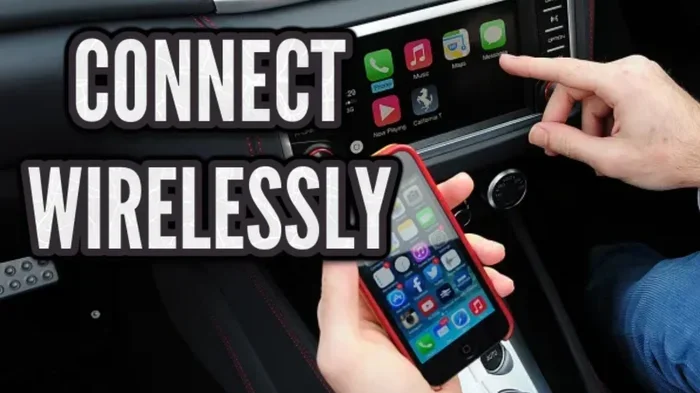
Apple CarPlay is a smartphone integration feature that mirrors your iPhone onto your car screen. It gives you access to maps, music, messages, and phone calls through a simplified interface. Most new car manufacturers now support CarPlay, either through a built-in display or an aftermarket stereo unit.
With Apple CarPlay, you can use Siri voice commands to keep your eyes on the road. You can also stream music, get real-time traffic updates, and send or receive messages safely. It is one of the best reasons to sync your iPhone to your car.
Which Cars Support iPhone Connectivity?
Almost every car made after 2018 supports some form of iPhone connectivity. Many car manufacturers now offer wireless CarPlay as a standard feature. Even older models often support Bluetooth pairing and USB cable connections.
Here are some quick examples of what different car brands offer:
- Toyota and Honda models from the last few years support both wired and wireless CarPlay.
- Ford and Chevrolet vehicles often come with Ford Sync or Chevrolet Infotainment, both compatible with iPhone sync.
- BMW, Mercedes, and Audi luxury brands typically offer full smartphone integration with advanced features.
- Hyundai, Kia, and Subaru include Apple CarPlay in most trims as standard.
Check your car manufacturer’s website or your owner manual to confirm what your specific model supports. This tells you whether you can use wireless sync or need a USB cable connection.
How to Sync Your iPhone to Your New Car Using Bluetooth
Bluetooth pairing is the most popular way to connect an iPhone to a car. It is wireless, convenient, and works with almost every vehicle on the road today. Here is exactly how to do it.
Step-by-Step Bluetooth Pairing
Follow these simple steps to get your iPhone connected to your car through Bluetooth:
- Turn on your car and go to the car settings menu on the infotainment screen.
- Select “Bluetooth” or “Phone” from the settings options.
- Make sure Bluetooth is turned on in your iPhone settings by going to Settings > Bluetooth.
- Your car should appear in the list of available devices on your iPhone.
- Tap on your car name and wait for the pairing request to appear on both screens.
- Confirm the pairing code matches on both devices and tap “Pair.”
- Once connected, you should see a Bluetooth icon on your car display and your iPhone.
That is it! Your iPhone connectivity is now established. You can start making hands-free calls and streaming music right away.
Troubleshooting Bluetooth Connection Issues
Sometimes Bluetooth pairing does not work the first time. This is normal and easy to fix. Here are a few things to try if your phone will not connect:
- Turn Bluetooth off and back on in your iPhone settings. This refreshes the connection.
- Restart your car’s infotainment system by turning the ignition off and back on.
- Delete old paired devices from both your iPhone and car memory to clear conflicts.
- Check for distance — keep your iPhone within a few feet of the car during pairing.
- Make sure airplane mode is off on your iPhone, as it can block Bluetooth signals.
Most sync issues with Bluetooth come from outdated software or a full device memory. A quick restart of both devices solves the problem about 90 percent of the time.
Syncing with a USB Cable for a Stable Connection
While Bluetooth is convenient, a USB cable connection offers a more reliable link between your iPhone and your car. It also charges your phone while you drive, which is a big plus on long trips.
When to Use USB Instead of Bluetooth
There are several situations where plugging in a USB cable makes more sense than using Bluetooth:
- You want wireless CarPlay but your car only supports wired connections.
- Your Bluetooth signal keeps dropping or cutting out during drives.
- You need faster data transfer for music streaming or large map downloads.
- Your phone battery is low and you want to charge while using navigation apps.
- You are using features that require a stable, high-bandwidth connection.
Best USB Cables for iPhone Car Sync
Not all USB cables are created equal. Using the wrong cable can cause slow sync speeds or connection drops. Here are some tips for choosing the right cable:
- Use a Lightning to USB cable or a USB-C to Lightning cable depending on your iPhone model.
- Choose cables from reputable brands like Apple, Anker, or Belkin for reliable performance.
- Avoid cheap, uncertified cables that may not support data transfer properly.
- Make sure the cable is not damaged or frayed, as this causes intermittent connection problems.
Plug the USB end into your car’s port and the Lightning end into your iPhone. Your car should recognize the device automatically and offer you the option to use Apple CarPlay.
Getting the Most Out of Apple CarPlay
Once your iPhone is synced, Apple CarPlay opens up a world of convenience. It is not just about making phone calls — it transforms your car screen into a powerful extension of your iPhone.
Navigation and Maps
One of the best features of Apple CarPlay is access to navigation apps. You can use Apple Maps, Google Maps, Waze, or any supported navigation app right on your car display. You get real-time traffic updates, voice-guided directions, and easy rerouting.
Siri can even suggest destinations based on your daily routine. Just say “Hey Siri, navigate home” and your route appears instantly. This kind of Siri integration keeps your hands on the wheel and your eyes on the road.
Music and Media Playback
Media playback through CarPlay is seamless. You can access Spotify, Apple Music, Pandora, YouTube Music, and other streaming apps directly from your car screen. You can browse playlists, search for songs, and control volume without touching your phone.
Some cars also support podcast apps and audiobook apps through CarPlay. This means your music streaming and entertainment options are nearly endless. Just make sure your playlists are downloaded or your data connection is strong for the best experience.
Hands-Free Calling and Messaging
Hands-free calling is one of the biggest safety benefits of syncing your iPhone to your car. You can answer calls through your car’s audio system and microphone without picking up your phone.
For messaging, CarPlay works with iMessage and supported apps like WhatsApp. Siri reads your messages aloud and lets you dictate replies. This keeps you focused on driving while staying connected. Contact syncing ensures your most frequent callers are just a voice command away.
Quick Tip: Set up your favorite contacts and playlists before you start driving. This way, you can access them quickly through your car screen without searching while on the road.
Common Sync Problems and How to Fix Them
Even with the best setup, you may run into problems from time to time. Knowing how to fix common issues keeps you from pulling your hair out on the highway.
iPhone Won’t Connect to Car
This is the most common complaint people have when trying to sync their devices. The fix is usually simple:
- Make sure Bluetooth is turned on in both your iPhone settings and car settings.
- Check that your car is in discoverable or pairing mode.
- Restart both your iPhone and your car’s infotainment system.
- Forget the car device on your iPhone and try pairing again from scratch.
If none of these work, a firmware update for your car or a software update for your iPhone may be needed. Check your car manufacturer’s website for the latest updates.
Audio Cuts Out or Drops Frequently
Intermittent audio is frustrating, especially when you are trying to enjoy music streaming or a podcast. Here is what to check:
- Move your iPhone closer to the car’s center console if using Bluetooth.
- Check if other Bluetooth devices are interfering with the connection.
- Make sure your car’s software is up to date through a firmware update.
- Switch from Bluetooth to a USB cable connection for a more stable link.
Contacts Not Syncing Properly
If your contacts are not showing up on your car display, try these steps:
- Go to Settings > Bluetooth on your iPhone and tap the info icon next to your car.
- Make sure “Contacts” is turned on under the sync options.
- Restart your iPhone to refresh the connection.
- Check that your contacts are not stored only on a SIM card, as some cars cannot read SIM-only contacts.
Expert Insight: Many sync issues happen because people skip the firmware update step. Car manufacturers regularly release updates that fix bugs and improve iPhone connectivity. Check for updates at least once a month.
Tips for a Seamless iPhone and Car Experience
Getting your iPhone connected is just the beginning. A few smart habits keep everything running smoothly and help you avoid problems down the road.
Keep Your Software Updated
Both iOS and your car’s infotainment system receive regular updates. These updates often include fixes for connection bugs and improvements to smartphone integration. Set a reminder to check for updates once a month.
On your iPhone, go to Settings > General > Software Update. For your car, check your owner manual or visit the car manufacturer’s website for instructions on how to update the system.
Avoid Common Mistakes
There are a few mistakes that cause unnecessary headaches when syncing your iPhone to a car:
- Using a low-quality USB cable that cannot carry data properly.
- Ignoring car settings and not putting the infotainment system in pairing mode.
- Leaving old paired devices in memory, which can cause conflicts with new connections.
- Not restarting devices before troubleshooting, which is the simplest fix for most problems.
- Overlooking battery optimization settings that may limit background iPhone connectivity.
Minimize Battery Drain While Connected
One concern people have is whether keeping their iPhone connected to the car will drain the battery. The answer is yes, it can — but there are ways to manage it:
- Use a USB cable connection instead of Bluetooth for faster charging.
- Turn off media playback apps when you are not actively using them.
- Disable background app refresh for apps you do not need while driving.
- Consider using a car charger that supports fast charging to keep your battery topped up.
With these simple steps, you can enjoy full iPhone connectivity without worrying about running out of battery on a long drive.
Comparing Connection Methods
Not sure which method is best for your needs? Here is a quick comparison of the three main ways to sync your iPhone to your car.
| Feature | Bluetooth | USB Cable | Wireless CarPlay |
|---|---|---|---|
| Connection Type | Wireless | Wired | Wireless |
| Stability | Good | Excellent | Very Good |
| Charging | No | Yes | No (unless wired) |
| Setup Speed | Fast | Fast | Fast |
| Best For | Casual use | Reliable daily use | Modern cars |
As you can see, each method has its strengths. Bluetooth pairing is great for quick, wireless connections. A USB cable connection is the most stable option. And wireless CarPlay offers the best of both worlds if your car supports it.
Quick Tip: If your car supports both Bluetooth and USB, try using USB for navigation and media, and Bluetooth for hands-free calls. This gives you the best of both connection methods.
Conclusion
Now you know exactly how to handle how do I sync my iPhone to my new car in any situation. Whether you prefer Bluetooth pairing, a USB cable connection, or the full experience of Apple CarPlay, the process is simpler than most people think.
Start with Bluetooth for a quick wireless setup. Switch to USB for a more stable connection and faster charging. Explore CarPlay to unlock navigation, music, and hands-free calling on your car screen. And remember — most sync problems have simple fixes that take just a few minutes.
Keep your software updated, use quality cables, and do not be afraid to restart your devices when things go wrong. With these tips, your iPhone connectivity with your new car will be seamless and worry-free. Enjoy the drive and stay connected on every journey.