Why Is Navigation Not Working on My iPhone Right Now
Navigation not working on your iPhone is frustrating, especially when you need directions while driving. Several common causes like GPS signal loss, location settings, and app glitches can stop your iPhone navigation from functioning properly. This guide walks you through the most effective fixes to get your turn-by-turn directions working again quickly.
You are on your way to an important meeting. You tap your navigation app, and nothing happens. No route. No directions. Just a blank screen or a spinning wheel. This is one of the most annoying things that can happen, especially when you are driving. So why is navigation not working on my iPhone right now?
The truth is, there are many reasons your iPhone navigation might fail. It could be a simple settings issue. It could be a software bug. Or it could be a signal problem. The good news is that most of these problems have easy fixes. You do not need to be a tech expert to solve them. In this guide, we will walk through every common cause and show you exactly how to fix it.
Whether you rely on Apple Maps, Google Maps, Waze, or another app, this article covers it all. We will look at GPS signal loss, location services problems, network issues, and more. By the end, you will know exactly what to do when your turn-by-turn directions stop working. Let us get your iPhone GPS back on track.
Key Takeaways
- Location Services Matter: Disabled or misconfigured location settings are the top reason your iPhone navigation stops working.
- Software Updates Fix Bugs: Outdated iOS versions often cause GPS not working on iPhone issues that a simple update resolves.
- Network Connection Is Key: Cellular data and Wi-Fi both play a role in accurate map directions and real-time traffic updates.
- App-Specific Problems Exist: Apple Maps and third-party apps like Google Maps each have unique troubleshooting steps.
- Quick Restarts Help: A simple restart or force reboot fixes many temporary navigation app frozen problems.
- Calibration Fixes Drift: Recalibrating your iPhone compass can solve inaccurate routing and wrong directions.
📑 Table of Contents
- Why Is Navigation Not Working on My iPhone Right Now
- Check Your Location Services First
- Fix Your Network Connection for Better GPS
- Update Your iPhone Software and Apps
- Calibrate Your iPhone Compass
- Troubleshoot Specific Navigation Apps
- Advanced Fixes for Stubborn Navigation Problems
- How to Prevent Navigation Problems in the Future
- Final Thoughts
Why Is Navigation Not Working on My iPhone Right Now
When your navigation app suddenly stops working, it can feel like your whole trip plan falls apart. You might miss a turn. You might get lost. Or worse, you might try to fiddle with your phone while driving, which is dangerous. Understanding why this happens is the first step to fixing it.
Most of the time, the cause falls into one of a few categories. It is either a settings problem, a signal issue, or a software glitch. Sometimes it is a combination of all three. Let us break down each one so you can quickly identify what is going on with your iPhone navigation.
Common Reasons Your iPhone Navigation Fails
Several factors can cause your GPS not working on iPhone. Here are the most common ones:
- Location Services Are Off: If your iPhone cannot access your location, no map app can show you where you are.
- Poor Cellular or Wi-Fi Signal: Maps need data to load routes and traffic information.
- Outdated iOS Software: Old software versions often have bugs that break navigation app performance.
- App Glitches: Even the best apps can freeze or crash, especially after a long session.
- Compass Calibration Issues: A miscalibrated compass can send you in the wrong direction.
- Screen Overlays or Background Apps: Other apps can interfere with how your iPhone map functions.
Each of these issues has a clear solution. The next sections will walk you through them one by one.
Check Your Location Services First
The most common reason iPhone navigation fails is that location services are turned off or not set correctly. Your phone needs permission to know where you are before any map app can work. This is the first thing you should check when your GPS not working on iPhone problem starts.
How to Turn On Location Services
Follow these simple steps to make sure your location permissions are set right:
- Open the Settings app on your iPhone.
- Tap Privacy & Security.
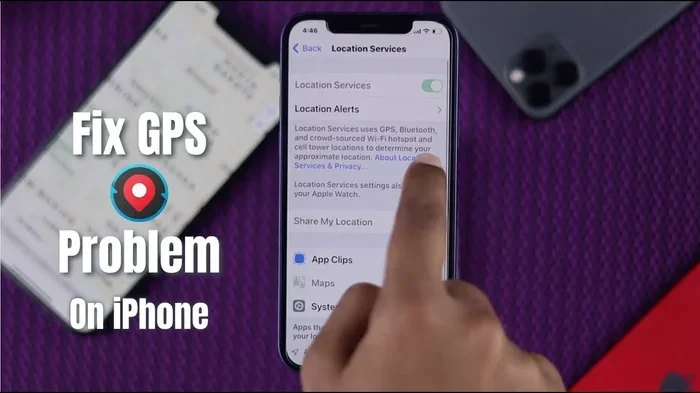
- Select Location Services.
- Make sure the toggle at the top is turned ON.
- Scroll down and find your navigation app (Apple Maps, Google Maps, Waze, etc.).
- Tap on it and select Always or While Using the App.
Once you do this, your iPhone map should be able to detect your location. If it still does not work, try the next fix.
Quick Tip: If you use multiple navigation apps, make sure you check the location permissions for each one. Some apps need Always access to provide reliable turn-by-turn directions in the background.
Fix Your Network Connection for Better GPS
Your iPhone GPS relies on more than just satellites. It also uses cellular data and Wi-Fi to load maps, calculate routes, and show real-time traffic. If your network connection is weak or turned off, your navigation app might not work properly.
Why Cellular Data Matters for Navigation
Even though GPS itself does not need data, the maps and traffic information definitely do. When you are driving and your iPhone navigation shows a blank map or fails to load a route, the problem is often your data connection.
Here is what you can do:
- Make sure Cellular Data is turned on in Settings > Cellular.
- Check that your carrier settings are up to date.
- Try toggling Airplane Mode on and off to reset your connection.
- If you are in a dead zone, download offline maps before your trip.
Download Offline Maps Before You Drive
One of the best ways to prevent navigation app frozen issues is to download offline maps. Both Apple Maps and Google Maps let you save areas for offline use. This means you can still get directions even if you lose your signal in a tunnel or a rural area.
To download offline maps in Google Maps, search for your destination, tap the three dots, and select Download offline map. In Apple Maps, you can download regions by going to your profile and selecting Download Maps.
Update Your iPhone Software and Apps
Outdated software is one of the sneakiest causes of iPhone navigation problems. Apple releases iOS updates regularly to fix bugs and improve performance. If you have not updated in a while, your GPS signal lost issue might be caused by a known bug that has already been patched.
How to Update Your iPhone
Updating your iPhone is simple and can fix many navigation app issues:
- Open Settings.
- Tap General.
- Select Software Update.
- If an update is available, tap Download and Install.
- Wait for the update to complete and restart your phone.
Also, check your navigation app for updates in the App Store. Developers frequently release patches that fix map app lag iPhone problems and improve turn-by-turn directions accuracy.
Calibrate Your iPhone Compass
Your iPhone compass plays a big role in navigation. If it is not calibrated correctly, your blue dot might be pointing the wrong way, and your routes could be off. This is especially common after you update your iOS or if you have been traveling long distances.
How to Calibrate the Compass
Here is a simple exercise to recalibrate your iPhone compass:
- Open the Compass app on your iPhone.
- Move your phone in a figure-eight motion two or three times.
- Make sure the blue dot moves smoothly.
- Once the calibration is complete, open your navigation app again.
This trick works because it resets the iPhone compass sensors. It is one of the fastest ways to fix inaccurate routing and wrong directions. Many people do not know about this, but it solves a surprising number of GPS not working on iPhone issues.
Troubleshoot Specific Navigation Apps
Not all navigation app problems are the same. Different apps have different quirks. Here is how to troubleshoot the most popular ones.
Apple Maps Not Responding
If Apple Maps is not working, try these steps:
- Force close the app and reopen it.
- Check that Location Services are enabled for Apple Maps.
- Make sure your date and time settings are set to automatic.
- Reset your network settings if the map will not load.
Sometimes Apple Maps needs a fresh start. Clearing the app cache by restarting your iPhone often does the trick.
Google Maps Crashing or Freezing
Google Maps is a great app, but it can have issues too. If your navigation app frozen problem happens with Google Maps:
- Update Google Maps to the latest version.
- Clear the app cache by offloading the app (Settings > General > iPhone Storage > Google Maps > Offload App).
- Check your cellular data connection.
- Make sure background app refresh is enabled for Google Maps.
Waze or Other Third-Party Apps
Apps like Waze rely heavily on real-time data and community reports. If Waze is not giving you turn-by-turn directions, check your internet connection first. Waze uses a lot of data, so a weak signal can cause it to lag or fail to load routes.
Advanced Fixes for Stubborn Navigation Problems
If the basic fixes above did not solve your iPhone navigation issue, it is time to try some advanced troubleshooting. These steps address deeper system-level problems that can cause persistent GPS signal lost errors.
Reset All Settings on Your iPhone
Resetting all settings does not delete your data. It simply restores your system settings to their defaults. This can fix deep configuration issues that affect your navigation app.
Go to Settings > General > Transfer or Reset iPhone > Reset > Reset All Settings. You will need to re-enter your Wi-Fi passwords, but this often solves stubborn iPhone map problems.
Check for Screen Overlays
Sometimes other apps draw overlays on your screen that interfere with iPhone navigation. Apps like screen dimmers, blue light filters, or chat heads can block touch inputs on your map. Close all background apps and try navigating again.
Contact Apple Support
If nothing else works, there might be a hardware issue. Your iPhone GPS antenna could be damaged, especially if you have dropped your phone or exposed it to moisture. In this case, it is best to contact Apple Support or visit an authorized service center.
How to Prevent Navigation Problems in the Future
Prevention is always better than cure. Here are some habits that keep your iPhone navigation running smoothly:
- Keep Your iOS Updated: Always install the latest software updates as soon as they are available.
- Restart Your iPhone Weekly: A regular restart clears temporary glitches that can affect your GPS not working on iPhone performance.
- Download Offline Maps: Always have offline maps ready for areas with poor signal.
- Check Location Permissions Monthly: Apps sometimes reset permissions after updates.
- Keep Storage Space Available: A full iPhone can slow down app performance, including your navigation app.
- Use Wi-Fi When Possible: Loading maps on Wi-Fi before a trip reduces data strain while driving.
These simple habits go a long way in keeping your turn-by-turn directions reliable and your iPhone GPS accurate every time you hit the road.
Final Thoughts
So why is navigation not working on my iPhone right now? As you have learned, the answer is usually one of several common causes. It could be a location services setting, a weak network connection, an outdated app, or a compass that needs recalibrating. The good news is that almost all of these problems are easy to fix, and you can do it yourself in just a few minutes.
iPhone navigation is a vital tool for daily life. Whether you are commuting to work, traveling to a new city, or simply running errands, you need your GPS not working on iPhone issues resolved quickly. By following the steps in this guide, you can troubleshoot and fix most navigation problems on your own.
Remember to keep your software updated, check your location permissions, and maintain a strong network connection. And if all else fails, a simple restart or a compass recalibration often does the job. Now you are ready to get back on the road with confidence, knowing exactly how to handle navigation not working on iPhone when it happens again.
Stay safe, stay connected, and never let a broken navigation app ruin your day again.
Frequently Asked Questions
Why Is My Apple Maps Not Showing My Location?
This usually happens when location services are turned off or the app does not have permission to access your location. Go to Settings > Privacy & Security > Location Services and make sure Apple Maps is set to While Using the App or Always.
Can a Weak Signal Cause Navigation to Stop Working?
Yes, absolutely. Your iPhone GPS needs cellular data or Wi-Fi to load maps and traffic information. If you are in an area with a weak signal, your navigation app may freeze or fail to calculate a route. Downloading offline maps before your trip can help prevent this.
How Do I Fix a Frozen Navigation App on My iPhone?
Force close the app by swiping up from the bottom of your screen and swiping the app card away. Then reopen it. If that does not work, restart your iPhone. This clears temporary glitches that cause navigation app frozen problems.
Does My iPhone Need a Data Connection to Use GPS?
The GPS chip itself works without data, but maps, routes, and traffic updates all require a data connection. Without cellular data, your iPhone map may show your location but cannot load routes or traffic info. Use offline maps to navigate without data.
How Often Should I Calibrate My iPhone Compass?
You should calibrate your iPhone compass whenever you notice your blue dot pointing the wrong way or your routes seem inaccurate. A simple figure-eight motion in the Compass app takes just a few seconds and can fix many GPS signal lost issues.
Will Resetting My iPhone Fix Navigation Problems?
Resetting all settings can fix deep configuration issues that affect iPhone navigation. It restores system settings to defaults without deleting your data. Go to Settings > General > Transfer or Reset iPhone > Reset > Reset All Settings to try this fix.