How Do I View Footage on My Dash Cam and Review It
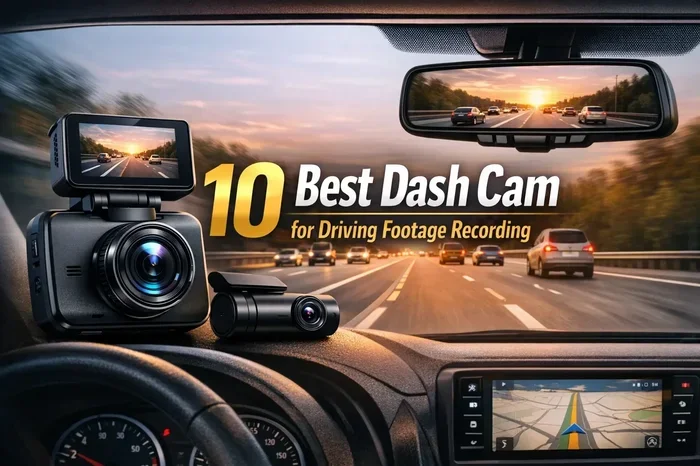
Viewing your dash cam footage is simple once you know the right steps. You can watch clips directly on the device screen, pull the SD card out and use a computer, or connect through a mobile app. How do I view footage on my dash cam and make sure you keep the right clips? This guide walks you through every method so you never miss a moment on the road.
Have you ever wanted to watch what happened on your drive but did not know where to start? How do I view footage on my dash cam is one of the most common questions new dashboard camera owners ask. The good news is that it is much easier than it sounds. Whether you want to check a minor fender bender, save a close call, or just see your daily commute, reviewing your dash cam video takes only a few simple steps.
Most dash cams come with built-in playback options right on the device. You can also remove the SD card and plug it into a laptop or desktop. Many newer models even let you use a dash cam app on your phone through Wi-Fi or Bluetooth. Dash cam footage can serve as important evidence, so knowing how to access and review it quickly is a real skill. In this guide, we will cover every method in detail so you feel confident finding and saving your clips.
Key Takeaways
- Screen Playback: You can review dash cam video right on the device using the built-in menu and navigation buttons.
- SD Card Access: Removing the memory card and plugging it into a computer is the most reliable way to manage and backup footage.
- Wi-Fi and Mobile Apps: Many modern dashboard cameras offer wireless connectivity for easy mobile app view and quick sharing.
- Loop Recording: Understanding how loop recording works helps you know which clips are still saved and which have been overwritten.
- Event Markers: Using the save or lock feature protects important footage from being auto-deleted during normal recording.
- Regular Review: Making a habit of checking your dash cam footage weekly helps you catch issues early and keep your files organized.
📑 Table of Contents
- How Do I View Footage on My Dash Cam Using the Built-In Screen
- How to Access Footage by Removing the SD Card
- Using Wi-Fi and Mobile Apps for Dash Cam Playback
- How to Review and Manage Your Dash Cam Videos Effectively
- Common Mistakes People Make When Viewing Dash Cam Footage
- Quick Tips for Better Dash Cam Footage and Storage
- Expert Insights on Dash Cam Footage Management
- Conclusion
How Do I View Footage on My Dash Cam Using the Built-In Screen
The easiest way to do a dash cam playback is directly on the device itself. Almost all dash cams with a screen have a dedicated playback or review button. This lets you watch clips without needing any extra tools or cables. It is the fastest method when you want to check something right after a drive.
Step-by-Step Screen Playback
Follow these simple steps to watch your clips on the dash cam screen:
- Turn on the dash cam. Make sure it has power and is not in standby mode. Most devices show a live feed by default when they are running.
- Press the playback or menu button. This is usually a button with a triangle icon or labeled “Review” or “Playback.” Press it once to enter the file browser.
- Navigate through your clips. Use the arrow buttons or touchscreen to scroll through saved videos. Clips are usually sorted by date and time.
- Select the clip you want to watch. Press the OK or center button to start playing the video. Use the same controls to pause, rewind, or fast forward.
- Exit the playback mode. Press the back or menu button to return to the live view or the home screen.
This method works great for a quick check after a drive. However, the small screen size can make it hard to see fine details. If you need to share a clip or examine it closely, you will want to try another method.
Using the Quick View or Emergency Save Feature
Many dash cams have an event marker or emergency save button. When you press this during or right after an incident, the dash cam locks that clip so it does not get deleted by loop recording. This is a key feature because loop recording continuously overwrites the oldest footage when the memory card fills up. Without event markers, important clips might be lost within minutes.
To use this feature, simply press the dedicated button when something happens on the road. You will usually hear a beep or see a flash on the screen. The clip is then saved in a protected folder that the auto-delete process skips over. Later, when you do your review dash cam video session, these protected clips will stand out in a separate folder.
How to Access Footage by Removing the SD Card
The most reliable way to manage your dash cam footage is to take the memory card out of the device. This gives you full control over your files. You can watch clips on a bigger screen, organize them into folders, and create a footage backup to keep your videos safe. This method works with almost every dash cam that uses a SD card dash cam setup.
What You Will Need
- A microSD card reader or an adapter that fits your computer
- A computer or laptop with a card slot or USB port
- A file management app like VLC Media Player or Windows Media Player
- An external hard drive if you want to store copies long-term
Steps to View Footage via SD Card
- Turn off the dash cam. This prevents any file corruption when you remove the card. Wait a few seconds for the device to fully power down.
- Open the dash cam housing. Most models have a small latch or slide mechanism on the front or back. Gently pop open the cover to reveal the memory card slot.
- Remove the microSD card carefully. Use your fingernail or a small tool to push the card out. Do not force it.
- Insert the card into your computer. Use a card reader or an SD adapter that fits a standard SD slot. Your computer should recognize the card within a few seconds.
- Open the file folder. Navigate to the drive that appears on your computer. Look for a folder named “DCIM,” “Video,” or something similar. This is where your dash cam footage is stored.
- Double-click on a video file to play it. Use VLC or any media player that supports MP4 or AVI formats. You can now watch, copy, or share the files with ease.
This method is perfect when you need to send footage to your insurance company or save a copy for your personal records. Always eject the card safely before putting it back into the dash cam.
Understanding File Formats and Folder Structures
Most dash cams save videos in MP4 format because it is widely compatible and takes up less space. The files are usually named with a date and time stamp, which makes it easy to find the right clip. Some dash cams also save GPS footage as a separate data file alongside the video. This file contains location and speed data that can be very useful for insurance claims or dispute resolution.
If you are doing file management regularly, consider creating a folder on your computer for each month. Move clips into the correct folders so you can find them quickly when you need them. Good organization saves a lot of time, especially if you have months of driving data stored on your card.
Using Wi-Fi and Mobile Apps for Dash Cam Playback
If your dash cam has Wi-Fi capability, you can view clips directly on your phone or tablet. This is one of the most convenient ways to do a mobile app view of your dash cam footage. Many popular brands like Garmin, BlackVue, and Thinkware offer dedicated dash cam apps that connect to the camera through a wireless signal.
Setting Up Your Dash Cam App
- Download the official app from your app store. Search for the brand name of your dash cam. Make sure you download the correct app for your specific model.
- Turn on Wi-Fi on your phone. Most dash cams create their own Wi-Fi network. Go to your phone’s Wi-Fi settings and look for the dash cam’s network name.
- Connect to the dash cam’s Wi-Fi. The password is usually printed on the device or in the user manual. Once connected, open the app.
- Browse and select your clips. The app will show you a list of available videos. Tap on any clip to start dash cam playback right on your phone screen.
- Download or share clips. Most apps let you save clips to your phone’s gallery or share them via email, text, or messaging apps.
Using a Wi-Fi dash cam is incredibly handy when you want to show a clip to someone right away. For example, if you are in a minor accident at a parking lot, you can pull up the video on your phone and show it to the other driver or your insurance agent within minutes. The video quality on a phone screen is also much easier to see than the tiny dash cam display.
Limitations of Mobile App Viewing
While mobile apps are very convenient, they do have some limits. The download speed depends on the Wi-Fi signal strength, and large files can take a while to transfer. Also, you should not rely solely on the app for long-term storage. Always back up important clips to your computer or cloud storage. Motion detection and parking mode recordings can fill up your memory card quickly, so regular review and cleanup is important.
How to Review and Manage Your Dash Cam Videos Effectively
Simply knowing how to view dash cam footage is only half the battle. Managing your videos properly ensures you keep the clips that matter and free up space for new recordings. A good review routine helps you stay organized and prepared if you ever need to file a claim.
Create a Weekly Review Habit
Set aside 10 to 15 minutes each week to go through your dash cam footage. Pull out the SD card, plug it into your computer, and scan through the clips from the past week. Look for any incidents, near-misses, or unusual events. This habit takes very little time but can save you a lot of stress if you ever need evidence later.
Organize Clips by Category
Consider sorting your videos into categories like:
- Incidents: Any clip showing an accident, near-miss, or road dispute
- Daily Drives: Regular commutes and trips that do not involve any events
- Parking Mode Clips: Videos captured while your car was parked, especially if motion detection triggered a recording
- GPS Data: Speed and location files that pair with your video clips
This kind of organization makes it easy to find specific clips when you need them fast. It also keeps your memory card from getting cluttered with old files you no longer need.
When to Delete vs. When to Keep
Not every clip needs to be saved. Daily drives with nothing unusual happening can be deleted to free up space. However, keep any clip that shows:
- A collision or minor accident
- A hit-and-run or parking lot incident
- Unusual road behavior from other drivers
- Weather-related road hazards
- Any situation where you might need to prove your version of events
When in doubt, keep the clip. Storage space is cheap, and losing a valuable piece of evidence because you deleted it too early can be very costly.
Common Mistakes People Make When Viewing Dash Cam Footage
Even experienced dash cam users sometimes make mistakes when it comes to footage retrieval and review. Avoiding these common errors will help you get the most out of your dashboard camera.
Forgetting to Lock Important Clips
The biggest mistake is not using the event marker or save button when something happens. If you do not lock a clip, your dash cam’s loop recording feature will eventually overwrite it. Always make a habit of pressing the save button right after an incident. This small action can make a huge difference when you need the footage later.
Not Checking the SD Card Regularly
Many people set their dash cam and forget about it for months. Over time, the SD card can become fragmented or develop errors. Regularly removing the card and checking it on a computer helps you spot problems early. It also gives you a chance to do a proper footage backup to a separate drive or cloud storage.
Using the Wrong File Player
Some dash cams record in formats that not all media players support. If a video will not play on your computer, try downloading VLC Media Player. It supports almost every video format and is free to use. This simple fix can save you a lot of frustration during dash cam playback.
Ignoring Video Quality Settings
Low video quality settings can make it hard to read license plates or see details in an incident. Check your video quality settings in the dash cam menu and set it to the highest resolution your card can handle. Higher quality means better evidence if you ever need to use the footage.
Quick Tips for Better Dash Cam Footage and Storage
Here are some practical tips to improve your overall experience with your dashboard camera:
- Use a high-quality SD card: Buy a Class 10 or U3 rated microSD card with at least 64GB of storage. Cheap cards can fail and corrupt your footage.
- Format your card regularly: Format the card in the dash cam every month to keep it running smoothly and reduce file errors.
- Keep your dash cam firmware updated: Manufacturers often release updates that improve playback, fix bugs, and add new features.
- Position the camera correctly: A well-positioned dash cam captures clearer footage with fewer distortions, making review much easier.
- Clean the lens regularly: A dirty lens leads to blurry clips. Wipe it with a microfiber cloth every week or two.
- Enable parking mode with motion detection: This ensures your dash cam keeps recording even when your car is parked, giving you extra protection against hit-and-runs.
Expert Insights on Dash Cam Footage Management
Professional dash cam users and traffic safety experts recommend treating your dashboard camera footage like any other important digital file. Just as you would back up photos or documents, your dash cam footage deserves the same care. Experts suggest keeping at least two copies of any important clip: one on the SD card and one on your computer or in the cloud.
Another expert tip is to review your GPS footage alongside the video. Speed data and location stamps add credibility to your recordings, especially in insurance disputes. Some dash cams even let you export GPS data as a separate file or overlay it directly on the video for a more complete record of the event.
Finally, do not wait until you need footage to figure out how your dash cam works. Spend a few minutes now learning the file management tools and playback options. When an incident does happen, you will be glad you took the time to understand your device.
Conclusion
Knowing how do I view footage on my dash cam is a simple but essential skill for every driver. Whether you prefer screen playback on the device, SD card dash cam access on your computer, or a quick mobile app view through Wi-Fi, there is a method that works for you. The key is to make reviewing your dash cam footage a regular habit and to always lock important clips with the event marker feature.
Take a few minutes today to explore your dash cam’s playback options. Try each method so you feel comfortable when you need it most. With the right approach to review dash cam video and footage backup, you will always have the evidence you need, right when you need it. Your dashboard camera is a powerful tool, and knowing how to use it fully is the best way to get your money’s worth out of it.
Frequently Asked Questions
Can I view dash cam footage without removing the SD card?
Yes, if your dash cam has a built-in screen, you can watch clips directly on the device. Many modern models also offer Wi-Fi connectivity, which lets you use a companion app on your phone to stream and download videos without touching the SD card at all.
What format are dash cam video files saved in?
Most dash cams save footage in MP4 format, which is widely supported by almost all media players and devices. Some older or budget models may use AVI or other formats, but MP4 is the standard for high-quality and compatible playback.
How long does dash cam footage stay on the SD card?
This depends on your card size, video quality settings, and whether loop recording is enabled. With a 64GB card and standard quality settings, most dash cams keep between 8 and 15 hours of footage before the oldest clips start getting overwritten.
Why can’t I play my dash cam video on my computer?
This is usually because your media player does not support the specific codec or format used by your dash cam. Try downloading VLC Media Player, which plays nearly all video formats. If that does not work, check if your dash cam brand offers a dedicated desktop viewer application.
Does parking mode affect how I view footage?
Parking mode recordings are saved the same way as regular footage. You access them through the same playback methods. The only difference is that these clips are triggered by motion detection or impact sensors while your car is parked, so they may be shorter and less frequent than your normal driving clips.
Is it safe to delete old dash cam footage?
Yes, it is safe to delete clips you no longer need, especially if your SD card is running low on space. However, always make sure you have backed up any important footage first. Once a clip is deleted from the SD card, it can be very difficult or impossible to recover.