How Do I Fix My Startup Screen And Get Back To Work
A stuck or frozen startup screen can stop you from getting things done fast. Whether your display shows a blank screen, a loading loop, or an error message, the fix is often simpler than you think. This guide walks you through proven startup screen troubleshooting steps that work for most devices and setups. You will learn how to identify the root cause, apply quick fixes, and prevent the problem from coming back.
There is nothing more frustrating than pressing the power button and waiting for your screen to come alive, only to be greeted by a blank display, a frozen logo, or a confusing error message. Your startup screen is the first thing you see when you turn on your device, and when it fails to load properly, it can shut down your entire day. Whether you are trying to get to work, finish a project, or just check your email, a broken startup screen feels like a brick wall between you and productivity.
The good news is that most startup screen problems have straightforward solutions. You do not need to be a tech expert to fix them. In this guide, we will walk you through every step you need to take to diagnose and resolve startup screen issues on your device. From simple reboots to deeper troubleshooting, you will find practical fixes that actually work. Let us get you back to work.
Key Takeaways
- Restart First: A simple reboot clears most temporary startup screen glitches and resets your display settings.
- Check Your Cables: Loose or damaged connections are one of the most common reasons for a black or frozen startup screen.
- Safe Mode Is Your Friend: Booting into safe mode helps you isolate software conflicts that cause startup screen errors.
- Update Your Drivers: Outdated display drivers are a leading cause of startup screen problems on both computers and vehicles.
- Prevent Future Issues: Regular maintenance, updated software, and clean hardware connections keep your startup screen running smoothly.
📑 Table of Contents
What Is A Startup Screen And Why Does It Matter
Your startup screen is the first visual display your device shows after you power it on. On a computer, this might be the manufacturer logo, the operating system loading screen, or the lock screen. On a vehicle, the startup screen could be the infotainment display that shows your radio, navigation, or phone connectivity options. On a phone or tablet, it is the splash screen that appears before you reach your home screen.
The startup screen matters because it tells you your device is working correctly. When something goes wrong at this stage, it usually means there is a problem with your hardware, software, or settings. Understanding what your startup screen is supposed to look like helps you quickly spot when something is off. A normal startup screen should appear within a few seconds of pressing the power button and transition smoothly to your main desktop or home screen.
Common Types Of Startup Screens
Different devices show different startup screen experiences. Here are the most common types you might encounter:
- Manufacturer Logo Screen: This is the brand logo that appears first on computers and some vehicles. It confirms the device is powering on.
- Operating System Loading Screen: On Windows, this is the spinning dots or progress bar. On a Mac, it is the Apple logo with a progress indicator.
- Infotainment Display: Modern vehicles show a startup screen on the dashboard display that connects to your phone and navigation system.
- Lock Screen: On phones and tablets, the startup screen leads directly to the lock screen where you enter your passcode or use biometric login.
Knowing which type of startup screen you are dealing with helps narrow down the cause of the problem. If your infotainment screen freezes on the logo, the issue might be different from a computer that shows a black screen after the loading bar completes.
Why Your Startup Screen Might Be Stuck Or Frozen
There are many reasons your startup screen might not work properly. Understanding the cause is the first step toward fixing it. Here are the most common culprits behind startup screen problems.
Hardware Connection Issues
Loose cables and damaged connections are the number one cause of a blank or frozen startup screen. If your monitor cable is not seated properly, your screen might show nothing at all. The same goes for internal connections inside a desktop computer. Over time, cables can loosen from regular movement or vibration.
For vehicles, a loose connection to the infotainment system can cause the startup screen to freeze or fail to load. This is especially common after a battery replacement or when aftermarket accessories are installed. Always check your physical connections first before moving on to more complex fixes.
Software And Driver Problems
Outdated or corrupted display drivers can cause your startup screen to behave unpredictably. When your operating system tries to load the display driver during boot and encounters an error, the screen might freeze, flicker, or show a black screen. This is especially common after a system update or when you install new hardware.
On vehicles, software glitches in the infotainment system can also cause the startup screen to hang. Many car manufacturers release updates to fix these issues. If your vehicle screen gets stuck on the loading logo, a software update might be all you need.
Power Supply Problems
Insufficient power delivery can prevent your startup screen from displaying correctly. If your power supply unit is failing or your battery is weak, the device might power on partially but fail to fully initialize the display. This often shows up as a dim screen, a screen that turns on and off repeatedly, or no display at all despite the device being powered.
Overheating And Thermal Issues
When your device overheats, it might shut down or freeze during the startup process. A startup screen that appears briefly and then goes black could be a sign of thermal protection kicking in. Dust buildup, faulty fans, or high ambient temperatures can all contribute to overheating problems that affect your display during boot.
Step By Step Startup Screen Troubleshooting
Now that you understand the common causes, let us walk through the actual fixes. Follow these steps in order, starting with the simplest solutions first.
Step One: Perform A Hard Restart
The first and most important step is always a hard restart. This clears temporary memory and resets your display subsystem. To do a hard restart, press and hold the power button for ten to fifteen seconds until the device completely shuts off. Wait a few seconds, then press the power button again to turn it back on.
For vehicles, a hard reset of the infotainment system usually involves holding the power button on the display for twenty to thirty seconds. This force restarts the system and often clears a frozen startup screen immediately.
A hard restart fixes the majority of startup screen issues. It should always be your first move before trying anything more complex.
Step Two: Check All Cables And Connections
Next, inspect every cable connected to your display. On a desktop computer, check the HDMI, DisplayPort, or VGA cable running from your computer to your monitor. Make sure both ends are firmly seated. If you have a spare cable, try swapping it out to rule out a damaged cable.
For vehicle owners, check the connection between the infotainment unit and the vehicle’s main wiring harness. If you recently had your car serviced or installed a new device, a loose connection there could be causing the startup screen problem. Also, make sure your phone is properly connected if the startup screen depends on phone integration.
Many people skip this simple step, but loose cables account for a huge percentage of startup display problems. It takes less than a minute to check and could save you hours of frustration.
Step Three: Try Safe Mode
Safe mode loads your device with only the essential drivers and software. If your startup screen works in safe mode but not in normal mode, you know the problem is caused by a software conflict or a third-party application.
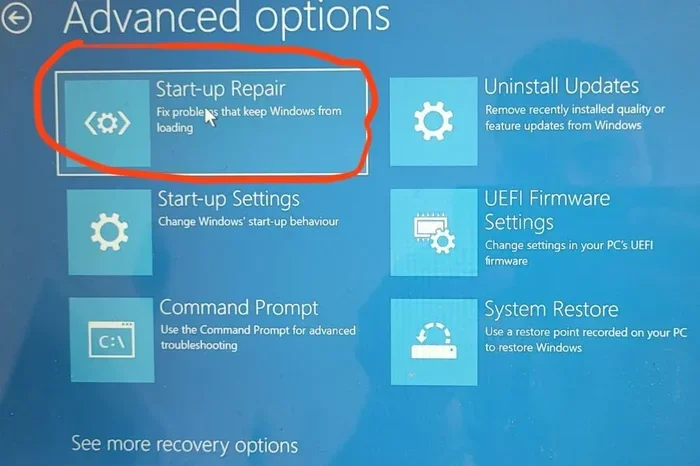
To boot into safe mode on Windows, hold the Shift key while clicking Restart, then select Troubleshoot, Advanced Options, Startup Settings, and Safe Mode. On a Mac, hold the Shift key immediately after pressing the power button. On most vehicles, you can access a safe mode or diagnostic screen by holding specific button combinations on the infotainment panel.
Safe mode is one of the most powerful startup screen troubleshooting tools available. It instantly tells you whether the problem is software-related or hardware-related.
Step Four: Update Or Roll Back Display Drivers
If safe mode works but normal mode does not, your display driver is likely the culprit. Update your graphics driver to the latest version from the manufacturer’s website. On Windows, you can use Device Manager to find and update your display adapter driver.
If the problem started after a recent driver update, try rolling back to the previous version. Right-click the Start button, open Device Manager, expand Display Adapters, right-click your graphics card, and select Properties. From there, you can roll back the driver to an earlier version.
Keeping your display drivers up to date is one of the best ways to prevent startup screen problems from occurring in the first place. Set a reminder to check for driver updates once a month.
Step Five: Check Your Power Settings And Battery
Your power settings can affect how your startup screen behaves. If your device is set to conserve power aggressively, it might reduce display output during startup. Check your power plan settings and make sure your display is not set to turn off too quickly or dim too aggressively.
For laptops and vehicles, a weak battery can cause startup display problems. If your battery is old or damaged, it might not provide enough power to fully initialize the display during boot. Consider replacing the battery if it is more than three to five years old and you are experiencing recurring startup screen issues.
Step Six: Reset Display Settings
Sometimes your display settings get corrupted, causing the startup screen to show incorrectly. Resetting your display settings to default can fix this. On Windows, go to Settings, System, Display, and click Advanced Display Settings. Look for the option to restore default display settings.
On a vehicle infotainment system, you can usually reset display settings by going to the Settings menu and selecting Factory Reset or Display Reset. Be aware that this will erase your custom settings, so make sure you note any important preferences first.
Car Infotainment Startup Screen Issues
Modern vehicles rely heavily on their infotainment startup screen for navigation, music, phone connectivity, and vehicle settings. When this screen fails to load properly, it can affect your entire driving experience. Car startup screen problems often involve phone syncing, voice assistant features, and connectivity settings that load during the boot process.
Phone Connectivity And Startup Screen Problems
If your car’s startup screen depends on phone integration, connectivity issues can prevent it from loading correctly. When you get into your vehicle and the screen stays on the manufacturer logo or shows an error, your phone pairing might be the problem. If your iPhone is not syncing properly with your new car, the infotainment startup screen might hang while trying to establish a connection.
To fix this, make sure your phone is not in pairing mode when you start the car. If your phone keeps trying to search for devices during startup, it can delay or block the startup screen from fully loading. You can also try turning off voice assistant mode on your phone before starting the car, as some systems get stuck when they attempt to activate voice features during the boot sequence.
For a smoother experience, put your phone in pairing mode only when you need to connect it. Leaving it in pairing mode can cause the car’s startup screen to get stuck trying to find a device to connect to each time you turn on the ignition.
When To Seek Professional Help For Car Display Issues
If you have tried all the basic troubleshooting steps and your vehicle’s startup screen still does not work, it may be time to visit a professional. Dealership service centers and qualified auto electronics technicians can diagnose deeper issues with the infotainment system. Some problems require specialized diagnostic tools that are not available to the average car owner.
Before visiting a dealer, make sure you have your vehicle identification number handy and any recent service records. This information helps technicians quickly identify whether the problem is related to a known issue or a unique hardware failure.
Preventing Startup Screen Problems In The Future
The best way to deal with a startup screen problem is to prevent it from happening in the first place. A few simple habits can keep your display working smoothly for years.
Keep Your Software Updated
Software updates often include fixes for display bugs and startup issues. Make it a habit to check for updates regularly. On your computer, enable automatic updates so you never miss a critical patch. On your vehicle, check for infotainment software updates at each service visit. Many manufacturers release updates that specifically address startup screen reliability.
Keep Your Hardware Clean
Dust and debris can accumulate inside your device and cause connection issues. Clean your ports and cable connections regularly. For desktop computers, open the case every few months and use compressed air to remove dust from the motherboard and connection points. For vehicles, keep the infotainment screen and its ports free of dust and debris.
Use Quality Cables And Accessories
Cheap cables are a common source of display problems. Invest in high-quality cables from reputable brands. A good HDMI or DisplayPort cable costs a few dollars more but can save you from countless startup screen headaches. The same applies to car adapters and charging cables that connect to your infotainment system.
Avoid Overloading Your System
Running too many programs at startup can strain your system and cause display issues during boot. On your computer, go through your startup programs and disable anything you do not need. On your vehicle, avoid installing too many third-party apps on the infotainment system, as they can slow down the startup screen and cause conflicts.
Expert Tips For A Smooth Startup Experience
Here are some expert-backed tips that will help you maintain a healthy startup screen and avoid problems before they start.
- Restart Your Device Weekly: Regular restarts clear temporary files and refresh your system. This simple habit prevents many startup display issues.
- Monitor Your System Temperatures: Keep an eye on your device temperatures, especially during heavy use. Overheating is a leading cause of startup screen failures.
- Back Up Your Settings: Before making any major changes, back up your display and system settings. This makes it easy to restore them if something goes wrong.
- Keep A Recovery Drive: A USB recovery drive can save you if your startup screen problem becomes severe. It lets you restore your system to a working state.
- Document Your Changes: Keep a simple log of any changes you make to your system. If a problem starts after a specific change, you will know exactly what to revert.
These tips might seem small, but they add up to a big difference in how reliably your startup screen performs over time. Think of them as routine maintenance for your device, just like you would maintain your car or any other important piece of equipment.
Conclusion
A broken startup screen does not have to ruin your day. With the right approach, most startup display problems are quick and easy to fix. Start with the basics, work your way through the troubleshooting steps, and you will likely have your screen working again in no time. Remember to check your cables first, try a hard restart, and use safe mode to isolate the problem.
Prevention is just as important as the fix itself. Keep your software updated, maintain clean connections, and use quality hardware. These habits will keep your startup screen working smoothly and help you avoid the frustration of a frozen or blank display. Now that you have the knowledge and tools to handle startup screen issues, you can get back to work with confidence.
Do not let a stubborn startup screen slow you down any longer. Try these fixes today and enjoy a smooth, reliable display every time you power on your device.
Frequently Asked Questions
Why Does My Startup Screen Show A Black Screen?
A black startup screen is usually caused by a loose cable, a failed display driver, or a power issue. Check your connections first, then try updating your display drivers. If the problem persists, boot into safe mode to determine whether it is a software or hardware problem.
How Long Should My Startup Screen Take To Load?
A normal startup screen should appear within five to fifteen seconds of pressing the power button. If it takes longer or gets stuck, something is interfering with the boot process. Try a hard restart first, then move on to deeper troubleshooting steps if needed.
Can A Virus Or Malware Cause Startup Screen Problems?
Yes, malware can corrupt display drivers or modify system files that control your startup screen. Running a full antivirus scan and keeping your security software updated can help prevent these issues. If you suspect malware, boot into safe mode and run a scan immediately.
Should I Try Factory Resetting My Device If The Startup Screen Is Broken?
Factory reset should be a last resort. Before going that route, try all the other troubleshooting steps first. A factory reset will erase your data and settings, so make sure you back up everything important. Use it only when nothing else has fixed your startup screen problem.
Can Weather Or Temperature Affect My Startup Screen?
Extreme temperatures can indeed affect your startup screen. Cold weather can slow down display response times, while excessive heat can cause thermal shutdowns during boot. Keep your device in a temperature-controlled environment for the best startup performance.
How Do I Know If My Startup Screen Problem Is Hardware Or Software Related?
Boot into safe mode to find out. If your startup screen works in safe mode, the problem is likely software-related, such as a driver conflict or corrupted file. If it still does not work in safe mode, the issue is probably hardware-related, like a faulty cable, monitor, or display component.