How Do I Connect My Phone to My Car Screen Step by Step
Connecting your phone to your car screen is easier than you think. Whether you use Bluetooth, a USB cable, or wireless casting, this step-by-step guide walks you through every method. You will learn how to set up Apple CarPlay, Android Auto, and Bluetooth pairing in minutes. No tech skills needed, just follow along.
Have you ever jumped into your car and wished your phone screen was right there on your dashboard? You are not alone. Millions of drivers want to know how do I connect my phone to my car screen and use it safely while driving. The good news is that it is much simpler than most people think.
Whether you drive a new sedan or an older SUV, there is a way to link your phone to your car display. You can stream music, get directions, make calls, and even reply to texts without touching your phone. This guide breaks down every method step by step. You will find clear instructions for Bluetooth, USB cables, wireless connections, and more.
We have also included tips for fixing common problems. So even if your first attempt does not work, do not worry. By the end of this article, you will feel confident connecting your phone like a pro. Let us get started.
Key Takeaways
- Bluetooth is the most common wireless method: It works in almost every car made after 2010 and takes less than a minute to set up.
- USB cables offer the fastest and most stable connection: They charge your phone while streaming music and maps to your car screen.
- Apple CarPlay and Android Auto are game changers: They bring your favorite apps directly to your car display with a simple plug-in or wireless link.
- Wireless screen mirroring works without cables: Many newer cars support screen mirroring through Wi-Fi or proprietary apps.
- Troubleshooting is simple: Most connection problems fix themselves with a quick restart, update, or re-pairing.
- Hands-free calling and navigation become safer: Connecting your phone keeps your eyes on the road and hands on the wheel.
📑 Table of Contents
- Why Connecting Your Phone to Your Car Screen Matters
- How to Connect Your Phone Using Bluetooth
- How to Connect Using a USB Cable
- Apple CarPlay and Android Auto Setup
- Wireless Screen Mirroring Options
- Troubleshooting Common Connection Problems
- Expert Tips for the Best Connection Experience
- Key Takeaways
- Conclusion
Why Connecting Your Phone to Your Car Screen Matters
Your phone holds so much useful information. It has your music, maps, contacts, and messages. But using it while driving is dangerous and often illegal. Connecting your phone to your car screen solves this problem. You get the benefits of your phone without the risks.
Here are the main reasons why this connection matters so much:
- Safety first: Hands-free calling and voice commands keep your eyes on the road.
- Better navigation: Big car screens make GPS maps easier to see and follow.
- Seamless music streaming: Play Spotify, Apple Music, or podcasts through your car speakers.
- Fewer distractions: Reply to messages using voice or steering wheel buttons.
- Improved driving experience: A connected car feels modern, smart, and convenient.
When you connect your phone to your car properly, everything works together smoothly. Your phone becomes an extension of your vehicle. It is one of the best upgrades you can make for daily driving.
How to Connect Your Phone Using Bluetooth
Bluetooth is the most popular way to pair your phone with your car. Almost every vehicle made after 2010 supports it. The best part? No cables are needed. It works wirelessly within about 30 feet of your car.
Step-by-Step Bluetooth Connection Guide
Follow these simple steps to get your phone connected through Bluetooth:
- Turn on Bluetooth on your phone. Go to Settings and toggle Bluetooth on.
- Start your car and press the Bluetooth or Phone button on your steering wheel or infotainment system.
- Select “Add New Device” or “Pair New Phone” on your car screen.
- Wait for your phone to appear on the car display list.
- Tap your phone name on the car screen and confirm the pairing request on your phone.
- Accept the permissions for contacts, calls, and media if prompted.
That is it. Your phone is now connected. You should see a Bluetooth icon on your car screen and your phone. Most cars will remember your phone automatically after the first setup.
Quick Bluetooth Tips
- Keep your phone within range: Bluetooth works best within 10 to 30 feet of the car.
- Turn off other Bluetooth devices: This prevents your car from connecting to the wrong device.
- Check your car manual: Some vehicles have a specific Bluetooth menu under Settings or Phone.
- Update your phone software: Old software can cause Bluetooth pairing issues.
If you want a wireless connection car experience without any extra gadgets, Bluetooth is your go-to option. It is fast, reliable, and works with nearly every phone and car combination.
How to Connect Using a USB Cable
Sometimes a cable connection is better than wireless. A USB cable connection provides a more stable link between your phone and car screen. It also charges your phone while you drive, which is a big plus.
Steps to Connect via USB
Here is how to set up a USB connection in just a few minutes:
- Find your car’s USB port. It is usually located in the center console, dashboard, or armrest area.
- Plug one end of your USB cable into your phone and the other into the car port.
- Wait for the car screen to recognize your phone. You may see a prompt asking what you want to do.
- Select “Media” or “File Transfer”** mode on your phone if needed.
- Open your car’s infotainment system and navigate to the media or phone source.
Once connected, you can play music, use navigation apps, and make calls through your car screen. The connection is faster and more reliable than Bluetooth in most cases.
Which USB Cable Should You Use?
Not all cables are the same. Here is what to look for:
- Use the original cable that came with your phone whenever possible.
- Choose a high-quality USB cable from a trusted brand. Cheap cables can cause connection drops.
- Look for USB-C or Lightning cables depending on your phone type.
- Avoid cables longer than 6 feet: Longer cables may reduce data transfer speed.
A good car adapter with a USB port can also help. Some cars only have USB-A ports, so you may need an adapter if your phone uses USB-C or Lightning.
Apple CarPlay and Android Auto Setup
If you want the best phone-to-car experience, Apple CarPlay and Android Auto are the top choices. These systems bring your favorite apps directly to your car screen in a safe, driver-friendly layout.
Setting Up Apple CarPlay
Apple CarPlay works with iPhones. Here is how to get it running:
- Check compatibility: Your car must support CarPlay. Most models from 2016 or newer do.
- Plug in your iPhone using a Lightning or USB-C cable.
- Tap CarPlay on your car screen. Your phone will ask you to trust the car.
- Allow permissions for maps, music, and phone calls.
- Start using CarPlay: You will see a simplified home screen with your favorite apps.
For wireless CarPlay, your car and iPhone must support it. Go to your car’s Bluetooth or CarPlay settings and follow the on-screen prompts. Once set up, your phone connects automatically every time you start the car.
Setting Up Android Auto
Android Auto works with most Android phones. The setup is very similar:
- Download Android Auto from the Google Play Store if it is not already on your phone.
- Plug in your phone using a USB cable.
- Open Android Auto on your car screen. Follow the setup prompts.
- Grant permissions for location, calls, and media.
- Start using Android Auto: Access Google Maps, Spotify, and other apps right from your dashboard.
Wireless Android Auto setup is available on newer phones and cars. Simply go to Android Auto settings on your phone and select your car from the available devices. The connection happens automatically.
CarPlay vs. Android Auto: Quick Comparison
| Feature | Apple CarPlay | Android Auto |
|---|---|---|
| Compatible Phone | iPhone | Android |
| Wired Connection | Lightning / USB-C | USB-C / Micro-USB |
| Wireless Support | Yes (newer models) | Yes (newer models) |
| Navigation App | Apple Maps, Google Maps | Google Maps, Waze |
| Voice Assistant | Siri | Google Assistant |
| Ease of Setup | Very Easy | Very Easy |
Both systems offer a fantastic smartphone integration experience. They make your car screen feel smart and responsive. If you have not tried either one yet, you are missing out on a great driving tool.
Wireless Screen Mirroring Options
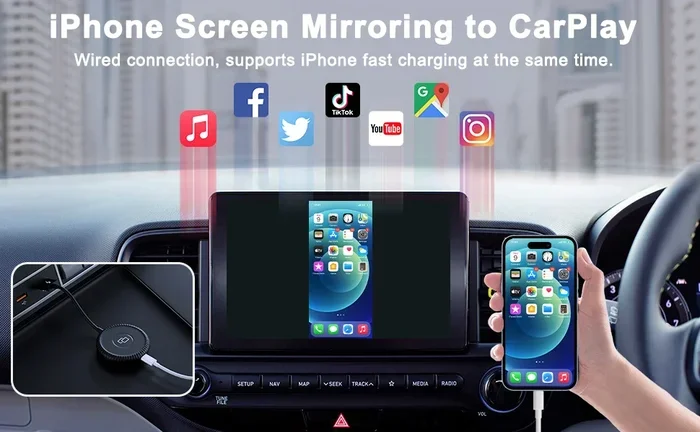
Not all cars support CarPlay or Android Auto. But that does not mean you are stuck. Screen mirroring lets you display your entire phone screen on your car display. It works through Wi-Fi or a dedicated app.
How Screen Mirroring Works
Screen mirroring sends your phone screen to your car in real time. You see everything on your phone, but it shows up on the bigger car screen. This is great for cars that do not have built-in smart features.
Here are the most popular wireless mirroring options:
- MirrorLink: An open standard supported by many car brands and Android phones.
- Carlinkit: A small adapter that adds wireless CarPlay to cars that only support wired connections.
- Android Auto Wireless: Built into newer Android phones and car systems.
- HDMI adapters: Some drivers use HDMI cables with MHL or SlimPort adapters to cast their phone screen.
Setting Up Wireless Mirroring
Follow these general steps for most mirroring systems:
- Buy a compatible adapter if your car does not support wireless casting natively.
- Plug the adapter into your car’s USB port or AUX input.
- Download the matching app on your phone if required.
- Connect your phone to the adapter through Wi-Fi or Bluetooth.
- Open the mirroring app and start casting your screen.
Wireless phone casting to car is not always as smooth as CarPlay or Android Auto. But it is a solid option for older cars or unsupported phone models. You get a bigger screen and better sound without running any cables.
When to Use HDMI or AUX Instead
If your car has an AUX input or HDMI port, you can use those too. An AUX cable carries audio only, so it works great for music. An HDMI connection can carry both video and audio, giving you a full screen mirror.
Keep in mind that HDMI connections may require a special adapter for your phone. And not all cars support video input through their AUX or USB ports. Check your car manual before buying any cables or adapters.
Troubleshooting Common Connection Problems
Even with clear instructions, things do not always work the first time. Connection problems are very common, but they are usually easy to fix. Here are the most frequent issues and how to solve them.
Phone Does Not Show Up on Car Screen
This is the most common problem. Try these fixes:
- Turn Bluetooth off and on again on both your phone and car.
- Remove the car from your phone’s Bluetooth list and re-pair it.
- Restart both devices. A simple reboot fixes many connection issues.
- Check if your car is in pairing mode. Some cars need you to hold a button for a few seconds.
- Make sure your phone is not connected to another device. It should only be paired to the car during setup.
Audio or Video Keeps Cutting Out
Intermittent connections can be frustrating. Try these solutions:
- Move your phone closer to the car’s antenna. The center console area usually has the best signal.
- Replace your USB cable if you are using one. Damaged cables cause dropouts.
- Turn off other Bluetooth devices in the car, like headphones or speakers.
- Update your car’s infotainment software. Check with your dealer for the latest updates.
- Clear your phone’s Bluetooth cache. On Android, go to Settings > Apps > Bluetooth > Clear Cache.
CarPlay or Android Auto Won’t Launch
If your smart connection fails to start, try these steps:
- Unplug and replug the cable. Make sure it clicks in firmly on both ends.
- Restart the infotainment system. Hold the power button on your car screen for 10 seconds.
- Update CarPlay or Android Auto on your phone. Go to your app store and check for updates.
- Try a different cable. Some cables only charge and do not transfer data.
- Reset your phone’s network settings. This clears any Bluetooth or Wi-Fi glitches.
When to Visit a Professional
Most connection problems are simple to fix at home. But if you have tried everything and nothing works, it may be a hardware issue. A car audio specialist or dealership can check your infotainment system and phone compatibility. Sometimes a firmware update or new module is all it takes.
Expert Tips for the Best Connection Experience
You have learned the basics. Now let us go a step further. These expert tips will help you get the most out of your phone-to-car connection every single day.
Keep Your Software Updated
Both your phone and car receive regular software updates. These updates often fix bugs and improve Bluetooth connectivity and USB data transfer speed. Make it a habit to check for updates once a month.
Clean Your USB Ports
Dust and debris can build up in your car’s USB ports over time. Use a soft brush or compressed air to keep them clean. A dirty port can cause slow charging and connection drops.
Use Voice Commands While Driving
Once your phone is connected, use voice commands instead of touching your screen. Siri, Google Assistant, and Bixby all work great with CarPlay and Android Auto. This keeps your hands on the wheel and eyes on the road.
Set Up Your Favorites Before Driving
Before you start the engine, open your music and navigation apps on the car screen. Set your favorite playlist and destination. This saves time and reduces distractions while you are already driving.
Invest in a Good Cable or Adapter
If you use a USB connection, do not skimp on the cable. A high-quality car adapter ensures stable data transfer and faster charging. Look for cables that are certified by your phone manufacturer.
Know Your Car’s Limits
Not every car supports every feature. Older vehicles may only have AUX inputs or basic Bluetooth. Newer cars with modern infotainment systems support wireless CarPlay, Android Auto, and screen mirroring. Know what your car can do, and choose the best method accordingly.
Disconnect When Not in Use
If you share your car with others, disconnect your phone when you are done driving. This protects your privacy and prevents the car from connecting to the wrong phone the next time someone gets in.
Key Takeaways
- Bluetooth is the easiest wireless method: It works in nearly every car and takes under a minute to set up.
- USB cables give you the most stable connection: They charge your phone and stream media without any lag.
- Apple CarPlay and Android Auto bring your apps to life: They offer the best phone-to-car experience available today.
- Wireless screen mirroring works for older cars: Adapters and apps can add smart features to any vehicle.
- Most problems have simple fixes: Restarting, re-pairing, and updating software solves the vast majority of issues.
- Voice commands make driving safer: Use Siri or Google Assistant to control your phone without taking your eyes off the road.
Conclusion
Learning how do I connect my phone to my car screen opens up a whole new driving experience. You get safer hands-free calling, better navigation, and seamless music streaming. The methods covered in this guide work for almost every car and phone combination.
Start with Bluetooth if you want a quick wireless setup. Use a USB cable for the most stable and fastest connection. Try Apple CarPlay or Android Auto if you want the full smart experience. And explore wireless mirroring if your car needs a little extra help.
Remember that practice makes perfect. The first time you set up a connection may take a few extra minutes. But after that, it becomes second nature. Your car and phone will connect automatically every time you get behind the wheel.
Take a few minutes today to follow the steps in this guide. You will wonder how you ever drove without your phone connected to your car screen. Safe travels and enjoy the ride.
Frequently Asked Questions
Can I connect any phone to any car screen?
Most modern phones and cars support Bluetooth and USB connections. However, advanced features like Apple CarPlay and Android Auto depend on compatibility. Check your car manual or manufacturer website to confirm what your car supports before trying to connect.
Why won’t my phone connect to my car via Bluetooth?
Bluetooth pairing issues are usually caused by old software, full memory, or interference from other devices. Try turning Bluetooth off and on, restarting both devices, and removing the car from your phone’s Bluetooth list before re-pairing. These steps fix the problem in most cases.
Do I need an expensive cable to connect my phone to my car?
No, you do not need an expensive cable. A standard USB cable that came with your phone works fine for most connections. However, a high-quality certified cable ensures better data transfer and charging speed, which can improve your overall experience.
Is it safe to use my phone through my car screen while driving?
Yes, it is safe when you use hands-free features. Both Apple CarPlay and Android Auto are designed to minimize distractions. You can use voice commands, steering wheel controls, and simplified app layouts to keep your eyes on the road and hands on the wheel.
Can I connect my phone wirelessly if my car only has a USB port?
Yes, you can. Wireless adapters and dongles are available that add wireless connectivity to cars with only USB ports. Products like Carlinkit offer wireless CarPlay adapters that plug into your car’s USB port and connect to your phone through Wi-Fi.
How do I disconnect my phone from my car screen?
You can disconnect by going to your car’s Bluetooth settings and selecting “Forget Device” or “Unpair.” On your phone, you can also turn off Bluetooth or remove the car from your paired devices list. The connection will not automatically reconnect until you pair the devices again.