How Can I Pair My iPhone to My Car With These Steps
Pairing your iPhone to your car is easier than you think. Whether you use Bluetooth or Apple CarPlay, this guide walks you through every step. You will learn how to connect wirelessly, fix common issues, and get the best audio experience. iPhone car pairing works across most vehicles made after 2015. Follow these simple instructions and enjoy a seamless Bluetooth car connection in minutes.
Have you ever jumped into your car and wished your iPhone would just connect already? You are not alone. Pairing an iPhone to a car is one of the most common things drivers search for online. The good news is that it is a straightforward process once you know the steps.
Whether your car supports Bluetooth car connection or you want to set up Apple CarPlay, this guide has you covered. We will walk you through everything from the first Bluetooth search to fixing common connection hiccups. By the end, you will be streaming music, taking calls, and navigating with confidence.
Most modern vehicles come with built-in iPhone connectivity features. Even older cars can often connect with a simple adapter or USB cable. The key is knowing where to start. Let us dive in and get your phone linked to your vehicle.
Key Takeaways
- Bluetooth pairing is the most common method and works with nearly all cars that support wireless connectivity.
- Apple CarPlay offers a smarter experience by mirroring your iPhone screen on your car’s infotainment system.
- Restarting both devices solves most connection problems quickly and easily.
- Keep your iPhone and car software updated to avoid compatibility issues and enjoy the latest features.
- Wired USB connections are a reliable backup if Bluetooth fails or your car does not support wireless pairing.
- Hands-free calling and audio streaming become possible once your iPhone is successfully paired to your vehicle.
- Multiple devices can be paired to most car systems, making it easy to share the car with family members.
📑 Table of Contents
- Check Your Car’s Bluetooth and Connectivity Features
- How to Pair Your iPhone to Your Car via Bluetooth
- Setting Up Apple CarPlay for a Better Experience
- Troubleshooting Common iPhone and Car Pairing Issues
- Tips to Keep Your iPhone and Car Connected
- Comparison: Bluetooth vs. Apple CarPlay
- Expert Insights on iPhone and Car Connectivity
- Common Mistakes to Avoid When Pairing Your iPhone
- Final Thoughts
Check Your Car’s Bluetooth and Connectivity Features
Before you start pairing, it helps to know what your car can do. Not all vehicles support the same features. A quick check saves time and frustration.
Does Your Car Support Bluetooth?
Most cars made after 2015 have Bluetooth wireless car pairing built in. You can usually find this in your car’s settings menu on the infotainment screen. Look for options labeled “Bluetooth,” “Phone,” or “Connections.”
If your car is older, do not worry. You can still connect your iPhone to car audio using a USB cable or an auxiliary input. Some drivers use a Bluetooth adapter that plugs into the car’s cigarette lighter or AUX port. These small devices open up wireless car pairing for vehicles that do not have it built in.
What You Need Before Starting
Gather these items before you begin the iPhone car sync process:
- Your iPhone with a charged battery
- Your car key or ignition access so the infotainment system is on
- A USB cable if you plan to use a wired connection
- Your car’s user manual (optional but helpful for finding the Bluetooth menu)
- A quiet environment so you can hear any prompts from your car’s system
Once you have these ready, you are set to move on to the actual pairing process.
How to Pair Your iPhone to Your Car via Bluetooth
Bluetooth pairing iPhone to car is the most popular method. It lets you make calls, stream music, and use voice commands without touching your phone. Here is how to do it step by step.
Step-by-Step Bluetooth Pairing
Follow these steps to connect your iPhone and vehicle using Bluetooth:
- Turn on your car and go to the infotainment home screen.
- Open the Settings menu on your car’s display. Look for “Bluetooth” or “Phone.”
- Select “Add Device” or “Pair New Device.” Your car will start searching for nearby phones.
- On your iPhone, open Settings. Tap “Bluetooth” and make sure it is turned on.
- Wait for your car’s name to appear on your iPhone screen. Tap on it.
- Check both screens for a pairing code. Make sure the numbers match, then tap “Pair” on both devices.
- Wait a few seconds. Your iPhone car connection is now active.
That is it! Your phone is now linked to your car. You should see a Bluetooth icon at the top of your iPhone screen. Your car’s display will also show that a device is connected.
Quick Tips for a Smooth Connection
- Keep your iPhone close to the car’s infotainment system during pairing.
- Turn off other Bluetooth devices nearby that might interfere with the connection.
- Restart your iPhone before pairing if you have had trouble connecting in the past.
- Delete old pairings from your car’s Bluetooth memory if it is full or confused.
- Make sure your car is in park before accessing the infotainment settings while driving.
These small steps make a big difference. Most people get their iPhone connectivity working on the first try when they follow this process carefully.
Setting Up Apple CarPlay for a Better Experience
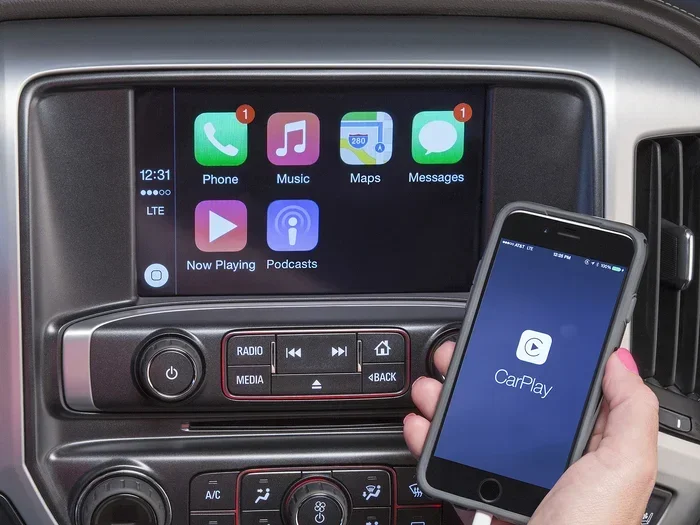
Apple CarPlay takes your iPhone car integration to the next level. It mirrors your phone’s screen onto your car’s display. You get access to maps, music, messages, and more, all while keeping your eyes on the road.
Wireless CarPlay vs. Wired CarPlay
Wireless CarPlay connects your iPhone to your car without any cables. It uses Bluetooth and Wi-Fi to stream data. This is the most convenient option if your car supports it.
Wired CarPlay requires a USB cable. Plug one end into your iPhone and the other into your car’s USB port. Wired connections tend to be more stable and faster to start up. However, they limit your movement inside the car.
Not all cars support wireless CarPlay yet. Check your car’s manual or visit the manufacturer’s website to confirm. Many 2020 and newer models include wireless CarPlay as standard.
Getting CarPlay Running
Here is how to set up CarPlay iPhone pairing:
- Connect your iPhone to your car using a USB cable or via Bluetooth for wireless.
- Go to your car’s infotainment settings. Select “CarPlay” or “Project.”
- Choose your iPhone from the list of available devices.
- Unlock your iPhone. You may need to tap “Allow” on your phone screen.
- Explore CarPlay. You will see your favorite apps laid out on the car’s display.
Siri CarPlay integration lets you use voice commands to send messages, make calls, and get directions. Just hold the voice button on your steering wheel or say “Hey Siri.” This makes hands-free calling and navigation even safer.
Troubleshooting Common iPhone and Car Pairing Issues
Sometimes things do not go smoothly. Bluetooth pairing troubleshooting is normal, and most issues have simple fixes. Do not panic if your iPhone won’t connect to car the first time.
iPhone Won’t Connect to Car
This is the most common issue. Try these steps:
- Turn Bluetooth off and back on on both your iPhone and your car.
- Restart your iPhone completely by holding the power button.
- Restart your car’s infotainment system by turning it off and back on.
- Forget the old device pairing on both your iPhone and car, then start fresh.
- Check for updates on both your iPhone and your car’s system software.
In most cases, a simple restart of both devices fixes the problem. iPhone mobile device pairing issues are rarely caused by something serious.
Audio Keeps Cutting Out
If your music or calls keep dropping, try these fixes:
- Move closer to the car’s Bluetooth antenna. Your phone should be within a few feet of the dashboard.
- Check for interference from other Bluetooth devices like headphones or smartwatches.
- Update your iPhone to the latest iOS version.
- Reset your car’s network settings if the audio keeps cutting out.
- Switch from wireless to wired temporarily to see if the cable solves the problem.
Audio dropouts are often caused by distance or interference. Keeping your phone in a cup holder or on the dashboard usually resolves this.
Tips to Keep Your iPhone and Car Connected
Once you have your iPhone car sync working, keeping it running smoothly is easy. A few habits go a long way.
Best Practices for Daily Use
- Let your car remember your iPhone. Most vehicles store multiple paired devices. Your phone will auto-connect when you get in the car.
- Keep your iPhone charged. A dead phone means no connection. Use a car charger if needed.
- Clean your USB port if you use a wired connection. Dust and debris can weaken the signal.
- Use a dedicated USB cable for CarPlay. Cheap cables often cause connection drops.
- Enable “Show CarPlay on Lock Screen” in your iPhone settings for faster access.
When to Update Your Software
iPhone software updates often include improvements to Bluetooth and iPhone connectivity. Check for updates regularly by going to Settings, then General, then Software Update.
Your car’s infotainment system also gets updates. Some manufacturers push updates over the air, while others require a visit to the dealer. Keeping both devices current ensures the best vehicle phone link experience.
Comparison: Bluetooth vs. Apple CarPlay
Not sure which connection method is right for you? Here is a quick comparison of the two main options for iPhone car integration:
| Feature | Bluetooth | Apple CarPlay |
|---|---|---|
| Connection Type | Wireless or USB | Wireless or USB |
| Audio Streaming | Yes | Yes |
| Hands-Free Calling | Yes | Yes |
| Screen Mirroring | No | Yes |
| Navigation Apps | Limited | Full access |
| Message Support | Basic | Siri read-back |
| Setup Difficulty | Very Easy | Easy |
| Works on Older Cars | Yes (with adapter) | Needs CarPlay support |
As you can see, Apple CarPlay offers a much richer experience. But Bluetooth car connection is simpler and works almost everywhere. Many drivers use both at the same time. Bluetooth handles calls, while CarPlay handles navigation and media.
Expert Insights on iPhone and Car Connectivity
Automotive tech experts agree that iPhone car pairing has become much simpler over the years. Here are some insider tips that can save you time and headaches.
Start with a clean slate. If your car has paired with many devices before, delete old connections. A crowded Bluetooth memory can slow things down and cause conflicts. Most car systems let you view and remove paired devices in the Bluetooth settings menu.
Use your car’s USB port, not the cigarette lighter. Some drivers plug their USB cable into the lighter adapter and wonder why CarPlay does not work. The USB port built into the dashboard is designed for data transfer, not just charging. Always use the dedicated USB port for the best iPhone connectivity.
Name your iPhone clearly. If you have a generic name like “iPhone,” it can get confused with other devices in a dealership or shared car. Rename your iPhone to something unique like “John’s iPhone” in your Bluetooth settings. This makes it easy to identify when pairing.
Consider a Bluetooth FM transmitter for very old cars. If your car has no aux input and no Bluetooth, a small FM transmitter plugs into your cigarette lighter and broadcasts audio to an empty FM frequency on your car radio. It is not perfect, but it works in a pinch for iPhone car audio.
These expert tips come from years of real-world experience. They can help you get the most out of your mobile device pairing setup.
Common Mistakes to Avoid When Pairing Your iPhone
Even experienced drivers make mistakes during the pairing process. Here are some common errors and how to avoid them.
- Skipping the car’s infotainment menu. Many people only turn on Bluetooth on their iPhone and expect the car to find it. You must put the car in discovery mode first.
- Using a damaged USB cable. A frayed or cheap cable can cause CarPlay to fail. Invest in a quality MFi-certified cable.
- Ignoring software updates. Outdated software on either device is a leading cause of pairing failures. Keep everything current.
- Pairing in a crowded area. If you are in a parking lot with dozens of cars, Bluetooth signals can overlap. Try pairing in a quiet spot.
- Forgetting to unlock the iPhone. Your phone must be unlocked for CarPlay to activate. This is a simple step that people often overlook.
Avoiding these mistakes will make your Bluetooth car setup faster and more reliable every time.
Final Thoughts
Pairing your iPhone to your car is a simple process that opens up a world of convenience and safety. Whether you choose Bluetooth wireless car pairing or dive into Apple CarPlay, the steps are easy to follow. You get hands-free calling, music streaming, navigation, and more, all while keeping your focus on the road.
Start with the basics. Check your car’s features, follow the pairing steps carefully, and troubleshoot if needed. Once your iPhone car connection is working, you will wonder how you ever drove without it. Keep your software updated, use good habits, and enjoy a seamless iPhone connectivity experience every time you get behind the wheel.
The road ahead is smarter and safer when your phone and car work together. Take a few minutes today to set it up. You will be glad you did.
Frequently Asked Questions
Can I pair my iPhone to any car?
Most cars made after 2015 support Bluetooth car connection. Older cars may need a Bluetooth adapter or USB cable. Check your car’s manual or look for a Bluetooth or USB port on the dashboard to confirm compatibility.
Why won’t my iPhone find my car when pairing?
This usually happens when Bluetooth is off on one of the devices or the car is not in discovery mode. Try restarting both your iPhone and your car’s infotainment system. Also, make sure no other phone is currently connected to the car.
Is Apple CarPlay the same as Bluetooth?
No. Apple CarPlay is more advanced than basic Bluetooth pairing. It mirrors your iPhone screen and gives you access to apps like Maps, Music, and Messages on your car’s display. Bluetooth mainly handles calls and audio streaming.
Can I pair multiple iPhones to one car?
Yes. Most car infotainment systems can store multiple paired devices. Each person can connect their own iPhone to car audio by selecting their device from the car’s Bluetooth menu. The car will remember each device and auto-connect when nearby.
Does pairing my iPhone drain my car battery?
No. iPhone connectivity uses very little power. The Bluetooth signal between your phone and car is low-energy. Even with wireless CarPlay active, the impact on your car battery is negligible.
What should I do if the audio quality is poor after pairing?
Poor audio quality is often caused by interference or a weak signal. Move your phone closer to the car’s center console. Switch from wireless to a USB cable for a stronger connection. Also, check that your iPhone software and car firmware are both up to date.