Can Android Auto Be Upgraded to the Latest Version
Yes, Android Auto can be upgraded — both on your smartphone and in compatible car infotainment systems. Whether you want the newest Android Auto version on your phone or need to update your car’s head unit, this guide walks you through every step. Keep reading to learn how to get the latest features, fix common upgrade issues, and make the most of your car’s smart display.
You rely on Android Auto every day. It helps you navigate, stream music, and send messages safely while driving. But what happens when a new version drops and you wonder if your setup can handle it? The good news is that Android Auto can be upgraded in most cases. Whether you use it on your phone or through your car’s infotainment system, staying up to date brings better performance, new features, and improved compatibility.
In this guide, we will walk you through everything you need to know about upgrading Android Auto. We will cover how updates work, what you need to check, and how to fix common problems. By the end, you will know exactly how to get the latest Android Auto version running smoothly on your device.
Let us start with the basics. Understanding how Android Auto works and why updates matter is the first step to getting the most out of your car’s smart display.
Key Takeaways
- Android Auto updates are available through the Google Play Store on your phone and via car manufacturer software updates.
- Wireless Android Auto makes upgrading and connecting easier than ever without a USB cable.
- Not all cars support the latest Android Auto version, and older head units may need a firmware update or replacement.
- Common upgrade problems like connection failures or app crashes can usually be fixed with simple troubleshooting steps.
- Regular updates bring new features such as improved navigation, better voice commands, and enhanced car display screen quality.
- Checking your Android Auto version takes just a few seconds and helps you stay current with the latest improvements.
- Manufacturer-specific steps apply for brands like Ford, Toyota, Honda, and others when updating car infotainment systems.
📑 Table of Contents
- What Is Android Auto and Why Does It Matter?
- How Android Auto Updates Work
- Can You Upgrade Android Auto on Your Phone?
- Upgrading Android Auto in Your Car
- Common Problems When Trying to Upgrade Android Auto
- How to Get the Most Out of Your Android Auto
- Expert Tips for a Smooth Android Auto Upgrade
- Conclusion
What Is Android Auto and Why Does It Matter?
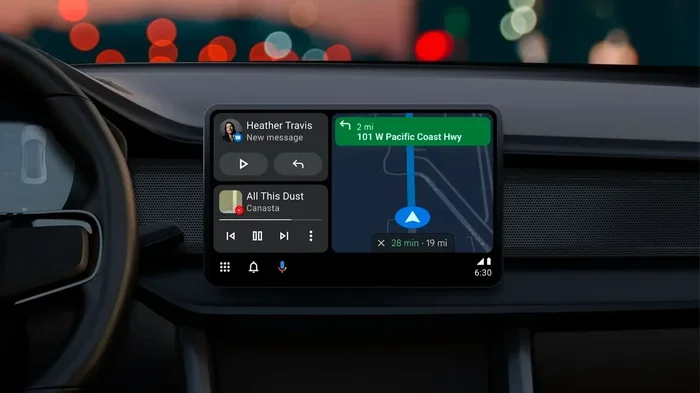
Android Auto is a smartphone projection system created by Google. It mirrors key apps and functions from your phone onto your car’s display screen. This means you can access Google Maps, Spotify, Podcasts, and messaging apps right from your car’s infotainment system. The whole point is to keep your eyes on the road and your hands on the wheel.
The system works with both wired and wireless Android Auto connections. Newer cars support wireless projection, which means no fumbling with cables every time you get in. Older vehicles may require a USB connection, but the experience is still smooth and reliable.
Why Keeping Android Auto Updated Is Important
Google regularly releases Android Auto updates that bring new features and improvements. These updates can include better voice recognition, redesigned interfaces, and support for more apps. Staying current ensures you get the best smartphone integration possible while driving.
Here are some key reasons to keep your Android Auto updated:
- Bug fixes that improve stability and reduce crashes.
- New features like improved navigation and enhanced media controls.
- Better compatibility with the latest car models and head units.
- Security patches that protect your personal data.
- Performance improvements that make the system faster and smoother.
Think of it like updating your phone. You would not skip months of phone updates, right? The same logic applies to your car’s Android Auto setup.
How Android Auto Updates Work
Understanding how Android Auto updates are delivered helps you know what to expect. There are two main ways updates happen: through your phone and through your car’s system. Each process is different, but both aim to keep you running the latest Android Auto version.
Phone-Based Android Auto Updates
When you use Android Auto on your phone, updates come through the Google Play Store. Just like any other app, Google pushes updates regularly. These updates are usually small and focused on improving the phone-side experience of the app.
To check for an Android Auto update on your phone:
- Open the Google Play Store app.
- Tap your profile icon in the top right corner.
- Select Manage Apps and Device.
- Look for Android Auto in the list of apps.
- If an update is available, tap Update.
This process is simple and straightforward. Most people can do it in under a minute. Android Auto will also update automatically if you have auto-update enabled in the Play Store settings.
Car Infotainment System Updates
Updating Android Auto on your car’s infotainment system is a different story. Car manufacturers control these updates. Some brands push updates over the air, while others require a visit to a dealership or a USB-based installation.
Here is how different manufacturers handle car software update for Android Auto:
- Toyota offers over-the-air updates for many newer models through its Connected Services.
- Ford uses Ford Power-Up updates that can add new features and improve Android Auto performance.
- Honda provides updates through its HondaLink system, often requiring a dealership visit.
- Hyundai and Kia offer UVO updates that can include Android Auto improvements.
- Volkswagen and BMW use their own connected car platforms for software updates.
The key takeaway is that your car’s ability to run the latest Android Auto version depends heavily on your manufacturer’s update schedule and support.
Can You Upgrade Android Auto on Your Phone?
The short answer is yes. Upgrading Android Auto on your phone is usually the easiest part of the process. Since it runs as an app on your device, you have direct control over when and how you update it.
Step-by-Step Guide to Updating Android Auto on Your Phone
Follow these steps to make sure your phone is running the latest Android Auto version:
- Connect to a stable Wi-Fi network.
- Open the Google Play Store.
- Search for “Android Auto.”
- Check the version number listed under the app name.
- If an update is available, tap the Update button.
- Wait for the download and installation to complete.
- Restart the app and check the version again.
After updating, you should notice a smoother experience. Menus may load faster, and new features might appear in the interface. Android Auto updates also improve how the app interacts with your car’s head unit.
What Version of Android Do You Need?
Google sets minimum requirements for running Android Auto. As of the latest release, you need at least Android 10 or higher on your phone. However, newer versions of Android Auto may require Android 12 or 13 for full feature access.
Here are the general requirements for the latest Android Auto version:
- Operating System: Android 10 or later (Android 13+ recommended).
- RAM: At least 2 GB for smooth performance.
- Storage: Minimum 100 MB of free space.
- Screen Size: 4 inches or larger on your phone.
- Google Play Services: Must be up to date.
If your phone does not meet these requirements, you may not be able to upgrade to the newest Android Auto release. In that case, you will stay on the last compatible version, which still works well for most tasks.
Upgrading Android Auto in Your Car
Upgrading Android Auto inside your car is where things get a bit more complex. Unlike phone updates, car infotainment systems depend on the manufacturer’s update process. Some cars make it easy, while others require more effort.
How to Check Your Current Android Auto Version in the Car
Before you try to upgrade, you should know what version you are currently running. Here is how to check:
- Start your car and open Android Auto on the display screen.
- Go to Settings within the Android Auto interface.
- Look for the “About” or “Version” section.
- Note the version number displayed on screen.
Write this number down. You will need it to compare against the latest available version. You can find the current Android Auto version on Google’s official support page or through your car manufacturer’s website.
Over-the-Air Updates for Your Car
Many modern vehicles now support over-the-air (OTA) updates. This means your car can receive software updates without you ever leaving your driveway. If your car supports OTA updates for Android Auto, you will typically see a notification on the infotainment screen when an update is available.
To install an OTA Android Auto update:
- Make sure your car is parked and connected to Wi-Fi.
- Go to Settings on your infotainment system.
- Look for Software Update or System Update.
- Download and install the update.
- Restart the system when prompted.
OTA updates can take 15 to 30 minutes. During this time, you will not be able to use your car’s infotainment system. Plan accordingly and avoid starting the process right before you need to drive.
Dealership and USB-Based Updates
If your car does not support OTA updates, you may need to visit a dealership. Many manufacturers still require a physical connection for major infotainment system updates. A technician will connect your car to their system and flash the latest software.
Some brands also offer USB-based updates you can do at home. In this case, you download the update file from the manufacturer’s website onto a USB drive, plug it into your car, and follow the on-screen prompts. This method works well for Android Auto upgrades on older car multimedia systems.
Aftermarket Head Unit Upgrades
What if your car is too old for the latest Android Auto? One option is to upgrade your head unit. Aftermarket car infotainment systems from brands like Pioneer, Kenwood, and Alpine often come with the latest Android Auto built in. These units can transform an older car into a modern smart vehicle.
When choosing an aftermarket unit, look for:
- Wireless Android Auto support for cable-free convenience.
- Latest software version compatibility right out of the box.
- Easy installation that matches your car’s dashboard.
- Good display quality for clear navigation and media playback.
An aftermarket upgrade can be a worthwhile investment if your current head unit cannot run the latest Android Auto version.
Common Problems When Trying to Upgrade Android Auto
Upgrading Android Auto does not always go smoothly. Many users run into issues that prevent them from getting the latest version. Here are the most common problems and how to fix them.
Android Auto Not Connecting After an Update
Sometimes after an update, Android Auto will not connect to your car. This can be frustrating, but it is usually easy to fix. Start by disconnecting your phone from the car and reconnecting it. If that does not work, try clearing the app cache on your phone.
To clear the Android Auto cache:
- Go to Settings on your phone.
- Select Apps and find Android Auto.
- Tap Storage and then Clear Cache.
- Restart your phone and try connecting again.
This simple step resolves the issue for most users. If the problem persists, uninstall and reinstall the Android Auto app from the Play Store.
Update Stuck or Not Downloading
A stuck update is another common complaint. If your Android Auto update will not download, check your internet connection first. A weak Wi-Fi or mobile data signal can interrupt the process.
Try these steps if your update is stuck:
- Switch from Wi-Fi to mobile data or vice versa.
- Restart the Google Play Store app.
- Clear the Play Store cache and data.
- Check your phone’s storage space and free up room if needed.
- Restart your phone and try the update again.
For car-based updates, make sure your vehicle’s system has enough storage space. Some older infotainment systems have limited memory, which can block updates from installing properly.
Android Auto Version Mismatch Between Phone and Car
Occasionally, your phone and car may run different Android Auto versions. This mismatch can cause compatibility issues. The car may show an older interface, or certain features may not work correctly.
To fix a version mismatch:
- Update your phone’s Android Auto app first.
- Then check for a car infotainment update.
- Restart both devices after updating.
- If the problem continues, reset the Android Auto connection on your car.
Keeping both your phone and car updated at the same time helps prevent these mismatches from happening in the first place.
How to Get the Most Out of Your Android Auto
Once you have successfully upgraded Android Auto, you want to make sure you are getting the full experience. Here are some tips to help you maximize your setup.
Enable Wireless Android Auto
If your car supports it, switch to wireless Android Auto. This eliminates the need for a USB cable and makes connecting faster and more convenient. Wireless connections also tend to be more stable after updates, since there is no cable to interfere with the signal.
To enable wireless Android Auto:
- Open Android Auto on your phone.
- Go to Settings and select Wireless Android Auto.
- Toggle the switch to turn it on.
- Follow the prompts to pair with your car.
Customize Your Car Display Screen
The latest Android Auto version offers more customization options than ever. You can change your home screen layout, choose which apps appear first, and adjust the theme to match your preferences. Taking a few minutes to personalize your setup makes the daily driving experience much more enjoyable.
Keep Your Apps Updated Too
Android Auto works best when the apps you use are also up to date. Make sure Google Maps, Spotify, Podcasts, and any other apps you rely on are running the latest versions. Outdated apps can cause glitches and reduce the overall quality of your smartphone integration.
Regularly Check for Updates
Set a reminder to check for Android Auto updates once a month. Google and your car manufacturer release updates regularly, and staying current ensures you always have the best experience. A quick check every few weeks can save you from running into problems later.
Expert Tips for a Smooth Android Auto Upgrade
Getting the most from your Android Auto upgrade is about more than just tapping the update button. A few expert tips can make the process smoother and help you avoid common pitfalls.
Always back up your phone before installing major updates. While Android Auto updates rarely cause data loss, it is better to be safe than sorry. A quick backup to Google Drive takes only a few minutes.
Use a stable Wi-Fi connection when downloading updates. Mobile data can be unreliable, and a interrupted download may corrupt the update file. This is especially important for car infotainment updates that are larger in size.
Restart both devices after updating. A fresh restart clears temporary files and ensures that the new Android Auto version loads correctly. This simple habit can prevent many common post-update issues.
Check compatibility before upgrading. Not every car supports every Android Auto version. Visit your car manufacturer’s website to confirm that your specific model and year are compatible with the latest release.
Be patient with large updates. Car infotainment updates can take longer than phone updates. Do not turn off your car or disconnect during the process. Let the installation complete fully before using the system again.
Conclusion
Android Auto can absolutely be upgraded to the latest version, and doing so is one of the best things you can do for your driving experience. Whether you update through the Google Play Store on your phone or through your car’s infotainment system, staying current brings better performance, new features, and improved reliability.
The process is straightforward for phone-based updates, while car upgrades may require a bit more effort depending on your manufacturer. Wireless Android Auto makes connecting and updating even easier for modern vehicles. If your car is older and cannot support the latest version, an aftermarket head unit upgrade can breathe new life into your dashboard.
Remember to check for updates regularly, troubleshoot problems promptly, and keep your apps current. With these habits, your Android Auto setup will stay fast, reliable, and packed with the features you need on every drive. Start your upgrade today and enjoy a smarter, safer driving experience.
Frequently Asked Questions
Can I upgrade Android Auto on an older phone?
Yes, but it depends on your phone’s operating system. Android Auto requires at least Android 10 to run the latest version. If your phone is running an older operating system, you may be limited to an earlier Android Auto version. Check your phone’s software version before attempting an upgrade.
How often does Android Auto receive updates?
Google releases Android Auto updates regularly, typically every few weeks. Major feature updates may come out a few times a year. Car manufacturers also push their own infotainment system updates on their own schedule. Enabling auto-updates on your phone helps you stay current without effort.
Do I need to visit a dealership to update Android Auto in my car?
Not always. Many newer cars support over-the-air updates that you can install at home. However, some manufacturers still require a dealership visit or a USB-based update. Check your car manufacturer’s website or owner’s manual to find out which method applies to your vehicle.
Why is my Android Auto not working after an update?
This is a common issue and usually easy to fix. Try clearing the app cache, restarting both your phone and car, and reconnecting the Android Auto connection. If the problem persists, uninstall and reinstall the app. Version mismatches between your phone and car can also cause connection problems.
Can I use Android Auto without updating?
Yes, you can continue using your current Android Auto version without updating. However, you will miss out on new features, bug fixes, and performance improvements. Updates also ensure compatibility with the latest apps and car models, so staying current is recommended.
Is wireless Android Auto better than wired for updates?
Wireless Android Auto offers more convenience and can make the update process smoother since there is no cable to worry about. However, both wired and wireless connections support updates equally well. The main benefit of wireless is the ease of use and a cleaner dashboard setup.