How Do I Add a Second Profile to My Toyota App Easily
Adding a second profile to your Toyota App is simple and lets multiple drivers save their own settings, preferences, and vehicle data. Whether you share your Toyota with a spouse, family member, or coworker, a second profile keeps everyone’s driver preferences separate and organized. This guide walks you through the entire process from downloading the app to managing profiles like a pro.
Adding a second profile to your Toyota App might sound like a technical chore, but it is actually really straightforward. Whether you share your car with a partner, a teen driver, or a coworker, having a second profile means everyone gets their own saved preferences. No more messing with someone else’s seat position or radio station every time you switch drivers.
The Toyota App lets you manage multiple profiles right from your smartphone. You can set up a second account, link it to your vehicle, and customize everything from climate controls to driving preferences. In this guide, we will walk you through every step so you can get your second profile up and running in minutes.
So if you have been wondering how to add another user to your Toyota App, you are in the right place. Let us dive in and make it happen.
Key Takeaways
- Easy Setup: Adding a second profile takes just a few minutes through the Toyota App settings menu.
- Personalized Experience: Each profile saves unique driver preferences like seat position, climate settings, and media choices.
- Multiple Users: A second profile is perfect for families, couples, or anyone who shares their Toyota vehicle.
- Seamless Syncing: Profiles sync with your phone and vehicle so switching between users is smooth and hassle-free.
- Privacy Protected: Each profile keeps personal data separate, so your information stays private and secure.
- Free Feature: Creating additional profiles costs nothing and comes built into the Toyota App at no extra charge.
📑 Table of Contents
- Why Add a Second Profile to Your Toyota App?
- How to Add a Second Profile to Your Toyota App
- Troubleshooting Common Issues When Adding a Second Profile
- Tips for Managing Multiple Profiles on the Toyota App
- Understanding the Toyota App Profile Architecture
- How Second Profiles Improve the Shared Driving Experience
- Security and Privacy Considerations for Multiple Profiles
- Conclusion
Why Add a Second Profile to Your Toyota App?
Before we get into the how-to, let us talk about why this is such a great feature. The Toyota App is designed to make your driving experience more personal and convenient. But when multiple people use the same vehicle, things can get messy fast. One person’s preferences overwrite another’s, and nobody is happy.
A second profile solves this problem completely. Each user gets their own space inside the app where all their settings live. This means your spouse or family member can have their own driver preferences saved and ready to go every time they get behind the wheel.
Here are some of the biggest benefits of adding a second profile:
- Separate driver settings: Each profile saves seat position, mirror adjustments, climate preferences, and more.
- Personalized media playlists: Everyone gets their own music and podcast recommendations.
- Individual trip history: You can track trips separately for each driver.
- Custom notifications: Alerts and reminders can be tailored to each user.
- Shared vehicle management: Multiple users can monitor vehicle health and maintenance needs.
The Toyota App also supports smartphone integration features that work hand in hand with multiple profiles. If you need help connecting your phone to the vehicle first, you can check out how to sync your iPhone to your new car before setting up profiles. This ensures your phone is ready to connect seamlessly once the profile is active.
How to Add a Second Profile to Your Toyota App
Now let us get into the actual steps. The process is simple and does not require any technical expertise. You just need your smartphone, the Toyota App installed, and a few minutes of your time.
Step 1: Open the Toyota App and Log In
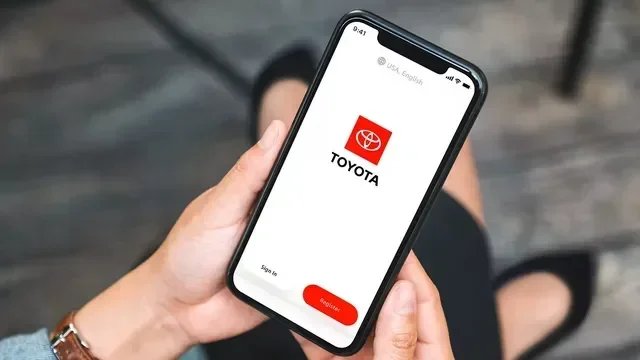
Start by launching the Toyota App on your smartphone. If you already have an account, log in with your existing credentials. If you do not have an account yet, you will need to create one first. The app is available for both iOS and Android devices, so download it from the App Store or Google Play Store if you have not already.
Once you are logged in, you will see the main dashboard. This is your home base for managing your vehicle and all connected features. Take a moment to familiarize yourself with the layout before moving to the next step.
Step 2: Navigate to the Profile Settings
From the main dashboard, look for the settings icon or the profile menu. This is usually located in the top corner of the screen or in the main navigation menu. Tap on “Settings” and then find the “Profiles” or “Users” section.
In the profiles section, you should see your current primary profile listed. There will be an option to add a new profile or invite another user. Tap on that option to begin creating the second profile.
Step 3: Create the New Profile
You will be prompted to enter some basic information for the new profile. This typically includes a name, email address, and a password for the new account. Make sure the person who will be using this profile is present, as they may need to verify their email or phone number.
Some versions of the Toyota App let you create a profile without a separate login. Instead, you can set up a “guest” or “secondary” profile that stays linked to your main account. This is a great option for family members who do not want their own separate Toyota App login.
Step 4: Link the Profile to Your Vehicle
Once the new profile is created, you need to link it to your Toyota vehicle. Go to the vehicle management section within the app and select the option to add a user or assign a profile to the vehicle. You may need to enter your vehicle identification number or confirm the connection through a push notification on your phone.
If you are having trouble connecting the profile to your vehicle, make sure your phone is properly paired first. You might want to review how to put your phone on pairing mode to ensure a smooth connection between your device and the vehicle.
Step 5: Customize the Second Profile
Now comes the fun part. Once the second profile is linked to your vehicle, you can start customizing it. Each profile can have its own set of preferences that the app remembers and applies when that user is active.
Here is what you can typically customize for each profile:
- Driver seat position: Save the exact seat position for each driver.
- Climate control settings: Preferred temperature and fan speed.
- Audio preferences: Favorite radio stations, playlists, and volume levels.
- Navigation home address: Each user can set their own default destination.
- Notification preferences: Choose which alerts each driver receives.
- Driving mode preferences: Eco, sport, or normal mode selections.
The more you customize each profile, the more personalized the experience becomes for every person who uses the vehicle.
Step 6: Switch Between Profiles
Switching between profiles is easy. When the second driver gets in the car, they simply open the Toyota App and select their profile. The app will automatically apply their saved preferences to the vehicle. Some Toyota models also allow you to switch profiles directly from the vehicle’s infotainment screen.
If you need to switch back to your profile, just open the app again and select your name. Your preferences will load right up. It is that simple.
Troubleshooting Common Issues When Adding a Second Profile
While adding a second profile is generally smooth, you might run into a few hiccups along the way. Here are some common problems and how to fix them.
Profile Not Showing Up After Creation
If the new profile does not appear in the app after you create it, try logging out and back in. Sometimes the app needs a refresh to display newly created profiles. Make sure you have a stable internet connection as well, since the Toyota App syncs profile data through the cloud.
Vehicle Not Recognizing the Second Profile
If the vehicle does not recognize the second profile, check that the profile is properly linked to the vehicle in the app settings. You may also need to update the Toyota App to the latest version. Outdated app versions can sometimes cause compatibility issues with newer profile features.
Preferences Not Saving Correctly
If preferences are not saving for the second profile, make sure the profile is set as active before adjusting settings. Some versions of the Toyota App require you to switch to the profile first, then change the settings. If the issue persists, try restarting the app or your phone.
Login Issues for the Second User
If the second user cannot log in, verify that the correct email and password were entered during profile creation. You can also use the password reset feature if needed. If you are using a shared account setup without separate logins, make sure the guest profile is enabled in the settings.
Tips for Managing Multiple Profiles on the Toyota App
Once you have both profiles set up, a few best practices can help you get the most out of the feature. These tips will keep things running smoothly for everyone who uses the Toyota App.
Keep Profiles Updated
Over time, people change their preferences. Maybe your spouse prefers a different temperature now, or your teen driver wants a new default radio station. Periodically check in on each profile and update the settings as needed. This keeps the experience fresh and personalized for every user.
Use Descriptive Profile Names
Give each profile a clear and recognizable name. Instead of just “User 2,” use the person’s first name or a nickname. This makes it easy to switch between profiles quickly, especially when you are in a hurry.
Set Up Separate Notifications
Take advantage of the notification settings for each profile. You can set up maintenance reminders, fuel alerts, and vehicle health notifications to go to the right person. This way, everyone stays informed about the vehicle without being overwhelmed with irrelevant alerts.
Regularly Review Vehicle Access
If you have added profiles for family members or close friends, it is a good idea to review who has access to your vehicle data periodically. Remove profiles for people who no longer use the vehicle to keep your account secure and organized.
Explore Advanced Features
The Toyota App offers many features beyond just profile management. You can remotely start your vehicle, lock and unlock doors, and check fuel levels from anywhere. Each profile can have different access levels, so you control what each user can do with the app and the vehicle.
For more tips on getting the most from your Toyota connected services, you can also explore how to pair your iPhone to your car for seamless connectivity between your phone and the Toyota App.
Understanding the Toyota App Profile Architecture
To really get the most out of the second profile feature, it helps to understand how the Toyota App manages multiple profiles behind the scenes. The app uses a user-based architecture where each profile acts as an independent account with its own set of preferences and data.
When you create a second profile, the app assigns it a unique identifier that links to your vehicle but keeps all personal data separate. This means your driving history, preferred settings, and notification preferences do not mix with the second user’s data.
The Toyota App also supports cloud syncing, which means your profile settings are stored online and can be accessed from any device. If you log in from a different phone or tablet, your second profile will still be there with all its preferences intact. This is especially useful if you travel frequently or use multiple devices.
One important thing to note is that some features may vary depending on your Toyota model and the year it was manufactured. Newer Toyota models tend to have more advanced profile management capabilities, including the ability to save multiple profiles directly on the vehicle’s infotainment system. Older models may rely more heavily on the smartphone app for profile management.
If you are curious about what your specific Toyota model supports, the Toyota App includes a vehicle compatibility section that outlines which features are available for your particular car. This is a great resource for understanding the full scope of what you can do with multiple profiles.
How Second Profiles Improve the Shared Driving Experience
Sharing a vehicle is a reality for many Toyota owners. Whether it is a family car, a company vehicle, or a carpool situation, having multiple drivers means multiple sets of preferences. The second profile feature in the Toyota App addresses this need directly and elegantly.
Think about how frustrating it can be when someone else drives your car and messes with your seat position, radio station, or climate settings. A second profile eliminates this frustration entirely. Each driver gets their own bubble of preferences that loads automatically when they select their profile.
For families with teen drivers, this feature is especially valuable. Parents can set up a separate profile for their teen with appropriate restrictions and preferences. The teen driver gets their own experience, and parents can monitor usage and preferences through the app.
In a work setting, a company Toyota vehicle used by multiple employees can benefit greatly from separate profiles. Each employee can have their own navigation preferences, phone pairing settings, and notification preferences without interfering with anyone else’s setup.
Security and Privacy Considerations for Multiple Profiles
When you add a second profile to your Toyota App, it is natural to have some concerns about privacy and security. After all, you are sharing access to your vehicle data and connected services with another person.
The Toyota App addresses these concerns with several built-in security features. Each profile is protected by its own login credentials, so the second user cannot access your personal data unless they have your login information. Additionally, the app allows you to set different permission levels for each profile, controlling what features and data each user can access.
Here are some security best practices to keep in mind:
- Use strong passwords: Make sure each profile has a unique, strong password.
- Enable two-factor authentication: If available, turn on two-factor authentication for extra security.
- Review access regularly: Periodically check which profiles have access to your vehicle and data.
- Log out of shared devices: If you use the app on a shared phone or tablet, always log out when finished.
- Keep the app updated: Regular updates include security patches that protect your data.
By following these simple practices, you can enjoy the convenience of multiple profiles without worrying about your privacy or security.
Conclusion
Adding a second profile to your Toyota App is one of the best ways to make a shared vehicle feel personal for every driver. The process is simple, the features are powerful, and the result is a much better experience for everyone who gets behind the wheel. From customizing seat positions to setting individual notification preferences, a second profile puts control in every user’s hands.
Remember, the key is to take it step by step. Create the profile, link it to your vehicle, customize the preferences, and enjoy the seamless experience. If you run into any issues, the troubleshooting tips in this guide should help you get back on track quickly.
The Toyota App continues to evolve with new features and improvements, and multiple profile management is just one example of how Toyota is making the driving experience better for everyone. So go ahead, add that second profile, and enjoy a more personalized ride every time you hop in the car.
Frequently Asked Questions
Can I add more than two profiles to my Toyota App?
Yes, the Toyota App generally allows you to add multiple profiles beyond just two. The exact number may vary depending on your app version and Toyota model. Check the profiles section in the app settings to see how many additional profiles you can create for your vehicle.
Do I need a separate Toyota App account for the second profile?
It depends on your app setup. Some versions allow you to create a second profile under your existing account without a separate login. Other versions may require the second user to have their own Toyota App account with unique credentials. Check the profile settings in your app for the specific option available to you.
Will adding a second profile affect my vehicle warranty?
No, adding a second profile to the Toyota App has no impact on your vehicle warranty. The profile feature is purely a software setting within the app and does not affect any hardware or warranty components of your Toyota vehicle.
Can each profile have different vehicle access permissions?
Yes, the Toyota App allows you to set different access levels for each profile. You can control what features each user can access, such as remote start, vehicle location, and trip history. This is especially useful for family members or employees who share a vehicle.
What should I do if the second profile keeps logging me out?
If the second profile keeps logging you out, try clearing the app cache or reinstalling the Toyota App. Make sure your phone has a stable internet connection, as the app requires connectivity to sync profile data. If the issue persists, contact Toyota customer support for further assistance.
Can I switch profiles from the vehicle’s infotainment screen?
On many newer Toyota models, you can switch between profiles directly from the vehicle’s infotainment screen. This allows each driver to select their profile without needing to use their phone. Check your vehicle’s user manual or the infotainment settings to see if this feature is available for your specific model.