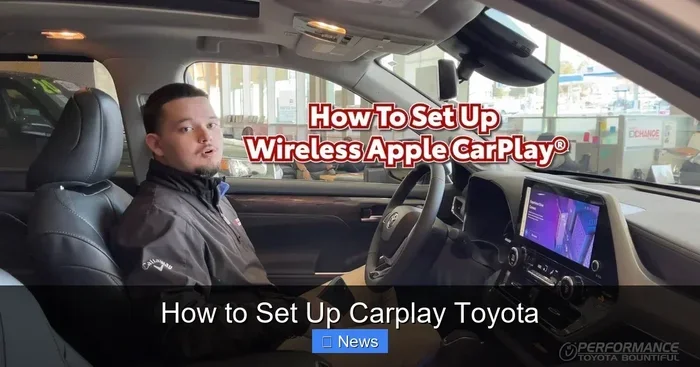
Can You Use CarPlay Without USB on Toyota Yes You Can
Yes, you can use CarPlay without a USB cable on many Toyota models. Wireless CarPlay and adapter solutions let you stream music, get directions, and make calls hands-free. This guide covers which Toyotas support it, how to set it up, and common fixes.
Toyota owners love their vehicles, but the infotainment system can sometimes feel confusing. One question keeps popping up in forums and service centers: can you use CarPlay without USB on Toyota? The short answer is yes. But the full story depends on your Toyota model, year, and the tech package you have.
Apple CarPlay has become a must-have feature for modern drivers. It lets you access maps, music, messages, and calls right from your dashboard. But not every Toyota comes with wireless support out of the box. This guide breaks down everything you need to know about using CarPlay without a USB connection on your Toyota vehicle.
Whether you drive a brand-new RAV4 or an older Camry, there is likely a way to get wireless Apple CarPlay working. We will walk you through the options, the setup process, and how to troubleshoot common problems. Let us dive in.
Key Takeaways
- Wireless CarPlay is available on select Toyota models from 2019 onward, removing the need for a USB cable entirely.
- A CarPlay adapter or aftermarket dongle can add wireless capability to older Toyota infotainment systems.
- Bluetooth connectivity alone does not equal CarPlay, but it works alongside it for hands-free calling and audio streaming.
- Toyota’s multimedia system supports both wired and wireless CarPlay depending on the model year and trim level.
- Common issues like freezing or disconnecting can often be fixed with a simple software update or cable swap.
- You can still use navigation and audio features even if CarPlay is not available on your Toyota.
📑 Table of Contents
- What Is CarPlay and Why Does It Matter on a Toyota?
- Can You Use CarPlay Without USB on Toyota?
- How to Set Up Wireless CarPlay on a Toyota
- Using Aftermarket Adapters for Wireless CarPlay
- Common CarPlay Issues on Toyota and How to Fix Them
- CarPlay vs. Android Auto on Toyota
- Expert Tips for Getting the Most Out of CarPlay on Your Toyota
- Final Thoughts
What Is CarPlay and Why Does It Matter on a Toyota?
Apple CarPlay is a smartphone integration system that mirrors your iPhone on your car’s display. It gives you access to navigation, music, phone calls, and messages without touching your phone. For Toyota owners, this means safer driving and a more connected experience behind the wheel.
Most Toyotas built after 2011 offer some form of CarPlay support. But the way it connects varies. Newer models use wireless CarPlay, which pairs with your iPhone through Bluetooth and Wi-Fi. Older models require a physical USB cable to establish the connection. The difference matters because cables can be annoying. They wear out, tangle, and sometimes fail to charge while streaming.
How CarPlay Works with Toyota Infotainment
Toyota uses its own multimedia system to run CarPlay. The system goes by different names depending on the year. Some Toyotas use the Toyota Multimedia System, while others use the older Entune platform. Regardless of the name, the core function stays the same. CarPlay takes your iPhone’s interface and displays it on the center screen.
You get access to Siri for voice commands. You can use Google Maps, Waze, or Apple Maps for navigation. Spotify, Apple Music, and Podcasts all work through the car’s audio system. The experience is designed to be simple and safe. You do not need to hold your phone or look at it while driving.
Can You Use CarPlay Without USB on Toyota?
This is the big question, and the answer is not a simple yes or no. It depends on your specific Toyota model and year. Some Toyotas come factory-equipped with wireless Apple CarPlay, which means no USB cable is needed at all. Other Toyotas only support wired CarPlay and will always need a cable.
Here is the good news. Even if your Toyota does not have built-in wireless CarPlay, you can still add it. Aftermarket adapters and dongles have made it possible to upgrade older systems. We will cover those options in detail below.
Toyota Models That Support Wireless CarPlay
Several Toyota models offer wireless CarPlay as standard or optional equipment. These include:
- Toyota RAV4 (2019 and newer, especially higher trims)
- Toyota Camry (2020 and newer)
- Toyota Highlander (2020 and newer)
- Toyota Corolla (2020 and newer, with the right tech package)
- Toyota Tacoma (2024 and newer models)
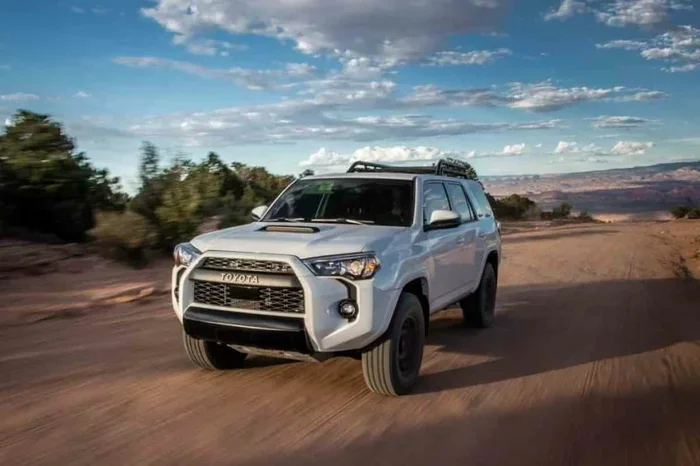
- Toyota 4Runner (2024 and newer)
If you own one of these models, check your owner’s manual or the infotainment settings. Look for a CarPlay section that mentions wireless or Bluetooth pairing. If it is there, you can ditch the USB cable and go wireless.
Toyota Models That Only Support Wired CarPlay
Many Toyotas from 2011 to 2019 only support wired CarPlay. These models include earlier versions of the RAV4, Corolla, Camry, and Avalon. For these vehicles, a USB cable is required every time you want to use Apple CarPlay. The cable connects to the USB port on the center console and establishes both data and power connections.
Wired CarPlay works fine, but it has limitations. The cable can pull out if you hit a bump. Some USB ports only charge the phone and do not transfer data properly. And let us be honest, cables are just inconvenient. This is where wireless adapters come in handy.
How to Set Up Wireless CarPlay on a Toyota
Setting up wireless CarPlay on a compatible Toyota is straightforward. Follow these steps and you will be streaming in minutes.
Step 1: Check Your Compatibility
Before you start, make sure your Toyota supports wireless CarPlay. Go to the infotainment settings and look for the CarPlay or Smartphone menu. If you see a wireless pairing option, you are good to go. If not, you will need an aftermarket adapter, which we cover next.
Step 2: Enable CarPlay on Your iPhone
On your iPhone, go to Settings, then General, then CarPlay. Tap Available Cars and select your Toyota. Make sure Bluetooth and Wi-Fi are turned on. Your iPhone will search for the car’s system and present a pairing request.
Step 3: Pair and Connect
Accept the pairing prompt on both your iPhone and the Toyota display. Once connected, the CarPlay interface will appear on the screen automatically. You can now access your apps, make calls, and use navigation without ever plugging in a cable.
Step 4: Set CarPlay as Default
Some Toyotas let you set CarPlay as the default display mode. This means the system boots straight into CarPlay every time you start the car. Check your infotainment settings to enable this feature. It saves you a step every time you get behind the wheel.
Using Aftermarket Adapters for Wireless CarPlay
If your Toyota does not support wireless CarPlay natively, do not worry. Aftermarket adapters have become very affordable and reliable. These small devices plug into your Toyota’s USB port and create a wireless CarPlay connection with your iPhone.
Top CarPlay Adapters for Toyota
Several brands offer CarPlay adapters that work well with Toyota systems. Look for adapters that support both Bluetooth connectivity and wireless streaming. Popular options include the Carlinkit Wireless CarPlay Adapter, the AAOS CarPlay adapter, and the Veepeak CarPlay dongle. These devices typically cost between 50 and 150 dollars.
Installation is simple. You plug the adapter into the USB port, pair it with your iPhone, and you are done. The adapter acts as a bridge between your phone and the Toyota infotainment system. It does not require any wiring or technical skills.
Things to Consider Before Buying an Adapter
Not all adapters work perfectly with every Toyota model. Some may experience lag or audio delays. Check compatibility before purchasing. Look for adapters that specifically mention Toyota support. Reading user reviews can also help you avoid duds. You want an adapter that delivers smooth smartphone integration Toyota without constant disconnecting.
Common CarPlay Issues on Toyota and How to Fix Them
Even with the best setup, CarPlay can sometimes act up. Toyota owners have reported a few common problems. The good news is that most of these issues have simple fixes.
CarPlay Keeps Disconnecting
If your wireless CarPlay keeps dropping, the first thing to check is your Wi-Fi connection. CarPlay uses a Wi-Fi Direct connection between your phone and the car. Make sure both devices are close together. Restarting both the iPhone and the Toyota infotainment system often fixes this issue.
CarPlay Freezes or Won’t Load
A frozen CarPlay screen can be frustrating. Try closing the CarPlay app on your iPhone and reopening it. If that does not work, restart the infotainment system by holding the power button. Keeping your iPhone and Toyota software updated also helps prevent freezing issues.
No Audio Through CarPlay
If you can see the CarPlay interface but hear no sound, check your audio settings. Make sure the car’s audio source is set to CarPlay or USB. Also check that the media volume is turned up on both your phone and the car. Sometimes the audio balance gets shifted to a different zone.
CarPlay Won’t Connect at All
If CarPlay refuses to connect, try a different USB cable if you are using a wired setup. Cables wear out and fail more often than you would think. For wireless setups, delete the car from your iPhone’s CarPlay settings and re-pair it. This resets the connection and often solves the problem.
CarPlay vs. Android Auto on Toyota
While this article focuses on Apple CarPlay, it is worth mentioning that many Toyotas also support Android Auto. Both systems offer similar functionality. They let you use your phone’s apps safely through the car’s display. The choice between the two depends on your phone and personal preference.
Toyota’s infotainment system handles both CarPlay and Android Auto well. The interface is clean and responsive. However, wireless support for Android Auto on Toyota is more limited than CarPlay. If you switch between iPhones and Android phones, a CarPlay adapter can be a great investment.
Expert Tips for Getting the Most Out of CarPlay on Your Toyota
Here are some expert tips to improve your CarPlay experience on a Toyota. These small tweaks make a big difference.
- Use a high-quality USB-C cable if you are using wired CarPlay. Cheap cables often fail to transfer data properly.
- Keep your iPhone updated to the latest iOS version. Apple regularly improves CarPlay performance with each update.
- Clean the USB port in your Toyota regularly. Dust and debris can cause connection problems.
- Restart your Toyota infotainment system once a month. This clears temporary glitches and keeps things running smoothly.
- Use Siri for hands-free control while driving. Say “Hey Siri” and ask for directions or to play music. This keeps your eyes on the road.
Also, remember that you can still use your Toyota’s built-in navigation and audio features without CarPlay. Toyota’s own navigation system works independently and does not require a phone connection. But for most people, CarPlay offers a more familiar and feature-rich experience.
Final Thoughts
So, can you use CarPlay without USB on Toyota? Absolutely. Whether your Toyota supports wireless CarPlay natively or you need an aftermarket adapter, the options are out there. Wireless CarPlay makes your driving experience safer and more enjoyable. You get hands-free calls, real-time navigation, and seamless music streaming without the hassle of cables.
Take some time to check your Toyota’s capabilities. If wireless CarPlay is not built in, a simple adapter can add it. Keep your software updated and follow the troubleshooting tips above. With the right setup, your Toyota becomes a connected, smart, and enjoyable place to be on every drive.
The days of fumbling with cables are over. Embrace wireless CarPlay Toyota connectivity and enjoy a cleaner, safer, and more connected driving experience. Your Toyota was built to be smart. Now it can be even smarter.
Frequently Asked Questions
Can I use CarPlay wirelessly on a 2018 Toyota Camry?
Most 2018 Toyota Camry models only support wired CarPlay. However, you can add wireless CarPlay using an aftermarket adapter that plugs into the USB port. Check your specific trim level, as higher trims may include wireless support.
Do I need a special cable for CarPlay on my Toyota?
For wired CarPlay, you need a USB cable that supports data transfer, not just charging. A high-quality USB-C or Lightning cable works best. Avoid cheap cables that only charge and do not transfer data, as they will not activate CarPlay.
Why does my Toyota CarPlay keep disconnecting from my iPhone?
CarPlay disconnections are usually caused by Wi-Fi interference or outdated software. Restart both your iPhone and the Toyota infotainment system. Make sure Bluetooth and Wi-Fi are enabled on your phone. Re-pairing the connection often fixes the issue.
Can I use CarPlay and charge my phone at the same time on a Toyota?
Yes, with wired CarPlay your phone charges while connected. With wireless CarPlay or an adapter, charging depends on the adapter model. Some adapters include a charging port so you can use CarPlay and charge simultaneously.
Is wireless CarPlay safe to use while driving?
Yes, wireless CarPlay is designed to be safe. It allows hands-free calling, voice-controlled navigation, and audio streaming. The system minimizes distractions and works with Siri to let you keep your eyes on the road.
Can I use CarPlay on multiple Toyotas with the same iPhone?
Yes, your iPhone can remember multiple CarPlay-enabled vehicles. When you enter a different Toyota, simply select it from the CarPlay available cars list. The system will pair automatically and load your preferred apps.
=== CONCLUSION ===
Using CarPlay without USB on Toyota is not only possible but increasingly common. Toyota has embraced wireless technology across its lineup, and aftermarket solutions make it accessible for older models too. Whether you drive a new RAV4 with factory wireless CarPlay or an older Camry that needs an adapter, you have options. The key is to know your vehicle’s capabilities and choose the right solution for your needs.
Wireless CarPlay brings convenience, safety, and entertainment to your daily drive. It is one of those features that you never want to go back on once you try it. Follow the setup steps, troubleshoot any issues, and enjoy a connected driving experience in your Toyota.
Take control of your Toyota’s infotainment system today. Explore your wireless CarPlay options and make every drive smarter, safer, and more enjoyable.