Why Is My CarPlay Not Working Simple Fixes You Can Try
CarPlay not working can be frustrating, but most issues have simple solutions. This guide walks you through the top fixes for CarPlay connection problems, screen freezes, and audio issues. You will learn how to troubleshoot both wireless and wired setups quickly.
You are driving down the road, eager to use your favorite music app or get directions, and then you see it. Your CarPlay screen is blank. Or maybe it connected at first but now it has stopped responding. It is a frustrating moment, and you are not alone.
Millions of drivers rely on Apple CarPlay every single day. It brings your iPhone right into your car’s infotainment system. You get navigation, music, messages, and calls all in one place. But when CarPlay suddenly stops working, it can throw off your whole day.
The good news is that most CarPlay problems have simple fixes. You do not need to be a tech expert. In this guide, we will walk you through the most common reasons CarPlay fails and the easiest ways to get it back up and running. Let us dive in.
Key Takeaways
- Restart Your Devices First: A simple restart of your iPhone and car infotainment system resolves most CarPlay issues.
- Check Your USB Cable: A damaged or low-quality cable is one of the top reasons CarPlay fails to connect.
- Keep Software Updated: Both your iPhone and car system need the latest updates for smooth CarPlay performance.
- Toggle Bluetooth and Wi-Fi: Sometimes turning these off and back on fixes wireless CarPlay problems instantly.
- Reset Network Settings: This clears hidden glitches that can block CarPlay from working properly.
- Forget and Re-Pair Your Device: A fresh connection often solves stubborn pairing problems.
- Contact Support When Needed: If none of the fixes work, your car dealer or Apple Support can help diagnose deeper issues.
📑 Table of Contents
Why CarPlay Is So Important for Daily Driving
CarPlay has changed the way we use our phones in the car. It is not just about playing music. It is about staying connected while keeping your eyes on the road. When CarPlay works well, it feels like a natural part of your driving experience.
With CarPlay, you can access Siri, make calls, send and receive messages, and use apps like Spotify, Google Maps, and Waze. The interface is designed to be simple and safe. Large buttons and voice commands mean you spend less time looking at your screen.
But here is the thing. CarPlay depends on a few things working together. Your iPhone needs to be compatible. Your car needs a supported infotainment system. The connection method, whether wireless or wired, needs to be stable. When any of these pieces fail, CarPlay stops working.
What Makes CarPlay Work Smoothly
Several factors play a role in keeping CarPlay running without problems:
- A compatible iPhone model running the latest iOS
- A car stereo or infotainment system that supports CarPlay
- A reliable USB cable or a stable wireless connection
- Up-to-date software on both your phone and your car
- Correct CarPlay settings enabled on your device
When all of these are in place, CarPlay works beautifully. But when even one piece is off, you may run into trouble. That is why understanding the common causes of CarPlay failure is so important.
Common Reasons Why CarPlay Stops Working
If your CarPlay has stopped working, there is usually a clear reason behind it. Understanding these common causes is the first step in CarPlay troubleshooting. Let us look at the most frequent culprits.
Cable and Connection Issues
The most common reason for CarPlay not connecting is a faulty cable. A damaged USB cable can prevent your iPhone from communicating with your car’s system. Even a small fray or bend can cause big problems.
Here are some connection issues to watch for:
- A loose connection at the USB port
- A cable that only charges but does not transfer data
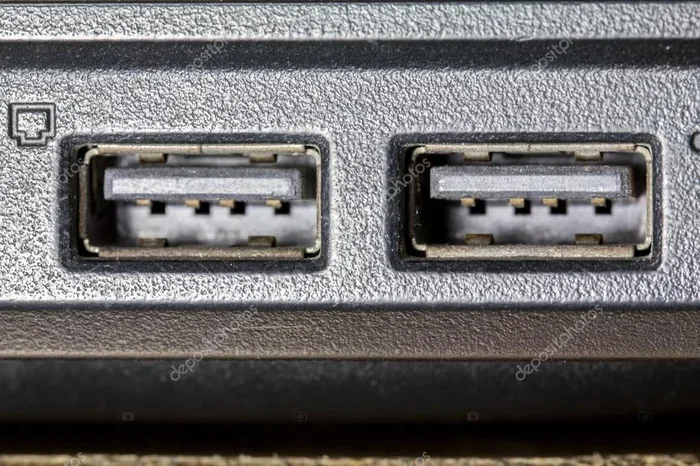
- Dirt or debris inside the car’s USB port
- A cable that is too long or low quality
Quick Tip: Try a different USB cable first. This simple step fixes CarPlay connection issues more often than you might think. Many people grab any cable they have on hand, but not all cables are created equal. Use a high-quality, Apple-certified cable for the best results.
Software and Update Problems
Outdated software is another major reason CarPlay stops working. Both your iPhone and your car’s infotainment system need to run compatible software versions. When one falls behind, CarPlay may fail to connect or behave unpredictably.
Keep these points in mind:
- Check for iOS updates on your iPhone regularly
- Look for infotainment system updates from your car manufacturer
- Restart your device after updating to refresh the connection
- Check CarPlay compatibility if you have a very old iPhone
Expert Insight: Many drivers ignore update notifications for months. But these updates often include fixes for CarPlay bugs and compatibility issues. Setting your phone to update automatically can save you a lot of trouble.
Settings and Configuration Mistakes
Sometimes the problem is simpler than you think. Your CarPlay settings may have been accidentally turned off. Or your phone’s privacy settings might be blocking the connection.
Common settings mistakes include:
- Forgetting to enable CarPlay in your phone settings
- Having Bluetooth or Wi-Fi turned off for wireless CarPlay
- Restrictions on your iPhone that block CarPlay features
- Incorrect CarPlay preference settings in your car
Take a moment to check your CarPlay settings on both devices. This small step can save you hours of frustration.
Bluetooth and Wi-Fi Interference
For wireless CarPlay, Bluetooth and Wi-Fi signals can sometimes interfere with the connection. Other devices, nearby networks, or even your phone case can disrupt the signal. This is a common reason CarPlay disconnects unexpectedly while driving.
To reduce interference:
- Move away from crowded Wi-Fi networks
- Turn off other Bluetooth devices temporarily
- Remove thick or metal phone cases that may block signals
- Restart your car’s Bluetooth module by turning the system off and on
Common Mistakes: Some drivers assume the problem is hardware when it is actually a signal interference issue. Before replacing any cables or visiting a dealer, try reducing wireless interference first.
How to Fix CarPlay When It Won’t Connect
Now that you know the common causes, let us get into the fixes. These steps will help you resolve most CarPlay connection problems quickly and easily.
Step One: Restart Everything
The oldest trick in the book is still one of the best. Restarting both your iPhone and your car’s infotainment system can clear temporary glitches that cause CarPlay to stop working.
Here is how to do it:
- Turn off your car and remove the key from the ignition
- Restart your iPhone by holding the power button and sliding to power off
- Wait about 30 seconds
- Start your car again
- Turn on your iPhone
- Check if CarPlay connects automatically
This simple CarPlay restart process clears your device’s memory and refreshes all connections. It works surprisingly well for many users.
Step Two: Check Your USB Cable and Ports
If you are using a wired connection, your cable and ports matter a lot. A bad cable is the number one reason for CarPlay not showing on your car screen.
Quick Tips for cable and port checks:
- Use a short USB cable (under 3 feet) for a stronger signal
- Clean the USB port in your car with a toothpick or compressed air
- Try a different USB port in your car if available
- Avoid USB hubs or extensions; plug directly into the car
Common Mistakes: Many people use cables that only charge devices. These cables lack the data pins needed for CarPlay. Always use a cable that supports data transfer.
Step Three: Update Your Software
Software updates often include fixes for CarPlay bugs. Keeping both your iPhone and car system updated is one of the best ways to prevent CarPlay issues.
To update your iPhone:
- Go to Settings and tap General
- Select Software Update
- Download and install any available updates
For your car system, check your owner’s manual or visit your dealer’s website. Some brands allow over-the-air updates, while others require a visit to the service center.
Expert Insight: If your CarPlay stopped working right after a recent update, check online for known issues with that specific software version. Sometimes a follow-up patch is released quickly to fix bugs.
Step Four: Reset Network Settings
If you are using wireless CarPlay, network settings can sometimes interfere. Resetting your network settings can clear these issues.
Warning: This will erase all your saved Wi-Fi passwords. Make sure you know your Wi-Fi password before proceeding.
To reset network settings on your iPhone:
- Go to Settings
- Tap General
- Select Transfer or Reset iPhone
- Choose Reset
- Tap Reset Network Settings
After resetting, reconnect to your car’s Bluetooth or Wi-Fi network and check if CarPlay works.
Step Five: Forget and Re-Pair Your Device
Sometimes your iPhone and car simply need to re-establish their connection. Forgetting the device and pairing it again can fix this.
On your car’s infotainment system:
- Go to Bluetooth or CarPlay settings
- Find your iPhone in the list of devices
- Select Forget Device
- Restart your car
- On your iPhone, go to Settings and tap CarPlay
- Select your car from the list to pair again
This fresh pairing often resolves stubborn CarPlay connection issues that other fixes cannot solve.
Wireless vs Wired CarPlay: Which Is More Reliable?
One of the biggest decisions drivers face is choosing between wireless CarPlay and wired CarPlay. Both have their pros and cons, and understanding them can help you pick the right option for your situation.
| Feature | Wireless CarPlay | Wired CarPlay |
|---|---|---|
| Connection Method | Bluetooth and Wi-Fi | USB Cable |
| Setup Ease | Connects automatically | Must plug in cable each time |
| Stability | Can be affected by signal interference | Very stable connection |
| Speed | Slightly slower in some cases | Faster data transfer |
| Cable Needed | No | Yes, a good quality USB cable |
| Common Issues | Disconnects, delays | Cable damage, loose port |
| Best For | Convenience and daily use | Reliability and audio quality |
Most drivers find that wired CarPlay is more reliable for basic tasks like navigation and calls. Wireless CarPlay offers more convenience but can be prone to occasional disconnects. The best choice depends on your needs.
Quick Tip: If you use wireless CarPlay and experience frequent disconnects, try switching to wired temporarily. This can help you determine if the issue is with your wireless connection or something deeper in the system.
When to Choose Wireless CarPlay
Wireless CarPlay is great if you want a clutter-free dashboard. You do not have to fumble with cables every time you get in the car. It connects automatically when you sit down.
However, wireless CarPlay requires both Bluetooth and Wi-Fi to be active. If either one has issues, your CarPlay may not connect. Make sure both are turned on and working properly.
When to Choose Wired CarPlay
Wired CarPlay gives you a rock-solid connection. It is less likely to drop or lag. This is especially important if you rely on CarPlay for navigation in unfamiliar areas.
The downside is the cable. You need to keep a good quality cable in your car at all times. And plugging and unplugging can wear out your car’s USB port over time.
When Your CarPlay Screen Goes Black or Freezes
A black screen or frozen display is one of the most alarming CarPlay problems. You turn on your car and nothing happens on the screen. Before you panic, know that this is usually fixable.
Why Does CarPlay Go Black?
A CarPlay black screen can happen for several reasons. The most common cause is a glitch in the connection between your phone and car system. Sometimes the screen goes black because the CarPlay app has crashed on your iPhone.
Other reasons include:
- Your iPhone screen is locked and CarPlay cannot display
- The car’s infotainment system has frozen
- A software conflict between your iPhone and car
- Your CarPlay settings were reset accidentally
How to Fix a Frozen or Black CarPlay Screen
Try these steps in order:
- Lock and unlock your iPhone screen. This wakes up the CarPlay interface in many cases.
- Restart your car’s infotainment system by holding the power button for 10 to 15 seconds.
- Disconnect and reconnect your iPhone if you are using a wired connection.
- Force restart your iPhone by holding the power button and a volume button together.
- Check for a CarPlay update on your car’s system settings.
Expert Insight: A black CarPlay screen is often just a temporary glitch. Do not assume the worst. Most of the time, a simple restart of either device will bring the screen back to life.
Common Mistakes: Some drivers unplug their phone and plug it back in repeatedly. This can confuse the system further. Instead, restart both devices properly and let them reconnect from a clean state.
CarPlay Audio Not Working
Sometimes your CarPlay screen works fine, but the audio does not. You might see the app running but hear nothing. This is a different but related issue.
Check these things first:
- Make sure your car’s audio source is set to CarPlay
- Check your iPhone’s volume and make sure it is not muted
- Verify that Bluetooth is connected if using wireless CarPlay
- Try pausing and resuming the audio in the app
If the audio still does not work, try disconnecting CarPlay and reconnecting. This often resets the audio channel and restores sound.
Quick Tip: If your CarPlay audio is distorted or crackly, the USB cable might be to blame. A damaged cable can cause audio quality problems even if the connection itself seems fine. Try a different cable as your first step.
How to Keep CarPlay Running Smoothly Long Term
Prevention is always better than cure. Taking a few simple steps can keep your CarPlay working reliably for months and even years.
Regular Maintenance Tips
Keep your CarPlay in top shape with these habits:
- Update your iPhone regularly. New iOS updates often include CarPlay improvements and bug fixes.
- Replace your USB cable every 6 to 12 months. Cables wear out over time and can cause connection issues.
- Keep your car’s infotainment system updated. Check for updates during regular service visits.
- Restart your phone weekly. This clears background processes that can interfere with CarPlay.
- Clean your car’s USB ports regularly. Dust and lint can build up and weaken the connection.
Common Mistakes That Damage CarPlay Performance
Avoid these habits that can cause CarPlay problems over time:
- Using cheap, non-certified USB cables
- Leaving your iPhone plugged in and charging for weeks without restarting
- Ignoring software update notifications
- Overloading your iPhone with too many apps that use CarPlay
- Using your phone while it is plugged in for CarPlay, which can cause overheating
When to Seek Professional Help
Most CarPlay issues can be fixed at home. But some problems need professional attention. If you have tried all the fixes in this guide and CarPlay still does not work, it is time to seek help.
Contact your car dealer if:
- The infotainment system has a persistent software error
- CarPlay worked before but stopped after a car software update
- You notice hardware damage to the USB port or car screen
- Multiple troubleshooting steps have failed
You can also reach out to Apple Support for help with iPhone-related CarPlay issues. They can walk you through advanced steps and determine if your iPhone hardware is the problem.
Conclusion
Dealing with CarPlay not working can be a real headache. But as you have seen, most issues have straightforward solutions. Whether it is a simple cable swap, a software update, or a quick restart, you have the tools to fix the problem yourself.
Remember to keep your devices updated, use quality cables, and check your settings regularly. These small habits go a long way in keeping your CarPlay experience smooth and enjoyable. The next time CarPlay gives you trouble, do not panic. Work through the steps in this guide, and you will likely have it back up and running in just a few minutes.
Your CarPlay is designed to make driving safer and more convenient. With a little maintenance and the right troubleshooting knowledge, you can keep it doing exactly what it is supposed to do.
Frequently Asked Questions
Why Does My CarPlay Keep Disconnecting?
Frequent disconnections are usually caused by an unstable connection or outdated software. Try using a different USB cable, resetting your network settings, or updating both your iPhone and car system. Wireless CarPlay disconnects can also be caused by signal interference from other Bluetooth devices.
Is CarPlay Free to Use?
Yes, Apple CarPlay is completely free to use. There are no subscription fees or hidden costs. You simply connect your compatible iPhone to your car, and the features are available at no extra charge. Some third-party apps within CarPlay may have their own costs, but the system itself is free.
Can I Use CarPlay with an Android Phone?
No, CarPlay is designed exclusively for iPhones. If you have an Android phone, you will need to look for alternatives like Android Auto or your car’s built-in navigation system. However, some car manufacturers offer both CarPlay and Android Auto support in the same vehicle.
Why Is My CarPlay Screen Black but the Audio Works?
This usually happens when the CarPlay interface has frozen or crashed while the audio continues playing in the background. Try locking and unlocking your iPhone screen, or restart your car’s infotainment system. A quick CarPlay restart often fixes this issue immediately.
How Do I Know If My Car Supports CarPlay?
You can check your car’s owner manual or look for the CarPlay logo on your infotainment screen. Most cars made after 2016 offer CarPlay support, either as standard or an optional feature. You can also check your car manufacturer’s website for compatibility details.
Can I Use CarPlay While Charging My Phone?
Yes, using CarPlay while charging is perfectly fine and actually recommended. It ensures your phone battery stays healthy during long drives. Just make sure you are using a quality USB cable that supports both data transfer and charging to avoid any connection issues.