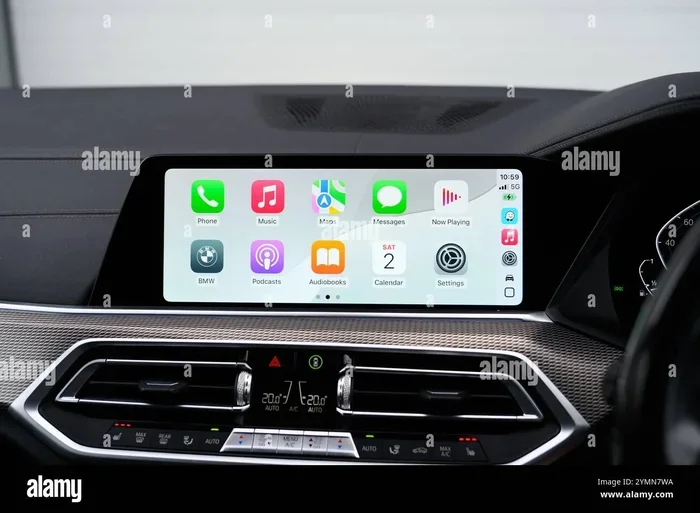
Why Is My Apple CarPlay Not Connecting To My iPhone
Apple CarPlay not connecting to your iPhone can be frustrating, but the good news is that most issues are easy to fix. Whether your CarPlay screen is black, frozen, or simply refuses to pair, this guide covers every common cause and solution. We will walk you through step-by-step troubleshooting so you can get back to safe, hands-free driving in no time.
Key Takeaways
- Restart Both Devices: A simple restart of your iPhone and car infotainment system fixes the majority of CarPlay connection problems.
- Check Your Cable and Port: A damaged USB cable or dirty Lightning port is one of the most common reasons CarPlay will not connect.
- Update Software Regularly: Outdated iOS or car software can cause compatibility issues that prevent CarPlay from working.
- Reset Network and Bluetooth Settings: Clearing old pairings and network glitches often resolves wireless CarPlay failures.
- Disable VPNs and Low Power Mode: These iPhone features can interfere with CarPlay connectivity in surprising ways.
- Contact Support When Needed: If all else fails, reaching out to Apple Support or your car manufacturer can solve rare hardware issues.
📑 Table of Contents
- Why Is My Apple CarPlay Not Connecting To My iPhone
- Common Reasons Why Apple CarPlay Fails to Connect
- Step-by-Step Fixes to Get Apple CarPlay Working
- How to Prevent Apple CarPlay Connection Issues
- CarPlay Not Working on Specific Car Brands
- When to Contact Professional Support
- Quick Tips for Better CarPlay Performance
- Comparison: Wired vs. Wireless Apple CarPlay
- Key Takeaways
- Frequently Asked Questions
- Conclusion
Why Is My Apple CarPlay Not Connecting To My iPhone
You are sitting in your car, ready to start your drive. You plug in your iPhone or tap the wireless CarPlay button. Then nothing happens. The screen stays blank or shows an error message. This is a very common problem that Apple CarPlay users face every day. The good news is that most reasons behind this issue are simple to fix.
Apple CarPlay is a fantastic feature. It lets you use your iPhone safely while driving. You get maps, music, messages, and phone calls right on your car screen. But when CarPlay refuses to connect, it can ruin your whole morning commute. You are not alone if this has happened to you.
This article will help you understand why your Apple CarPlay is not connecting to your iPhone. We will cover every possible cause. We will give you clear, step-by-step fixes. By the end, you will know exactly what to do. Let us get your CarPlay back up and running.
Common Reasons Why Apple CarPlay Fails to Connect
Before you start fixing things, it helps to know what is causing the problem. Apple CarPlay not connecting can happen for many reasons. Some are software-related. Others are hardware issues. Let us look at the most common culprits.
Faulty or Damaged USB Cable
The USB cable is the most overlooked cause. A damaged cable will prevent your iPhone from communicating with the car. If the cable is frayed, bent, or old, it may not transfer data properly. Many people use cables that only charge the phone. These cables do not support CarPlay data transfer. Always use the cable that came with your iPhone or a certified MFi cable.
Dirty or Damaged Lightning Port
Dust, lint, and debris can build up in your iPhone Lightning port. This is especially common in pockets and purses. When the port is dirty, the connection is weak or nonexistent. A dirty port can make CarPlay not showing up on your screen even when the cable is fine. A quick cleaning with a toothpick or compressed air can work wonders.
Outdated iOS or Car Software
Apple releases iOS updates regularly. These updates often include bug fixes for CarPlay connection issues. If your iPhone is running an older version of iOS, it may not work well with your car’s infotainment system. Similarly, car manufacturers release software updates too. These updates improve CarPlay compatibility and performance. Running outdated software on either side can cause problems.
Bluetooth or Wi-Fi Interference
Wireless CarPlay relies on Bluetooth and Wi-Fi. If there is interference from other devices, the connection can drop. Other Bluetooth devices in your car can sometimes conflict with CarPlay. Wi-Fi networks nearby can also cause issues. This is a common reason for wireless CarPlay not working in crowded areas or cities.
iPhone Settings That Block CarPlay
Sometimes the problem is in your iPhone settings. Features like Low Power Mode, VPNs, or screen time restrictions can block CarPlay. If you recently changed a setting, it might be the reason your CarPlay keeps disconnecting. Checking your settings is a quick and easy first step.
Car Infotainment System Glitches
Your car’s infotainment system is basically a small computer. Like any computer, it can have glitches. A frozen screen or unresponsive system can prevent CarPlay from loading. Sometimes the system just needs a fresh start to work properly again.
Step-by-Step Fixes to Get Apple CarPlay Working
Now that you know the common causes, let us fix them. These steps are ordered from simplest to most advanced. Try each one and test CarPlay after you do it. Most people find that one of these steps solves the problem.
Step 1: Restart Your iPhone
A simple restart fixes many tech problems. It clears temporary glitches and refreshes all connections. To restart your iPhone, hold down the power button. Slide to power off. Wait about 30 seconds. Turn it back on. Now try connecting CarPlay again. This alone solves the issue for many users.
Step 2: Restart Your Car Infotainment System
Your car system needs a reset too. The method varies by car brand. Some cars let you hold the power button for 10 seconds. This forces a full reboot. Others may require you to turn the car off and back on. Check your car manual for the exact steps. A system restart clears cached data that might be blocking CarPlay.
Step 3: Try a Different USB Cable
If restarting did not work, swap your cable. Use a high-quality, Apple-certified USB cable. Avoid cheap third-party cables. These often do not support the data speeds CarPlay needs. A good cable is one of the easiest Apple CarPlay troubleshooting steps. If the new cable works, you have found your problem.
Step 4: Clean the Lightning Port
Grab a flashlight and look at your iPhone port. Do you see any lint or dust? Use a wooden toothpick to gently remove debris. Do not use metal objects. They can damage the port. After cleaning, plug your cable back in. Make sure it fits snugly. A clean port ensures a strong and stable connection for CarPlay USB connection issues.
Step 5: Update Your iPhone and Car Software
Go to Settings on your iPhone. Tap General. Then tap Software Update. Install any available updates. These updates often include fixes for CarPlay not responding problems. Next, check your car manufacturer’s website. Many brands offer over-the-air updates now. Updating both devices ensures they work well together.
Step 6: Reset CarPlay Settings on Your iPhone
Sometimes the CarPlay settings on your iPhone get corrupted. Go to Settings. Tap General. Tap CarPlay. Select your car. Tap Forget This Car. Now reconnect your iPhone. This resets the pairing and often fixes connection issues. It is like giving CarPlay a fresh start.
Step 7: Disable VPN and Low Power Mode
VPNs can block CarPlay from connecting to your car’s system. Turn off your VPN and see if CarPlay works. Low Power Mode can also interfere. It restricts background processes that CarPlay needs. Go to Settings and turn off Low Power Mode. Then try connecting again. This is a quick fix that many people overlook.
Step 8: Reset Network Settings
If wireless CarPlay is the problem, resetting network settings can help. Go to Settings. Tap General. Tap Transfer or Reset iPhone. Tap Reset. Choose Reset Network Settings. This clears all Wi-Fi, Bluetooth, and cellular settings. You will need to reconnect to your Wi-Fi network afterward. But it often fixes stubborn wireless CarPlay problems.
Step 9: Factory Reset Your Car Infotainment System
This is a more advanced step. If nothing else has worked, a factory reset of your car system might be the answer. This wipes all settings and returns the system to its original state. Check your car manual for instructions. Some cars let you do this in the settings menu. Others may require a visit to the dealership. Always try the simpler steps first.
How to Prevent Apple CarPlay Connection Issues
Prevention is always better than cure. Once you get CarPlay working, you want it to stay that way. Here are some simple habits that keep CarPlay connection issues away.
- Use a Quality Cable: Always use an Apple-certified USB cable. Cheap cables cause most CarPlay problems.
- Keep Your iPhone Clean: Regularly clean the Lightning port. This prevents dust buildup that weakens connections.
- Update Regularly: Install iOS updates as soon as they are available. They often include CarPlay fixes.
- Restart Your Car System Monthly: A monthly reboot clears out old data and keeps things running smoothly.
- Avoid Overheating: Extreme heat can affect both your iPhone and car system. Keep your phone out of direct sunlight.
- Forget Old Pairings: If you sell or share your car, forget the CarPlay pairing. This prevents conflicts with new devices.
CarPlay Not Working on Specific Car Brands
Some CarPlay troubleshooting steps are specific to certain car brands. Let us look at a few common scenarios.
CarPlay Not Working on Toyota
Toyota vehicles are popular, but some models have known CarPlay issues. If you own a Toyota, try resetting the Entune system. Make sure your Toyota app is up to date on your phone. Some older Toyota models need a firmware update from the dealer to support the latest CarPlay features.
CarPlay Not Working on Honda
Honda users sometimes report that CarPlay disconnects randomly. This is often a software bug. Check for Honda Link updates. Try resetting the Honda infotainment system by holding the power button for 15 seconds. This clears temporary glitches that cause disconnections.
CarPlay Not Working on Ford
Ford Sync systems can be picky about CarPlay connections. Make sure your SYNC software is updated through the FordPass app. If CarPlay keeps disconnecting, try deleting the CarPlay pairing and setting it up again from scratch. A fresh pairing often resolves sync issues.
CarPlay Not Working on BMW
BMW iDrive systems are generally reliable. But sometimes CarPlay not showing up on BMW screens happens. Go to the BMW iDrive settings and make sure CarPlay is enabled. Try switching between USB and wireless connection. A simple toggle often fixes the issue on BMW models.
When to Contact Professional Support
Most CarPlay issues are software-related and easy to fix. But sometimes the problem is hardware. If you have tried every step and CarPlay still will not connect, it may be time to seek help.
Contact Apple Support if you suspect the iPhone is the problem. They can run diagnostics and help with Apple CarPlay troubleshooting steps specific to your device model. If the car system is the issue, visit your dealership or a certified mechanic. They have specialized tools to diagnose infotainment system failures.
Also consider the age of your car and iPhone. Older vehicles may not support the latest CarPlay features. Similarly, very old iPhones may not be compatible with newer car systems. Checking compatibility is an important step that many people skip.
Quick Tips for Better CarPlay Performance
Want your CarPlay to work flawlessly every time? Here are some quick tips that make a big difference.
- Always use the same USB port in your car for CarPlay. Some ports only charge and do not support data.
- Lock your iPhone after connecting. This tells CarPlay it is safe to display the interface.
- Disable screen mirroring on your iPhone if you are using wireless CarPlay. It can cause lag and disconnections.
- Keep your iPhone charged. A low battery can cause CarPlay to behave strangely or disconnect unexpectedly.
- Restart CarPlay before restarting your whole car. This saves time and often fixes minor glitches.
Comparison: Wired vs. Wireless Apple CarPlay
Both wired and wireless CarPlay have their strengths. Here is a quick comparison to help you understand the differences.
| Feature | Wired CarPlay | Wireless CarPlay |
|---|---|---|
| Connection Method | USB Cable | Bluetooth and Wi-Fi |
| Setup | Plug in cable | Pair once, then automatic |
| Stability | Very stable | Can be affected by interference |
| Convenience | Need to plug in every time | Connects automatically |
| Common Issues | Cable damage, dirty port | Wi-Fi interference, pairing errors |
| Charging While Driving | Yes | No (unless using a wireless charger) |
Both options work great when they are set up correctly. Wired CarPlay is more reliable and less prone to connection drops. Wireless CarPlay is more convenient because you do not need to plug in. If you have issues with wireless CarPlay, try switching to wired. It can help you determine if the problem is with your connection type.
Key Takeaways
- Restart Both Devices: A simple restart of your iPhone and car infotainment system fixes the majority of CarPlay connection problems.
- Check Your Cable and Port: A damaged USB cable or dirty Lightning port is one of the most common reasons CarPlay will not connect.
- Update Software Regularly: Outdated iOS or car software can cause compatibility issues that prevent CarPlay from working.
- Reset Network and Bluetooth Settings: Clearing old pairings and network glitches often resolves wireless CarPlay failures.
- Disable VPNs and Low Power Mode: These iPhone features can interfere with CarPlay connectivity in surprising ways.
- Contact Support When Needed: If all else fails, reaching out to Apple Support or your car manufacturer can solve rare hardware issues.
Frequently Asked Questions
Why does my Apple CarPlay keep disconnecting while driving?
CarPlay disconnecting while driving is often caused by a loose USB cable or a dirty Lightning port. Vibrations from driving can worsen a weak connection. Try a different cable and clean your port. If you use wireless CarPlay, Wi-Fi interference from other devices can also cause drops. Resetting your network settings often fixes this.
Can a low iPhone battery cause CarPlay not to connect?
Yes, a very low battery can interfere with CarPlay. When your battery drops below 20 percent, your iPhone may restrict certain functions to conserve power. This can include CarPlay connectivity. Keep your iPhone charged above 20 percent before connecting to CarPlay for the best results.
Is Apple CarPlay compatible with all cars?
Apple CarPlay is not compatible with every car. It works with most vehicles made after 2016. Some older cars may need a firmware update or a CarPlay adapter to support the feature. Check Apple’s official compatibility list or your car manufacturer’s website to confirm if your vehicle supports CarPlay.
How do I know if my car supports wireless CarPlay?
Check your car’s infotainment system settings. If you see a wireless CarPlay option, your car supports it. Wireless CarPlay became more common in cars from 2019 onward. If your car only has a USB port, it likely uses wired CarPlay. Some cars offer both options for flexibility.
What should I do if CarPlay shows a black screen?
A black screen usually means the connection is failing or the car system is frozen. Disconnect your iPhone and wait 10 seconds. Reconnect the cable firmly. If the screen stays black, restart your car infotainment system. A black screen is often a temporary glitch that a simple restart fixes.
Does using a screen protector affect Apple CarPlay?
Some thick or metal-based screen protectors can interfere with wireless CarPlay. They may block the sensors and signals needed for wireless connection. If you notice CarPlay issues after applying a new screen protector, try removing it temporarily. Most standard tempered glass protectors do not cause any problems.
Conclusion
Dealing with Apple CarPlay not connecting is frustrating. But you now have the knowledge and tools to fix it yourself. Most of the time, the solution is a simple restart, a new cable, or a software update. You do not need to be a tech expert to solve these problems.
Remember to keep your cable and port clean. Update your iPhone and car software regularly. And do not be afraid to reset your settings when needed. These habits will keep CarPlay working smoothly for years to come.
If you have tried everything and the problem persists, reach out to Apple or your car manufacturer for help. They have the tools and expertise to solve even the trickiest issues. Now get back on the road and enjoy your Apple CarPlay connection. Safe driving!