Is My Dash Cam Always Recording When You Are Driving
Your dash cam does not always record — it depends on your settings and power source. Most dash cams use loop recording to capture footage continuously while you drive, but they stop when the engine turns off — unless you have a hardwire kit. Parking mode and motion detection can keep your camera active when parked, but this affects battery life and storage.
If you own a dash cam or are thinking about buying one, you have probably wondered about this question: Is My Dash Cam Always Recording when you are behind the wheel? It is a smart question. After all, you want your dash cam to protect you when something goes wrong on the road.
The short answer is no. Most dash cams do not record all the time. They work on specific settings that control when they start and stop. Understanding these settings helps you get the most out of your device. It also makes sure you never miss important dash cam footage when you need it most.
In this guide, we will walk you through everything you need to know. We will cover how dash cams record, what happens when your car is off, and how to set up your camera the right way. By the end, you will feel confident about your dash cam setup.
Let us dive in and clear up the confusion once and for all.
Key Takeaways
- Dash cams use loop recording: They overwrite old footage automatically to keep your storage full and ready.
- They stop when the car is off: Without a hardwire kit, your dash cam powers down when you turn the ignition off.
- Parking mode keeps recording: Motion and impact sensors can activate your dash cam while parked.
- Storage matters: Your SD card size determines how much footage you can keep before it overwrites.
- Not all dash cams are the same: Features like G-sensor, GPS tracking, and night vision affect recording behavior.
- Check your local laws: Some regions have rules about continuous recording in parking areas.
📑 Table of Contents
- How Dash Cams Work When You Drive
- Does Your Dash Cam Record When the Car Is Off?
- What Triggers Your Dash Cam to Start and Stop
- How Storage and Memory Affect Recording
- Different Types of Dash Cam Recording Modes
- Common Mistakes That Stop Your Dash Cam From Recording
- Tips to Get the Most Out of Your Dash Cam
- Final Thoughts on Dash Cam Recording
How Dash Cams Work When You Drive
Most dash cams are designed to work with your car’s engine. When you turn the key or press the start button, the dash cam wakes up. It begins capturing continuous recording of the road ahead. This is the default behavior for most devices on the market today.
But how does this actually work behind the scenes? Let us break it down into simple parts.
What Is Loop Recording?
Loop recording is the most important feature your dash cam uses. It means the camera keeps recording in a circular pattern. When your SD card storage fills up, the dash cam automatically overwrites the oldest footage. This makes room for new clips.
Here is how it works step by step:
- The dash cam starts recording when you turn on the engine.
- It saves short video clips, usually 1 to 5 minutes each.
- When the memory card reaches its limit, it deletes the oldest file.
- The camera keeps recording without you needing to do anything.
This process ensures your dash cam is always ready to capture the latest dash cam footage. You never have to worry about running out of space while driving.
How Does the Camera Know When to Start?
Your dash cam connects to your car’s electrical system. When the ignition switch turns on, power flows to the camera. This triggers the auto start feature. The dash cam boots up and begins recording within seconds.
When you turn off the engine, the power stops. The dash cam shuts down too. This is the standard setup for most dash cams. It is simple, reliable, and works with almost every vehicle.
Some advanced models also include a battery backup or a super capacitor. These small components give the camera enough power to save the current clip before it shuts down. This prevents footage loss during sudden power cuts.
Does Your Dash Cam Record When the Car Is Off?
This is one of the most common questions people ask. The answer depends on your setup. By default, your dash cam stops recording when the engine is off. But there are ways to change this behavior.
Let us look at the two main options available.
Understanding Parking Mode
Parking mode is a feature that lets your dash cam keep recording even when your car is parked. It uses very little power. The camera stays in a low-power standby state and waits for something to happen.
There are two main triggers for parking mode:
- Motion detection: The dash cam turns on when it senses movement in front of the camera.
- Impact detection (G-sensor): The camera activates when it feels a bump or collision.
When either trigger happens, the dash cam starts recording a new clip. This is incredibly useful for capturing hit-and-run incidents or vandalism. However, parking mode does drain your car battery over time if left on for days.
The Role of a Hardwire Kit
A hardwire kit connects your dash cam directly to your car’s fuse box. This gives the camera a constant power source. It also lets you use parking mode safely without draining the car battery.
Most hardwire kits include a voltage monitor. This monitor cuts off power to the dash cam when your car battery drops below a safe level. It protects your car from getting a dead battery. Here is why many drivers love this setup:
- It enables 24/7 monitoring in parking mode.
- It provides a cleaner installation with no loose cables.
- It protects your car battery from draining completely.
- It allows your front and rear camera setup to work while parked.
If you want your dash cam to record around the clock, a hardwire kit is the way to go. It is a small investment that pays off in peace of mind.
What Triggers Your Dash Cam to Start and Stop
Your dash cam does not just record randomly. It follows a set of rules built into its firmware. These rules control when recording begins and ends. Understanding them helps you troubleshoot issues and get better results.
The Auto Start and Stop Feature
Almost all modern dash cams have an auto start and auto stop function. When you plug the dash cam into your car’s power outlet or hardwire it, the camera detects power. It starts recording automatically.
When you remove the power or turn off the ignition, the camera stops. This is a simple but effective design. It means you do not have to press any buttons every time you drive.
Some dash cams also offer a manual override. You can set the camera to start recording even without the ignition being on. This is helpful if you want to monitor your car while loading groceries or during a long break at a rest stop.
How the G-Sensor Works
The G-sensor is a tiny accelerometer inside your dash cam. It detects sudden changes in movement. When your car hits a bump, swerves hard, or gets into a collision, the G-sensor kicks in.
Here is what happens when the G-sensor is triggered:
- The dash cam marks the current clip as an “event file.”
- It locks this file so it cannot be overwritten during loop recording.
- The footage is saved separately from regular driving clips.
This event detection feature is incredibly valuable. It ensures that the most important incident capture footage is never lost. If you ever need to file an insurance claim, this locked footage can be the key evidence you need.
You can usually adjust the G-sensor sensitivity in your dash cam settings. A higher sensitivity means the camera locks clips more easily. A lower sensitivity means it only locks clips during serious impacts.
How Storage and Memory Affect Recording
Your dash cam can only record as much as its storage allows. The memory card capacity plays a huge role in how long your footage lasts before it gets overwritten. Let us talk about what matters most.
SD Card Size and Footage Length
Most dash cams come with a small SD card, usually 16GB or 32GB. A 32GB card can store about 2 to 4 hours of video resolution at 1080p. A 64GB or 128GB card gives you much more time.
Here is a rough guide for a 1080p dash cam:
- 16GB card: About 1 to 2 hours of footage.
- 32GB card: About 2 to 4 hours of footage.
- 64GB card: About 4 to 8 hours of footage.
- 128GB card: About 8 to 16 hours of footage.
Keep in mind that higher video resolution takes up more space. A 4K dash cam will fill up a card much faster than a 1080p camera. Choose a card size that matches how long you usually drive each day.
What Happens When the Card Is Full?
With loop recording turned on, your dash cam handles a full card automatically. It deletes the oldest files and makes room for new ones. You do not need to do anything manually.
However, locked event files are protected. They stay on the card until you delete them yourself. This means your most important dash cam footage is always safe, even when the card is full.
It is a good habit to check your card every few weeks. Delete old event files you no longer need. This keeps your dash cam running smoothly and prevents storage issues.
Different Types of Dash Cam Recording Modes
Not all dash cams record the same way. Different models offer different recording modes that suit various driving needs. Let us explore the most common ones.
Continuous Recording vs. Event-Only Recording
Continuous recording means the dash cam records the entire time you drive. It captures everything — the highway, city streets, and everything in between. This is the default mode for most dash cams and gives you the most complete picture of your trip.
Event-only recording works differently. The camera stays in standby mode until something triggers it. This could be a motion sensor, an impact, or a manual button press. It saves storage space but might miss important moments if the trigger fails.
For most drivers, continuous recording is the best choice. It ensures you never miss a critical moment on the road. Event-only mode is better for people who want to save battery and storage when the car is parked.
Front and Rear Camera Setup
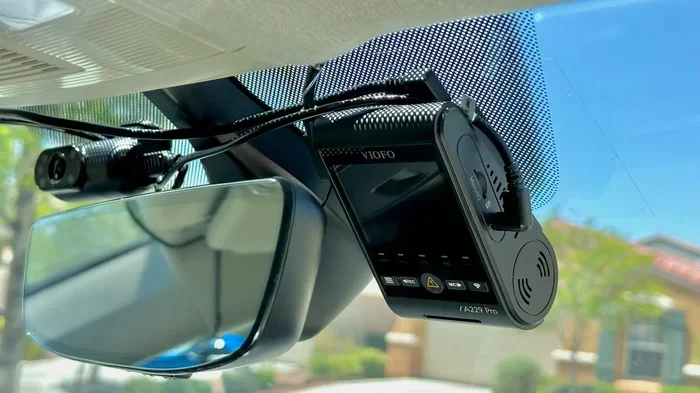
Many drivers choose a front and rear camera setup. The front camera faces the windshield and records the road ahead. The rear camera faces backward and captures what is behind you.
This dual-camera setup gives you complete coverage. If someone rear-ends you, the rear camera captures the whole incident. If a car cuts you off in front, the front camera records it. Together, they provide solid incident capture evidence from both directions.
A wide-angle lens on each camera helps cover more of the road. Most front cameras use a 130 to 170-degree field of view. Rear cameras usually have a slightly narrower angle. This is enough to capture license plates and road details clearly.
Common Mistakes That Stop Your Dash Cam From Recording
Even the best dash cam can fail to record if you make simple setup mistakes. Here are the most common errors drivers make and how to avoid them.
Forgetting to Format the SD Card
An unformatted or old SD card can cause recording problems. The dash cam might fail to save new footage. It could also corrupt files and stop working altogether.
Make it a habit to format your SD card once a month. Most dash cams have a format option in the settings menu. This clears old data and keeps the card running smoothly. Always use a high-quality SD card rated for continuous writing. Cheap cards can fail under the heat of a car dashboard.
Ignoring Firmware Updates
Dash cam manufacturers release firmware updates regularly. These updates fix bugs, improve night vision performance, and add new features. Ignoring updates means you might miss out on important improvements.
Check your dash cam app or website for updates every few months. The process is usually simple. Download the update file to your phone, connect to the dash cam via Wi-Fi, and install. It only takes a few minutes but can make a big difference.
Not Checking the Power Connection
A loose power cable is one of the most common reasons a dash cam stops recording. If the cable wiggles or falls out, the camera loses power and stops capturing dash cam footage.
Make sure your cable is firmly connected at both ends. If you use a hardwire kit, check that the fuse tap is secure. A capacitor or battery backup can help bridge short power interruptions. But it cannot fix a loose connection.
Tips to Get the Most Out of Your Dash Cam
Now that you understand how dash cam recording works, here are some practical tips to improve your setup.
- Mount the camera correctly: Place it behind the rearview mirror for the best field of view. Make sure it has a clear line of sight through the windshield.
- Clean the lens regularly: A dirty lens ruins footage quality. Wipe it with a microfiber cloth before each trip.
- Use a high-speed SD card: Look for cards rated as high-speed or U3/V30. These handle continuous recording without lag.
- Set the right resolution: 1080p or 4K gives you sharp details. Higher resolution helps capture license plates and road signs clearly.
- Enable GPS tracking: If your dash cam supports it, GPS tracking logs your speed and location. This adds valuable context to your footage.
- Test your parking mode: Before relying on parking mode, test it at home. Walk past your car and check if the camera activates. This confirms your motion detection is working.
Taking a few extra minutes to set up your dash cam properly pays off in a big way. You get clearer footage, fewer gaps in recording, and more confidence that your camera will work when you need it most.
Final Thoughts on Dash Cam Recording
So, is my dash cam always recording when I am driving? The answer is yes — as long as your car is running and the dash cam has power. It uses loop recording to capture continuous footage and overwrites old clips when the storage is full.
When the car is off, the dash cam stops by default. But with parking mode and a hardwire kit, you can keep recording even while parked. These features give you extra protection against hit-and-runs and vandalism.
The key is to set up your dash cam correctly. Choose the right SD card, enable the right recording modes, and keep your firmware updated. A well-configured dash cam is one of the best investments you can make for your safety on the road.
Take a few minutes today to review your dash cam settings. Make sure everything is working as it should. You will thank yourself if you ever need that footage to prove what really happened on the road.
Frequently Asked Questions
Does my dash cam record when the car is parked?
By default, no. Most dash cams stop recording when the engine turns off. However, if your dash cam has parking mode enabled, it can record when it detects motion or impact. A hardwire kit makes this feature work safely without draining your car battery.
How long can a dash cam record continuously?
A dash cam can record as long as the engine is running and it has power. The recording length depends on your SD card size. A 32GB card usually holds 2 to 4 hours of 1080p footage before loop recording starts overwriting the oldest files.
Will my dash cam drain my car battery?
It can, if left in recording mode while parked for too long. Standard dash cams draw power even in standby. Parking mode with a hardwire kit is safer because the voltage monitor cuts off power before the battery gets too low.
What is the difference between loop recording and event recording?
Loop recording means the dash cam continuously records and overwrites old footage. Event recording means the camera only saves clips when triggered by an impact or motion. Most dash cams use loop recording as the default and save event clips separately so they are never overwritten.
Can I turn off loop recording on my dash cam?
Yes, most dash cams let you turn off loop recording in the settings. However, this is not recommended. Without loop recording, your SD card will fill up quickly and the camera will stop recording. You will miss capturing new footage if the card is full.
Does my dash cam record audio automatically?
Most dash cams record audio by default. However, you can usually turn this off in the settings. Some drivers prefer to disable audio to save storage space or because of local laws about recording conversations without consent.
=== CONCLUSION ===
Your dash cam is a powerful tool for protecting yourself on the road. Understanding how and when it records gives you confidence that it will work when you need it most. The answer to is my dash cam always recording is straightforward: it records while you drive, stops when you turn off the engine, and can continue in parking mode with the right setup.
Take control of your dash cam settings today. Check your loop recording mode, update your firmware, and make sure your SD card is in good shape. A little effort now saves you a lot of trouble later. Your dash cam is always working for you — you just need to make sure it is set up correctly.