Why Does My CarPlay Keep Disconnecting and How To Fix It
CarPlay keeps disconnecting because of a few common culprits like loose cables, outdated software, or Bluetooth glitches. This guide walks you through easy fixes that actually work, so you can get back to hands-free navigation and music without the frustration. You will learn what causes the problem and exactly how to solve it step by step.
You are driving down the road. Your favorite playlist is rolling. Your GPS is guiding you. Then, suddenly, the screen goes dark. CarPlay has disconnected again. It is one of the most annoying things that can happen while you are on the road.
If you have ever asked yourself, “Why does my CarPlay keep disconnecting?” you are not alone. Thousands of drivers face this exact problem every single day. The good news is that most causes are simple to fix. You do not need to be a tech expert. In this guide, we will walk you through every reason this happens and every fix that works.
We will cover USB connection issues, wireless CarPlay problems, software glitches, and more. By the end, you will know exactly what to do. Let us get your CarPlay back up and running.
Key Takeaways
- Loose or damaged cables are the number one reason CarPlay keeps disconnecting.
- Outdated iOS or car software often triggers connection drops and freezes.
- Restarting both devices is the simplest and most effective first fix.
- Wireless CarPlay has its own set of issues that differ from USB problems.
- Resetting network settings can solve stubborn Bluetooth and Wi-Fi conflicts.
- Factory resets should be your last resort after trying all other solutions.
📑 Table of Contents
Why Does My CarPlay Keep Disconnecting
CarPlay is a brilliant tool. It brings your phone to your car screen. You get maps, music, and messages all in one place. But when it keeps dropping the connection, it stops being helpful. It starts being a headache.
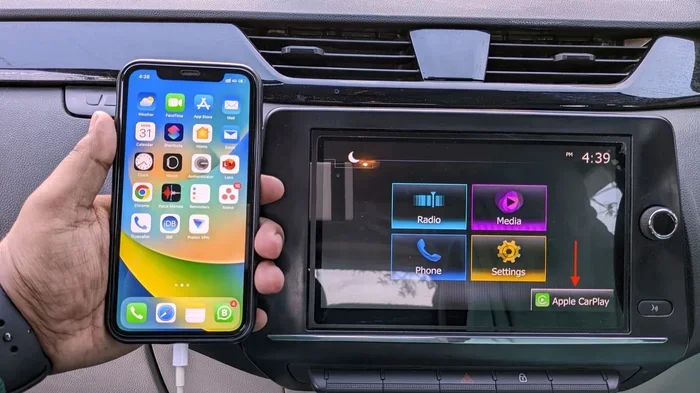
The first step to fixing any problem is understanding it. CarPlay connects your iPhone to your car using either a USB cable or a wireless Bluetooth and Wi-Fi link. When that link breaks, your screen goes blank or reverts to the car’s default display. This can happen for many different reasons.
Some causes are hardware related. Others are software related. And some are simply settings issues that are easy to overlook. Let us break down every major reason below.
Loose or Damaged USB Cables
If you use a cable to connect your phone, a loose connection is the most common cause. Even a tiny shift in the cable can break the link. Over time, cables wear out. The inner wires fray. The connector pins get dirty or bent.
Cheap aftermarket cables are especially prone to this. They may not carry enough power. They may not support the right data transfer speed. If your CarPlay works sometimes but not always, the cable is usually to blame.
Wireless Connection Interference
Wireless CarPlay uses Wi-Fi and Bluetooth. Both signals can get disrupted. Other devices nearby can cause interference. Even your own car’s electronics can create signal noise. If you live in a busy area with lots of wireless networks, your CarPlay connection may struggle to stay stable.
Also, wireless CarPlay needs both your phone and your car to be on the same Wi-Fi network or use Bluetooth pairing. If either device drops the Wi-Fi signal, the connection breaks. This is different from USB issues and requires different fixes.
Outdated Software on Your iPhone
Apple releases iOS updates regularly. These updates often include bug fixes for CarPlay connectivity. If your iPhone is running an older version of iOS, it may not work well with newer car models. Or worse, your car’s system may not support an older version of the software on your phone.
The same goes for your car’s infotainment system. Many car makers release updates for their systems too. If you have not updated your car software in a while, that could be causing the disconnects.
Settings Conflicts and Glitches
Sometimes the issue is not hardware or software at all. It is just a settings conflict. Your phone might have a feature turned on that interferes with CarPlay. Or your car’s system might have a setting that limits how long the connection stays active.
These kinds of issues are frustrating because they are not obvious. You have to dig into the settings to find them. But once you do, the fix is usually quick and easy.
Common Reasons Your CarPlay Keeps Disconnecting
Now let us get specific. Below are the most common reasons drivers report that their CarPlay keeps disconnecting. Read through this list and see if any of these sound familiar.
- Dirty or damaged USB port on your phone or in your car. Dust and lint build up over time and block the connection.
- Low power mode on your iPhone can limit data transfer and cause CarPlay to drop.
- Bluetooth conflicts with other devices like headphones or smartwatches.
- Wi-Fi network changes that reset your wireless CarPlay pairing.
- Too many apps running in the background can slow down the connection.
- Car battery is weak and cannot supply steady power to the USB port.
- iPhone storage is full, which affects how the phone handles data connections.
- Siri is not responding properly, which can cascade into a full CarPlay disconnect.
Each of these reasons has a fix. Let us move on to the solutions.
How To Fix CarPlay Disconnecting Issues
Here is where things get good. Below are the most effective fixes for CarPlay disconnection problems. Try them in order. Most people find that one of the first few steps solves the issue completely.
Step 1: Restart Both Devices
This sounds too simple, right? But restarting both your iPhone and your car’s infotainment system clears out temporary glitches. It resets the connection and often fixes the problem instantly.
To restart your iPhone, hold down the power button and volume button together. Slide to power off. Wait 30 seconds. Turn it back on. For your car, turn the ignition off, wait a full minute, and start it again.
Quick Tip: Make it a habit to restart both devices once a week. This keeps things running smooth and prevents many connection issues before they start.
Step 2: Check and Replace Your USB Cable
If restarting did not work, check your cable next. Look for fraying, bends, or dirt in the connector. Try plugging the cable into a different port on your phone. Try a different USB port in your car if your car has more than one.
Better yet, try a different cable entirely. Use an Apple-certified cable if possible. These cables meet strict quality standards and are much less likely to cause connection problems. A good cable costs around $10 to $20 and is worth every penny.
Step 3: Clean the USB Ports
This one surprises a lot of people. Lint, dust, and crumbs can build up inside your phone’s charging port and your car’s USB port. Even a tiny bit of debris can prevent a solid connection.
Use a wooden toothpick or a small brush to gently clean out the port. Do not use metal objects. Be gentle. You would be amazed at how much gunk can hide in there. After cleaning, plug the cable back in and see if the connection holds.
Step 4: Update Your iPhone and Car Software
Go to Settings on your iPhone. Tap General. Tap Software Update. If there is an update available, install it. This often fixes known CarPlay bugs that Apple has already addressed.
Next, check your car’s infotainment system. The process varies by car brand. Some cars let you check for updates in the settings menu. Others require a visit to the dealer. Check your car’s manual or call the dealer to find out.
Step 5: Reset Network Settings
If wireless CarPlay keeps dropping, resetting your network settings can help. This clears all saved Wi-Fi passwords, Bluetooth pairings, and VPN settings. It sounds scary, but it is safe.
Go to Settings on your iPhone. Tap General. Tap Transfer or Reset iPhone. Tap Reset. Then tap Reset Network Settings. You will need to re-enter your Wi-Fi passwords and re-pair your Bluetooth devices. But this often fixes stubborn connection issues.
Step 6: Disable and Re-Enable CarPlay
Sometimes you just need to toggle CarPlay off and back on. On your iPhone, go to Settings. Tap General. Tap CarPlay. Pick your car and tap Forget This Car. Then reconnect the cable or pair wirelessly again.
This forces your phone and car to create a fresh connection. It clears out any corrupted pairing data that might be causing the disconnects.
Step 7: Factory Reset Your Car’s Infotainment System
This is a more advanced step. A factory reset wipes all your car’s settings back to their original defaults. It should only be done after you have tried all the other fixes.
Check your car’s manual for the reset process. It usually involves holding down a combination of buttons on the infotainment screen. A factory reset will not erase your car’s driving data, but it will remove saved Wi-Fi networks, Bluetooth pairings, and custom settings.
Wireless CarPlay vs USB: Which Is More Stable?
A lot of drivers wonder whether wireless CarPlay or USB CarPlay is better. The answer depends on what you value most. Let us compare them directly.
USB CarPlay
USB CarPlay uses a physical cable. This means the connection is generally more stable. You do not have to worry about Wi-Fi interference or signal drops. The connection is direct and consistent.
However, USB CarPlay has its downsides. The cable can get in the way. It can wear out over time. And if the cable is loose, you get the exact disconnect problem we are trying to fix. Some drivers also report that their phone charges more slowly when connected via CarPlay USB.
Wireless CarPlay
Wireless CarPlay is convenient. No cables to deal with. You just pair once and it connects automatically every time you get in the car. It is a great experience when it works.
But wireless CarPlay is more prone to disconnects. It depends on Wi-Fi and Bluetooth signals. These signals can be affected by other devices, distance, and interference. If your wireless CarPlay keeps dropping, you are not alone. It is one of the most common complaints about CarPlay.
Which Should You Choose?
If stability is your top priority, go with USB. If convenience matters more, wireless CarPlay is the way to go. Some drivers use both. They plug in for long road trips and use wireless for quick errands around town.
Expert Insight: Many modern cars from 2022 and newer come with wireless CarPlay built in. If your car does not have it, you can buy a wireless CarPlay adapter. These small devices plug into your car’s USB port and create a wireless connection. They range from $30 to $100 and can be a great upgrade.
Preventing CarPlay Disconnects in the Future
Once you get your CarPlay working reliably, you want to keep it that way. Here are some habits that help prevent future disconnects.
- Use a high-quality cable. Apple-certified cables are the safest bet. They last longer and connect more reliably.
- Keep your iPhone and car software updated. Updates fix bugs and improve compatibility.
- Clean your USB ports regularly. A quick check once a month keeps things working.
- Avoid using your phone for heavy tasks while driving. Streaming large files or downloading apps can strain the connection.
- Turn off features you do not need. If you are not using Bluetooth headphones, turn them off. Fewer connected devices means fewer conflicts.
- Restart your car’s system monthly. Just like your phone, a regular restart keeps things running smoothly.
These small habits add up. They can save you a lot of frustration down the road.
When To See a Professional
Most CarPlay disconnect issues are easy to fix at home. But sometimes, the problem is deeper. If you have tried every fix in this guide and your CarPlay still keeps disconnecting, it may be time to seek professional help.
Here are signs that the issue needs expert attention:
- The problem happens on every single drive, no matter what cable or method you use.
- Your car’s infotainment system has other issues beyond just CarPlay.
- Your iPhone has other connectivity problems with Bluetooth and Wi-Fi even when CarPlay is not involved.
- You notice physical damage to your car’s USB ports or your iPhone’s charging port.
- The disconnects are accompanied by error messages on your screen.
A car electronics specialist or a visit to your Apple Store can help diagnose deeper hardware issues. In rare cases, the problem might be a faulty car computer or a damaged iPhone port that needs repair.
Final Thoughts
So, why does my CarPlay keep disconnecting? The answer is usually one of a handful of common causes. A loose cable, outdated software, a dirty port, or a settings conflict. The fixes are simple and most of them take just a few minutes.
Start with the basics. Restart your devices. Check your cable. Clean your ports. Update your software. These steps solve the problem for the vast majority of drivers. If those do not work, move on to the more advanced fixes like resetting network settings or doing a factory reset.
Remember, CarPlay is supposed to make your driving experience better. Not worse. Do not let a connection issue ruin your drive. Use the tips in this guide and get back to enjoying your music, navigation, and hands-free calling the way they were meant to work.
The next time your CarPlay keeps disconnecting, do not panic. You now know exactly what to do. Try these fixes in order. And chances are, you will be back on the road with a stable connection in no time.
Frequently Asked Questions
Why Does My CarPlay Disconnect When I Make a Phone Call?
This usually happens because of a Bluetooth conflict. Your phone is trying to manage both the CarPlay audio and the phone call audio at the same time. Try turning off Bluetooth on other devices nearby and see if the problem stops. Also, check if your car has a dedicated phone audio setting that needs to be adjusted.
Does a Bad USB Cable Cause CarPlay to Keep Disconnecting?
Yes, absolutely. A damaged or low-quality cable is the single most common reason for CarPlay disconnects. Even if the cable charges your phone fine, it may not be able to transfer data reliably. Always use an Apple-certified or high-quality MFi-certified cable for the best results.
Can a Software Update Fix CarPlay Disconnecting?
Yes, software updates often include bug fixes for connectivity issues. Both iOS on your iPhone and your car’s infotainment system can receive updates that improve CarPlay stability. Always make sure both devices are running the latest available software.
Is It Normal for Wireless CarPlay to Disconnect More Than USB?
Yes, wireless CarPlay is generally less stable than USB. It relies on Wi-Fi and Bluetooth signals, which can be affected by interference from other devices. If stability is your main concern, a USB connection will almost always be more reliable than wireless.
How Do I Know If My Car’s USB Port Is Damaged?
Signs of a damaged USB port include loose fit, no connection at all, or the connection working only when the cable is held at a certain angle. Try plugging a different device into the port to test it. If that device also fails to connect, the port may need professional repair.
Will Resetting My iPhone Fix CarPlay Disconnect Issues?
A full factory reset of your iPhone should be a last resort. Before that, try resetting just your network settings, which is much less drastic. A network reset clears Wi-Fi and Bluetooth connections but does not delete your photos, apps, or other personal data. This simple step fixes many stubborn CarPlay issues.