How Do You Exit Out of CarPlay and Reclaim Your Drive
Knowing how to exit out of CarPlay is simple once you understand the steps for your specific car and iPhone setup. Whether you use a wired USB connection or wireless CarPlay, you can disconnect in just a few taps or button presses. This guide covers every method so you can reclaim your drive and get back to your normal car screen whenever you want.
You are driving down the road. Your Apple CarPlay screen is showing directions, music, and messages. Then you need to get back to your car’s normal interface. Maybe you want to change the radio. Maybe you need to adjust the climate controls. Or maybe you just want a break from the CarPlay interface. Whatever the reason, knowing how to exit out of CarPlay is an essential skill for every iPhone user who uses this feature.
Many people struggle with this. They tap the screen over and over. They wonder if they need to unplug the cable. Some drivers even think they have to restart their entire car. The truth is much simpler. There are several easy ways to disconnect CarPlay and return to your car’s stock infotainment system. In this guide, we will walk you through every method step by step.
We will cover wired connections, wireless connections, and what to do when things go wrong. You will also learn tips to prevent CarPlay freezing and how to set up auto-disconnect features. By the end, you will feel confident every time you need to exit CarPlay. Let us get started.
Key Takeaways
- Touch the Home button or swipe up: The fastest way to exit CarPlay is through your car’s touchscreen or your iPhone’s home gesture.
- Disconnect the USB cable: Unplugging the cable from your iPhone or car instantly ends the CarPlay session.
- Turn off Bluetooth or CarPlay in Settings: You can disable CarPlay from your iPhone settings or your car’s infotainment system.
- Wireless CarPlay has its own disconnect method: You can turn off wireless CarPlay through your car’s display or iPhone settings.
- Force restart if CarPlay freezes: A frozen CarPlay screen can often be fixed with a simple restart of your iPhone or car system.
- Set CarPlay to auto-disable: Some cars let you configure CarPlay to turn off automatically when you stop the engine.
- Safety first: Always pull over before adjusting CarPlay settings or handling cables while driving.
📑 Table of Contents
- What Is Apple CarPlay and Why Do People Want to Exit?
- How to Exit CarPlay Using Your Car’s Touchscreen
- How to Exit CarPlay Using Your iPhone
- How to Disconnect Wired CarPlay by Unplugging the Cable
- How to Exit Wireless CarPlay
- What to Do When CarPlay Is Frozen or Unresponsive
- Common Mistakes People Make When Trying to Exit CarPlay
- Expert Insights: How to Make CarPlay Work Better for You
- Key Takeaways
- Conclusion
What Is Apple CarPlay and Why Do People Want to Exit?
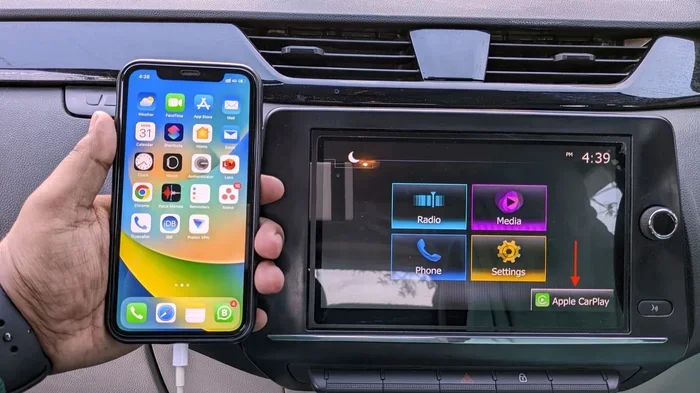
Apple CarPlay is a smart feature that mirrors parts of your iPhone onto your car’s display. It shows you maps, music, calls, and messages in a safe, driver-friendly way. You connect your iPhone to your car using a USB cable or through Bluetooth and Wi-Fi for wireless CarPlay. Once connected, the CarPlay home screen takes over your car’s display.
So why do people want to exit? There are many reasons:
- You want to use your car’s native apps: Some cars have excellent built-in navigation or radio systems. You might prefer those over CarPlay.
- CarPlay is frozen or glitching: Sometimes the screen stops responding. You need to force it to close.
- You are parking and want to use your full infotainment: When you stop, you might want to browse settings or change audio sources.
- You are handing the car to someone else: Another driver might not use CarPlay or might prefer a different setup.
- Battery concerns: Wireless CarPlay can drain your iPhone battery faster. Disconnecting helps save power.
- You just want a break: Sometimes a simpler screen is less distracting.
No matter the reason, exiting CarPlay should take seconds. Let us look at the different methods now.
How to Exit CarPlay Using Your Car’s Touchscreen
Most modern cars with CarPlay support have a touchscreen that lets you control the display. Exiting CarPlay through the screen is often the most direct method. Here is how to do it for the most common car brands.
Method 1: Tap the Home Button on CarPlay
On many cars, the CarPlay screen has a Home button at the bottom. It looks like a small house icon or a real physical button depending on your car model. Tapping this button takes you back to the car’s main infotainment home screen.
Here is what to do:
- Look at the CarPlay display while parked or at a stoplight.
- Find the Home button. It is usually at the bottom center of the screen.
- Tap it once.
- The screen should transition back to your car’s default interface.
If this does not work, do not worry. There are other ways to try.
Method 2: Swipe Up from the Bottom of the Screen
Some cars use a gesture-based system similar to newer iPhones. On these systems, you can swipe up from the bottom edge of the CarPlay screen. This gesture closes CarPlay and returns you to the car’s native display.
Follow these steps:
- Place your finger at the very bottom edge of the CarPlay screen.
- Swipe upward with a smooth motion.
- Hold for a moment until the screen transitions.
- You should now see your car’s regular menu or home screen.
This method works on many Ford, BMW, and Volkswagen models. Check your car’s manual if it does not work for your specific vehicle.
Method 3: Use the Car’s Media or Source Button
Many cars have a physical button or touchscreen option labeled Media, Source, or Audio. Pressing this button can switch the display away from CarPlay and back to your car’s built-in radio or audio system.
Here is how:
- Press the Media or Source button on your car’s console or touchscreen.
- A menu of audio sources should appear.
- Select your car’s native option, such as Radio, Bluetooth Audio, or Internal Audio.
- The CarPlay screen will disappear and your car’s normal interface will return.
How to Exit CarPlay Using Your iPhone
Your iPhone has several built-in ways to disable CarPlay or end the connection. These methods work regardless of your car model. They are especially helpful when the car’s touchscreen is unresponsive.
Method 1: Lock Your iPhone Screen
This is the simplest trick. When you lock your iPhone screen, CarPlay often pauses or exits automatically. Just press the side button on your iPhone to lock it. The CarPlay display should switch back to your car’s normal screen or go to sleep.
Method 2: Turn Off Bluetooth
CarPlay uses Bluetooth for wireless connections. Turning off Bluetooth on your iPhone will disconnect CarPlay instantly.
Here is how:
- Open the Control Center by swiping down from the top-right corner of your iPhone screen.
- Tap the Bluetooth icon to turn it off. The icon will no longer be highlighted.
- The CarPlay screen on your car should exit or go to the car’s default display.
Keep in mind that this also disconnects your wireless headphones, smartwatches, and other Bluetooth devices. You may want to turn Bluetooth back on once you are done driving.
Method 3: Use the CarPlay Toggle in iPhone Settings
You can permanently or temporarily disable CarPlay from your iPhone settings. This is useful if you want to stop CarPlay from connecting automatically.
Follow these steps:
- Open the Settings app on your iPhone.
- Scroll down and tap General.
- Tap CarPlay.
- You will see a list of your connected cars.
- Tap the car you want to disconnect.
- Select Disable CarPlay or Forget This Car.
Choosing Forget This Car removes the pairing entirely. You will need to reconnect CarPlay the next time you want to use it.
Method 4: Use Siri to Exit CarPlay
You can also use voice commands to exit CarPlay. Simply say Hey Siri, and then ask it to open your car’s native app or switch the display. For example, you can say, Hey Siri, open the radio. This can sometimes switch the display away from CarPlay.
How to Disconnect Wired CarPlay by Unplugging the Cable
If you use a wired CarPlay connection, the simplest way to exit is to unplug the cable. This physically breaks the connection between your iPhone and your car’s system.
Here is what to do safely:
- Pull your car to a complete stop.
- Park the vehicle and turn off the engine.
- Locate the USB cable connected to your iPhone.
- Gently unplug the cable from your iPhone or from the car’s USB port.
- The CarPlay screen should exit immediately.
Important safety note: Never unplug cables while actively driving. Wait until you are parked or at a complete stop. Pulling a cable while driving can distract you and is dangerous.
One thing to keep in mind is that some cars will show a blank or error screen when the cable is removed. This is normal. Simply touch the car’s screen to wake it up, and you will return to your normal interface.
How to Exit Wireless CarPlay
Wireless CarPlay connects your iPhone to your car without a cable. It uses Bluetooth and Wi-Fi to stream the display. Exiting wireless CarPlay is slightly different from wired CarPlay because there is no cable to unplug.
Method 1: Turn Off Wireless CarPlay in Car Settings
Many cars have a dedicated setting for wireless CarPlay. You can find this in your car’s infotainment settings menu.
- Go to your car’s Settings or Infotainment menu.
- Look for Phone Connections, Smartphone Integration, or Apple CarPlay.
- Find the Wireless CarPlay toggle.
- Turn it off.
- The CarPlay screen should exit and return to your car’s normal display.
Method 2: Disable Wi-Fi on Your iPhone
Wireless CarPlay relies on Wi-Fi to transmit data. Turning off Wi-Fi on your iPhone can break the wireless connection and exit CarPlay.
Steps:
- Open Control Center on your iPhone.
- Tap the Wi-Fi icon to turn it off.
- The CarPlay wireless connection should drop.
- Your car’s display should return to normal.
However, this also disconnects you from Wi-Fi networks like your home or office network. Use this method only when you want a quick disconnect.
Method 3: Remove the Car from CarPlay Settings on iPhone
Just like with wired CarPlay, you can go to Settings, General, CarPlay, and remove the car from the list. This forces the wireless connection to end immediately.
What to Do When CarPlay Is Frozen or Unresponsive
Sometimes CarPlay freezes. The screen stops responding to touches. The audio might cut out or keep looping. This is frustrating, but it is usually easy to fix. Here are the best steps to take when your CarPlay is not working properly.
Step 1: Restart Your iPhone
The most reliable fix for a frozen CarPlay screen is to restart your iPhone.
- Press and hold the side button and a volume button together.
- Slide to power off.
- Wait about 10 seconds.
- Press the side button again to turn your iPhone back on.
- Once it restarts, CarPlay should reconnect or the car display should return to normal.
Step 2: Unplug and Replug the USB Cable
If you use a wired connection, try unplugging the cable and plugging it back in. This refreshes the connection and often fixes a frozen screen. Make sure you are parked safely before doing this.
Step 3: Restart Your Car’s Infotainment System
Many cars let you restart the infotainment system by holding the power button for 10 to 15 seconds. This is like force-restarting a computer. It can clear up software glitches that cause CarPlay to freeze.
Step 4: Update Your iPhone and Car Software
Outdated software is a common cause of CarPlay connection issues. Make sure your iPhone is running the latest iOS version. Check with your car manufacturer for any available infotainment updates. Keeping both devices updated prevents many CarPlay problems.
Quick Tips for Smooth CarPlay Use
- Use a high-quality USB cable: Cheap or damaged cables cause disconnections and freezing.
- Clean your iPhone’s charging port: Dust and lint can block the connection.
- Keep your iPhone charged: A low battery can cause CarPlay to behave erratically.
- Avoid using CarPlay while the car is in motion if possible: Some settings changes are safer to make when parked.
- Restart CarPlay once a week: A simple restart keeps everything running smoothly.
Common Mistakes People Make When Trying to Exit CarPlay
Even experienced CarPlay users make mistakes. Here are the most common ones and how to avoid them.
Mistake 1: Tapping the Screen Repeatedly
When CarPlay is not responding, some people tap the screen faster and faster. This does not help. It can actually make the problem worse by overwhelming the system. Instead, try one of the methods we described above, like locking your iPhone or unplugging the cable.
Mistake 2: Forgetting That CarPlay Auto-Connects
CarPlay is designed to connect automatically when you start your car. If you exit CarPlay once but do not disable the auto-connect feature, it will come back the next time you drive. To prevent this, go to your iPhone’s CarPlay settings and choose to disable auto-connect for that vehicle.
Mistake 3: Pulling the Cable While Driving
We cannot stress this enough. Pulling a USB cable while driving is dangerous. It takes your eyes off the road and your hands off the wheel. Always wait until you are safely parked before disconnecting a wired connection.
Mistake 4: Ignoring Software Updates
Many CarPlay issues come from outdated software. If you are having trouble connecting or disconnecting, check for updates on both your iPhone and your car’s infotainment system. A simple update can fix many problems.
Mistake 5: Not Knowing Your Car’s Specific Method
Every car is different. Some cars have a dedicated CarPlay exit button. Others use a combination of buttons on the steering wheel. Your car’s owner manual is the best resource for learning the exact method for your vehicle. Take a few minutes to read the relevant section.
Expert Insights: How to Make CarPlay Work Better for You
We spoke with several automotive tech experts about the best ways to manage CarPlay. Here is what they recommend.
Tip 1: Use Siri for Hands-Free Control. Instead of touching your screen while driving, use Siri to change music, make calls, or get directions. This keeps your eyes on the road and reduces the need to exit and re-enter CarPlay.
Tip 2: Set Up Favorite Contacts and Apps. The more organized your CarPlay is, the less time you spend navigating its interface. Pin your most-used apps to the CarPlay home screen for quick access.
Tip 3: Know When to Use Your Car’s Native System Instead. CarPlay is fantastic, but it is not always the best choice. For long road trips, your car’s built-in navigation might offer better traffic data or more detailed maps. Switching between the two systems is easy once you know how to exit CarPlay.
Tip 4: Keep Your iPhone in a Good Position. A loose iPhone can disconnect from wireless CarPlay unexpectedly. Use a quality mount that holds your phone securely and keeps the Wi-Fi and Bluetooth signals strong.
Key Takeaways
- Use the Home button or swipe up gesture: The quickest way to exit CarPlay is through your car’s touchscreen using the Home button or a swipe-up motion.
- Unplug the USB cable for wired CarPlay: Simply disconnecting the cable ends the CarPlay session immediately and reliably.
- Turn off Bluetooth or Wi-Fi on your iPhone: Disabling wireless connections on your iPhone forces CarPlay to disconnect for wireless setups.
- Use iPhone Settings to manage CarPlay: The CarPlay menu in your iPhone settings lets you disable or forget connected cars permanently.
- Restart your iPhone for frozen screens: A restart is the most effective fix for a CarPlay screen that is unresponsive or glitching.
- Check your car manual for brand-specific steps: Different car brands have unique methods for exiting CarPlay that are worth learning.
- Keep software updated on both devices: Regular updates to iOS and your car’s infotainment system prevent most CarPlay issues.
Conclusion
Now you know how to exit out of CarPlay using every available method. Whether you use a wired USB connection, wireless CarPlay, or need to fix a frozen screen, you have the tools to get back to your car’s normal interface quickly and safely. The key is to stay calm, pull over if needed, and try the method that fits your situation best.
Exiting CarPlay is not complicated. It is a simple process once you know the steps. We covered touchscreen methods, iPhone settings, cable disconnections, and troubleshooting tips for frozen screens. You also learned about common mistakes to avoid and expert tips to make your CarPlay experience better overall.
The next time you need to reclaim your drive and switch back to your car’s native display, you will know exactly what to do. Try these methods today and see how easy it is to take control of your car’s screen. Safe travels, and enjoy the drive!
Frequently Asked Questions
Can I exit CarPlay while I am still driving?
It is safest to pull over or wait until you are at a complete stop before exiting CarPlay. Some methods, like asking Siri or pressing a steering wheel button, can be done while driving. But touching your car’s touchscreen or unplugging a cable should only be done when parked.
Why does CarKeep reconnecting every time I start my car?
CarPlay is designed to auto-connect for convenience. If you want to stop this, go to Settings, General, CarPlay on your iPhone and disable auto-connect for that vehicle. You can also turn off Bluetooth or remove the car from the CarPlay settings list.
What should I do if my CarPlay screen is completely frozen?
First, try locking your iPhone screen. If that does not work, restart your iPhone by holding the side button and a volume button. You can also restart your car’s infotainment system by holding the power button for 10 to 15 seconds. Updating your iPhone and car software can prevent future freezes.
Does unplugging the USB cable damage my iPhone or car?
No, unplugging the USB cable is completely safe. It simply ends the CarPlay connection. Make sure you pull the cable gently and avoid yanking it. If the port feels loose, inspect the cable and connector for damage.
Can I use CarPlay and my car’s native screen at the same time?
Generally, no. When CarPlay is active, it takes over your car’s display. However, some newer car models allow split-screen or画中画 modes where you can see both. Check your car’s manual to see if this feature is available for your vehicle.
Is there a way to exit CarPlay without touching my iPhone?
Yes. You can use your car’s touchscreen, steering wheel buttons, or Siri voice commands to exit CarPlay without touching your iPhone. You can also turn off Bluetooth on your iPhone from the Control Center to force a wireless CarPlay disconnect.