Why Does Android Auto Disconnect So Easily Repeatedly
Android Auto keeps disconnecting for several common reasons, including faulty cables, Bluetooth conflicts, and software glitches. This guide breaks down every major cause and gives you clear, actionable steps to fix the problem. You will learn how to troubleshoot wired and wireless connections, adjust phone and car settings, and prevent future disconnections for good.
You are driving down the road. Your favorite playlist starts playing through the car speakers. Then, without warning, the screen goes dark. Android Auto disconnects right when you need it most. This frustrating experience happens to millions of drivers every single day.
If you have ever asked yourself, why does Android Auto disconnect so easily repeatedly, you are not alone. The issue is more common than most people think. It can ruin a good road trip or make your daily commute stressful. But here is the good news. Most causes are simple to fix. You do not need to be a tech expert. This guide walks you through every reason your Android Auto keeps disconnecting and shows you exactly how to stop it.
Key Takeaways
- Cable Quality Matters: A damaged or low-quality USB cable is the #1 reason Android Auto disconnects so easily.
- Bluetooth Interference Is Real: When Bluetooth and USB compete, your car infotainment system may drop the connection.
- Software Updates Fix Bugs: Outdated Android Auto or phone software causes frequent disconnecting problems.
- Battery Optimization Kills Background Apps: Phone settings can shut down Android Auto without warning.
- Cached Data Builds Up: Clearing your Android Auto cache often solves stubborn reconnection issues.
- Wireless Has Its Own Challenges: Wireless Android Auto is convenient but can be less stable than wired.
- Simple Fixes Work Most of the Time: Restarting, replugging, and updating solve the majority of problems.
📑 Table of Contents
- What Is Android Auto and Why Does It Keep Disconnecting?
- Common Reasons Why Android Auto Disconnects So Easily
- Wired vs Wireless: Which Connection Type Causes More Issues?
- How to Fix Android Auto Disconnecting Problems
- Phone and Car Settings That Affect Android Auto Stability
- When to Seek Professional Help for Android Auto Issues
- Preventing Future Android Auto Disconnections
- Conclusion
What Is Android Auto and Why Does It Keep Disconnecting?
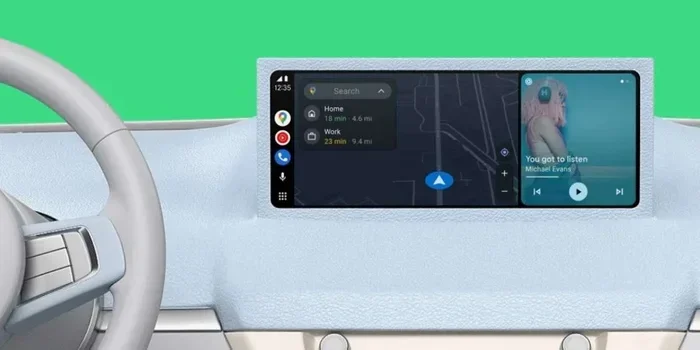
Android Auto is Google’s driving app. It mirrors your phone screen onto your car infotainment system. You get navigation, music, calls, and messages all on a big display. It works through a USB cable or Bluetooth. The app is designed to keep you safe and connected. But it does not always work as smoothly as it should.
Disconnections happen when the link between your phone and car breaks. Think of it like a handshake that keeps falling apart. Your phone tries to talk to the car. The car tries to talk back. Something interrupts that conversation. The result? Your Android Auto not working right in the middle of your drive.
Several factors can trigger this. Hardware issues, software bugs, and even your phone settings all play a role. Understanding the root cause is the first step toward a fix. Let us look at the most common reasons your connection drops.
Common Reasons Why Android Auto Disconnects So Easily
Not every disconnect has the same cause. Some are hardware problems. Others are software glitches. Here are the main reasons your Android Auto disconnects so easily.
Faulty or Low-Quality USB Cables
This is the number one culprit. A cheap or damaged cable cannot deliver a steady data connection. Your phone may charge fine, but data transfer fails. When data transfer stops, Android Auto disconnects immediately. Frayed cables, bent connectors, and worn-out wires all cause this problem.
Many people use the cable that came with their phone charger. That cable is great for charging. But it may not be built for data transfer. USB cable problems are the most common reason for Android Auto keeps disconnecting. Always use a high-quality cable that supports data transfer.
Bluetooth Connection Issues
If you use wireless Android Auto, Bluetooth is your lifeline. Bluetooth signals can weaken over distance. Other devices can interfere with the signal. Your car phone holder, other Bluetooth devices, and even Wi-Fi routers can cause Bluetooth connection issues.
When Bluetooth and USB fight for priority, your phone gets confused. It does not know which connection to use. The result is a dropped connection. Wireless Android Auto is convenient, but it is more prone to interference than wired connections.
Outdated Software
Both your phone and your car need to run the latest software. Old versions of Android Auto have known bugs. These bugs cause random disconnects. When Google releases an update, it often fixes connection problems. Skipping updates leaves you vulnerable to these issues.
Your car manufacturer also pushes updates for the infotainment system. These updates improve phone compatibility and fix bugs. If you have not updated your car software in months, that could be the reason your Android Auto disconnects so easily.
Battery Optimization Settings
Modern phones are smart about saving battery. They shut down apps running in the background. This feature is called battery optimization. It is great for your battery life. But it is terrible for Android Auto.
Your phone may decide Android Auto is not important. It then closes the app in the background. When this happens, your Android Auto not working problem starts all over again. Battery optimization is a silent killer of stable connections.
App Cache and Data Problems
Over time, Android Auto builds up cached data. This data helps the app load faster. But too much cached data causes problems. Corrupted cache files can break the connection between your phone and car. Clearing the cache often fixes Android Auto troubleshooting issues that nothing else can solve.
Wired vs Wireless: Which Connection Type Causes More Issues?
Choosing between wired and wireless Android Auto is not just about convenience. Each type has its own set of problems. Understanding these differences helps you pick the right option for your needs.
Wired Android Auto: Pros and Cons
Wired connections are generally more stable. The USB cable provides a direct data link. There is less room for interference. Most drivers report fewer Android Auto disconnects with a wired setup.
But wired connections have downsides. You need a good cable. The cable can wear out over time. Some cables only charge and do not transfer data. If your cable is not data-capable, your Android Auto disconnects so easily problem starts right away.
Here are quick tips for wired setups:
- Use the original cable that came with your phone.
- Buy a certified USB cable from a reputable brand.
- Check the cable for fraying or bent connectors.
- Plug the cable firmly into both the phone and the car.
- Avoid cable extensions or adapters if possible.
Wireless Android Auto: Pros and Cons
Wireless Android Auto is incredibly convenient. No cables to plug in. No fumbling with connectors. Just connect and go. But convenience comes with trade-offs.
Wireless connections rely entirely on Bluetooth. Bluetooth signals are weaker than USB connections. They can drop when you hit a bump in the road. Other wireless devices nearby can cause interference. If you have ever asked why does Android Auto disconnect so easily repeatedly with a wireless setup, signal interference is usually the answer.
Here are tips to improve wireless stability:
- Keep your phone close to the car’s antenna.
- Remove other Bluetooth devices from the car.
- Turn off Wi-Fi on your phone while driving.
- Make sure your car supports the latest Bluetooth version.
- Restart both your phone and car system before driving.
| Feature | Wired Android Auto | Wireless Android Auto |
|---|---|---|
| Connection Stability | Very High | Moderate |
| Ease of Use | Moderate | Very High |
| Cable Required | Yes | No |
| Interference Risk | Low | High |
| Data Transfer Speed | Fast | Slower |
| Best For | Long drives, stable needs | Quick trips, convenience |
Most experts agree that wired connections provide a more Android Auto stable connection. But wireless technology is improving fast. Newer cars and phones handle wireless connections much better than older models.
How to Fix Android Auto Disconnecting Problems
Now that you know the common causes, let us fix them. These steps work for both wired and wireless setups. Follow them in order for the best results.
Step 1: Replace Your USB Cable
Start with the simplest fix. Swap out your current cable for a new one. Use a high-quality cable that supports data transfer. Avoid cheap cables from unknown brands. A good cable can solve Android Auto keeps disconnecting problems instantly.
Step 2: Clear Android Auto Cache
Go to your phone settings. Find the Android Auto app. Tap on storage. Clear the cache first. If that does not work, clear the data too. This resets the app to its default state. Many users report that clearing the cache fixes Android Auto troubleshooting issues that have lasted for weeks.
Step 3: Update Android Auto and Your Phone
Open the Google Play Store. Search for Android Auto. If an update is available, install it. Then check for any pending phone system updates. Both updates work together to fix bugs that cause disconnects. Software update Android Auto releases often target connection stability directly.
Step 4: Disable Battery Optimization for Android Auto
Go to your phone settings. Find the Apps section. Select Android Auto. Tap on Battery. Change the setting to Unrestricted. This prevents your phone from closing the app in the background. It is one of the most overlooked fixes for Android Auto disconnects so easily problems.
Step 5: Restart Both Devices
Turn off your car. Power off your phone. Wait 30 seconds. Turn your car back on. Then power on your phone. This simple step refreshes both systems. It clears temporary glitches that cause reconnecting Android Auto problems.
Step 6: Revoke and Re-Permit App Access
Go to your phone settings. Find Android Auto. Check the app permissions. Make sure all permissions are enabled. Location, contacts, and microphone permissions are especially important. Missing permissions can cause the app to crash or disconnect.
Phone and Car Settings That Affect Android Auto Stability
Your phone and car have settings that directly impact connection quality. Small changes in these settings can make a big difference.
Developer Options and USB Settings
Android phones have hidden developer options. These options give you more control over USB connections. To access them, go to Settings. Tap on About Phone. Find the Build Number. Tap it seven times. A message will confirm that developer options are now enabled.
Go back to Settings. Find Developer Options. Look for USB configuration. Change it to MTP or Transfer Files. This setting ensures your phone communicates properly with the car infotainment system. Wrong USB settings are a hidden cause of Android Auto not working in many cars.
Car Infotainment System Settings
Your car’s system also has settings that affect Android Auto. Check your car manual for these tips. Look for a USB mode setting. Set it to Android Auto or MTP. Some cars have a “debug” or “developer” mode for USB. Enable it if available.
Also check if your car has a Bluetooth version setting. Older Bluetooth versions are less stable. If your car supports Bluetooth 5.0 or higher, use it. Newer Bluetooth versions handle Android Auto stable connection demands much better.
Phone Case and Placement
This one surprises people. Thick phone cases can interfere with wireless signals. They can also put pressure on the USB port. Remove your phone case and see if the connection improves. Also, check where you place your phone. A phone in a tight holder may lose its USB connection when you drive over bumps.
When to Seek Professional Help for Android Auto Issues
Most Android Auto disconnects so easily problems are fixable at home. But some issues need professional attention. If you have tried every fix in this guide and the problem persists, it is time to dig deeper.
Visit your car dealership. Ask them to check the infotainment system. They can run diagnostic tests. They may find a hardware issue in the car’s USB port. A loose port or damaged motherboard can cause constant disconnections.
Also visit your phone repair shop. Have them check the phone’s USB port. Bent pins or debris in the port can prevent a stable connection. Sometimes a simple cleaning or repair solves the problem completely.
If your car is still under warranty, contact the manufacturer. They may offer a free software update or even a hardware fix. Do not ignore persistent problems. They often get worse over time.
Preventing Future Android Auto Disconnections
Fixing the problem is only half the battle. Prevention keeps it from coming back. Follow these habits to maintain a Android Auto stable connection every time you drive.
Keep your cables in good condition. Replace them every 6 to 12 months. Store them properly. Avoid leaving them in hot cars. Heat damages cables faster than anything else.
Update your apps regularly. Turn on auto-updates for Android Auto in the Play Store. Updates bring bug fixes and performance improvements. They keep your Android Auto troubleshooting needs to a minimum.
Restart your phone and car system once a week. This clears out temporary files and refreshes connections. A weekly restart takes 2 minutes. It can save you hours of frustration.
Keep your phone storage at least 20 percent free. Low storage affects app performance. Android Auto needs free space to cache data and run smoothly.
Conclusion
Why does Android Auto disconnect so easily repeatedly? The answer is usually a combination of cable issues, software glitches, and settings conflicts. Most of the time, a simple fix like replacing a cable or clearing a cache solves the problem. Other times, you need to adjust phone settings or update your software.
The key is to work through the fixes in order. Start simple. Move to more advanced steps if needed. Most drivers find that their Android Auto disconnects so easily problem disappears after following just a few steps from this guide. Do not let a frustrating connection issue ruin your drive. Take action today. Your future drives will be smoother, safer, and more enjoyable.
Keep your cables good. Keep your software updated. Keep your settings optimized. With these habits, you will spend less time troubleshooting and more time enjoying the road. Android Auto is a powerful tool. When it works right, it makes every drive better.
Frequently Asked Questions
Can a bad USB cable cause Android Auto to disconnect?
Yes, absolutely. A damaged or low-quality USB cable is the most common reason for connection drops. The cable may charge your phone but fail to transfer data. Always use a high-quality, certified cable that supports data transfer to keep your Android Auto stable.
Does battery saver mode affect Android Auto?
Yes, it does. Battery saver mode restricts background apps. It can shut down Android Auto without warning. Disable battery optimization for Android Auto in your phone settings. Set the app to unrestricted so it stays active while driving.
Why does Android Auto keep disconnecting when I start my car?
This usually happens because of a handshake failure between your phone and the car infotainment system. Try restarting both devices before driving. Also check your USB cable and make sure it is firmly plugged in. Clearing the Android Auto cache can fix this startup disconnect issue.
Is wireless Android Auto more prone to disconnecting?
Yes, wireless Android Auto is generally less stable than wired. Bluetooth signals can weaken or get interrupted by other devices. If you experience frequent drops, try switching to a wired connection. Wireless technology is improving, but wired connections still offer better reliability for most drivers.
Does phone model matter for Android Auto stability?
It can. Some phone models have known compatibility issues with certain car systems. Older phones may not support the latest Android Auto features. Always check if your phone model is on the Android Auto compatibility list. Updating your phone software also improves stability across all models.
How do I stop Android Auto from disconnecting while driving?
Start by replacing your USB cable and clearing the Android Auto cache. Then disable battery optimization for the app. Make sure both your phone and car software are fully updated. If the problem continues, check your USB settings in developer options. These steps solve the issue for most drivers.