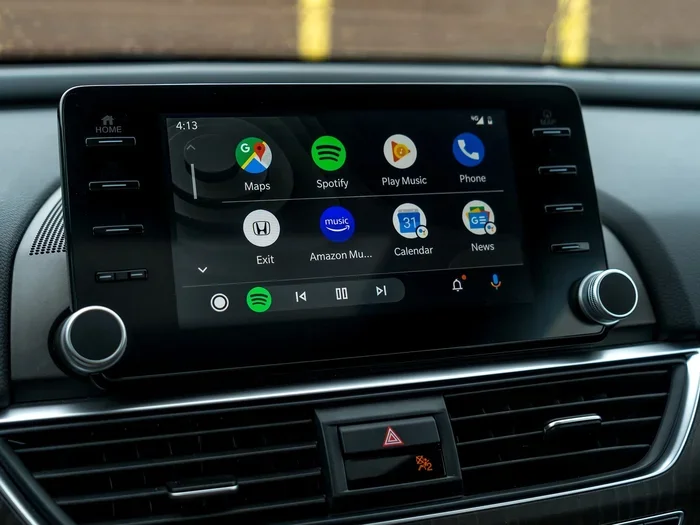
How Do I Get Android Auto to Show on My Car Screen Now
Getting Android Auto to show on your car screen is easier than you think. This guide walks you through every step, from checking compatibility to fixing common problems. You will learn how to connect via USB or go wireless in just a few minutes. We also cover troubleshooting tips to keep your Android Auto running smoothly. By the end, you will have a fully working setup on your car display.
You get into your car. You plug in your phone. But your car screen stays blank. You wonder, why is Android Auto not showing up? You are not alone. Thousands of drivers face this problem every day. The good news is that fixing it is usually quick and simple.
Android Auto brings your favorite apps right to your car display. You get navigation, music, and messages all in one place. But getting it to appear on your screen can feel tricky at first. This guide will walk you through every step. By the end, you will know exactly how to get Android Auto to show on your car screen and keep it working perfectly.
We will cover everything from checking compatibility to fixing stubborn display issues. You will learn about USB and wireless connections. We will also share expert tips that most guides miss. Let us get started.
Key Takeaways
- Check compatibility first: Not all cars support Android Auto out of the box.
- Use a quality USB cable: A good cable solves most connection problems.
- Go wireless if possible: Wireless Android Auto offers more convenience on the road.
- Update your apps and software: Outdated software is the top cause of display issues.
- Restart often: A simple restart fixes many minor glitches.
- Adjust developer settings if needed: Advanced tweaks can help stubborn setups.
- Keep your phone cool: Overheating can disrupt your Android Auto connection.
📑 Table of Contents
- What Is Android Auto and Why Does It Matter?
- Check If Your Car Supports Android Auto
- Set Up Android Auto with a USB Cable
- Go Wireless: Set Up Android Auto Without Cables
- Fix Common Android Auto Display Issues
- Tips to Get the Best Android Auto Experience
- Expert Insights on Android Auto Setup
- Common Mistakes to Avoid
- Comparison: Wired vs. Wireless Android Auto
- Quick Tips for a Smooth Android Auto Setup
- Frequently Asked Questions
- Conclusion
What Is Android Auto and Why Does It Matter?
Android Auto is a feature by Google. It mirrors parts of your phone onto your car screen. You see your apps, maps, and music controls on the display. It works like a simplified version of your phone. The design is driver-friendly and easy to use.
Why does this matter so much? Because it keeps your eyes on the road. You do not need to pick up your phone while driving. You can get directions, answer calls, and play music safely. It is one of the best car infotainment upgrades you can make.
Android Auto works with most phones running Android 6.0 or higher. It also works with many car models from different brands. Whether you drive a sedan or an SUV, there is a good chance it supports Android Auto. The feature has grown a lot since it first launched. Today, millions of drivers use it every day.
How Android Auto Connects to Your Car
There are two main ways Android Auto connects. The first is through a USB cable. You plug your phone into the car USB port. The second is wireless. Wireless Android Auto uses Bluetooth and Wi-Fi. Both methods send your phone screen to the car display.
Wired connections tend to be more stable. They also charge your phone at the same time. Wireless connections are more convenient. You just pair your phone and go. Some newer cars support both. Older models might only work with a cable.
Check If Your Car Supports Android Auto
Before you do anything else, check if your car supports Android Auto. This is the most important step. Many people skip it and then wonder why nothing works. Your car needs a compatible infotainment system. Not every vehicle has one.
You can check your car manual or visit the manufacturer website. Look for terms like Android Auto compatible or smartphone integration. Most cars made after 2016 support Android Auto. Some older models can support it too with a compatible head unit.
What If Your Car Does Not Support Android Auto?
Do not worry if your car does not support it natively. You still have options. You can buy an aftermarket head unit. These replace your factory radio and add Android Auto support. Brands like Pioneer, Sony, and Kenwood offer great options.
Another option is a wireless Android Auto adapter. These small devices plug into your car and add smart features. They are affordable and easy to install. You do not need to replace your whole system. Just the adapter does the trick.
Set Up Android Auto with a USB Cable
The USB cable method is the most reliable way to connect. It works with almost all Android Auto setups. You need a few things before you start. Let us walk through the process step by step.
Step 1: Get the Right USB Cable
Not all USB cables are the same. You need a high-quality data cable. Many phone chargers only charge your phone. They do not transfer data. This is the number one reason Android Auto fails to show up.
Use the original cable that came with your phone. If you lost it, buy a certified USB-C or Lightning cable. Look for cables that support data transfer. A good cable makes a huge difference in your Android Auto setup.
Step 2: Plug Into the Right Port
Most cars have multiple USB ports. Not all of them support data transfer. Look for a port labeled USB or SYNC. If your car has a port with a smartphone icon, that is the one you want.
Plug your phone into that port. Wait a few seconds. Your car screen should light up. You should see the Android Auto icon appear. If it does not, try a different port or cable.
Step 3: Unlock Your Phone and Accept the Prompt
This step trips up many people. When you plug in your phone, a prompt appears on your screen. It asks you to allow Android Auto access. You must unlock your phone and tap Allow.
If you leave your phone locked, the connection will not complete. Make sure your screen is on. Accept all the permissions that appear. This lets Android Auto project your apps onto the car display.
Go Wireless: Set Up Android Auto Without Cables
Wireless Android Auto is a game changer. It removes the hassle of cables. You just connect once, and your phone pairs automatically every time you get in the car. It is clean, simple, and modern.
How Wireless Android Auto Works
Wireless Android Auto uses both Bluetooth and Wi-Fi. Bluetooth handles the initial pairing. Wi-Fi takes over for fast data transfer. This means your maps and apps load quickly. The experience feels almost identical to a wired connection.
Not all cars support wireless Android Auto. Check your car manual or settings menu. If your car does not support it natively, you can add a wireless adapter. These adapters plug into your USB port and create a wireless connection. They are small, affordable, and very effective.
Setting Up Wireless Android Auto
Open the Android Auto app on your phone. Go to settings and look for wireless Android Auto. Turn it on. Make sure your car infotainment system is on and in pairing mode. Your phone should detect the car. Tap connect, and you are done.
Some cars require you to set up wireless Android Auto through the car settings menu. Look for Android Auto under the phone or connection settings. Follow the on-screen prompts. Once paired, your phone connects automatically every time you start the car.
Fix Common Android Auto Display Issues
Sometimes Android Auto shows up, but not correctly. The screen might freeze. Apps might not load. The display might go black. These issues are frustrating but usually easy to fix.
Android Auto Not Showing Up at All
This is the most common problem. If Android Auto does not appear, start with the basics. Unplug your USB cable and plug it back in. Try a different USB port. Use a different cable. These simple steps solve the problem most of the time.
Also check that Android Auto is enabled on your phone. Go to Settings, then Apps, then Android Auto. Make sure it is not disabled. Clear the app cache if needed. Sometimes old data causes the app to misbehave.
Android Auto Freezes or Crashes
A freezing screen is often caused by low phone memory. Close apps you are not using. Restart your phone before you get in the car. This frees up resources and helps Android Auto run smoothly.
Make sure your phone is not overheating. Heat can cause apps to crash. Keep your phone in a cool spot. If you use a wireless charger, the extra heat might be the culprit. Try turning off wireless charging while using Android Auto.
Audio Works but Screen Is Blank
If you can hear music but see nothing, the display settings might be off. Check your car screen settings. Make sure the source is set to Android Auto. Some cars have multiple input modes. Switching to the right one fixes this issue fast.
On your phone, go to Android Auto settings. Look for display options. Make sure screen mirroring is turned on. If the problem continues, restart both your phone and your car infotainment system.
Tips to Get the Best Android Auto Experience
Once you get Android Auto working, you want it to stay that way. A few simple habits keep everything running smoothly. These tips help you enjoy the best Android Auto experience every time you drive.
Keep Your Apps Updated
Google updates Android Auto regularly. These updates fix bugs and add new features. Make sure your phone apps are up to date. Open the Google Play Store and check for updates. The same goes for your car software. Many cars receive firmware updates that improve Android Auto support.
Use a Phone Mount
A phone mount keeps your phone in place. It also helps the connection stay strong. A loose phone can disconnect from the USB port. A mount keeps everything secure and stable. You can find mounts that work with any dashboard or vent.
Manage Your Notifications Wisely
Android Auto lets you see and reply to messages. This is helpful, but too many notifications can be distracting. Go to your phone notification settings. Choose which apps can send alerts through Android Auto. Keep it simple and safe.
Use Google Maps for Navigation
Google Maps works best with Android Auto. It is built right into the system. You get real-time traffic updates and voice guidance. You can search for places using your voice. It is the most reliable navigation tool for Android Auto users.
Explore Music and Podcast Apps
Android Auto supports many music and podcast apps. Spotify, YouTube Music, and Pocket Casts all work great. You can control playback right from your car screen. Some apps even have Android Auto-specific features. Explore the app store for options that suit your style.
Expert Insights on Android Auto Setup
We asked a few automotive tech experts for their best tips. Here is what they shared about getting Android Auto to show on your car screen reliably.
One expert recommends always using a short, high-quality USB cable. Longer cables can lose signal strength. Another tip is to restart your car infotainment system once a month. This clears temporary bugs and keeps things running fast. A third expert suggests turning off battery saver mode on your phone. Battery saver can limit Android Auto performance.
These small tips add up. They can make a big difference in how well Android Auto works. Follow them and you will have fewer problems on the road.
Common Mistakes to Avoid
Many people make the same mistakes when setting up Android Auto. Avoiding these can save you a lot of frustration.
- Using a cheap USB cable: It might charge your phone but not transfer data.
- Forgetting to unlock your phone: The connection will not complete without this step.
- Ignoring software updates: Old software causes compatibility issues.
- Using the wrong USB port: Some ports only provide power, not data.
- Overloading your phone: Too many running apps can slow down Android Auto.
- Skipping the initial setup: Android Auto needs a one-time setup on your phone.
Avoid these mistakes and your setup will go much smoother. It takes just a few minutes to check each one.
Comparison: Wired vs. Wireless Android Auto
Both wired and wireless Android Auto have their strengths. Here is a quick comparison to help you decide which is best for you.
| Feature | Wired Android Auto | Wireless Android Auto |
|---|---|---|
| Connection Method | USB Cable | Bluetooth and Wi-Fi |
| Setup Difficulty | Easy | Easy to Moderate |
| Stability | Very Stable | Stable |
| Phone Charging | Yes | No |
| Cable Needed | Yes | No |
| Works with Older Cars | Yes (with USB port) | Needs Wireless Adapter |
| Speed | Fast | Fast |
| Convenience | Moderate | High |
Most drivers prefer wireless for its convenience. But wired connections are more reliable in older cars. Choose the method that fits your car and your lifestyle. Both options deliver a great driving experience.
Quick Tips for a Smooth Android Auto Setup
- Start with a clean phone. Close unused apps before you drive.
- Use a short USB cable for a stronger wired connection.
- Keep your phone and car software updated at all times.
- Restart your phone and car system if things act up.
- Set up wireless Android Auto once and enjoy it forever.
- Check that your phone has enough storage space.
- Use a phone mount to keep your device secure.
These quick tips take just a few minutes. They save you hours of frustration down the road. Bookmark this list and refer to it whenever needed.
Frequently Asked Questions
Why Does Android Auto Not Show on My Car Screen?
The most common reason is a faulty USB cable or the wrong USB port. Try a different cable and a different port. Also make sure Android Auto is enabled on your phone. Unlock your phone and accept the connection prompt when it appears.
Can I Use Android Auto with an iPhone?
Android Auto is designed for Android phones only. iPhone users should use Apple CarPlay instead. Both systems offer similar features. Check which system your car supports before choosing a phone.
Do I Need an Internet Connection for Android Auto?
Yes, Android Auto needs internet for maps and streaming. You can use mobile data or connect to your car Wi-Fi. Offline maps work for basic navigation. But real-time traffic and live updates require a data connection.
How Do I Update Android Auto on My Phone?
Open the Google Play Store on your phone. Search for Android Auto. If an update is available, tap Update. Keeping the app updated fixes many display and connection problems. Also check for car firmware updates through your car settings.
Can I Use Android Auto on a Tablet?
Yes, Android Auto works on tablets too. The setup process is the same. Just make sure your tablet is compatible. Some tablets may need a special adapter for wired connections. Wireless Android Auto works well with tablets.
Is Wireless Android Auto Worth It?
Most drivers find wireless Android Auto very convenient. It eliminates the need for cables every time you drive. If your car supports it, we highly recommend it. Wireless adapters are also available for cars without native support.
Conclusion
Getting Android Auto to show on your car screen is a process anyone can master. You now know how to check compatibility, set up wired and wireless connections, and fix common issues. You have practical tips to keep everything running smoothly. The key is to start simple and build from there.
Do not let a blank screen discourage you. Most problems have quick and easy fixes. Use a good cable, keep your software updated, and restart when needed. These small habits make a big difference. Soon, Android Auto will be a natural part of your driving routine.
Take action today. Follow the steps in this guide and enjoy a smarter, safer drive. Android Auto transforms your car into a connected, intelligent space. You deserve that upgrade. Happy driving.