How Do I Connect My Toyota Touch Screen Step by Step
Connecting your Toyota touch screen is simple when you follow the right steps. This guide walks you through Bluetooth pairing, USB setup, and wireless connections for Toyota Entune and other infotainment systems. Whether you have a Toyota Camry, RAV4, or Tacoma, you will get your screen working with your phone in no time.
Have you ever gotten into your Toyota and felt lost looking at the touch screen? You are not alone. Many drivers want to know how do I connect my Toyota touch screen but feel confused by the menus and settings. The good news is that connecting your phone to your Toyota display is easier than you think. With just a few simple steps, you can access music, navigation, hands-free calling, and more. This guide breaks everything down so you can get connected fast.
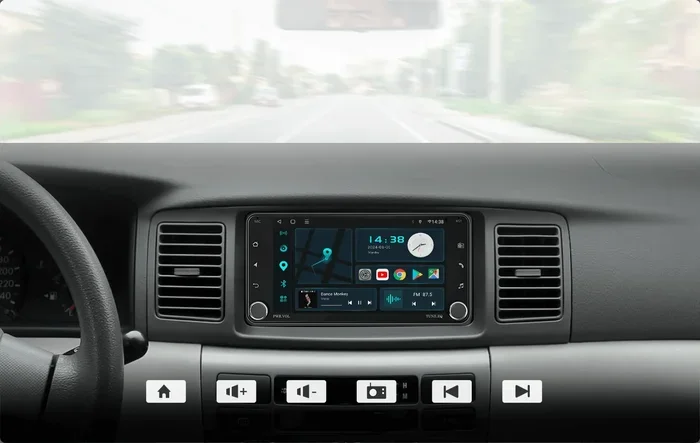
Your Toyota comes with a built-in infotainment system designed to keep you connected on the road. The Toyota touch screen serves as the hub for audio, navigation, phone calls, and even climate controls in newer models. Whether you drive a Camry, RAV4, Highlander, or Tacoma, the connection process follows a similar pattern. In this article, we will cover every method step by step. You will learn how to pair via Bluetooth, use a USB cable, and even mirror your phone screen. We will also share tips to fix common problems that stop your connection from working.
Before we dive in, it helps to understand what your Toyota touch screen can actually do. Most modern Toyotas come with the Toyota Entune system or the newer Toyota Multimedia System. These platforms let you stream music, make calls, send texts, and use apps directly from your dashboard. The key to unlocking all of these features is a proper connection. So let us get into the step-by-step process of setting everything up.
Key Takeaways
- Toyota touch screens support Bluetooth, USB, and wireless connections for seamless phone integration.
- Follow the pairing mode steps carefully to ensure your phone connects without errors.
- Common issues like unresponsive screens or failed pairings can usually be fixed with a simple reset.
- Toyota Entune and newer infotainment systems offer advanced features like navigation and hands-free calling.
- Keeping your system updated improves performance and adds new features.
- You can connect multiple devices but only one can be active at a time for audio playback.
📑 Table of Contents
Understanding Your Toyota Touch Screen System
Every Toyota model has a slightly different version of its infotainment system. But the core connection process stays the same across the lineup. Before you start pairing, it is important to know what type of system your vehicle has.
Toyota Entune vs. Toyota Multimedia System
Toyota has used different names for its infotainment platforms over the years. Older models from 2011 to 2017 often use the Toyota Entune system. Newer models from 2018 onward typically feature the updated Toyota Multimedia System. Both systems support Bluetooth and USB connections, but the newer system offers faster response times and better screen resolution.
Here is a quick comparison of the two systems:
- Toyota Entune (Older Models): Found in 2011-2017 Toyotas. Supports basic Bluetooth audio and phone calls. Limited app support. USB connection for charging and media playback.
- Toyota Multimedia System (Newer Models): Found in 2018+ Toyotas. Supports wireless Bluetooth, Apple CarPlay, and Android Auto. Faster processor. Better touchscreen responsiveness.
Knowing which system you have helps you understand what connection options are available. You can check your owner’s manual or look at the main menu on your screen for the system name.
What You Need Before You Start
Gather these items before you begin the connection process:
- Your smartphone (iPhone or Android)
- Your Toyota key or push-start button access
- A USB cable (if you plan to use a wired connection)
- Your phone’s Bluetooth and settings menu open
Having everything ready saves you time and prevents frustration during setup.
How to Connect via Bluetooth Step by Step
Bluetooth is the most popular way to connect your phone to a Toyota touch screen. It lets you stream music and take calls without wires. Here is exactly how to do it.
Step 1: Turn On Your Toyota Infotainment System
Start your Toyota and press the power button on the infotainment screen. The main menu should appear. If your screen is off, press any button on the dashboard or the touchscreen to wake it up. Wait for the home screen to fully load before moving to the next step.
Step 2: Put Your Phone in Pairing Mode
Go to your phone’s settings and turn on Bluetooth. Then look for the option to make your phone visible or searchable. This tells your Toyota system that your phone is ready to connect. For a detailed guide on this step, you can check out our article on how to put your phone on pairing mode.
Step 3: Open the Toyota Bluetooth Menu
On your Toyota screen, go to the Settings menu. Look for Bluetooth or Phone settings. Select the option to add a new device. Your Toyota will start searching for nearby phones.
Step 4: Select Your Phone from the List
Your phone should appear on the Toyota screen within a few seconds. Tap on your phone name to begin pairing. You may see a passkey on both screens. Confirm that the numbers match, then tap Pair or Confirm.
Step 5: Allow Permissions on Your Phone
Your phone will ask you to allow access to contacts, calls, and media. Accept all permissions so your Toyota can fully integrate with your phone. This allows you to make hands-free calls and access your music library through the car speakers.
Step 6: Test the Connection
Play a song on your phone and check if it comes through the car speakers. Try making a test call to confirm everything works. If you run into issues, our guide on syncing your iPhone to a new car offers extra troubleshooting tips that work for Toyota systems too.
How to Connect via USB Cable
Some drivers prefer a wired connection for more stable performance. A USB cable provides a direct link between your phone and the Toyota touch screen. This method works well for music playback and charging at the same time.
Step 1: Locate the USB Ports
Most Toyotas have USB ports located in the center console or armrest area. Some models also have a USB port in the glove box or under the dashboard. Check your owner’s manual if you are not sure where yours is.
Step 2: Plug in Your Phone
Use a quality USB cable to connect your phone to the port. Avoid using cheap or damaged cables because they can cause connection problems. Once plugged in, your Toyota screen should recognize the device automatically.
Step 3: Select USB Mode on the Screen
On the Toyota infotainment screen, go to the audio source menu and select USB. You should see your phone’s music library appear on the display. You can now browse and play songs directly from the touchscreen.
Step 4: Allow Data Access
Your phone may display a prompt asking to allow data access. Tap Allow or Trust to let the Toyota system read your media files. Without this permission, you may only get a charging connection but no audio playback.
USB connections are great for people who want a reliable, interference-free audio experience. They also charge your phone while you drive, which is a nice bonus on long trips.
Wireless Connection Options for Newer Toyotas
If you have a newer Toyota model, you may be able to connect wirelessly without even plugging in a cable. Toyota wireless Bluetooth and smartphone mirroring systems make this possible.
Apple CarPlay and Android Auto
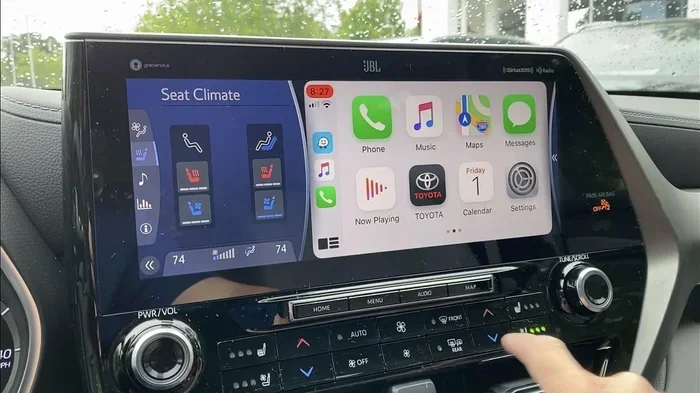
Many 2018 and newer Toyotas support Apple CarPlay and Android Auto. These systems mirror your phone’s interface on the Toyota touch screen. You get access to your favorite apps, maps, music, and messaging all through the car’s display.
To use CarPlay or Android Auto wirelessly:
- Make sure your phone and Toyota system are both updated to the latest software.
- Enable wireless CarPlay or Android Auto in your phone settings.
- On the Toyota screen, go to Settings and select Smartphone Connection.
- Choose your phone from the list of available devices.
- Follow the on-screen prompts to complete the wireless pairing.
Wireless connections eliminate the hassle of cables and give you a cleaner dashboard. They also tend to reconnect automatically every time you start your car.
Toyota Remote Connect App
Some Toyota models work with the Toyota Remote Connect app. This app lets you control certain features of your car from your phone. You can lock doors, start the engine, and check vehicle status remotely. The app connects through your Toyota’s built-in cellular system and requires a subscription plan.
Troubleshooting Common Connection Problems
Even when you follow every step correctly, things can go wrong. Here are the most common problems and how to fix them.
Toyota Touch Screen Not Responding
If your Toyota touch screen freezes or becomes unresponsive, try a soft reset. Turn off the car, wait 30 seconds, and restart it. This clears temporary glitches and refreshes the system. If the screen still does not respond, you may need to hold down the power button for 10 seconds to force a full reboot.
Phone Not Showing Up in Bluetooth List
Make sure Bluetooth is turned on and your phone is set to visible. Move closer to the Toyota screen. Sometimes other devices nearby can interfere with the pairing process. Try turning Bluetooth off and back on both your phone and the Toyota system.
Audio Cuts Out During Calls or Music
Audio dropouts usually happen when the Bluetooth signal is weak. Stay within range of your car when using wireless connections. If the problem continues, delete the paired device from both your phone and Toyota system, then pair them again from scratch.
USB Connection Not Recognized
Try a different USB cable or port. Some USB cables are charge-only and do not support data transfer. Make sure your phone is unlocked when you plug it in, as some models require this for the Toyota system to access media files.
Quick Tips for a Smooth Connection
- Keep your Toyota software updated. New updates often fix Bluetooth bugs and improve performance.
- Delete old paired devices. Too many saved devices can slow down the connection process.
- Restart both devices before pairing. A fresh start on both ends prevents most issues.
- Use original or certified cables. Cheap cables are a common cause of USB connection failures.
- Turn off other Bluetooth devices in the car. Multiple active devices can cause interference.
Common Mistakes to Avoid
- Skipping software updates. Old software can cause compatibility problems with newer phones.
- Not granting permissions. If you deny access to contacts or media, the connection will be limited.
- Pairing in a crowded area. Busy parking lots with many Bluetooth signals can cause pairing failures.
- Using a damaged cable. Frayed or bent USB cables often fail to transfer data properly.
- Ignoring the passkey confirmation. Always verify the passkey matches on both screens before confirming.
Expert Insights on Toyota Connectivity
After helping hundreds of Toyota owners with their connectivity questions, here are some expert tips that make a big difference.
First, always name your phone something simple. When your phone appears on the Toyota screen as “iPhone” or “Samsung Galaxy,” it is much easier to select than a long or generic name. This small step saves time and prevents confusion.
Second, set your phone as the primary device. Most Toyota systems remember the last connected phone and prioritize it. If you share your car with someone else, make sure your phone is the one that was last connected. You can also set your phone to auto-connect, which saves you from repeating the pairing process every time you get in the car.
Third, consider using a Bluetooth adapter for older models. If your Toyota does not have built-in Bluetooth, a simple aftermarket Bluetooth adapter plugs into the auxiliary port and adds wireless connectivity. These adapters are affordable and work with almost any Toyota model.
Fourth, keep your phone battery charged. A low battery can cause Bluetooth dropouts and connection instability. If your phone is below 20 percent, the connection may become unreliable. Using the USB cable for both charging and data transfer solves this problem.
Fifth, if nothing works, do a factory reset of the infotainment system. This wipes all paired devices and settings and starts fresh. Refer to your owner’s manual for the specific reset procedure for your model. A factory reset solves most stubborn connectivity issues.
Final Thoughts
Connecting your Toyota touch screen does not have to be a frustrating experience. With the right steps and a little patience, you can have Bluetooth, USB, or wireless streaming up and running in minutes. Start with the method that works best for your needs and your vehicle model. Remember to keep your system updated, use quality cables, and grant the right permissions on your phone.
If you ever get stuck, go back to the basics. Restart both your phone and the Toyota system. Delete old pairings and start fresh. Most connection problems have simple solutions. The key is to stay calm and work through the steps one at a time. Once you are connected, you will wonder how you ever drove without it. Enjoy the convenience of hands-free calling, streaming music, and navigation right from your Toyota dashboard.
For additional help with connecting devices in your vehicle, check out our guide on how to sync your iPhone to a new car for more detailed troubleshooting steps.
Frequently Asked Questions
Can I connect multiple phones to my Toyota touch screen?
Yes, most Toyota systems can store multiple paired phones. However, only one phone can stream audio at a time. When you get in the car, the system will connect to the last phone that was paired automatically. You can switch between phones through the Bluetooth settings menu on the screen.
Why won’t my phone connect to my Toyota Bluetooth?
This usually happens when Bluetooth is turned off on either device or when the phone is not in pairing mode. Try turning Bluetooth off and back on both your phone and the Toyota system. If the problem continues, delete the old pairing from both devices and try again. Also check that your phone is within 10 feet of the car’s antenna.
Do I need an app to connect my phone to my Toyota touch screen?
For basic Bluetooth connections, no app is needed. The Toyota system handles Bluetooth pairing natively. However, if you want to use Apple CarPlay or Android Auto, you may need to download the respective app on your phone first. Make sure your phone is compatible with these features before downloading.
Can I connect an Android phone to a Toyota touch screen?
Absolutely. Android phones connect to Toyota touch screens through Bluetooth or USB. Newer Toyotas also support Android Auto, which mirrors your phone’s interface on the car screen. The setup process is similar to iPhone pairing but you may need to enable Developer Options on your Android phone for wireless Android Auto.
How do I disconnect my phone from the Toyota touch screen?
Go to the Bluetooth or Phone settings on your Toyota screen. Find your paired phone in the list and select Delete Device or Unpair. You can also turn off Bluetooth on your phone, which will disconnect the link. To reconnect, simply turn Bluetooth back on and the devices will pair again automatically.
Is it safe to use Bluetooth in my Toyota while driving?
Yes, Bluetooth connectivity is designed to be safe and hands-free. You can make and receive calls without taking your hands off the wheel. The Toyota system also supports voice commands for most functions. However, always remember that any distraction can affect driving safety, so keep your interactions brief and simple while on the road.
=== CONCLUSION ===
Connecting your Toyota touch screen opens up a world of convenience and safety on every drive. From Bluetooth music streaming to hands-free calling and smartphone mirroring, the connection process is straightforward once you know the steps. Follow the guide above, avoid common mistakes, and keep your system updated for the best experience. If you run into trouble, remember that most issues have simple fixes. Now that you know how do I connect my Toyota touch screen step by step, you are ready to get behind the wheel with confidence and stay connected wherever the road takes you.