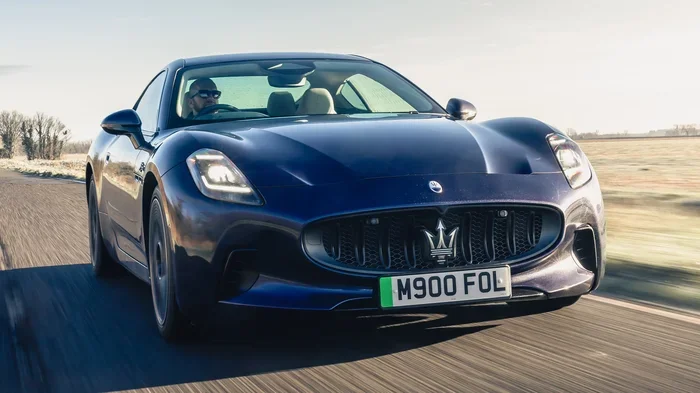
How to Connect Bluetooth to an Alfa Romeo Giulietta
Connecting Bluetooth to your Alfa Romeo Giulietta is simple once you know the steps. This guide walks you through pairing your phone, streaming music, and making hands-free calls with ease. You will also learn common fixes when Bluetooth won’t connect and how to get the best audio quality every time.
There is nothing quite like cruising through the streets in an Alfa Romeo Giulietta with your favorite playlist flowing through the speakers. The experience feels premium, immersive, and completely wireless when everything is connected right. But getting your phone to talk to your car via Bluetooth is not always as instant as it should be.
If you have been searching for a straightforward way to connect Bluetooth to an Alfa Romeo Giulietta, you are in the right place. This guide breaks down every step, from initial pairing to fixing common connection hiccups. Whether you are new to the Giulietta or have been driving one for years, these tips will help you get the most out of your car’s Bluetooth connectivity. Let us dive in and get your phone linked up.
Key Takeaways
- Easy Pairing Process: The Alfa Romeo Giulietta makes Bluetooth setup quick through the infotainment system with just a few taps.
- Hands-Free Calling Works Great: Once paired, you can make and receive calls without touching your phone, keeping your eyes on the road.
- Audio Streaming is Seamless: Stream music, podcasts, and audiobooks wirelessly through your car speakers with full control from the infotainment screen.
- Troubleshooting is Straightforward: Most Bluetooth issues can be fixed by restarting devices, clearing old pairings, or updating your phone settings.
- Multiple Devices Can Connect: The Giulietta supports pairing more than one phone, so passengers can share the connection easily.
- Best Practices Boost Performance: Keeping your software updated and managing paired devices regularly ensures a smooth Bluetooth experience.
📑 Table of Contents
- Understanding Bluetooth in the Alfa Romeo Giulietta
- Step-by-Step Guide to Pairing Your Phone
- Streaming Audio and Music Wirelessly
- Hands-Free Calling Made Simple
- Troubleshooting Common Bluetooth Issues
- Managing Multiple Paired Devices
- Expert Tips for the Best Bluetooth Experience
- Common Mistakes to Avoid
- Final Thoughts
Understanding Bluetooth in the Alfa Romeo Giulietta
The Alfa Romeo Giulietta comes equipped with a built-in infotainment system that supports Bluetooth wireless technology. This means you can stream audio, make phone calls, and access certain phone features without ever plugging in a cable. The system works with both Apple and Android devices, giving you flexibility no matter what phone you use.
Understanding what your Giulietta’s Bluetooth system can do is the first step toward using it well. The infotainment screen acts as the control hub where you manage all wireless connections. From there, you can switch between audio sources, adjust call volume, and view recently paired devices. It is a clean, intuitive interface once you know where to look.
The Bluetooth system in the Giulietta supports hands-free calling and A2DP audio streaming. Hands-free calling lets you make and receive calls through your car’s speakers and microphone. Audio streaming sends music and other audio content from your phone directly to the car stereo. Both features work together to create a connected driving experience that feels natural and safe.
Step-by-Step Guide to Pairing Your Phone
Pairing your phone to the Alfa Romeo Giulietta is a straightforward process. You do not need any special tools or technical knowledge. Just follow these steps carefully and you will be connected in minutes.
Step 1: Prepare Your Phone
Before you start, make sure Bluetooth is turned on on your phone. Go to your phone’s settings and toggle the Bluetooth switch to the on position. You should see the Bluetooth icon appear in your status bar. Also, make sure your phone is not connected to another audio device at this point, as that can interfere with the pairing process.
If you have paired your phone with other devices recently, it might be trying to auto-connect to one of them instead. Turn off Bluetooth temporarily, wait a few seconds, and then turn it back on. This refreshes the connection list and gives your Giulietta a clean slate to work with.
Step 2: Put the Giulietta in Pairing Mode
Start the engine and press the infotainment button on the steering wheel or tap the screen to wake it up. Navigate to the Settings menu and look for the Bluetooth or Phone option. Select the option to search for new devices. Your Giulietta will now scan for nearby Bluetooth-enabled phones.
On your phone, make sure it is set to be discoverable. Most phones keep this mode active for a short window after you turn Bluetooth on. If your phone does not appear on the Giulietta’s screen, try toggling Bluetooth off and on again on your phone. This usually forces the phone to re-broadcast its signal.
Step 3: Complete the Pairing
When your phone name appears on the Giulietta’s screen, tap on it. You may see a passkey or PIN displayed on the infotainment display. Enter this same code on your phone to confirm the connection. Once paired, the screen will show a confirmation that the device is connected.
After pairing, you can choose what features to enable for that device. You can allow contacts access for hands-free calling, enable audio streaming for music playback, or both. Select the options you want and tap confirm. Your phone is now linked to your Alfa Romeo Giulietta via Bluetooth.
Streaming Audio and Music Wirelessly
One of the best parts of having Bluetooth in your Giulietta is the ability to stream music without wires. Whether you use Spotify, Apple Music, YouTube Music, or a local podcast app, the audio flows straight to your car speakers. The sound quality is clear and consistent, making your daily commute or road trip much more enjoyable.
To start streaming, simply open your music app on your phone after the Bluetooth connection is active. The audio will automatically route to the car’s audio system. You can control playback directly from the infotainment screen or use the steering wheel controls. This means you never have to take your eyes off the road to skip a track or adjust the volume.
For the best Bluetooth audio quality, make sure your phone is within range of the car’s Bluetooth antenna. The typical range is about 30 feet, but physical barriers like the body of the car can reduce this. If you notice audio cutting out or dropping, try moving your phone closer to the center console where the car’s Bluetooth receiver is located.
Managing Audio Sources
The Giulietta’s infotainment system lets you switch between different audio sources easily. You can toggle between Bluetooth, FM radio, USB, and auxiliary input using the source button on the steering wheel or the on-screen menu. When Bluetooth is active, it will appear as a connected audio source in the list.
If you want to take calls while music is streaming, the system handles this automatically. It will pause your music when a call comes in and resume playback when the call ends. This seamless transition is one of the most convenient features of car Bluetooth integration. You do not need to do anything manually; the system manages it all in the background.
Hands-Free Calling Made Simple
Hands-free calling is one of the most important features of Bluetooth in any car. It keeps your eyes on the road and your hands on the wheel while you stay connected. The Alfa Romeo Giulietta supports this feature fully, and setting it up is easy once your phone is paired.
When a call comes in, the infotainment screen will display the caller’s name if your contacts are synced. You can answer the call by pressing the phone button on the steering wheel or tapping the screen. The car’s microphone picks up your voice clearly, and the call audio plays through the car speakers. It feels almost like having a built-in speakerphone that is always ready.
To make outgoing calls, you can use the infotainment system’s dial pad or access your phone contacts directly from the screen. Voice command functionality may also be available depending on your phone and the Giulietta’s system version. This adds another layer of safety and convenience when you need to place a call while driving.
Syncing Contacts
For the best hands-free calling experience, allow your phone to sync contacts with the Giulietta’s system. During the initial pairing process, you will be prompted to grant contacts access. Accepting this permission lets the car display caller names instead of just phone numbers. It makes identifying incoming calls much easier, especially when you are driving with passengers.
You can also manually sync contacts later if you skipped this step initially. Go to the Bluetooth settings on the infotainment screen, select your paired phone, and look for the contacts sync option. The system will pull your contact list and update it whenever you reconnect. This keeps your calling experience smooth and up to date.
Troubleshooting Common Bluetooth Issues
Even with a great system like the one in the Giulietta, you might run into Bluetooth connection problems from time to time. These issues are usually easy to fix with a few simple steps. Here are the most common problems and how to solve them.
Bluetooth Won’t Connect
If your phone does not connect to the Giulietta automatically, the first thing to try is turning Bluetooth off and back on. This refreshes the connection and often resolves temporary glitches. You should also check that your phone is not connected to a different Bluetooth device, as this can cause conflicts.
Another common fix is to delete the old pairing from both your phone and the car’s system, then pair them again from scratch. Sometimes stored connection data becomes corrupted, and a fresh pairing clears up the issue. Think of it like resetting a friendship to start fresh with a clean slate.
Poor Audio Quality or Intermittent Connection
If your audio sounds choppy or keeps cutting out, the problem is usually related to distance or interference. Move your phone closer to the center console and make sure nothing is blocking the signal. Other Bluetooth devices in the car, like a smartwatch or tablet, can also cause interference if they are competing for the same connection.
Restarting both your phone and the car’s infotainment system can also help. Just like pairing your iPhone to your car, a simple restart often clears up connectivity issues that seem stubborn at first. After restarting, try the pairing process again and see if the connection stabilizes.
Phone Keeps Disconnecting
If your phone disconnects frequently, check your phone’s Bluetooth settings to see if it is set to connect to other devices automatically. Some phones prioritize previously connected devices, which can cause them to drop the car connection. Go into your phone’s Bluetooth settings and manage the priority of your paired devices.
You might also want to check if your phone’s software is up to date. Software updates often include fixes for Bluetooth connectivity problems. Similarly, if your Giulietta has had any software updates available, installing them can improve Bluetooth performance. Keeping both devices current is one of the easiest ways to maintain a stable connection.
Managing Multiple Paired Devices
The Alfa Romeo Giulietta allows you to pair more than one phone at a time. This is great for families or couples who share the car regularly. Each paired device can have its own settings for contacts, audio streaming, and calling preferences.
To manage your paired devices, go to the Bluetooth settings in the infotainment system. You will see a list of all devices that have ever been paired. From here, you can delete old devices, rename them for easy identification, or change which device connects automatically. The system usually connects to the last device that was used, so the most recent phone to pair will be the default.
Keep in mind that having too many paired devices can occasionally slow down the connection process. If you notice delays when trying to connect, go through the list and remove any devices you no longer use. This keeps your Bluetooth system running smoothly and efficiently.
Switching Between Devices
Switching from one phone to another is simple. Just make sure the phone you want to use has Bluetooth turned on and is within range of the car. The Giulietta will detect the active phone and connect to it automatically. If it does not, you can manually select the device from the Bluetooth menu on the infotainment screen.
This feature is especially handy when multiple passengers want to stream their own music during a trip. Each person can connect their phone and take turns controlling the audio. It keeps everyone happy and makes long drives more enjoyable for the whole car.
Expert Tips for the Best Bluetooth Experience
Getting the most out of your Alfa Romeo Giulietta’s Bluetooth system comes down to a few smart habits. These tips will help you maintain a strong, reliable connection every time you get behind the wheel.
- Keep Your Phone Charged: Bluetooth uses battery power, and a low battery can cause connection drops. Keep your phone charged before long drives.
- Restart Regularly: Just like resetting your car key after changing the battery, restarting your phone and the infotainment system clears temporary glitches.
- Update Software: Both your phone and your car’s system benefit from regular updates that fix bugs and improve performance.
- Limit Interference: Keep other Bluetooth devices away from the car’s receiver to avoid signal competition.
- Clear Old Pairings: Remove devices you no longer use to keep the connection list clean and responsive.
- Use the Steering Wheel Controls: They are designed for safe, quick access to Bluetooth functions while driving.
Common Mistakes to Avoid
Even experienced drivers make mistakes when setting up Bluetooth. Avoiding these common errors will save you time and frustration.
- Skipping the Pairing Confirmation: Always confirm the passkey on both devices. Skipping this step leaves the connection incomplete.
- Ignoring Software Updates: Outdated software is one of the leading causes of Bluetooth problems. Keep everything current.
- Leaving Old Devices Paired: Too many paired devices clutter the system and can slow down connections.
- Not Granting Permissions: If you deny contacts access during pairing, you will not get caller ID or hands-free calling features.
- Placing the Phone Too Far Away: Bluetooth range is limited. Keep your phone within a few feet of the center console for the best signal.
Final Thoughts
Connecting Bluetooth to an Alfa Romeo Giulietta opens up a world of convenience and safety on the road. From wireless music streaming to hands-free calling, the features work together to make every drive more enjoyable. The process is simple, the system is reliable, and the results are well worth the few minutes it takes to set up.
Once your phone is paired, you will wonder how you ever drove without it. The seamless integration between your phone and the Giulietta’s infotainment system is one of the features that makes this car stand out. Keep your devices updated, manage your paired list regularly, and you will enjoy a smooth Bluetooth experience for years to come.
Remember, if you ever run into trouble, most issues can be resolved with a quick restart or by clearing old pairings. The system is designed to be user-friendly, and with the tips in this guide, you will be well equipped to handle anything that comes up. Enjoy the drive and the music.
Frequently Asked Questions
How do I know if my Alfa Romeo Giulietta has Bluetooth?
Most Alfa Romeo Giulietta models come with Bluetooth as a standard feature. Check your infotainment system for a Bluetooth or Phone settings option. If you see the option to search for new devices, your car supports Bluetooth connectivity.
Can I connect more than one phone to my Giulietta’s Bluetooth?
Yes, the Alfa Romeo Giulietta supports multiple paired devices. You can pair several phones and switch between them easily through the infotainment system settings.
Why does my Bluetooth keep disconnecting from the Giulietta?
Frequent disconnections are usually caused by distance, interference from other devices, or outdated software. Try moving your phone closer to the center console, restarting both devices, and checking for software updates on your phone.
Can I stream music from any app using Bluetooth in my Giulietta?
Yes, any music app that plays audio on your phone will stream through the car’s Bluetooth connection. This includes Spotify, Apple Music, YouTube Music, podcasts, and audiobooks.
Do I need to pair my phone every time I get in the car?
No, once your phone is paired, it should connect automatically when you start the engine and Bluetooth is turned on. Make sure your phone is within range and that Bluetooth is enabled.
What should I do if my phone does not appear on the Giulietta’s Bluetooth screen?
Turn Bluetooth off and back on your phone, make sure it is set to be discoverable, and restart the car’s infotainment system. If the phone still does not appear, try removing any old pairings and pairing again from scratch.