Do I Need a Special Cable for Apple CarPlay Setup
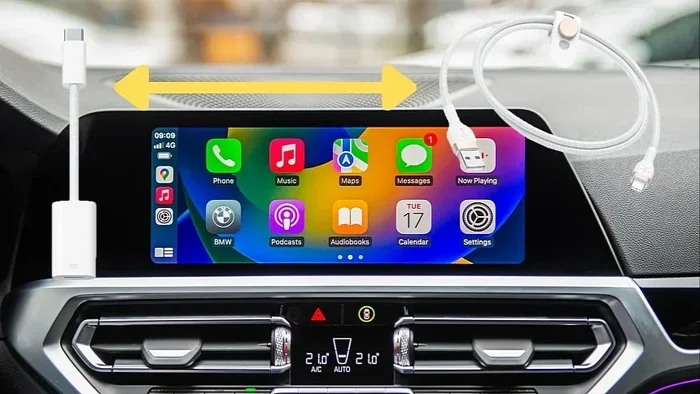
You do not always need a special cable for Apple CarPlay, but using the right one makes a huge difference. Most iPhones work with a standard Lightning to USB cable or a USB-C to USB-C cable depending on your phone model. The key is choosing a MFi certified cable that ensures safe and stable CarPlay compatibility. Wired CarPlay connections are fast and reliable, while wireless CarPlay offers more convenience. Picking the right cable saves you from frustrating disconnections and keeps your iPhone and car stereo working together seamlessly.
If you have ever plugged your iPhone into your car and wondered whether you need a special cable for Apple CarPlay, you are not alone. This is one of the most common questions car owners ask when they first set up their infotainment system. The short answer is no, you do not need a special cable. But the longer answer is a bit more nuanced, and it is worth understanding before you buy anything.
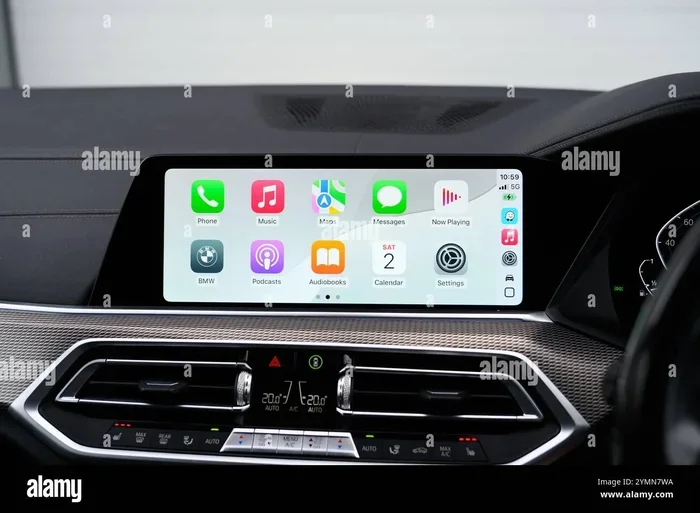
Apple CarPlay is a feature that mirrors your iPhone onto your car’s display. It lets you access maps, music, messages, and more using your car’s screen and controls. To make this work, you need a connection between your phone and your car. That connection usually comes through a cable. But does that cable need to be anything special? Let us break it all down.
In this guide, we will walk you through everything you need to know about cables for Apple CarPlay. We will cover which cables work, which ones to avoid, and how to get the best performance from your setup. Whether you drive a new sedan or a older model, this article has you covered.
Key Takeaways
- No special cable is required: A standard Lightning or USB-C cable can work for Apple CarPlay if it is MFi certified.
- MFi certification matters: Always look for the “Made for iPhone” logo to ensure compatibility and safety.
- Wired vs. wireless: Wired CarPlay offers faster data transfer, while wireless CarPlay provides more convenience.
- Cable quality affects performance: Cheap or damaged cables can cause disconnections, slow charging, and glitches.
- USB port type matters: Check whether your car supports USB-A or USB-C for the best CarPlay experience.
- Troubleshooting is simple: Most CarPlay connection issues can be fixed by trying a different cable or restarting your device.
📑 Table of Contents
- What Is Apple CarPlay and How Does It Connect?
- Types of Cables That Work with Apple CarPlay
- Does Apple CarPlay Require a Special Cable?
- Wireless vs. Wired Apple CarPlay Connections
- Common Cable Problems and How to Fix Them
- Best Cables for Apple CarPlay Setup
- Quick Tips for a Smooth CarPlay Connection
- Common Mistakes People Make with CarPlay Cables
- Final Thoughts
What Is Apple CarPlay and How Does It Connect?
Before we talk about cables, it helps to understand what Apple CarPlay actually does. Apple CarPlay is Apple’s smart driving feature. It takes the apps and functions you use on your iPhone and brings them to your car’s screen. You can use Siri for voice commands, navigate with Apple Maps, stream music, and send or receive messages safely.
The connection between your iPhone and your car happens through a cable or a wireless signal. When you use a cable, your phone sends data to the car’s infotainment system. The car screen then displays the CarPlay interface. This means the quality of your cable connection directly affects how well CarPlay works.
How Does the Connection Work?
When you plug your iPhone into your car, the cable does two important jobs. First, it transfers data between your phone and the car’s system. Second, it charges your phone at the same time. A good cable handles both tasks without any lag or interruption.
The data transfer speed matters a lot for CarPlay. If your cable is slow or low quality, you might experience delays, frozen screens, or disconnections. This is why cable quality is more important than most people realize.
Apple designed CarPlay to work with both wired connections and wireless connections. A wired setup uses a physical cable plugged into your car’s USB port. A wireless setup connects through Bluetooth and Wi-Fi. Both methods have their benefits, and both depend on having the right cable or adapter when needed.
Types of Cables That Work with Apple CarPlay
Not all cables are the same. Different iPhones use different connectors, and different cars have different USB ports. Understanding your options helps you pick the right cable for CarPlay without wasting money.
Lightning to USB-A Cables
If you have an older iPhone model, you likely use a Lightning to USB-A cable. This is the standard cable that came with your phone for years. It has a small Lightning connector on one end and a rectangular USB-A plug on the other. Most cars with USB ports use the USB-A standard, so this cable works in the majority of vehicles.
These cables are widely available and affordable. You can find them at almost any electronics store or gas station. The key is to make sure your cable is MFi certified, which stands for “Made for iPhone.” This certification guarantees the cable meets Apple’s safety and performance standards.
Lightning to USB-C Cables
Some newer iPhones still use a Lightning connector but pair with USB-C cables. This type of Lightning to USB-C cable is useful if your car has USB-C ports. USB-C ports are becoming more common in modern vehicles because they support faster data transfer and charging.
Using a Lightning to USB-C cable can improve your CarPlay experience. The data transfer speed is faster, which means smoother performance. You also get quicker charging while you drive. Just make sure the cable is high quality and MFi certified for the best results.
USB-C to USB-C Cables
If you have a newer iPhone model like the iPhone 15 or later, you use a USB-C connector. In this case, you need a USB-C to USB-C cable. This is the same type of cable used for many Android phones, modern laptops, and tablets.
USB-C cables offer the fastest data transfer speeds available. They also support higher wattage charging, which means your phone charges faster while using CarPlay. If your car has USB-C ports, this is the best cable option for Apple CarPlay setup.
Does Apple CarPlay Require a Special Cable?
This is the big question, and the answer might surprise you. Do I need a special cable for Apple CarPlay? No, not necessarily. Apple CarPlay works with standard cables that meet certain requirements. You do not need to buy an expensive “CarPlay-specific” cable from a specialty store.
What Makes a Cable Compatible?
For a cable to work with Apple CarPlay, it needs to meet a few basic requirements. First, it must support data transfer. Some cables are charge-only and cannot transmit data. These will not work with CarPlay no matter what.
Second, the cable should be MFi certified. MFi stands for “Made for iPhone” or “Made for iPad.” This is Apple’s official certification program. Cables that carry this logo have been tested and approved by Apple for use with iOS devices.
Third, the cable needs to be in good condition. A frayed or damaged cable can cause all sorts of problems. Intermittent disconnections, slow data transfer, and failure to charge are all signs of a worn-out cable.
When Do You Need a Specific Cable?
There are a few situations where you might need a specific cable type. If your car only has USB-C ports and you have a Lightning iPhone, you need a Lightning to USB-C cable. If your car has USB-C ports and your iPhone is USB-C, you need a USB-C to USB-C cable.
Another situation is if you want wireless CarPlay but your car does not support it natively. In that case, you can buy a CarPlay adapter that plugs into your car’s USB port and adds wireless capability. These adapters often come with their own cable, so you may need to use the included one for the best results.
Also, some older cars have USB ports that only support charging and not data transfer. In these cases, a standard cable will not work for CarPlay. You may need a different cable or a different adapter to make it work.
Wireless vs. Wired Apple CarPlay Connections
Apple CarPlay works in two ways: wired and wireless. Each method has its own advantages. Understanding the differences helps you decide which setup is best for your needs.
Wired CarPlay
Wired CarPlay uses a physical cable to connect your iPhone to your car. This is the traditional method and it has been around since CarPlay was first introduced. The main benefit of wired CarPlay is reliability. A cable connection is generally more stable than a wireless one.
Wired connections also tend to have faster response times. When you tap on the screen or give a Siri command, the reaction feels instant. This is because the data travels directly through the cable without any wireless interference.
Another advantage is that wired CarPlay does not depend on your car’s Bluetooth or Wi-Fi hardware. If your car’s wireless systems are older or weak, a wired connection bypasses those issues entirely. For many drivers, this makes wired CarPlay the preferred choice.
Wireless CarPlay
Wireless CarPlay connects your iPhone to your car through Bluetooth and Wi-Fi. There is no cable needed, which is the biggest advantage. You simply connect once, and your phone pairs automatically every time you get in the car.
Wireless CarPlay offers more convenience. You do not have to fumble with cables or worry about a loose connection. It is especially useful if you have a mounted phone holder or a wireless charging pad in your car.
However, wireless CarPlay can sometimes be less stable than wired. Interference from other devices, weak Wi-Fi signals, or older car systems can cause lag or disconnections. The latest cars with updated infotainment systems handle wireless CarPlay much better than older models.
Which One Should You Choose?
For most people, both options work well. If you want the most reliable and fastest connection, go with wired CarPlay and a quality cable. If you value convenience and a clean dashboard without cables, wireless CarPlay is the way to go.
Some drivers use both methods depending on the situation. They use wireless for short trips and wired for long road trips where stability matters most. There is no wrong choice here.
Common Cable Problems and How to Fix Them
Even with the right cable, you might run into issues from time to time. CarPlay connection problems are common, and most of them are easy to fix. Knowing what to look for saves you time and frustration.
CarPlay Keeps Disconnecting
If your CarPlay keeps disconnecting, the cable is often the culprit. A loose connection, a worn-out cable, or a dirty USB port can all cause this problem. Try unplugging the cable and plugging it back in firmly. If the issue persists, try a different cable.
Also check your car’s USB port. Dust, lint, or debris can build up inside the port and interfere with the connection. A quick blast of compressed air can clean it out. This simple step fixes many CarPlay issues.
CarPlay Is Slow or Unresponsive
A slow CarPlay experience usually points to a low-quality cable. Cheap cables that are not MFi certified often have thin wires and poor shielding. This slows down data transfer and makes the interface feel laggy.
Switching to a high-quality, certified cable can dramatically improve performance. Look for cables from reputable brands like Anker, Belkin, or Cable Matters. These brands invest in quality materials and testing.
CarPlay Does Not Turn On
If CarPlay does not turn on at all, start with the basics. Make sure your iPhone is unlocked and on the home screen. Check that the cable is fully inserted into both your phone and the car’s USB port.
Try restarting your iPhone. Sometimes a simple reboot fixes connection issues. You can also go to your iPhone settings and toggle CarPlay off and back on. Under Settings, tap General, then CarPlay, and remove your car. Reconnect the cable and set it up again.
Charging Issues While Using CarPlay
Some cables work fine for data transfer but charge your phone slowly. This is common with very short or very thin cables. If you notice your phone is draining battery instead of charging while using CarPlay, your cable might not support enough current.
Look for cables that support fast charging. A cable rated for at least 2.4 amps will charge your phone at a reasonable speed while running CarPlay. For even faster charging, use a USB-C cable with a higher wattage rating.
Best Cables for Apple CarPlay Setup
Not all cables are created equal. If you are shopping for a new cable for Apple CarPlay, here are some things to look for and some reliable options to consider.
What to Look for in a CarPlay Cable
When shopping for a CarPlay cable, keep these factors in mind:
- MFi Certification: This is the most important factor. Always choose an MFi certified cable to ensure compatibility and safety.
- Data Transfer Speed: Look for cables that support USB 3.0 or higher for the fastest data transfer. This is especially important for USB-C cables.
- Cable Length: A cable between 3 and 6 feet works well for most cars. Too short and it is hard to reach. Too long and it can create clutter.
- Durability: Choose cables with braided nylon or reinforced connectors. These last longer and resist fraying better than basic rubber cables.
- Brand Reputation: Stick with trusted brands. Anker, Belkin, Apple, and Cable Matters are all solid choices.
Top Cable Recommendations
Here are some of the best cables you can use for Apple CarPlay:
- Apple Lightning to USB-C Cable: This is Apple’s own cable and it works perfectly with CarPlay. It is fast, reliable, and MFi certified. If you have a USB-C iPhone, this is the go-to choice.
- Anker PowerLine III USB-C to USB-C: This cable is durable, fast, and supports high data transfer speeds. It is a great option for USB-C iPhones and modern cars.
- Belkin Boost Up Lightning to USB-C Cable: Belkin is a trusted name in accessories. This cable offers solid performance and comes with MFi certification.
- Cable Matters USB-C to USB-C Cable: An affordable option that does not skimp on quality. It supports fast data transfer and works well with CarPlay.
Quick Tips for a Smooth CarPlay Connection
Getting the most out of your Apple CarPlay setup is easier than you think. A few simple habits can keep your connection strong and your experience smooth every time you drive.
- Keep your cable clean: Wipe the connectors with a dry cloth before plugging them in. Dirt and dust can cause connection problems.
- Use a short cable: Shorter cables often provide a more stable connection because there is less signal loss.
- Avoid charge-only cables: Always double-check that your cable supports data transfer. Charge-only cables will not work with CarPlay.
- Update your iPhone: Apple regularly releases iOS updates that improve CarPlay performance. Keep your phone up to date.
- Restart your car and phone: If CarPlay acts up, a fresh restart of both devices often solves the problem instantly.
- Remove other connected devices: If you have multiple devices plugged into your car’s USB ports, disconnect the ones you are not using. This can improve performance.
Common Mistakes People Make with CarPlay Cables
Even experienced CarPlay users sometimes make mistakes that cause frustration. Avoiding these common errors keeps your setup running smoothly.
Buying the Cheapest Cable Available
It is tempting to grab the cheapest cable at the checkout counter. But cheap cables often lack proper shielding and data transfer capabilities. They may work for charging but fail when it comes to CarPlay. Investing in a quality MFi certified cable saves you from headaches down the road.
Ignoring Cable Wear and Tear
Cables wear out over time. Frayed ends, exposed wires, and bent connectors are signs that your cable needs replacing. Using a damaged cable can cause intermittent disconnections and even damage your phone’s charging port. Replace worn cables promptly.
Assuming All USB Ports Are the Same
Not all USB ports in your car are created equal. Some ports are designed only for charging and do not support data transfer. Others may be slow USB 2.0 ports that limit CarPlay performance. Check your car’s manual to find which USB ports support CarPlay and use those ones.
Forgetting to Enable CarPlay on Your iPhone
Sometimes the issue is not the cable at all. Make sure CarPlay is enabled on your iPhone. Go to Settings, then General, then CarPlay, and make sure your car is listed and selected. This simple step is easy to overlook but can solve many connection issues.
Final Thoughts
Do I need a special cable for Apple CarPlay setup? The answer is clear now. You do not need a special or expensive cable to use Apple CarPlay. A standard, MFi certified cable that matches your iPhone’s connector type is all you need. Whether you use a Lightning to USB-A cable, a Lightning to USB-C cable, or a USB-C to USB-C cable, the right choice depends on your phone and your car’s ports.
The key is to avoid cheap, uncertified cables and to keep your cables in good condition. A quality cable ensures a stable, fast, and reliable CarPlay experience every time you drive. Pair your cable with a clean USB port and up-to-date software, and you will enjoy seamless connectivity on every trip.
Take a few minutes to check your current cable and your car’s USB ports. If your cable is old or damaged, replace it with a certified option. If your car has USB-C ports and you still use a Lightning cable, consider upgrading to the right cable type. These small steps make a big difference in how well Apple CarPlay works for you.
With the right setup, your car becomes an extension of your iPhone. Navigation, music, calls, and messages are all at your fingertips. A good cable is the foundation of that experience. Choose wisely, and you will enjoy Apple CarPlay for miles to come.
Frequently Asked Questions
Can I use any USB cable for Apple CarPlay?
Not just any USB cable will work. The cable must support data transfer, not just charging. It also needs to be MFi certified for the best compatibility. A charge-only cable will not connect to CarPlay at all. Always check that your cable is designed for data transfer before using it with CarPlay.
Why does my Apple CarPlay keep disconnecting?
Frequent disconnections are usually caused by a loose or damaged cable. Dust in the USB port can also interfere with the connection. Try using a different MFi certified cable and clean the USB port with compressed air. Restarting both your iPhone and your car’s infotainment system can also help resolve the issue.
Is wireless CarPlay better than wired CarPlay?
Wireless CarPlay is more convenient because you do not need a cable. However, wired CarPlay tends to be more stable and faster. The best choice depends on your preferences and your car’s capabilities. If your car supports wireless CarPlay natively, it works great. If not, a wired connection with a quality cable is the most reliable option.
What does MFi certified mean for CarPlay cables?
MFi stands for “Made for iPhone” or “Made for iPad.” It is Apple’s official certification program. MFi certified cables have been tested and approved by Apple to work safely with iOS devices. Using an MFi certified cable ensures your CarPlay connection is stable and that your phone is protected from power surges or data issues.
Can I charge my phone while using Apple CarPlay?
Yes, most CarPlay cables charge your phone while you drive. The same cable that transfers data also delivers power to your iPhone. However, some cables charge faster than others. If you want fast charging while using CarPlay, look for cables that support higher amperage and are USB-C compatible for the best results.
Do I need a special cable if my car has USB-C ports?
If your car has USB-C ports and your iPhone also has a USB-C connector, you need a USB-C to USB-C cable. If your iPhone has a Lightning connector, you need a Lightning to USB-C cable. Using the wrong cable type will not work with CarPlay. Always match your cable to both your phone’s connector and your car’s USB port type.
=== CONCLUSION ===
Do I need a special cable for Apple CarPlay setup? You now have the complete answer. A special cable is not required, but choosing the right one matters. Stick with MFi certified cables, match your connector type to your car’s ports, and avoid cheap, uncertified options. With the right cable, your Apple CarPlay experience will be fast, stable, and enjoyable on every drive.