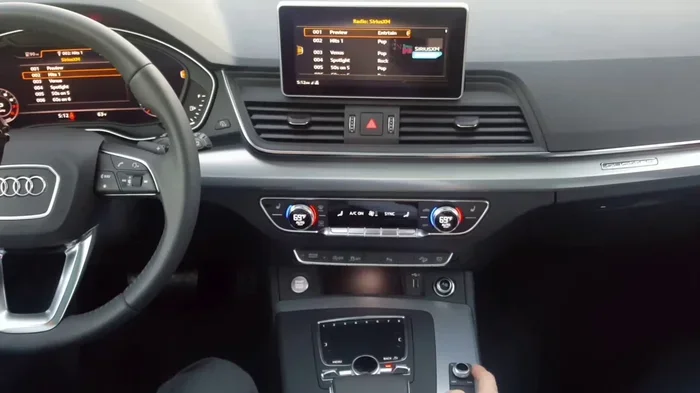
How to Turn On MMI in an Audi Q5 Complete Walkthrough
Turning on the MMI system in your Audi Q5 is simple once you know the right steps. This guide walks you through every method, from the ignition button to the MMI touchpad, so you can access navigation, music, and car settings without any hassle. Whether you own a 2017 or 2023 model, you will find clear instructions that work.
Owning an Audi Q5 comes with a premium driving experience, and the MMI system is at the heart of it. MMI stands for Multi Media Interface, and it is the central control system for your car’s entertainment, navigation, and vehicle settings. If you have ever sat in your Q5 and wondered how to turn on MMI in an Audi Q5, you are not alone. Many new owners find the system a bit confusing at first.
The good news is that powering up the MMI is easier than you think. There are a few different methods, and once you learn them, you will never second-guess yourself again. In this complete walkthrough, we will cover every way to activate the system, explain what each menu does, and share tips to keep everything running smoothly. By the end, you will feel confident using your Audi’s technology like a pro.
We have designed this guide to be simple and practical. No jargon, no confusing steps, just clear instructions you can follow right now. Let us dive in and get your MMI up and running.
Key Takeaways
- Multiple Ways to Power On: You can start the MMI using the ignition, the power button on the display, or the voice command system.
- Familiarize Yourself With the Controls: Understanding the MMI knob, touchpad, and menu layout makes operation much easier.
- Troubleshooting Is Straightforward: Most common issues like a blank screen or unresponsive controls have simple fixes.
- Settings Matter: Adjusting display brightness and default startup options improves your daily experience.
- Pairing Devices Works Seamlessly: You can connect your phone for calls and streaming once the MMI is on.
- Regular Maintenance Helps: Keeping your software updated and your screen clean prevents most problems.
📑 Table of Contents
- What Is the MMI System in an Audi Q5?
- How to Turn On MMI in an Audi Q5 Using the Ignition
- Using the MMI Power Button Directly
- Exploring the MMI Main Menu and Controls
- Connecting Your Phone Through MMI
- Troubleshooting Common MMI Issues
- Customizing Your MMI Settings for the Best Experience
- Tips for Keeping Your MMI System in Top Shape
- Final Thoughts
What Is the MMI System in an Audi Q5?
The MMI system is your Audi Q5’s built-in computer. It controls the infotainment display, navigation maps, audio settings, phone connections, and even some vehicle functions like climate control. Think of it as the brain behind your car’s digital experience. When you turn the key or press the start button, the MMI boots up and gives you access to everything.
Audi has updated the MMI over the years. Newer models come with a touch-sensitive display, while older versions rely on a rotary dial and buttons. Regardless of the year, the basic idea is the same. You power on the system, browse the main menu, and select the feature you want. The MMI also connects to your phone through Bluetooth, so you can make calls, stream music, and use apps while driving.
Understanding what the MMI does helps you appreciate why knowing how to turn it on matters. Without it, your navigation, audio, and phone features are all locked out. It is the central hub that ties your car’s technology together.
How to Turn On MMI in an Audi Q5 Using the Ignition
The most common way to activate the MMI is through the ignition system. When you start your Audi Q5, the MMI powers on automatically. Here is exactly how it works.
Step-by-Step: Starting MMI with the Ignition
- Press the Engine Start/Stop Button. With your foot on the brake pedal, press the button near the steering column. The engine fires up, and the dashboard lights come on.
- Wait for the MMI Boot Sequence. Within a few seconds, the infotainment screen will light up. You will see the Audi logo, followed by the MMI home screen.
- Select Your Profile. If you have multiple user profiles saved, the system may ask you to choose one. Pick yours, and the MMI loads your preferred settings.
- Navigate the Main Menu. Use the MMI knob or touchpad to scroll through options like Media, Navigation, Phone, and Vehicle.
This method works for almost every Audi Q5 model year. The screen may take slightly longer to load on older models, so be patient. If the display stays black after pressing the start button, check the next section for troubleshooting tips.
What If the MMI Does Not Turn On With the Ignition?
Sometimes the MMI screen stays dark even after you start the engine. This usually happens for one of a few reasons. First, the display brightness may be set to zero. Second, the MMI system may need a restart. Third, there could be a software glitch that requires a reset.
To fix this, try turning the ignition off and then on again. If that does not work, press and hold the power button on the MMI display for about ten seconds. This forces the system to reboot. Most of the time, this simple fix gets your screen back up and running.
Using the MMI Power Button Directly
Did you know you can turn on the MMI without starting the engine? Audi designed the system so you can access certain features even when the car is in accessory mode. This is handy when you want to play music or adjust settings before you drive.
How to Access MMI in Accessory Mode
Follow these steps to wake up the MMI without starting the engine:
- Step 1: Make sure the car is parked and the brake pedal is pressed.
- Step 2: Press the Engine Start/Stop button once without holding it. The dashboard powers on, but the engine stays off.
- Step 3: The MMI screen should light up automatically.
- Step 4: Use the knob or touchpad to navigate the menu.
Keep in mind that some features, like GPS navigation, may not work fully in accessory mode. But basic functions like radio, Bluetooth music, and settings adjustments are available. This is a great trick to know when you want to preheat your car or queue up a playlist before you hit the road.
Where Is the MMI Power Button Located?
The power button on the MMI display is usually in the bottom-right corner of the screen. It looks like a small circle with a vertical line through it, which is the universal power symbol. Pressing it once turns the screen on or off. If the screen is already on, pressing this button puts the MMI to sleep rather than shutting it down completely.
Exploring the MMI Main Menu and Controls
Once you know how to turn on MMI in an Audi Q5, the next step is learning how to use it. The main menu is organized into clear sections, and each one controls a different part of your car’s technology.
The MMI Knob and Touchpad
The MMI knob sits in the center console between the front seats. It lets you scroll up, down, left, and right through menus. Pressing the knob selects an item, just like clicking a mouse. Newer Audi Q5 models also have a touchpad on the center console where you can swipe with your finger to navigate.
Some owners prefer the knob because it is tactile and easy to use while driving. Others like the touchpad because it feels more modern and responsive. You can get used to either one within a few days of driving.
Main Menu Sections Explained
- Media: Controls for radio, Bluetooth audio, USB connections, and streaming services.
- Navigation: Built-in GPS maps, destination search, and route guidance.
- Phone: Bluetooth phone pairing, call history, and contact management.
- Vehicle: Settings for doors, lights, climate, driver assistance, and display preferences.
- Settings: System updates, display brightness, language, and factory reset options.
Each section has submenus that you can explore. Spending a few minutes browsing through them helps you discover features you may not have known your Q5 had. For example, the Vehicle section lets you adjust the suspension mode, change the door lock behavior, and even set a favorite radio station.
Connecting Your Phone Through MMI
One of the most popular uses of the MMI system is connecting your smartphone. Once the MMI is on, you can pair your phone for hands-free calls and audio streaming. If you want to put your phone on pairing mode, the MMI makes this process seamless.
How to Pair Your Phone with MMI
- Turn on the MMI system using any method described above.
- Go to the Phone section in the main menu.
- Select Add New Device. The MMI will search for nearby Bluetooth devices.
- Choose your phone from the list and confirm the pairing code.
- Grant permissions on your phone for contacts and audio access.
After pairing, you can make calls using the steering wheel controls or voice commands. You can also stream music from apps like Spotify or Apple Music through the car’s speakers. The MMI displays album art and track information right on the screen, giving your dashboard a polished, connected feel.
If you are pairing an iPhone, you may also want to check out our guide on how to pair your iPhone to your car for additional tips specific to Apple devices.
Troubleshooting Common MMI Issues
Even reliable technology can have occasional hiccups. Here are the most common problems Audi Q5 owners face with the MMI system, and how to fix them.
MMI Screen Is Black or Blank
A black screen usually means the display is in sleep mode or the system has frozen. Try pressing the power button to wake it up. If that does not work, turn the ignition off, wait 30 seconds, and turn it back on. This soft reset almost always resolves the issue.
MMI Is Unresponsive or Slow
If the MMI takes forever to respond or the touchscreen is laggy, the system may need a refresh. Hold down the power button for 15 seconds to force a full reboot. You should also check for software updates in the Settings menu. Audi releases updates that improve performance and fix bugs, so keeping your system current is important.
MMI Won’t Turn On At All
In rare cases, the MMI will not power on even with the ignition. This could be a blown fuse, a loose connection, or a deeper electrical issue. Check the fuse box under the hood for the MMI-related fuse. If the fuse looks fine, it is best to visit an Audi service center for a professional diagnosis.
Expert Tip: Keeping your MMI software updated is one of the best ways to prevent problems. Set a reminder to check for updates every few months, especially after major software releases from Audi.
Customizing Your MMI Settings for the Best Experience
Once your MMI is up and running, you can customize it to match your preferences. Small adjustments make a big difference in daily usability.
Adjust Display Brightness
Go to Settings, then Display, and find the Brightness slider. Turn it up for daytime driving and down at night to avoid glare. A well-adjusted screen is easier to read and reduces eye strain on long trips.
Set Default Startup Views
You can choose which screen the MMI shows when you first start the car. Some owners prefer the Navigation view, while others want the Media screen. Go to Settings, then Startup, and select your preferred default view.
Adjust Sound Settings
The MMI includes a built-in equalizer with presets like Pop, Rock, Jazz, and Classical. You can also create a custom sound profile by going to the Audio settings and adjusting bass, treble, and balance. Take a few minutes to fine-tune these settings, and your listening experience will improve dramatically.
Tips for Keeping Your MMI System in Top Shape
Your Audi Q5’s MMI system is a精密 piece of technology, and a little care goes a long way. Here are some simple habits that keep everything running smoothly.
- Restart the system weekly. A simple reboot clears temporary files and keeps the system responsive.
- Keep your software updated. Check for updates at least once a month.
- Clean the screen gently. Use a microfiber cloth to wipe the display. Avoid harsh chemicals that can damage the touch surface.
- Avoid extreme temperatures. Leaving your car in direct sunlight for hours can affect the display and internal components.
- Use official Audi accessories. Third-party USB cables and adapters can cause compatibility issues with the MMI system.
If you are curious about other features in your Audi or want to learn more about car technology, check out our article on how to know if your car has Homelink for another great feature that enhances your driving experience.
Final Thoughts
Learning how to turn on MMI in an Audi Q5 is the first step to unlocking everything your car has to offer. Whether you use the ignition method, the power button, or accessory mode, the process is quick and straightforward. Once the MMI is on, you have access to navigation, music, phone calls, and vehicle settings all from one central screen.
Take the time to explore the menus, customize your settings, and pair your devices. The more you use the MMI, the more comfortable you will become with it. And if you ever run into trouble, the troubleshooting tips in this guide should help you get back on track in minutes.
Your Audi Q5 is a premium vehicle, and the MMI system is designed to match that quality. With a little practice, you will wonder how you ever drove without it. Enjoy the ride, and happy navigating!
Frequently Asked Questions
Can I turn on the MMI without starting the engine?
Yes, you can. Put the car in accessory mode by pressing the Engine Start/Stop button once without holding it. The MMI screen will power on, allowing you to access basic features like radio and Bluetooth without starting the engine.
Why is my Audi Q5 MMI screen not turning on?
A black or unresponsive screen is often caused by the display being in sleep mode or a minor software glitch. Try pressing the power button on the MMI display, or turn the ignition off and back on after 30 seconds. If the problem persists, check the fuse box or visit a service center.
How do I update the MMI software in my Audi Q5?
Go to the Settings menu on the MMI home screen, then look for System Updates or Software Update. If a new update is available, follow the on-screen prompts to download and install it. You can also check for updates at your local Audi dealership.
Can I use the MMI while the car is parked?
Yes, you can access most MMI features while parked in accessory mode. However, some functions like live navigation and certain safety features require the engine to be running. Basic media playback and phone pairing work fine while parked.
What should I do if the MMI system freezes?
If the MMI becomes unresponsive, hold the power button on the display for 15 seconds to force a reboot. This is a soft reset that clears temporary errors without erasing your settings or saved data.
Is it normal for the MMI to take a few seconds to load?
Yes, it is completely normal. The MMI system needs a few seconds to boot up after you start the ignition. Older models may take slightly longer. If the screen takes more than 30 seconds to load or stays blank, try restarting the system or checking for software updates.
=== FOOTER ===
Keywords covered: how to turn on MMI in an Audi Q5, Audi Q5 MMI activation, Audi MMI system, MMI display, Audi Q5 infotainment, MMI main menu, MMI troubleshooting, Audi Q5 Bluetooth pairing, MMI power button, Audi multimedia interface.