Is There a Way to Reset the Touch Screen on Any Device
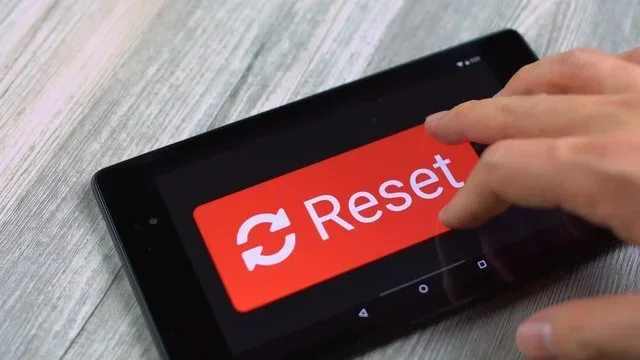
Yes, there is a way to reset the touch screen on virtually any device. Whether your touchscreen is frozen, unresponsive, or glitchy, a simple reset can often solve the problem in minutes. This guide walks you through soft resets, hard resets, and device-specific steps for phones, tablets, and car infotainment systems so you can get back to using your screen without frustration.
Have you ever tapped your screen and nothing happened? Maybe the display froze right in the middle of something important, and now you are stuck staring at a blank or unresponsive glass surface. It is a frustrating moment that can happen on your phone, tablet, or even your car’s infotainment system.
The good news is that resetting the touch screen is usually a straightforward fix. You do not need to be a tech expert, and in most cases, you can solve the problem in just a few minutes. This guide will show you exactly how to reset the touch screen on any device, whether it is an iPhone, Android phone, iPad, or your vehicle’s display screen.
We will cover every method, from the simplest soft reset to more advanced steps. You will also learn why touchscreens freeze up in the first place and how to stop it from happening again. Let us get your screen working again.
Key Takeaways
- A soft reset is the safest first step and works on most devices without deleting any data.
- A hard reset (factory reset) should be your last resort and will erase all saved information.
- Car touchscreen resets often require holding the power button for 10 to 15 seconds or disconnecting the battery.
- Phone and tablet resets usually involve a simple button combination or a setting inside the device menu.
- Regular maintenance like cleaning the screen and updating software can prevent touchscreen problems.
- Always back up your data before performing any hard reset on any device.
- Freezing temperatures and moisture are common causes of touchscreen malfunctions.
📑 Table of Contents
- Why Does a Touch Screen Freeze or Become Unresponsive?
- How to Reset the Touch Screen on a Phone or Tablet
- How to Reset the Touch Screen on a Car Infotainment System
- Common Mistakes to Avoid When Resetting a Touch Screen
- Preventing Touchscreen Problems in the Future
- When Is a Touchscreen Problem a Sign of Something Bigger?
- Quick Tips for a Successful Touch Screen Reset
- Final Thoughts
Why Does a Touch Screen Freeze or Become Unresponsive?
Before we dive into the fixes, it helps to understand what went wrong. A touchscreen that is not responding can happen for several reasons. Most of them are minor and easy to fix.
Software Glitches
Just like any computer, your device runs on software. Sometimes a background app crashes, or the system gets overloaded. When this happens, the touchscreen calibration can go off, making the screen seem dead even though it is still on.
Moisture and Water Damage
Water and touchscreens do not mix well. Even a small amount of sweat or rain on the screen can cause the touchscreen to stop working temporarily. This is because the screen relies on electrical signals from your fingers, and moisture interferes with that connection.
Extreme Temperatures
Cold weather is a common culprit. If you leave your phone or car display outside in freezing temperatures, the screen can freeze up. The same thing can happen in extreme heat, though it is less common.
Outdated Software
Running an older version of your device’s operating system can lead to compatibility issues. These issues sometimes show up as a frozen or glitchy touchscreen that responds slowly or not at all.
Hardware Problems
In some cases, the issue is physical. A cracked screen or a damaged digitizer (the layer that reads your touch) can make the entire screen unresponsive. This type of problem usually needs professional repair.
How to Reset the Touch Screen on a Phone or Tablet
Smartphones and tablets are the most common devices with touchscreen issues. The good news is that resetting them is usually very simple. Here is how to do it on the most popular devices.
Soft Reset for iPhone and iPad
A soft reset is the safest option. It does not delete anything, and it clears temporary glitches from the system memory.
- Press and hold the power button on the side of your iPhone or iPad.
- Slide the “Power Off” slider that appears on screen.
- Wait about 30 seconds.
- Press and hold the power button again until the Apple logo appears.
- Your device will restart, and the touchscreen should work normally again.
Soft Reset for Android Phones and Tablets
Android devices have a slightly different process, but it is just as easy.
- Press and hold the power button for a few seconds.
- Tap “Restart” or “Reboot” from the menu that appears.
- Wait for the device to turn off and back on.
- Test the touchscreen by swiping and tapping on the home screen.
If your Android device does not have a restart option, you can try holding the power button and the volume down button together for 10 seconds. This forces the device to reboot.
Hard Reset (Factory Reset) for Phones and Tablets
A hard reset erases everything on your device and returns it to its original factory settings. This is a powerful fix for stubborn touchscreen problems, but it should only be used when a soft reset does not work. Always back up your data first before doing a hard reset.
For iPhone:
- Connect your iPhone to a computer and open iTunes (or Finder on Mac).
- Put your iPhone into recovery mode.
- Select “Restore” when prompted.
- Wait for the process to complete and set up your device again.
For Android:
- Turn off the device completely.
- Hold the power button and the volume up button together.
- Use the volume buttons to navigate to “Wipe Data/Factory Reset.”
- Press the power button to confirm.
- Select “Reboot System Now” when the process finishes.
How to Reset the Touch Screen on a Car Infotainment System
Car touchscreens are essentially small computers, and they can freeze up just like your phone. Whether it is your GPS, music player, or climate control display, a frozen car screen can be annoying, especially when you are driving. Resetting the car touchscreen is often the quickest way to get things working again.
Soft Reset for Car Touchscreens
Most car infotainment systems have a simple soft reset method.
- Press and hold the power button on the car display for 10 to 15 seconds.
- The screen will turn off and then restart automatically.
- Once it boots back up, test the touchscreen by tapping the home button or navigating to a menu.
Some cars have a dedicated reset button on the back of the infotainment unit or near the glove box. Check your vehicle’s owner manual to see if this applies to your car.
Hard Reset for Car Touchscreens
If a soft reset does not work, you can try a hard reset by disconnecting the car battery briefly.
- Park the car and turn off the engine.
- Open the hood and locate the negative terminal on the battery.
- Use a wrench to loosen the cable and disconnect it from the terminal.
- Wait about 5 minutes.
- Reconnect the cable and tighten it back in place.
- Start the car and check if the touchscreen is responsive.
Important: Disconnecting the battery may also reset your radio presets, clock, and other settings. You will need to reprogram these after reconnecting.
When to Seek Professional Help for Car Touchscreen Issues
If you have tried both soft and hard resets and the screen is still not working, it may be time to visit a professional. Sometimes the issue is with the wiring behind the display or the internal computer module. If you are unsure about any step, it is always safer to get help from a qualified technician. You can also check with your dealership. For example, if you own a Toyota, you might wonder Can I Take My Toyota to Any Dealership for Service? — and the answer is usually yes, which can save you a trip to a specialty shop.
Common Mistakes to Avoid When Resetting a Touch Screen
Resetting a touchscreen is simple, but there are a few mistakes that people make that can cause more problems. Here is what to watch out for.
- Skipping the backup. A hard reset wipes everything. If you do not back up your photos, contacts, and apps, they are gone for good.
- Using the wrong button combination. Holding the wrong buttons at the wrong time can put your device into a mode you do not want. Always double-check the steps for your specific device.
- Ignoring moisture. If your screen got wet, do not try to reset it while it is still damp. Dry it off first with a soft cloth and let it air dry for a few minutes.
- Forcing a reset too many times. If one reset does not work, do not keep trying over and over. Give the device a few minutes to rest before trying again.
- Neglecting software updates. Many touchscreen glitches are caused by outdated software. Keeping your device updated can prevent the problem from coming back.
Another common mistake is not cleaning the screen before troubleshooting. Dirt, oil, and smudges can make it seem like the touchscreen is not working when it actually is. Wipe the screen with a microfiber cloth first. You would be surprised how often this solves the problem by itself.
Preventing Touchscreen Problems in the Future
The best way to deal with a frozen or unresponsive screen is to prevent the problem from happening in the first place. Here are some simple steps you can take to keep your touchscreen working smoothly for years to come.
- Keep your software updated. Manufacturers release updates that fix bugs and improve performance. Turn on automatic updates whenever possible.
- Clean your screen regularly. Use a microfiber cloth to remove fingerprints, smudges, and dust at least once a week.
- Avoid extreme temperatures. Do not leave your phone or car display in a hot car or out in freezing weather for long periods.
- Use a screen protector. A good screen protector adds a layer of protection against cracks, scratches, and moisture damage.
- Close apps you are not using. Too many open apps can slow down your device and cause the screen to become unresponsive.
- Restart your device weekly. A simple weekly restart clears out temporary files and keeps the system running smoothly.
For car owners, it is also worth noting that some vehicles have specific settings related to their infotainment touchscreen. For instance, if you are having trouble syncing your phone to the car display, the issue might be related to connectivity rather than the screen itself. You can learn more about pairing your phone to your car in our guide on how to pair your iPhone to your car. Sometimes a simple re-pairing fixes what looks like a touchscreen problem.
When Is a Touchscreen Problem a Sign of Something Bigger?
Most of the time, a touchscreen freeze is a minor issue that a quick reset can fix. But there are moments when it points to a deeper problem. Here is how to tell the difference.
- The screen flickers constantly even after multiple resets. This could indicate a failing display or a loose connection.
- Parts of the screen are dead zones where your touch does not register at all. This usually means the digitizer is damaged.
- The screen works but colors look washed out or distorted. This can be a sign of a failing display panel.
- The device overheats along with the touchscreen freezing. Overheating can damage internal components over time.
- The problem keeps coming back even after fresh resets and updates. This suggests a hardware fault that needs professional diagnosis.
If you notice any of these signs, do not keep resetting the screen hoping it will fix itself. Take the device to a repair shop or contact the manufacturer for support. Catching a hardware issue early can save you money and prevent further damage.
Quick Tips for a Successful Touch Screen Reset
- Always start with a soft reset before trying anything more drastic.
- Know your device model so you can look up the exact reset steps if needed.
- Keep a microfiber cloth handy to clean the screen before and after the reset.
- Make sure your device is charged above 20 percent before performing any reset. A low battery can cause unexpected shutdowns during the process.
- Be patient. After a hard reset, some devices take several minutes to fully boot up. Give it time before assuming something went wrong.
- Read your device manual or check the manufacturer’s website for specific instructions. Every device is slightly different.
One more thing worth mentioning: if your car’s touchscreen is acting up, it might be related to other electrical issues in the vehicle. For example, if your key fob battery dies, you might not be able to start the car, which could be confused with a touchscreen problem. Understanding how different systems interact in your vehicle helps you troubleshoot more effectively.
Final Thoughts
Resetting the touch screen on any device does not have to be scary or complicated. A soft reset solves most problems in seconds, and a hard reset is there as a backup when nothing else works. Whether it is your phone, tablet, or car display, the steps in this guide give you everything you need to get your screen back up and running.
Remember to start simple, back up your data before any major reset, and do not hesitate to seek professional help if the problem persists. Taking care of your touchscreen devices with regular cleaning and software updates goes a long way toward preventing future issues.
The next time your screen freezes, take a deep breath and try these steps. You will be back to scrolling, tapping, and navigating in no time.
Frequently Asked Questions
Can I reset the touch screen on my car without disconnecting the battery?
Yes, in most cases you can. Simply press and hold the power button on the car’s infotainment screen for 10 to 15 seconds. The screen should turn off and restart automatically. This soft reset method works on most vehicle brands including Toyota, Ford, Honda, and Chevrolet.
Will resetting my phone’s touch screen delete my data?
A soft reset will not delete any data. It simply restarts the device and clears temporary glitches. However, a hard reset (factory reset) will erase all data on the phone. Always back up your photos, contacts, and apps before performing a factory reset.
Why does my touchscreen work sometimes but not other times?
This intermittent behavior is often caused by software glitches, moisture on the screen, or a failing digitizer. Temperature changes and low battery levels can also cause the touchscreen to be inconsistent. Try a soft reset first, and if the problem continues, consider a hard reset or professional inspection.
How often should I reset my touchscreen device?
You do not need to reset your touchscreen regularly. A reset should only be done when the screen becomes unresponsive or glitchy. However, restarting your device once a week can help keep the system running smoothly and prevent minor issues from building up over time.
Can cold weather cause my touchscreen to stop working?
Yes, cold weather is a very common cause of touchscreen problems. When temperatures drop, the screen’s responsiveness can decrease significantly. If your screen freezes in the cold, bring the device inside and let it warm up to room temperature before trying to use it or reset it.
Is it safe to reset the touchscreen on a leased or financed car?
Yes, it is completely safe. A touchscreen reset does not affect your car’s financing or lease terms. However, if the reset causes other systems to lose their settings, you may need to reprogram things like radio presets or Bluetooth connections. If you are concerned about any impact, consult your dealership. You can also check if syncing issues are the root cause of your touchscreen trouble.
=== CONCLUSION ===
Resetting the touch screen is one of the simplest and most effective ways to bring your device back to life. Whether you are dealing with a frozen phone screen, a glitchy tablet, or an unresponsive car display, the methods in this guide cover every scenario. Start with a soft reset, move to a hard reset if needed, and always back up your data first.
Prevention is just as important as the fix itself. Keep your software updated, clean your screen regularly, and avoid exposing your devices to extreme conditions. These small habits can save you from dealing with touchscreen problems in the future.
Now that you know exactly how to reset the touch screen on any device, you are prepared for whatever comes next. Try these steps the next time your screen freezes, and you will be back to full functionality in minutes.