Can You Put More Apps on CarPlay Heres the Full Guide
Yes, you can put more apps on CarPlay, and the process is simpler than most people think. Apple CarPlay lets you access a wide range of apps directly from your car dashboard, including navigation, music, messaging, and more. This full guide walks you through adding apps, fixing common issues, and getting the most out of your CarPlay setup. Whether you are new to CarPlay or looking to expand your app library, you will find clear, step-by-step instructions inside.
Have you ever looked at your CarPlay screen and thought, “I wish I could add more apps here”? You are not alone. Can you put more apps on CarPlay? The short answer is yes. But the full answer involves understanding how CarPlay works, which apps are compatible, and a few simple steps to get everything set up just right.
Apple CarPlay has changed the way we use our phones in the car. It brings your favorite CarPlay apps right onto your dashboard screen. But many drivers feel limited by what they see. The good news is that you can expand your CarPlay app library with ease. This guide covers everything you need to know about adding more apps, fixing common problems, and making the most of your iPhone CarPlay experience.
Whether you want better navigation, hands-free messaging, or more music options, this guide has you covered. Let us dive in and explore how you can get more apps running on your CarPlay screen today.
Key Takeaways
- You can add apps to CarPlay easily: The process is straightforward and works through your iPhone settings.
- CarPlay supports many third-party apps: Popular apps like Spotify, Google Maps, and WhatsApp work great with CarPlay.
- There is no strict app limit: You can add as many compatible apps as you want, though screen space may limit visibility.
- Troubleshooting is simple: Most CarPlay app issues can be fixed with a quick restart or settings check.
- Customization matters: You can rearrange and pin your favorite apps for quick access while driving.
- Keep your apps updated: Updated apps ensure better compatibility and fewer bugs with CarPlay.
📑 Table of Contents
What Is Apple CarPlay and How Does It Work?
Understanding the Basics of CarPlay
Apple CarPlay is a smart system that mirrors key features from your iPhone onto your car’s infotainment screen. It was designed to keep you connected while staying safe on the road. When you plug your phone into your car or connect wirelessly, CarPlay launches and shows you a clean, driver-friendly interface.
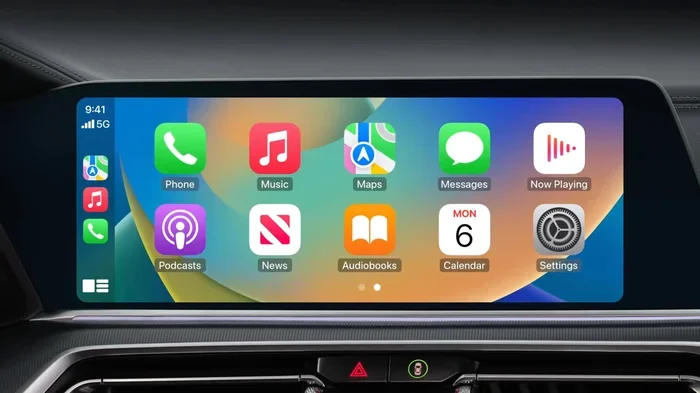
The CarPlay dashboard gives you quick access to apps like Phone, Messages, Music, and Maps. But that is just the starting point. Many people do not realize how expandable CarPlay really is. You can add more CarPlay compatible apps beyond the default ones Apple includes.
Here is how CarPlay works in simple terms:
- You connect your iPhone to your car using a cable or Bluetooth.
- CarPlay launches automatically on your car screen.
- You see a simplified version of your iPhone apps.
- You tap, swipe, or use voice commands to interact.
- Apps respond with large buttons and voice feedback for safety.
The beauty of CarPlay is that it focuses on what matters most while driving. You get notifications, calls, and music without getting distracted. Apple built iOS CarPlay with safety as the top priority, and that philosophy shapes every app you see on the screen.
Why CarPlay App Selection Matters
Not all apps are created equal when it comes to CarPlay. Some apps are fully optimized for the car screen, while others are just basic shortcuts. The best CarPlay apps are those designed with large touch targets, simple menus, and minimal distractions. When you add apps to CarPlay, you want ones that feel natural and easy to use while driving.
Think about your daily driving routine. Do you need better navigation? More podcast options? Hands-free texting? Your answer to these questions should guide which CarPlay apps you choose to install. The right set of apps can turn a good driving experience into a great one.
The Current CarPlay App Limit
Is There a Hard Cap on CarPlay Apps?
One of the most common questions people ask is about the CarPlay app limit. The truth is, Apple does not impose a strict number on how many apps you can add. There is no magic cap that locks you out after a certain count. In practice, you can add quite a few CarPlay supported apps to your dashboard.
However, there is a practical limit. Your car screen can only display so many apps at once. CarPlay organizes apps into a grid or list, and you can scroll through them. Some cars show more apps on the screen at the same time than others. The size and resolution of your car display play a big role here.
Here are some key points about the CarPlay app limit:
- Apple does not set a maximum number of apps.
- Your car screen size affects how many apps are visible at once.
- You can scroll through a long list of installed apps.
- Some apps may not appear if they are not optimized for CarPlay.
- You can always rearrange or hide apps you do not use often.
Default Apps vs. Added Apps
When you first set up iPhone CarPlay, you see a set of default apps. These include Phone, Messages, Music, Maps, and Settings. These come pre-installed and are always available. But the real power of CarPlay comes from adding third-party apps that match your lifestyle.
The difference between default and added apps is simple. Default apps are built into the CarPlay system. Added apps are ones you download from the App Store and then enable within CarPlay settings. Both types work together to give you a complete experience on the road.
How to Add More Apps to CarPlay
Step-by-Step Guide to Adding Apps
Adding apps to CarPlay is a quick process. You do not need any special tools or technical skills. Here is exactly how to do it:
- Open Settings on your iPhone. Scroll down and tap on “General.”
- Select CarPlay. You will see a list of your connected vehicles.
- Tap on your car. This opens the CarPlay customization screen.
- Scroll through the app list. You will see all available CarPlay compatible apps on your phone.
- Tap the plus icon next to any app you want to add.
- Rearrange apps by dragging them into your preferred order.
- Tap Done to save your changes.
That is it. Your new apps will now appear on your CarPlay screen the next time you start your car. The process works the same way whether you use a wired or wireless connection.
Customizing Your CarPlay Layout
Once you have added your apps, you can customize how they appear on the CarPlay screen. CarPlay lets you pin your most-used apps to the top row. This makes them easy to access without scrolling. You can also hide apps you rarely use to keep your dashboard clean.
Customization is one of the best features of modern CarPlay. You can create a setup that matches your exact needs. Want your navigation app front and center? Done. Need quick access to your podcast app? Just drag it into position. The CarPlay customization options give you full control over your driving experience.
Best Practices for App Organization
Keep your most-used apps within easy reach on the CarPlay home screen. Navigation and music apps should always be prominent. Less frequently used apps, like a stock tracker or a specific game, can live deeper in the list. Organizing your apps this way reduces distraction and keeps your focus on the road.
Here are a few quick tips for keeping your CarPlay app settings organized:
- Place navigation apps in the first row.
- Put music and podcast apps right next to them.
- Keep messaging apps accessible but not too prominent.
- Remove any app you have not opened in over a month.
- Review your app layout every few weeks and adjust as needed.
Third-Party Apps That Work Great with CarPlay
Top Navigation Apps for CarPlay
Navigation is one of the most popular uses of CarPlay. While Apple Maps comes built in, many drivers prefer alternatives. Google Maps CarPlay offers detailed satellite views and real-time traffic updates. Waze is another favorite, especially for its community-driven traffic alerts. Both apps are fully supported and easy to add to your CarPlay setup.
If you use a specific navigation app for work or travel, check the App Store to confirm it supports CarPlay navigation apps. Most major navigation services now offer CarPlay compatibility, so finding a good match is easy.
Music and Podcast Apps
Music and podcasts make long drives more enjoyable. Spotify CarPlay lets you browse your playlists and podcasts with large, driver-friendly buttons. Podcasts by Apple works seamlessly with CarPlay out of the box. Other great options include Pandora, Amazon Music, and YouTube Music. All of these are among the top CarPlay music apps available today.
When choosing a music app for CarPlay, look for ones with big playback controls and voice command support. These features make it safer and easier to change tracks without taking your eyes off the road.
Messaging and Communication Apps
Staying connected while driving is important, but safety comes first. WhatsApp, Telegram, and Slack all offer CarPlay support for voice replies and read-only notifications. These CarPlay third-party apps let you stay in touch without typing or looking at your phone. The key is to use Siri for all message interactions while driving.
Other Useful CarPlay Apps
Beyond the big categories, there are many other useful apps you can add. Fuel-finding apps like GasBuddy help you save money on gas. Parking apps like ParkWhiz make finding a spot easier. Even some fitness and mindfulness apps have CarPlay versions. The world of CarPlay apps keeps growing every year, so there is always something new to try.
Troubleshooting: Apps Not Showing on CarPlay
Why Your CarPlay Apps Might Not Appear
Sometimes you follow all the steps, but your CarPlay not showing apps problem persists. This is frustrating but usually easy to fix. Several common issues can prevent apps from appearing on your CarPlay screen.
The most common reason is that an app simply does not support CarPlay. Not every iPhone app is designed to work with the CarPlay interface. Before troubleshooting, double-check that the app you want to use is on the list of CarPlay supported apps. You can usually find this information on the app’s App Store page or the developer’s website.
Quick Fixes for Common CarPlay App Issues
If your apps are not showing up, try these simple fixes first:
- Restart your iPhone. A quick reboot often resolves temporary glitches.
- Disconnect and reconnect your cable. If you use a wired connection, try a different cable or port.
- Check your CarPlay settings. Go to Settings > General > CarPlay and make sure the app is enabled.
- Update your iPhone. Go to Settings > General > Software Update and install any pending updates.
- Update the app itself. Open the App Store and check for updates to the problem app.
- Forget the car and reconnect. In CarPlay settings, remove your car and pair it again.
When to Contact Support
If none of the above fixes work, the issue might be with your car’s infotainment system. Check your car manufacturer’s website for CarPlay software updates. You can also contact Apple Support for help diagnosing the problem. In rare cases, a factory reset of CarPlay settings may be needed. But this should always be your last resort.
Tips for Getting the Most Out of CarPlay
Keep Your Apps Updated
Regular updates are essential for smooth CarPlay connectivity. App developers frequently release updates that improve CarPlay performance, fix bugs, and add new features. Make it a habit to check for app updates once a week. This simple habit keeps everything running smoothly.
Use Siri for Hands-Free Control
One of the best features of iPhone CarPlay is Siri integration. You can use voice commands to open apps, send messages, and change music without touching your screen. This makes driving safer and keeps your hands on the wheel. The more you use Siri with CarPlay, the more natural it becomes.
Download Apps Before You Drive
Always download and set up new CarPlay apps before you hit the road. Trying to search the App Store or configure settings while driving is dangerous and distracting. Take a few minutes at home to explore new CarPlay apps and get them organized. This small prep step makes a big difference in your driving experience.
Explore New Apps Regularly
The world of CarPlay apps is always expanding. New CarPlay third-party apps launch every month. Make it a habit to browse the App Store for CarPlay-compatible apps every few weeks. You might discover a new navigation tool, a better music player, or a useful utility app that fits your driving style perfectly.
Maximize Your Screen Real Estate
Different cars offer different screen sizes for CarPlay. If you have a larger screen, you can fit more apps in view. Smaller screens require more scrolling. Understanding your screen size helps you decide how many apps to keep visible and which ones to tuck away in the list.
Frequently Asked Questions
Can I Add Any App to CarPlay?
Not every app works with CarPlay. Only apps that are specifically designed and optimized for the CarPlay interface will appear on your dashboard. You can check if an app supports CarPlay by looking at its App Store description or by visiting Settings > General > CarPlay on your iPhone. If the app is listed there, you can add it with just a tap.
Why Are My CarPlay Apps Not Showing Up?
This is usually caused by a simple connectivity issue or an app that is not CarPlay-compatible. Try restarting your iPhone, reconnecting your cable, or checking your CarPlay settings. If the app is not listed in the CarPlay customization screen, it may not support CarPlay at all. Updating your iPhone and the app can also resolve the problem in many cases.
Is There a Limit to How Many Apps I Can Add?
Apple does not enforce a hard limit on the number of CarPlay apps you can add. However, your car screen can only display a certain number at a time. You can scroll through a longer list of apps, and you can always rearrange or hide apps to keep your dashboard clean and organized.
Do I Need to Download CarPlay Apps Separately?
No. You download apps from the App Store just like you normally would. The difference is that you then enable them within CarPlay settings. Once enabled, the app will appear on your CarPlay screen the next time you connect your iPhone to your car.
Can I Use CarPlay Apps While Driving?
Yes, but with important safety limits in place. CarPlay is designed to minimize distractions. Most apps use large buttons, voice commands, and Siri integration so you can interact without looking at your phone. Apple restricts certain features like typing while the car is in motion to keep you and others safe on the road.
Does CarPlay Work with Android Phones?
No, Apple CarPlay is designed exclusively for iPhones. Android users have a similar system called Android Auto, which offers many of the same features. If you drive a car that supports both systems, you can choose the one that matches your phone. However, CarPlay apps and Android Auto apps are separate ecosystems and are not interchangeable.
Conclusion
The answer to Can You Put More Apps on CarPlay is a clear and confident yes. You have the power to customize your CarPlay experience with the apps that matter most to you. From navigation and music to messaging and podcasts, the right set of CarPlay apps can transform every drive into a smoother, safer, and more enjoyable experience.
Remember to keep your apps updated, organize your layout for easy access, and use Siri for hands-free control. If you ever run into issues, the troubleshooting steps in this guide will help you get back on track quickly. CarPlay customization is an ongoing process, and the more you explore, the better your setup becomes.
Take a few minutes today to review your CarPlay app settings and add any missing apps. A well-organized CarPlay dashboard makes a real difference every time you get behind the wheel. Happy driving, and enjoy exploring all the great apps CarPlay has to offer.