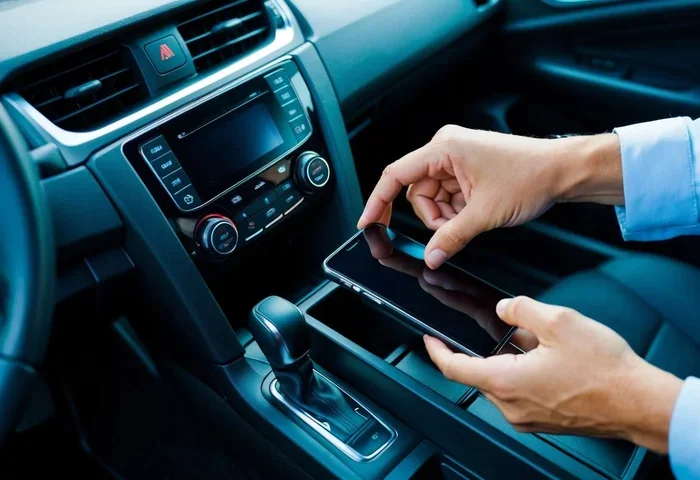
How Do I Disconnect a Phone From My Car Step by Step
Learning how to disconnect a phone from your car is simple once you know the right steps. Whether you use Bluetooth, a USB cable, or apps like Android Auto, this guide walks you through every method. You will also learn troubleshooting tips and how to keep your car connection secure.
Have you ever hopped into your car and realized your phone is still connected to the infotainment system? Maybe you lent your phone to a passenger or you simply want a fresh start with a clean connection. Whatever the reason, knowing how do I disconnect a phone from my car is a useful skill every driver should have.
The process is easier than most people think. Whether you use a Bluetooth wireless connection, a USB cable, or apps like Android Auto and Apple CarPlay, there is a straightforward way to break that link. In this guide, we will walk you through every method step by step. You will learn quick tips, common mistakes to avoid, and how to keep your car audio system running smoothly.
By the end of this article, you will feel confident disconnecting your mobile device from any vehicle. No more guessing or fumbling through confusing menus. Let us get into it.
Key Takeaways
- Bluetooth disconnection: You can easily remove your phone from your car’s infotainment system through the Bluetooth settings menu.
- USB disconnection: Simply unplugging the cable is often enough, but you may need to adjust vehicle settings too.
- Android Auto and Apple CarPlay: These apps need specific steps to fully disconnect from your car stereo.
- Troubleshooting: If your phone keeps reconnecting, you may need to reset your car Bluetooth or delete the paired device list.
- Security matters: Properly disconnecting your phone protects your personal data and keeps your wireless connection safe.
- Multiple phones: You can manage several paired devices and switch between them without hassle.
📑 Table of Contents
- Why You Might Need to Disconnect Your Phone From Your Car
- How to Disconnect a Phone Using Bluetooth
- How to Disconnect a Phone Using a USB Cable
- Disconnecting Android Auto or Apple CarPlay
- Troubleshooting Common Disconnection Issues
- Tips to Keep Your Car and Phone Connection Secure
- Frequently Asked Questions
- Conclusion
Why You Might Need to Disconnect Your Phone From Your Car
There are many reasons why you might want to disconnect Bluetooth in car settings or remove a wired connection. Understanding these reasons helps you know when to take action.
Here are some common situations:
- Selling or sharing your car: If you are selling your vehicle, you want to remove all personal data from the car Bluetooth system. This protects your privacy.
- Multiple users: Family members or friends may need to connect their own phones. Clearing the paired device list gives everyone a fresh start.
- Connection issues: Sometimes a phone connection causes audio glitches, static, or calls dropping. Disconnecting and reconnecting often fixes these problems.
- Battery conservation: A wireless Bluetooth connection drains both your phone battery and car battery over time. Disconnecting when not in use saves power.
- Privacy concerns: Your call logs, contacts, and messages may sync to the car system. Removing the connection keeps your data private.
- Switching vehicles: You moved to a new car or rental vehicle and need to clear the old connection.
No matter the reason, the steps below will help you disconnect cleanly and completely. You will not leave behind any lingering connections or data.
How to Disconnect a Phone Using Bluetooth
The most common way people connect their phones to a vehicle is through Bluetooth. This wireless connection lets you make hands-free calls, stream music, and use navigation apps through your car audio system. But disconnecting it is just as important as connecting it.
Step-by-Step Bluetooth Disconnection
Follow these steps to remove your phone from your car Bluetooth system:
- Open your car infotainment system. Tap the screen or press the menu button on your steering wheel controls.
- Go to Settings. Look for a gear icon or a “Settings” option on the home screen.
- Find Bluetooth settings. Tap on “Bluetooth,” “Connections,” or “Phone Link” depending on your vehicle brand.
- Locate your paired phone. You will see a list of all devices that have connected to your car stereo before.
- Select the phone you want to remove. Tap on the device name.
- Choose “Forget Device” or “Delete.” This option removes the phone from the car Bluetooth memory completely.
- Confirm the action. A pop-up will ask you to confirm. Tap “Yes” or “Delete” to finalize.
That is it. Your phone is now fully disconnected from the vehicle. The next time someone tries to connect, they will need to pair the device fresh.
Quick Tip for Multiple Paired Devices
If your car has several phones saved in memory, you may want to clear all of them. Some vehicles let you delete all paired devices at once. Check your car manual for the exact steps. This is especially helpful when you are preparing a car for a new owner.
What Happens After You Disconnect?
Once you remove a phone from the Bluetooth list, the car audio system will no longer automatically connect to it. You will not hear calls through the car speakers, and music will not stream from your phone. The hands-free calling feature will also stop working for that device until it is paired again.
Some vehicles will still show a notification asking if you want to connect a phone. Simply dismiss the notification or tap “Cancel” to keep things disconnected.
How to Disconnect a Phone Using a USB Cable
Not everyone uses Bluetooth. Many drivers still connect their phones with a USB cable for charging and audio streaming. Disconnecting a wired phone is usually simpler, but there are a few extra steps you should follow.
Step-by-Step USB Disconnection
Here is how to safely disconnect a phone connected via USB:
- Pause any active music or calls. Stop whatever is playing on your car stereo before unplugging.
- Go to your car infotainment settings. Navigate to the “Audio” or “Source” menu.
- Switch the audio source. Change from USB to radio, Aux, or Bluetooth. This tells the system you are done with the USB connection.
- Unplug the USB cable from your phone. Gently remove the cable from your mobile device.
- Unplug the USB cable from the car. Pull the other end out of the car port carefully.
- Check for any remaining prompts. Some vehicles display a message asking if you want to eject the USB device. Tap “Eject” or “OK.”
Your phone is now fully disconnected. You can safely store it or hand it to someone else without worrying about interference.
Do You Need to Adjust Vehicle Settings?
In some cars, the system remembers the last USB connection and automatically switches to it when you plug in a new cable. To prevent this, go into your vehicle settings and look for a “USB” or “Connection” option. Disable the “Auto-Connect” feature if available. This gives you more control over when your phone connects.
Disconnecting Android Auto or Apple CarPlay
If you use Android Auto or Apple CarPlay, disconnecting your phone involves a few extra steps. These apps mirror your phone screen onto the car infotainment display, giving you access to maps, music, and messages. But they also create a deeper connection that needs careful handling.
How to Disconnect Android Auto
Follow these steps to remove Android Auto from your car:
- On your phone: Open the Android Auto app and tap the profile icon in the top right corner.
- Go to Settings: Select “Settings” and then “Connected cars.”
- Remove the car: Find your vehicle in the list and tap “Disconnect” or “Remove.”
- On the car display: Go to the infotainment system settings and find Android Auto.
- Select “Forget” or “Unpair: This removes the Android Auto link from the car stereo.
- Disable wireless Android Auto: If your phone connects wirelessly, turn off the feature in your phone settings under “Connected Devices.”
How to Disconnect Apple CarPlay
Here is how to remove Apple CarPlay from your vehicle:
- On your iPhone: Open the Settings app and tap “General.”
- Go to CarPlay: Select “CarPlay” from the list.
- Find your car: Tap on the vehicle name in the list.
- Tap “Forget This Car: This removes the CarPlay pairing from your iPhone.
- On the car display: Go to the infotainment settings and look for CarPlay.
- Reset or remove CarPlay: Follow the on-screen prompts to fully disconnect.
Once you complete these steps, your phone will no longer mirror to the car display. You can still use Bluetooth for calls and music, but the full-screen CarPlay or Android Auto interface will be gone.
Expert Insight: Wireless vs. Wired Connections
Wireless connections are convenient, but they can sometimes cause your phone to reconnect automatically even after you try to disconnect. If you want a truly clean break, try turning off Bluetooth on your phone manually after removing the car pairing. This double step ensures the phone car connection is fully severed.
Troubleshooting Common Disconnection Issues
Sometimes things do not go as smoothly as we hope. Your phone might keep reconnecting, the car stereo might not recognize the disconnection, or you might run into error messages. Here is how to handle the most common problems.
Phone Keeps Reconnecting Automatically
This is the most frustrating issue. Your phone was disconnected, but the moment you sit in the car, it connects again. Here is what to do:
- Turn off Bluetooth on your phone. Go to your phone settings and toggle Bluetooth off before getting in the car.
- Check for auto-connect settings. Some phones have a feature that automatically connects to known Bluetooth devices. Disable this in your Bluetooth settings.
- Restart your phone. A quick restart clears temporary connection bugs and resets the Bluetooth settings on both devices.
- Reset the car infotainment system. Turn off the car, remove the key, wait 30 seconds, and restart. This clears the system memory of old connections.
Car Stereotype Shows the Phone Is Still Connected
If your car display still shows your phone as connected even after you removed it, try these steps:
- Force close the car app. Some vehicles have a dedicated phone connection app. Close it and reopen it.
- Clear the Bluetooth cache. On Android phones, go to Settings > Apps > Bluetooth > Storage > Clear Cache.
- Update your car firmware. Older vehicles may have software bugs that prevent proper disconnection. Check with your dealer for updates.
- Factory reset the car infotainment system. As a last resort, a factory reset clears all connections and settings. Refer to your car manual for instructions.
Audio Still Plays Through Car Speakers After Disconnecting
If your music or calls are still routing through the car audio system after disconnection, the audio source may still be set to the phone. Change the audio source back to radio or Aux. This stops the car stereo from looking for a phone signal.
When to Contact a Professional
If none of the above steps work, there may be a deeper issue with your car infotainment system or your phone’s Bluetooth hardware. Visit a dealership or a qualified auto electronics shop. They can run diagnostics and fix the problem without guesswork.
Tips to Keep Your Car and Phone Connection Secure
Disconnecting is only half the battle. Keeping your car connectivity secure when you do connect your phone is just as important. Here are some best practices every driver should follow.
Best Practices for Safe Phone-Car Connections
- Only pair trusted devices. Do not connect phones you do not recognize to your car system.
- Use a strong PIN. When pairing a new device, use a Bluetooth PIN that is not easy to guess.
- Keep your car firmware updated. Manufacturers release updates that fix security vulnerabilities in the vehicle Bluetooth system.
- Turn off Bluetooth when not driving. This prevents unauthorized devices from connecting to your car stereo.
- Review paired devices regularly. Go into your Bluetooth settings every few weeks and remove devices you no longer use.
- Do not leave your phone in the car unattended. Even a disconnected phone can be a target for theft.
How to Manage Multiple Phones in One Vehicle
Many families share a single vehicle. If multiple phones need to connect to the car audio system, here is how to manage it without confusion:
- Create a naming system. Label each paired device with the owner’s name (e.g., “John’s iPhone” or “Sarah’s Pixel”).
- Teach each user how to disconnect. Everyone should know how to disconnect Bluetooth in car settings before leaving the vehicle.
- Set one phone as the default. Most car systems let you choose a primary phone for calls and audio. Set this to the driver’s phone.
- Clear the list before lending the car. If you lend your car to someone else, clear all paired devices afterward for privacy.
Quick Tips for a Smooth Experience
- Restart both devices before pairing or disconnecting for the cleanest results.
- Keep your phone updated. Software updates often fix Bluetooth and USB connection bugs.
- Use original or high-quality USB cables. Cheap cables can cause connection drops and make disconnection harder.
- Read your car manual. Every vehicle is different. Your manual has the exact steps for your specific make and model.
- Be patient. Some car systems take a few seconds to fully register a disconnection. Wait before trying again.
Frequently Asked Questions
Can I disconnect my phone from my car without going into settings?
Yes, in most cases. Simply turning off Bluetooth on your phone will stop the wireless connection temporarily. For a permanent removal, you need to go into the car infotainment settings and delete the paired device. This ensures the phone does not reconnect automatically the next time you get in the car.
Will disconnecting my phone delete any data from my phone?
No. Disconnecting your phone from your car only removes the vehicle connection from your phone and vice versa. Your contacts, photos, messages, and apps stay completely safe on your mobile device. Nothing gets deleted during the disconnection process.
Why does my phone keep reconnecting to my car after I disconnect it?
This usually happens because the auto-connect feature is enabled on either your phone or your car system. To fix this, go to your phone Bluetooth settings and turn off “Auto-Connect” or “Connect to Known Devices.” You can also try restarting both your phone and your car infotainment system.
How do I disconnect Android Auto from my car?
Open the Android Auto app on your phone, go to Settings, then Connected Cars, and select your vehicle. Tap “Remove” or “Disconnect.” Then go to your car infotainment system, find Android Auto in the settings, and select “Forget” or “Unpair.” This fully severs the connection between the two devices.
Is it safe to sell my car without disconnecting my phone?
No, it is not safe. Before selling your car, you should remove all paired phones, delete call history and contacts synced to the car system, and perform a factory reset on the infotainment system. This protects your personal data and gives the new owner a clean slate.
Can I disconnect one phone while keeping another phone connected to my car?
Yes, you can. Most car Bluetooth systems support multiple paired devices. Simply remove the phone you want to disconnect while leaving the other phone in the paired list. The remaining phone will continue to connect automatically when you get in the car.
Conclusion
Knowing how do I disconnect a phone from my car gives you control over your vehicle technology and your personal privacy. Whether you use Bluetooth, a USB cable, Android Auto, or Apple CarPlay, the steps in this guide will help you disconnect cleanly and completely. You now know how to handle every type of connection, troubleshoot common problems, and keep your car audio system running at its best.
Remember to review your paired devices regularly, turn off Bluetooth when you are not using it, and always remove personal data before lending or selling your car. These small habits go a long way in keeping your phone car connection secure and your driving experience smooth.
Take a few minutes today to check your car Bluetooth settings and remove any devices you no longer use. Your future self will thank you. Stay connected when you need to be, and stay disconnected when you do not. Safe driving!