How Do I Put My Phone on Pairing Mode in Simple Steps
Putting your phone on pairing mode is the first step to connecting it wirelessly with your car, headphones, or other devices. Whether you use an Android or an iPhone, the process is quick and easy once you know where to look. This guide walks you through every step so you can get your Bluetooth pairing done in under a minute.
Have you ever jumped in your car, ready to hit the road, only to realize you have no idea how to connect your phone? You are not alone. Millions of people search for how do I put my phone on pairing mode every single month. The good news is that it is a lot simpler than you think.
Whether you want to stream music, take hands-free calls, or use GPS navigation through your car speakers, the first step is always the same. You need to put your phone into Bluetooth pairing mode. This makes your phone visible to other devices so they can find each other and form a connection.
In this guide, we will walk you through the exact steps for both Android and iPhone. We will also cover how to pair your phone with your car, fix common problems, and keep your connection strong. By the end, you will feel confident connecting any device in seconds.
Key Takeaways
- Pairing mode makes your phone visible: It lets nearby devices find and connect to your phone through Bluetooth.
- Android and iPhone have different steps: Each operating system has its own simple path to enable pairing mode.
- Car Bluetooth pairing is the most common use: Millions of drivers connect their phones to their cars this way every day.
- Troubleshooting is easy: Most pairing problems have quick fixes like restarting Bluetooth or forgetting the device.
- Auto-connect saves time: Once paired, your phone can connect automatically every time you get in the car.
- Security matters: Always pair in a safe, trusted environment and avoid public spaces.
📑 Table of Contents
What Is Pairing Mode and Why Do You Need It?
Before we dive into the steps, let us quickly understand what pairing mode actually means. Think of it like ringing a doorbell. When your phone is in pairing mode, it sends out a signal that says, “Hey, I am here! Come connect with me.”
Bluetooth is the wireless technology that lets devices talk to each other without cables. When you turn on Bluetooth pairing, your phone becomes discoverable. This means other Bluetooth devices, like your car stereo or wireless headphones, can see it and request to connect.
Here is why pairing mode matters:
- Wireless freedom: You can stream music and take calls without plugging in a single cable.
- Hands-free safety: You keep your hands on the wheel and your eyes on the road.
- Convenience: Once paired, your phone connects automatically every time you get in the car.
- Multi-device support: You can pair your phone with speakers, watches, tablets, and more.
Without pairing mode, your phone stays hidden. Other devices simply cannot find it. That is why knowing how to turn it on is the most important first step.
How to Put Your Android Phone on Pairing Mode
Android phones make it easy to enable Bluetooth pairing mode. The exact steps can vary slightly depending on your brand, but the process is very similar across Samsung, Google Pixel, Motorola, and most other Android devices.
Step-by-Step Guide for Android
Follow these simple steps to put your Android phone on pairing mode:
- Open your Settings app. Look for the gear icon on your home screen or app drawer.
- Tap on Bluetooth. It is usually near the top of the settings menu. On some phones, you might need to tap “Connections” first.
- Turn Bluetooth ON. Slide the toggle switch to the right. You will see the Bluetooth icon appear at the top of your screen.
- Tap on your phone name. This is usually found under “Available Devices” or “My Devices.”
- Toggle “Visible to all nearby Bluetooth devices.” This puts your phone into discoverable mode. Your phone will now broadcast its presence.
- Wait for the other device to find you. Your car stereo, headphones, or speaker should now see your phone in their list of available devices.
That is it! Your Android phone is now in pairing mode and ready to connect.
Quick Tips for Android Users
- Use the quick settings panel. Swipe down from the top of your screen. You will see a Bluetooth icon. Tap it to turn Bluetooth on quickly.
- Restart Bluetooth if it acts up. Turn it off, wait five seconds, and turn it back on. This fixes many minor issues.
- Keep your phone close. Bluetooth has a range of about 30 feet. Stay within that distance during pairing.
- Check for updates. Go to Settings, then Software Update. Keeping your phone updated ensures the best Bluetooth connectivity.
How to Put Your iPhone on Pairing Mode
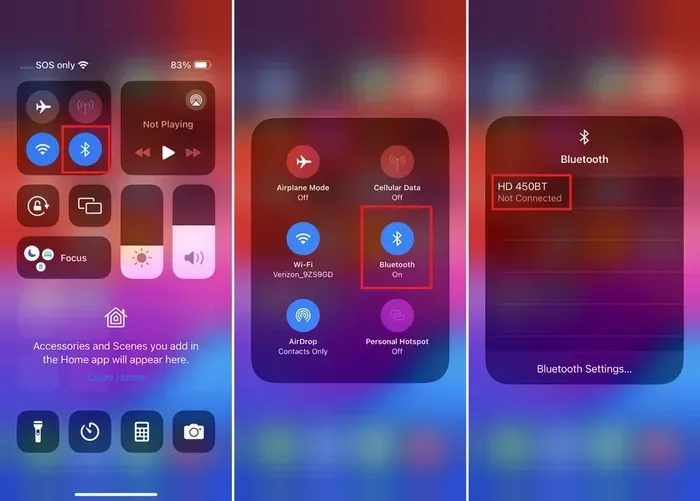
If you use an iPhone, the process is just as straightforward. Apple makes it easy to enable Bluetooth pairing mode right from your settings menu.
Step-by-Step Guide for iPhone
Here is exactly what to do on your iPhone:
- Open the Settings app. Look for the gray gear icon on your home screen.
- Tap Bluetooth. It is near the top of the settings list, with a blue Bluetooth icon next to it.
- Turn Bluetooth ON. Tap the toggle switch. It will turn green, and you will see “My Devices” appear on the screen.
- Wait for your iPhone to become discoverable. By default, iPhones stay discoverable for about two minutes when you first turn on Bluetooth. After that, you may need to go back into Settings and tap Bluetooth again to refresh the discoverable window.
- Select your device from the other gadget’s list. Your car or headphones should now show your iPhone as an available device.
- Accept the pairing request. You may see a code on both screens. Make sure they match, then tap “Pair” or “Connect.”
Your iPhone is now in pairing mode and ready to connect wirelessly.
Quick Tips for iPhone Users
- Turn on Location Services. iPhones require Location Services to be on for Bluetooth to work properly. Go to Settings, then Privacy, then Location Services.
- Reset Network Settings if needed. Go to Settings, General, Transfer or Reset iPhone, then Reset. Choose “Reset Network Settings.” This clears old connections that might cause problems.
- Keep your iOS updated. Go to Settings, General, Software Update. New updates often fix Bluetooth connectivity bugs.
How to Pair Your Phone with Your Car
The most common reason people search for how to put phone on pairing mode is to connect their phone to their car. Car Bluetooth pairing lets you make calls, listen to music, and use navigation apps through your car’s speakers and microphone. It is a game-changer for daily driving.
Before You Start
Make sure your car is in park and the ignition is on. Most modern cars allow Bluetooth setup even while stationary. Some older models require the car to be in accessory mode. Check your car’s manual if you are unsure.
Step-by-Step Car Pairing
- Put your car’s infotainment system in pairing mode. On most cars, you press the “Phone,” “Bluetooth,” or “Settings” button on the steering wheel or dashboard screen. Look for an option that says “Add New Device” or “Search for Devices.”
- Put your phone in pairing mode. Follow the Android or iPhone steps above.
- Find your car on your phone’s Bluetooth list. Your car’s name should appear under “Available Devices” or “Other Devices.”
- Tap on your car’s name. Your phone and car will exchange a pairing code. Make sure the codes match on both screens.
- Accept the connection. Tap “Pair,” “Connect,” or “Allow” on both devices.
- Test the connection. Play some music or make a test call to make sure everything works.
Common Car Brands and Their Pairing Steps
Different car brands have slightly different menus. Here are some quick pointers:
- Toyota: Press the “Phone” button on the steering wheel. Select “Bluetooth” and then “Add New Device.”
- Ford: Go to Settings, then Bluetooth, then “Add New Device” on the SYNC screen.
- Honda: Press the “Phone” button, select “Bluetooth Audio,” and choose “New Connection.”
- Chevrolet: Press the “Phone” button on the MyLink or Infotainment system. Select “Bluetooth” and “Add Device.”
- BMW: Go to the iDrive menu, select “Phone,” then “Bluetooth,” and “Add New Device.”
Once your phone and car are paired, they will auto-connect the next time you get in the car, as long as Bluetooth is turned on. This is one of the best features of modern wireless connection technology.
Common Pairing Problems and How to Fix Them
Even when you follow all the steps perfectly, sometimes Bluetooth pairing does not work right away. Do not worry. Most problems have simple solutions.
Your Phone Does Not Show Up on the Other Device
This is the most common issue. Here is what to do:
- Make sure your phone is discoverable. On Android, check that “Visible to all nearby Bluetooth devices” is turned on. On iPhone, go back to the Bluetooth settings and tap it again to refresh.
- Turn Bluetooth off and on again. A simple restart of the Bluetooth connection often fixes visibility issues.
- Move closer. Bluetooth range is about 30 feet. If your phone is in your back pocket and your car stereo is in the front seat, move your phone closer.
- Check if the other device is in pairing mode. Both devices need to be searching at the same time.
The Pairing Code Does Not Match
If you see different codes on your phone and car screen, do not panic. Try this:
- Cancel the pairing attempt on both devices.
- Start over from the beginning.
- Make sure both devices have the latest software. Outdated software can cause Bluetooth error messages.
Connection Keeps Dropping
If your phone connects but then disconnects randomly, try these fixes:
- Forget the device and re-pair it. On Android, go to Bluetooth settings, find the device, and tap “Forget.” On iPhone, tap the “i” icon next to the device and select “Forget This Device.” Then pair again from scratch.
- Clear old pairings. Sometimes your car’s Bluetooth memory gets full. Delete old devices you no longer use.
- Check for interference. Other Bluetooth devices, USB cables, or even microwave ovens can interfere with the Bluetooth signal.
No Sound or Audio Does Not Play Through the Car
If your phone connects but you cannot hear music through the car speakers:
- Check the audio source. On your car’s infotainment screen, make sure it is set to “Bluetooth Audio” or “BT Audio,” not just “Phone.”
- Check the phone volume. Media volume and call volume are separate on most phones. Make sure your media volume is turned up.
- Check the car volume. Turn up the car stereo volume as well.
Tips for a Seamless Bluetooth Connection
Once you have your phone paired, you want the connection to stay strong and reliable. Here are some expert tips to keep your Bluetooth device running smoothly.
Keep Your Devices Updated
Software updates often include Bluetooth improvements and bug fixes. Make it a habit to check for updates on both your phone and your car’s infotainment system. On Android, go to Settings, then Software Update. On iPhone, go to Settings, General, Software Update.
Manage Your Paired Devices
Over time, your phone can accumulate a long list of paired devices. Old connections can slow things down and cause confusion. Go through your Bluetooth settings every few months and remove devices you no longer use.
Use Auto-Connect Wisely
Most cars and phones support auto-connect, which means they pair automatically when you get in the car. This is super convenient, but it can also drain your battery slightly. If you notice your phone battery dying faster than usual, consider turning off auto-connect for devices you do not use every day.
Protect Your Connection
Bluetooth is secure, but it is still a wireless signal. Here are a few safety tips:
- Only pair in trusted environments. Avoid pairing in crowded public places where strangers could try to connect.
- Turn off Bluetooth when not in use. This saves battery and reduces your digital footprint.
- Use a strong phone lock screen. If someone connects to your phone through Bluetooth, a lock screen adds a layer of protection.
Expert Insight: The Future of Car Phone Connection
Bluetooth technology is evolving fast. Newer versions like Bluetooth 5.3 offer faster connections, better range, and lower battery drain. Many new cars now support wireless Android Auto and Apple CarPlay, which take phone integration to the next level. These systems do not even need a cable to mirror your phone screen on the car display. As these technologies become more common, the way we connect our phones to our cars will continue to get easier and more seamless.
Key Takeaways
- Pairing mode makes your phone visible: It lets nearby devices find and connect to your phone through Bluetooth.
- Android and iPhone have different steps: Each operating system has its own simple path to enable pairing mode.
- Car Bluetooth pairing is the most common use: Millions of drivers connect their phones to their cars this way every day.
- Troubleshooting is easy: Most pairing problems have quick fixes like restarting Bluetooth or forgetting the device.
- Auto-connect saves time: Once paired, your phone can connect automatically every time you get in the car.
- Security matters: Always pair in a safe, trusted environment and avoid public spaces.
Conclusion
Putting your phone on pairing mode is one of the simplest and most useful things you can do. It opens the door to hands-free calling, wireless music streaming, and seamless GPS navigation. Whether you drive an Android or an iPhone, the steps are quick and easy to follow.
Remember to keep your Bluetooth turned on, make sure your phone is discoverable, and stay within range of the device you want to connect to. If something goes wrong, the troubleshooting tips above will help you get back on track in no time.
The next time someone asks you, “How do I put my phone on pairing mode?”, you will know exactly what to do. Share this guide with a friend who is still struggling with their Bluetooth connection. A little knowledge goes a long way, and now you have all the tools you need to connect any device with confidence.
Get out there, hit the road, and enjoy your wireless connection. Your car and your phone are ready to work together.
Frequently Asked Questions
How long does it take to put a phone on pairing mode?
It takes less than a minute. Simply go to your Bluetooth settings, turn it on, and make your phone discoverable. The whole process is quick and straightforward for both Android and iPhone users.
Why won’t my phone show up when I try to pair it with my car?
This usually happens because your phone is not in discoverable mode. On Android, make sure “Visible to all nearby Bluetooth devices” is turned on. On iPhone, go back to the Bluetooth settings and tap it again to refresh the discoverable window. Also, make sure both devices are within 30 feet of each other.
Can I pair my phone with multiple devices at once?
Yes, most modern phones can be paired with multiple devices. However, your phone can only actively connect to one audio device at a time for streaming music. You can switch between paired devices easily in your Bluetooth settings whenever you need to.
Is Bluetooth pairing safe and secure?
Yes, Bluetooth pairing is generally safe. Both devices exchange a secure pairing code to confirm the connection. To stay safe, only pair your phone in trusted environments, keep your Bluetooth turned off when not in use, and use a strong phone lock screen for extra protection.
What should I do if my phone and car keep disconnecting?
First, try forgetting the device on both your phone and car, then pair them again from scratch. If the problem continues, restart Bluetooth on your phone, check for software updates, and make sure there are no other Bluetooth devices causing interference nearby.
Do I need an app to pair my phone with my car?
No, you do not need any extra app for basic Bluetooth pairing. Both Android and iPhone have built-in Bluetooth settings that handle car connections. Some car brands offer optional apps for extra features like streaming music or reading texts, but the basic pairing works without any additional downloads.