How to Connect Bluetooth to Your Mitsubishi Outlander
Connecting Bluetooth to your Mitsubishi Outlander is simple and lets you stream music and make calls without wires. This guide walks you through pairing your phone, adjusting settings, and troubleshooting common issues. You will have your phone connected to the Mitsubishi Outlander Bluetooth system in no time.
Staying connected on the road has never been easier. The Mitsubishi Outlander Bluetooth system lets you stream music, make calls, and use your favorite apps without taking your hands off the wheel. Whether you just bought a used model or you are new to the Outlander lineup, getting your phone paired up is a quick process.
In this guide, we walk you through every step needed to connect Bluetooth to a Mitsubishi Outlander. We also cover common problems and share tips to get the best sound quality. By the end, you will feel confident using your car’s wireless features every time you get behind the wheel.
Key Takeaways
- Easy Pairing Process: You can connect Bluetooth to a Mitsubishi Outlander in just a few simple steps.
- Hands-Free Calling: Bluetooth lets you make and receive calls safely while driving.
- Music Streaming: Stream your favorite playlists through the car audio system wirelessly.
- Multiple Devices: You can pair more than one phone to the Mitsubishi Outlander.
- Troubleshooting Tips: Simple fixes solve most Bluetooth connection problems.
📑 Table of Contents
- Why Bluetooth Matters in the Mitsubishi Outlander
- How to Connect Bluetooth to Your Mitsubishi Outlander
- Setting Up Hands-Free Calling
- Streaming Music Through Bluetooth
- Connecting Multiple Devices
- Troubleshooting Common Bluetooth Issues
- Tips for the Best Bluetooth Experience
- Mitsubishi Outlander Bluetooth and Vehicle Features
- Conclusion
Why Bluetooth Matters in the Mitsubishi Outlander
The Mitsubishi Outlander comes with a modern infotainment system that supports wireless connectivity. This means you can link your smartphone to the car audio system without any cables. The Bluetooth connection gives you access to hands-free calling, audio streaming, and navigation apps.
Here is why Bluetooth is so useful in the Outlander:
- Safety: Keep your hands on the wheel and eyes on the road while talking.
- Convenience: Access your phone’s music library instantly.
- Compatibility: Works with both iPhone and Android devices.
- Multiple Profiles: Supports calling, media, and contact syncing at the same time.
- No Wires: Say goodbye to tangled cables and cluttered dashboards.
If you are coming from a different vehicle, you might also enjoy reading about how to sync your iPhone to a new car. It covers similar steps that apply across many car brands.
How to Connect Bluetooth to Your Mitsubishi Outlander
Follow these steps to pair your phone with the Mitsubishi Outlander Bluetooth system. The process works for most model years, though slight differences may apply depending on your trim level.
Step 1: Turn On Bluetooth on Your Phone
Before you do anything in the car, open the settings on your phone and turn Bluetooth on. On most devices, you can swipe down from the top of the screen and tap the Bluetooth icon. Make sure your phone is set to be visible to other devices.
For iPhone users, go to Settings and tap Bluetooth. For Android users, pull down the notification panel and long-press the Bluetooth icon. You can also check if your phone is in pairing mode by looking for the “Pair new device” option.
Need help putting your phone in pairing mode? Check out our guide on how to put my phone on pairing mode for detailed instructions.
Step 2: Access the Car’s Bluetooth Menu
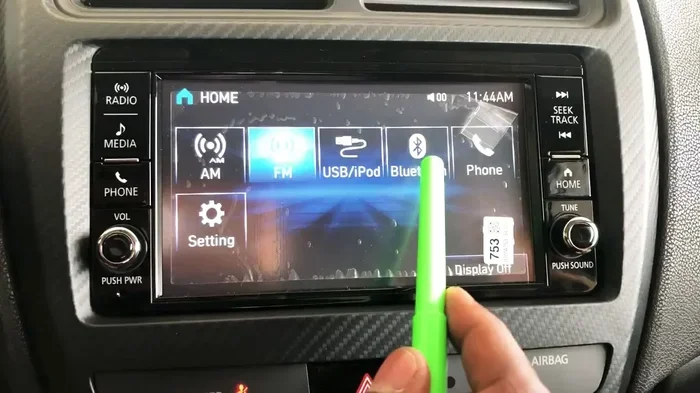
Start the Mitsubishi Outlander and press the “Settings” button on the infotainment screen. Look for a section labeled “Bluetooth” or “Phone.” This is where you manage all wireless connections in the vehicle.
On older model years, you may need to press the “Phone” button on the steering wheel or the center console. The screen will show a list of available devices nearby.
Step 3: Search for New Devices
In the Bluetooth menu, select the option to search for new devices. The Outlander will start scanning for phones in range. Within a few seconds, your phone name should appear on the screen.
Tap on your phone when it shows up in the list. The car will generate a pairing code. You may need to confirm this code on both your phone and the car screen to complete the connection.
Step 4: Confirm the Pairing
Once you accept the pairing request, the screen will show a connected status. You should also see a confirmation on your phone. At this point, your Mitsubishi Outlander Bluetooth is active and ready to use.
You can now make calls, stream music, and access your contacts through the car system. The first connection usually takes about 30 seconds from start to finish.
Setting Up Hands-Free Calling
After the initial Bluetooth pairing, you need to enable hands-free calling. This feature lets you make and receive phone calls using the car’s microphone and speakers.
Go to the Bluetooth settings on the infotainment screen and look for “Access Phonebook” or “Call Audio.” Turn this option on. You will be asked to grant permission on your phone as well. Accept the request to allow the car to access your contacts.
Now when someone calls you, the sound comes through the car speakers. You can answer by pressing the phone button on the steering wheel. To make a call, use the voice command or dial from the infotainment screen.
For a deeper dive into phone-to-car syncing, you might find our article on how do I sync my iPhone to my new car helpful. It covers general pairing tips that work well with the Outlander.
Streaming Music Through Bluetooth
One of the best parts of having Bluetooth in your Mitsubishi Outlander is streaming music wirelessly. Once paired, your phone can send audio directly to the car stereo system.
Open your favorite music app on your phone, whether it is Spotify, Apple Music, or YouTube. Press play. The sound will come through the car speakers automatically. You can control the volume using the car’s audio controls or your phone.
Here are some tips to improve your music experience:
- Keep the volume at a moderate level on your phone before connecting.
- Use the car’s volume knob for better control over the sound.
- Check that Media Audio is enabled in your phone’s Bluetooth settings.
- Close other apps that might interrupt the audio stream.
Want to learn more about car audio and sound quality? Our guide on how do I pair my iPhone to my car covers audio streaming tips that apply to the Outlander as well.
Connecting Multiple Devices
The Mitsubishi Outlander allows you to pair more than one phone. This is great for families or couples who share the vehicle. Each phone can have its own profile with separate contact lists and call histories.
To add a second device, repeat the pairing steps above. Go to the Bluetooth settings on the car screen and select the new phone when it appears in the search results. The system will remember both devices and switch between them automatically.
Keep in mind that only one device can stream audio at a time. If both phones are connected, the most recently used device will take priority for music playback.
Troubleshooting Common Bluetooth Issues
Sometimes the Bluetooth connection does not work as expected. Here are the most common problems and how to fix them.
Bluetooth Will Not Connect
If your phone does not show up in the car’s device list, try turning Bluetooth off and back on again. You can also restart the infotainment system by holding the power button for about 10 seconds. Make sure your phone is within range, usually within 30 feet of the car.
Poor Audio Quality
If the sound is crackly or quiet, check that both devices have the latest software updates. Interference from other wireless devices can also cause issues. Try moving your phone to the center console or the glove box area for a stronger signal.
Phone Connects but No Sound
This usually happens when the media audio profile is not enabled. Go to your phone’s Bluetooth settings, find the Mitsubishi Outlander, and make sure “Media Audio” is turned on. You may also need to check the car’s audio source and select Bluetooth as the input.
For more tips on car audio and Bluetooth setup, you can explore how to sync your iPhone to a new car for general advice that works across vehicles.
Tips for the Best Bluetooth Experience
Want to get the most out of your Mitsubishi Outlander Bluetooth system? Follow these simple tips:
- Keep your phone charged. Bluetooth uses battery power, so a low phone battery can cause connection drops.
- Delete old pairings. If the car has too many saved devices, it can slow down the connection process.
- Update your software. Both your phone and the car’s infotainment system benefit from the latest updates.
- Restart regularly. A simple restart of both devices fixes most minor connection issues.
- Use voice commands. The Outlander supports voice control for calls and music, keeping your hands free.
Mitsubishi Outlander Bluetooth and Vehicle Features
The Mitsubishi Outlander is a versatile SUV that offers more than just Bluetooth connectivity. The vehicle is known for its strong towing capacity, spacious interior, and reliable performance. The Bluetooth system works hand in hand with other smart features to make driving more enjoyable.
For example, if you are planning a road trip with a camper, you might want to check if your Outlander can tow. Our article on whether a Mitsubishi Outlander can tow a camper covers this topic in detail. It is a great read for Outlander owners who want to explore the outdoors.
The Bluetooth system also pairs well with the Outlander’s other technology features. From the infotainment screen to the steering wheel controls, everything works together to give you a seamless experience. Whether you are navigating to a new destination or listening to your favorite podcast, the wireless connection keeps you connected without the clutter of cables.
Conclusion
Connecting Bluetooth to your Mitsubishi Outlander is a straightforward process that anyone can do. From the first pairing to streaming music and making hands-free calls, the steps are simple and fast. The key is to follow each step carefully and make sure both your phone and the car are set up correctly.
If you run into issues, the troubleshooting tips in this guide should help you get back on track quickly. Keep your devices updated, manage your paired phones, and enjoy the convenience of wireless connectivity every time you drive. The Mitsubishi Outlander Bluetooth system is designed to make your life easier, and now you know exactly how to use it to its full potential.
Frequently Asked Questions
How do I put my Mitsubishi Outlander in Bluetooth pairing mode?
Press the “Settings” button on the infotainment screen, then select “Bluetooth” and choose “Search for Devices.” The car will scan and show available phones within range. This is the same process across most Mitsubishi Outlander model years.
Can I connect two phones to my Mitsubishi Outlander at the same time?
Yes, the Mitsubishi Outlander supports multiple paired devices. Both phones can be connected, but only one can stream audio at a time. The system automatically switches to the most recently used device.
Why is my Bluetooth connected but there is no sound?
This usually means the media audio profile is not enabled. Go to your phone’s Bluetooth settings, tap on the Mitsubishi Outlander connection, and make sure “Media Audio” is turned on. You may also need to select Bluetooth as the audio source in the car.
Does the Mitsubishi Outlander support wireless Apple CarPlay or Android Auto?
Some newer model years of the Mitsubishi Outlander support wireless Apple CarPlay and Android Auto. Check your specific model year and trim level to confirm. These features work alongside Bluetooth for an even better connected experience.
How far can my phone be from the car for Bluetooth to work?
Bluetooth typically works within a 30-foot range. For the best experience, keep your phone in the center console or cup holder area. Walls and other obstacles can reduce the effective range.
What should I do if my Mitsubishi Outlander Bluetooth keeps disconnecting?
Try restarting both your phone and the car’s infotainment system. Delete the old pairing and create a new one. Also check for software updates on both devices, as outdated software is a common cause of frequent disconnections.