How Do I Get My Toyota App to Update Quickly and Easily
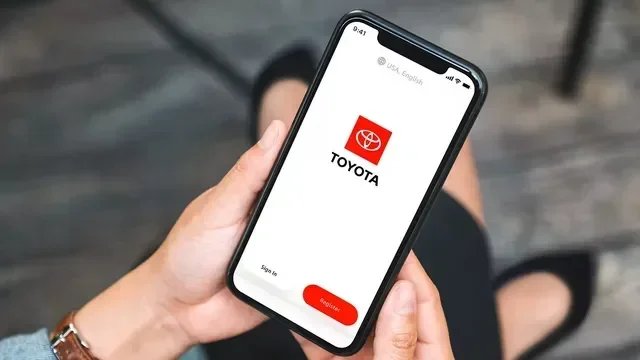
Getting your Toyota app to update is simple once you know the right steps. This guide walks you through updating the app on both iOS and Android devices, troubleshooting common issues, and making sure your app stays connected to your vehicle. You will learn quick fixes, expert tips, and best practices to keep your Toyota app running at its best.
Keeping your Toyota app up to date is one of the simplest things you can do to get the most out of your vehicle. The app connects you to your car in powerful ways. It lets you check your fuel level, lock your doors, and even start your engine from afar. But none of that works if your app is outdated.
Many Toyota owners run into trouble when their app stops working or refuses to download the latest version. The good news is that fixing this is almost always straightforward. In this guide, we will show you exactly how to get your Toyota app to update quickly and easily. We will cover every method, every common problem, and every tip you need to get it done right.
Whether you are using an iPhone or an Android phone, this guide has you covered. We will walk you through each step in plain language. No tech jargon. No confusing instructions. Just clear, simple steps that work.
Key Takeaways
- Update via App Store or Google Play: The easiest way to update your Toyota app is through your device’s built-in app store.
- Check for Connectivity: A stable Wi-Fi or data connection is essential for a successful update.
- Clear Cache if Needed: Clearing the app cache can resolve many common update problems.
- Keep Your Phone Paired Correctly: Properly pairing your iPhone to your car ensures the app communicates well with your vehicle.
- Restart Your Device: A simple restart often fixes minor glitches that block updates.
- Contact Toyota Support: If all else fails, Toyota customer service can help resolve stubborn update issues.
📑 Table of Contents
Why Keeping Your Toyota App Updated Matters
Some people ignore app updates. They tap “Remind Me Later” and forget about it. But with the Toyota app, staying current really does matter. Each update brings new features, security patches, and bug fixes. An outdated app may not connect to your car properly. It could also miss important alerts about your vehicle’s health.
Here are some key reasons to keep your Toyota app updated:
- New Features: Toyota regularly adds new tools to the app. These include improved remote start, better navigation, and enhanced vehicle diagnostics.
- Security Updates: App updates patch vulnerabilities. This keeps your personal data and vehicle connection safe from hackers.
- Bug Fixes: Updates fix crashes, freezing, and connection drops that plague older versions.
- Better Performance: Newer versions often run faster and smoother on your phone.
- Compatibility: Updated apps work better with the latest phone operating systems. They also sync better when you sync your iPhone to your new car.
Think of it like changing the oil in your car. Skipping it once might not cause a problem. But over time, neglect adds up. The same goes for your Toyota app. A quick update now saves you headaches later.
How to Update Your Toyota App on iPhone
Updating the Toyota app on an iPhone is a quick process. Follow these steps carefully and you will be done in under two minutes.
Step 1: Open the App Store
Find the App Store icon on your home screen. It looks like a blue “A” inside a circle. Tap it to open. Make sure you are connected to Wi-Fi or cellular data. The app store needs an internet connection to search for updates.
Step 2: Go to Your Profile
Tap your profile icon in the top right corner of the screen. This opens your account page. You will see a list of apps that have pending updates.
Step 3: Search for Toyota App
You can either scroll through the list or use the search bar. Type “Toyota” and look for the official Toyota app. If an update is available, you will see an “Update” button next to it.
Step 4: Tap Update
Tap the “Update” button and wait. The download speed depends on your internet connection. Once it finishes, the app will install automatically. Open the app to confirm the update went through.
Step 5: Reconnect to Your Vehicle
After updating, you may need to log back in. Enter your Toyota account credentials. Then check that your phone is still connected to your car. If you are having trouble connecting, make sure your phone is properly paired to your car through the Bluetooth settings.
How to Update Your Toyota App on Android
Android users have a similarly simple process. The Google Play Store makes it easy to find and install updates. Here is exactly what to do.
Step 1: Open Google Play Store
Locate the Play Store icon on your home screen or app drawer. It looks like a colorful triangle. Tap to open it. Make sure you are on a stable Wi-Fi network for the best experience.
Step 2: Tap the Search Bar
At the top of the Play Store, you will see a search bar. Type “Toyota App” and hit search. Look for the official Toyota application in the results.
Step 3: Check for Updates
If the app needs updating, you will see an “Update” button. Tap it and let the download finish. Android will handle the installation automatically.
Step 4: Clear Cache if the Update Stalls
Sometimes the update gets stuck. If this happens, try clearing the app cache. Go to Settings, then Apps, find Toyota, and tap “Clear Cache.” This removes temporary files that might be blocking the update. After clearing the cache, try the update again.
Step 5: Restart Your Phone
A quick restart can do wonders. It refreshes your phone’s connection to the Play Store and clears minor glitches. After restarting, open the Play Store and check again for the update.
Common Toyota App Update Problems and How to Fix Them
Even with the simplest process, things can go wrong. Here are the most common problems Toyota owners face when trying to update their app, along with proven fixes.
Problem 1: The App Says It Is Already Up to Date
This is frustrating but very common. It usually happens when your phone is storing old data. The fix is simple. Delete the Toyota app and reinstall it from the App Store or Play Store. This gives you a fresh copy of the latest version. Before you delete, make sure you remember your login details.
Problem 2: The Update Won’t Download
If the download keeps failing, check your internet connection. Switch from Wi-Fi to cellular data or vice versa. Sometimes one connection works better than the other. Also, make sure you have enough storage space on your phone. A full phone can block downloads. Try deleting unused photos or apps to free up space.
Problem 3: The App Crashes After Updating
This can happen when the new version conflicts with old data on your phone. The best fix is to clear the app’s data. Go to Settings, find the Toyota app, and tap “Clear Data.” This resets the app to its default state. You will need to log in again, but the crashing should stop.
Problem 4: Your Phone Is Not Compatible with the Latest Version
Older phones may not support the newest Toyota app version. Check the app store listing for minimum requirements. If your phone is too old, you may need to upgrade your device or continue using the older app version until you can get a new phone.
Tips to Keep Your Toyota App Running Smoothly
Once your Toyota app is updated, you want to keep it that way. A few simple habits can prevent future problems and make the app work better every day.
Turn on Automatic Updates
Both iOS and Android let you turn on automatic app updates. This means your Toyota app will update itself whenever a new version drops. You never have to think about it. On iPhone, go to Settings, then App Store, and toggle on “App Updates.” On Android, open the Play Store, tap your profile, go to Settings, and enable “Auto-update apps.”
Keep Your Phone Charged
It sounds simple, but a low battery can interrupt an update. Make sure your phone has at least 50% battery before starting an update. Better yet, plug your phone in while the update downloads.
Use a Stable Wi-Fi Connection
App updates can be large. Using Wi-Fi instead of cellular data is faster and more reliable. It also prevents your data plan from being used up. Update your Toyota app at home or at work where you have a strong Wi-Fi signal.
Regularly Check App Permissions
The Toyota app needs certain permissions to work properly. It needs access to your location, notifications, and Bluetooth. Go to your phone’s settings and check that all permissions are turned on. Without them, the app may not connect to your car correctly.
Keep Your Phone Operating System Updated Too
Your phone’s operating system affects how apps run. If your phone is running an old version of iOS or Android, the Toyota app may not work well. Keep your phone’s system updated alongside the app. This ensures full compatibility and the best performance.
What to Do When Nothing Works
Sometimes you try everything and the Toyota app still will not update. Do not panic. There are still a few things you can try before giving up.
First, try uninstalling and reinstalling the app completely. This wipes away any corrupted files. Second, try updating on a different device. If the app updates fine on your tablet but not your phone, the problem is with your phone, not the app. Third, contact Toyota customer support. They have access to backend tools that can push updates directly to your account. You can also visit your local Toyota dealership for help. They deal with app issues all the time and can often solve them in minutes.
Remember, keeping your Toyota app updated is one of the easiest ways to protect your investment. A well-maintained app means better connectivity, more features, and fewer headaches. Take five minutes today to check for updates. Your future self will thank you.
Final Thoughts
Updating your Toyota app does not have to be complicated. Whether you use an iPhone or an Android device, the process is quick and simple. The key is to act when you see a notification or notice something is not working right. Do not let updates pile up. A current app means a better experience every time you get behind the wheel.
Follow the steps in this guide and you will handle any update like a pro. Check your connection, clear your cache if needed, and reach out to support when you need help. With a updated Toyota app, you get the full range of features Toyota designed for you. Stay connected. Stay updated. Enjoy the drive.
Frequently Asked Questions
How do I manually update the Toyota app?
Open your App Store or Google Play Store, search for the Toyota app, and tap “Update” if available. You can also go to your profile page in the store and look for pending updates. Make sure you have a stable internet connection before starting.
Why does my Toyota app keep saying it is up to date?
This usually happens when old cached data is stuck on your phone. Try deleting the app and reinstalling it from the store. This gives you a clean, fresh copy of the latest version. You will need to log in again after reinstalling.
Can I update the Toyota app without Wi-Fi?
Yes, you can use cellular data, but the download may use a lot of your data plan. Wi-Fi is recommended for a faster and more reliable update. If you only have cellular data, make sure you have a strong signal.
What should I do if the Toyota app crashes after updating?
Clear the app’s data by going to your phone’s Settings, finding the Toyota app, and tapping “Clear Data.” This resets the app to its default state. You will need to log in again, but the crashing should stop.
How often should I update my Toyota app?
You should update your Toyota app whenever a new version is available. Turning on automatic updates in your app store is the easiest way to stay current. Most users benefit from updating at least once a month.
Do I need to restart my phone after updating the Toyota app?
It is a good idea to restart your phone after any major app update. A restart clears temporary files and refreshes your phone’s connections. This helps the Toyota app communicate properly with your vehicle after the update.
=== CONCLUSION ===
Updating your Toyota app is one of the easiest and most important things you can do as a Toyota owner. A quick update gives you access to the latest features, better security, and smoother performance. Whether you are on an iPhone or an Android device, the steps are simple and fast. Follow the guide above and you will never struggle with an outdated app again. Keep your app current, keep your car connected, and enjoy everything the Toyota experience has to offer.