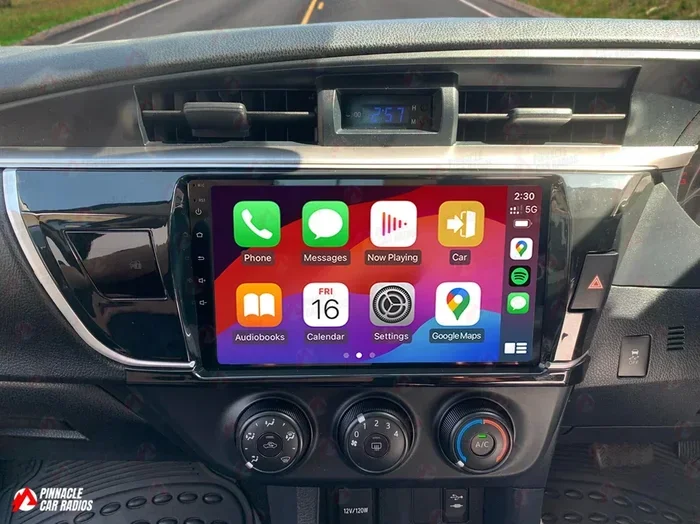
Does Toyota Have Wireless CarPlay Yes And How To Set It Up
Yes, many Toyota models now come with wireless Apple CarPlay built right in. This means you can connect your iPhone to your Toyota without fumbling with a cable every time you get in the car. In this guide, we walk you through exactly which Toyotas support it and how to get Wireless CarPlay running in minutes.
You slide into your Toyota, turn the key, and glance at the touchscreen. You want to hop on Apple CarPlay, but there is no cable in sight. So you wonder, does Toyota have Wireless CarPlay? The short answer is yes, and it is a game changer for daily driving.
Toyota has been rolling out wireless Apple CarPlay across more and more of its lineup. Whether you drive a Camry, a RAV4, or a newer Highlander, there is a good chance your Toyota can connect to your iPhone without a single wire. But the details matter. Not every Toyota model has it. Not every model year qualifies. And the setup process can vary depending on your trim level and infotainment system.
In this article, we break down everything you need to know about Toyota Wireless CarPlay. We cover which models support it, how to set it up, what to do when it does not work, and how to keep your Toyota infotainment system running smoothly. Let us get into it.
Key Takeaways
- Wireless CarPlay is available: Many newer Toyota models offer wireless Apple CarPlay as a standard or optional feature.
- Setup is simple: You just need a compatible iPhone and a Toyota with the right infotainment system.
- Not all models qualify: Older Toyotas may need a dealer retrofit or may not support wireless CarPlay at all.
- Troubleshooting is straightforward: Most connection issues can be fixed with a quick reset or software update.
- Toyota dealer service helps: If you are stuck, your local dealer can assist with setup and updates.
- Wireless beats wired: No cables means a cleaner dashboard and a more seamless daily driving experience.
📑 Table of Contents
- Which Toyota Models Offer Wireless CarPlay?
- How Wireless CarPlay Works in Toyota Vehicles
- How To Set Up Wireless CarPlay in Your Toyota
- Troubleshooting Wireless CarPlay Connection Issues
- Toyota Wireless CarPlay: Model Year Compatibility Guide
- Maintaining Your Toyota Infotainment System
- Why Wireless CarPlay Is a Must-Have for Toyota Owners
- Final Thoughts
Which Toyota Models Offer Wireless CarPlay?
Toyota has been expanding wireless Apple CarPlay support across its vehicle lineup. The availability depends on the model, the model year, and the trim level you choose. Here is a closer look at what to expect.
Toyota Camry
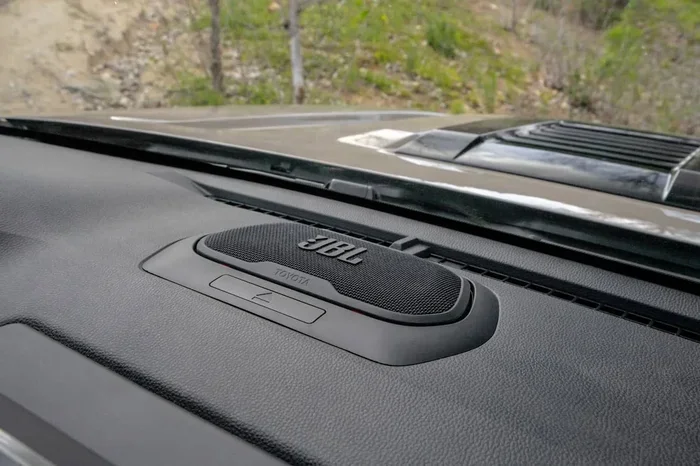
The Toyota Camry is one of the most popular sedans on the road, and it has embraced wireless CarPlay in recent years. Starting with the 2019 model year and newer, many Camry trims come with wireless Apple CarPlay as part of the Toyota Audio Plus or JBL Audio systems. If your Camry has the touchscreen infotainment display, there is a strong chance it supports wireless smartphone integration. Check your owner manual or the Toyota website to confirm your specific trim.
Toyota RAV4
The RAV4 is Toyota best-selling SUV, and it has kept pace with wireless CarPlay technology. The 2019 RAV4 and later models offer wireless Apple CarPlay on higher trims. The base LE trim may still require a wired connection, but the XLE, XSE, and TRD Off-Road trims typically include wireless smartphone connection as standard. The 2024 and 2025 RAV4 models have made wireless CarPlay even more widely available across the range.
Toyota Highlander
The Highlander has also joined the wireless CarPlay club. The 2020 Highlander and newer models offer wireless Apple CarPlay on most trims, especially those equipped with the upgraded infotainment system. If you are shopping for a family SUV and want seamless smartphone integration, the Highlander is a strong contender.
Toyota Tacoma
The Tacoma has traditionally lagged behind when it comes to tech features, but Toyota has been catching up. The 2024 Tacoma introduced a completely new infotainment system that includes wireless Apple CarPlay support. Older Tacoma models may still rely on a wired connection, so check your specific year and trim before assuming wireless connectivity is available.
Other Toyota Models
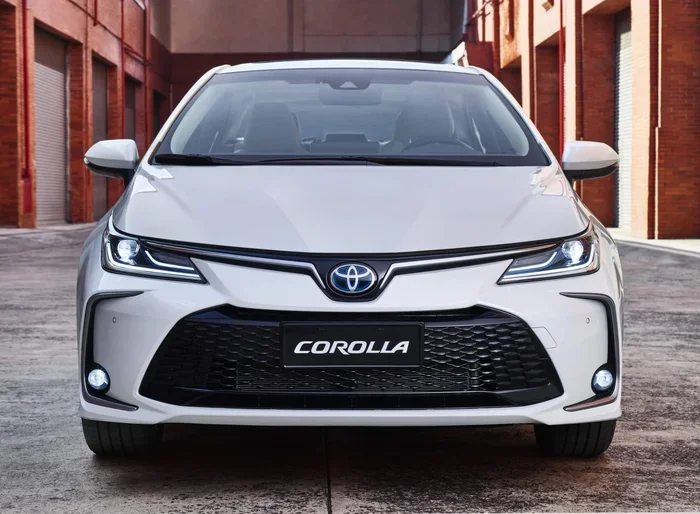
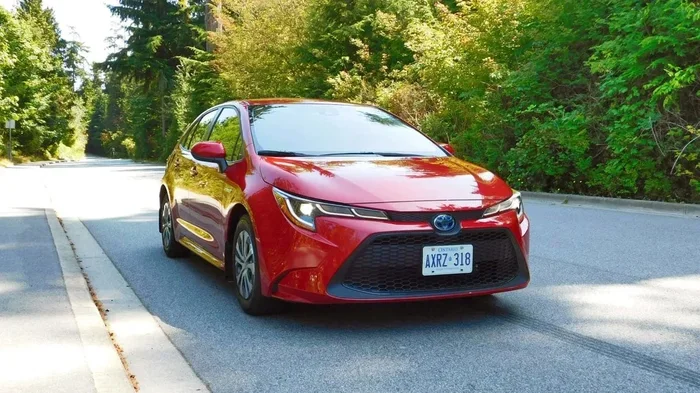
Toyota has been steadily adding wireless CarPlay to more models, including the Corolla, Prius, Sienna, and 4Runner. The trend is clear: Toyota wants every new vehicle to offer wireless smartphone integration. If you are unsure about your specific model, the Toyota website has a detailed search tool where you can look up your exact year, trim, and features.
How Wireless CarPlay Works in Toyota Vehicles
Understanding how Toyota Wireless CarPlay works helps you get the most out of the system. Unlike wired CarPlay, which uses a Lightning or USB-C cable, the wireless version connects through your Toyota’s infotainment system using Bluetooth and Wi-Fi.
The Technology Behind Wireless CarPlay
When you pair your iPhone with your Toyota, the car creates a dedicated Wi-Fi hotspot. Your phone connects to this hotspot automatically, and Apple CarPlay launches without any cables. The connection uses both Bluetooth for initial pairing and Wi-Fi for fast data transfer. This means you get smooth navigation, crystal-clear audio, and responsive Siri voice commands, all without plugging anything in.
What You Need for Wireless CarPlay
To use Toyota Wireless CarPlay, you need a few things in place:
- A compatible iPhone running iOS 12 or later (iOS 14 or newer is recommended for the best experience).
- A Toyota vehicle with a touchscreen infotainment system that supports wireless CarPlay.
- A stable Bluetooth and Wi-Fi connection between your phone and the car.
- Your iPhone must have Apple CarPlay enabled in Settings.
Wired vs Wireless CarPlay in Toyota
Both wired and wireless CarPlay offer the same core features. You can make calls, send messages, use GPS navigation, and stream music. The difference is convenience. With wired CarPlay, you need to plug in your phone every time. With wireless CarPlay, the connection happens automatically as you walk up to your car. For daily commuters and frequent drivers, wireless CarPlay is a huge upgrade in quality of life.
How To Set Up Wireless CarPlay in Your Toyota
Setting up Wireless CarPlay in a Toyota is straightforward. Follow these steps and you will be connected in no time.
Step 1: Make Sure Your iPhone Is Ready
Open the Settings app on your iPhone. Go to General and then CarPlay. Make sure CarPlay is turned on. If you see your Toyota listed under “Preferred Vehicles,” select it. If not, do not worry, we will get to that in the next step.
Step 2: Enable Wireless CarPlay on Your iPhone
In the CarPlay settings, tap on your Toyota name. Then toggle on “Wireless CarPlay.” Your iPhone will now search for your Toyota’s infotainment system. Make sure Bluetooth and Wi-Fi are both turned on.
Step 3: Connect Through the Toyota Touchscreen
Start your Toyota and press the Media or Phone button on the touchscreen. Select “Apple CarPlay” and choose the wireless option. Your iPhone should appear on the screen. Tap connect, and the two devices will pair automatically.
Step 4: Set Your Toyota as a Preferred Device
Once connected, your iPhone will remember your Toyota. The next time you get in the car, CarPlay should launch automatically without any manual steps. This is the real magic of wireless CarPlay. You just get in and drive.
Quick Tips for a Smooth Setup
- Restart both your iPhone and your Toyota infotainment system before pairing if you run into issues.
- Make sure your iPhone is updated to the latest iOS version.
- Delete old CarPlay pairings from both devices and start fresh if the connection is stubborn.
- Keep your phone within the vehicle during the initial pairing process.
Troubleshooting Wireless CarPlay Connection Issues
Even with the best technology, things do not always work perfectly the first time. If your Toyota Wireless CarPlay is not connecting, do not panic. Most issues have simple fixes.
CarPlay Will Not Connect Wirelessly
If your iPhone does not connect to CarPlay automatically, try turning Bluetooth and Wi-Fi off and back on. Sometimes a simple reset of both connections is all it takes. You can also try restarting your Toyota’s infotainment system by holding down the power button for about 10 seconds.
CarPlay Connects but Is Slow or Unresponsive
A slow CarPlay connection can be frustrating. This usually happens when your iPhone is running low on storage or has too many apps open in the background. Close unused apps, free up storage space, and try reconnecting. Also, make sure your Toyota infotainment system software is up to date.
CarPlay Keeps Disconnecting
If CarPlay drops frequently, check for interference from other Bluetooth devices in the car. Sometimes a second phone or a Bluetooth speaker can disrupt the connection. Remove other paired devices temporarily and see if that fixes the issue. You can also try “forgetting” the car on your iPhone and re-pairing from scratch.
When to Visit a Toyota Dealer
If none of the above fixes work, it is time to see a professional. You can take your Toyota to any dealership for service and have the tech team diagnose the problem. They can update your infotainment software, reset the Bluetooth module, or check for hardware issues. Many Toyota dealers also offer free software updates for infotainment systems, so it is always worth a visit.
Toyota Wireless CarPlay: Model Year Compatibility Guide
Not every Toyota model year supports wireless CarPlay. Here is a quick reference guide to help you figure out if your vehicle qualifies.
| Model | Wireless CarPlay Available? | Approximate Year Introduced |
|---|---|---|
| Camry | Yes (select trims) | 2019 |
| RAV4 | Yes (higher trims) | 2019 |
| Highlander | Yes (most trims) | 2020 |
| Tacoma | Yes (2024 and newer) | 2024 |
| Corolla | Yes (newer trims) | 2020 |
| 4Runner | Yes (2024 and newer) | 2024 |
| Prius | Yes (newer models) | 2023 |
| Sienna | Yes (most trims) | 2021 |
Keep in mind that trim levels matter. A base model might only offer wired CarPlay, while a higher trim adds the wireless feature. Always double-check the specifications for your exact vehicle before assuming wireless connectivity is included.
Maintaining Your Toyota Infotainment System
Your Toyota’s infotainment system is the brain behind Wireless CarPlay. Keeping it in good shape ensures a smooth and reliable connection every time you drive.
Keep Your Software Updated
Toyota regularly releases software updates for its infotainment systems. These updates can improve CarPlay performance, fix bugs, and add new features. You can check for updates through your Toyota dealer or, on some models, directly through the touchscreen. Staying current with infotainment updates is one of the easiest ways to keep your wireless CarPlay running flawlessly.
Clear Your Cache and Restart Regularly
Just like your phone, your Toyota’s touchscreen can benefit from a fresh start. Restarting the infotainment system every few weeks clears out temporary data and keeps things running smoothly. If you notice CarPlay acting up, a quick restart often solves the problem.
Protect Your System from Overload
Avoid connecting too many devices at once. If you have multiple phones, tablets, or USB devices connected, the system can slow down. Stick to one primary device for Apple CarPlay and disconnect others when not in use.
Why Wireless CarPlay Is a Must-Have for Toyota Owners
Once you go wireless CarPlay, going back to a cable feels like a step backward. Here is why Toyota Wireless CarPlay is such a valuable feature.
- Convenience: No cables to plug in or fumble with. Just get in and go.
- Cleaner dashboard: No cable clutter across your center console.
- Automatic connection: Your Toyota and iPhone remember each other and connect instantly.
- Faster data transfer: Wi-Fi provides a faster, more stable connection than a USB cable for navigation and audio streaming.
- Better daily experience: Everything from Maps to Spotify works seamlessly without interruption.
If your Toyota does not currently support wireless CarPlay, there are aftermarket solutions available. Some third-party adapters can add wireless CarPlay capability to older Toyotas. However, these adapters can be hit or miss, and a Toyota dealer is always the best place to explore your options. You can also visit any Toyota dealership for service and ask about factory-supported upgrades.
Final Thoughts
So, does Toyota have Wireless CarPlay? Absolutely. Many Toyota models from the past few years come equipped with wireless Apple CarPlay, making daily driving more connected and convenient than ever. Whether you drive a Camry, RAV4, Highlander, or Tacoma, there is a good chance your Toyota supports this feature.
Setting up Wireless CarPlay is simple, and troubleshooting common issues is usually quick and easy. Keep your software updated, restart your system regularly, and do not hesitate to visit a Toyota dealer if you need professional help. With Toyota Wireless CarPlay, your phone and your car work together seamlessly, every single time you turn the key.
Embrace the wireless revolution in your Toyota. Once you experience the ease of wireless Apple CarPlay, you will wonder how you ever drove without it.
Frequently Asked Questions
Can I Add Wireless CarPlay to an Older Toyota Model?
Yes, in many cases you can. Aftermarket wireless CarPlay adapters are available that can add wireless connectivity to older Toyotas. However, the best and most reliable option is to visit a Toyota dealer and ask about factory-supported upgrades or infotainment system replacements. A dealer can assess your vehicle and recommend the best solution.
Why Does My Toyota CarPlay Keep Disconnecting?
Frequent disconnections are usually caused by Bluetooth interference, outdated software, or a low-storage iPhone. Try turning Bluetooth and Wi-Fi off and back on, restarting both devices, and removing other paired devices. If the problem persists, a Toyota dealer can update your infotainment system and diagnose any hardware issues.
Is Wireless CarPlay the Same as Apple CarPlay?
Yes, they are the same feature. Wireless CarPlay is simply the version of Apple CarPlay that connects through Bluetooth and Wi-Fi instead of a USB cable. All the same apps and features are available, but without the cable. Toyota vehicles that support wireless CarPlay offer the full Apple CarPlay experience.
Can I Use Wireless CarPlay with an Android Phone?
No, Apple CarPlay is designed specifically for iPhones. If you have an Android phone, you would need Google’s equivalent, which Toyota calls Android Auto. Some Toyota models support both Apple CarPlay and Android Auto wirelessly, so check your specific vehicle’s compatibility if you use an Android device.
Does Wireless CarPlay Drain My iPhone Battery?
Wireless CarPlay uses more battery than a wired connection because it relies on Wi-Fi and Bluetooth simultaneously. However, the difference is usually minimal during normal driving. If you are concerned about battery drain, you can turn off CarPlay when you are not using it or keep your phone plugged in while driving.
Can I Take My Toyota to Any Dealership for CarPlay Help?
Yes, you can take your Toyota to any dealership for service. Toyota dealers across the country are trained to help with infotainment system issues, including CarPlay setup and troubleshooting. They can also perform software updates and diagnose any connection problems with your wireless CarPlay system.