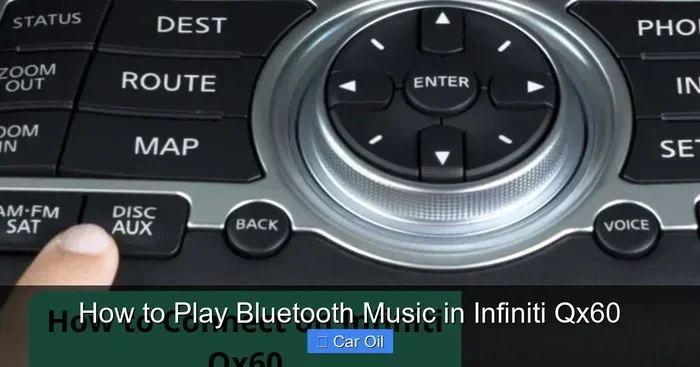
How to Play Bluetooth Music in an Infiniti QX60 Easily
Playing Bluetooth music in your Infiniti QX60 is simple once you know the steps. This guide walks you through pairing your phone, streaming your favorite tunes, and fixing common Bluetooth issues. You will learn how to use the QX60 infotainment system for wireless audio and hands-free calling.
Want to stream your favorite playlists through your Infiniti QX60? Playing Bluetooth music in an Infiniti QX60 is one of the easiest ways to enjoy wireless audio on the road. Whether you are commuting to work or heading out on a road trip, Bluetooth connectivity lets you ditch the cables and keep your phone charged.
This guide covers everything you need to know. From the initial smartphone pairing process to troubleshooting common issues, you will find clear, step-by-step instructions. The Infiniti QX60 comes with a capable infotainment system that makes wireless music streaming a breeze.
By the end of this article, you will know exactly how to set up Bluetooth audio streaming, manage multiple devices, and get the best sound quality from your vehicle. Let us get started.
Key Takeaways
- Easy Pairing Process: You can connect your phone to the Infiniti QX60 Bluetooth system in just a few simple steps.
- Multiple Devices Supported: The QX60 allows you to pair more than one phone at a time for convenience.
- Troubleshooting Tips Included: Learn how to fix common Bluetooth connection problems quickly and easily.
- Improved Audio Quality: Simple settings adjustments can make your wireless music sound much better.
- Hands-Free Calling: Bluetooth does more than play music, it also lets you make safe calls while driving.
- Works with All Smartphones: Both iPhone and Android devices connect seamlessly to the QX60 system.
📑 Table of Contents
Getting Started with Bluetooth on Your Infiniti QX60
The first step to enjoying wireless music is turning on Bluetooth. The QX60 makes this process straightforward. You do not need any special tools or technical skills.
Step 1: Turn On Bluetooth on Your Phone
Before you do anything in the car, make sure Bluetooth is active on your phone. On most devices, you can swipe down from the top of your screen and tap the Bluetooth icon. Wait for your phone to become visible to other devices.
If you are using an iPhone, go to Settings and tap Bluetooth. On Android, open your quick settings panel and select Bluetooth. Bluetooth settings should show your phone as discoverable or available.
Step 2: Access the Infotainment System
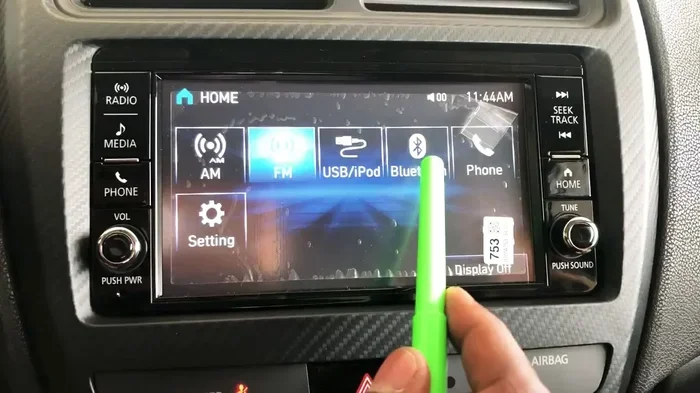
Start your Infiniti QX60 and look at the center touchscreen. Press the “Settings” button or the phone icon on the home screen. This opens the vehicle’s infotainment system, where you manage all wireless connections.
The QX60 model years vary slightly in their interface design. But the general process remains the same across most years. You are looking for a “Bluetooth” or “Phone” option on the main menu.
Step 3: Search for New Devices
Inside the Bluetooth menu, select “Add New Device” or “Search for Devices.” The QX60 will start scanning for nearby phones. This usually takes just a few seconds.
Your phone should appear on the screen as a discoverable device. Tap on your phone name when you see it. The system will then ask you to confirm a pairing code.
Step 4: Confirm the Pairing Code
A numeric code will appear on both your car screen and your phone. Check that they match. Then tap “Pair” or “Connect” on both devices. This confirms that the device pairing is secure.
Once paired, your QX60 will remember this phone automatically. You will not need to repeat this process every time you get in the car. The connection happens instantly when both Bluetooth systems are turned on.
Playing Music Once Connected
Now that your phone is paired, it is time to start streaming music. The process is simple but has a few useful details to know.
Select the Bluetooth Audio Source
Press the “Audio” or “Media” button on your QX60 dashboard or touchscreen. You should see a list of audio sources. Select “Bluetooth Audio” or your phone name from the list.
Once you select this source, your car stereo will switch from the radio to your phone’s audio output. Open your music app on your phone. Whether it is Spotify, Apple Music, or YouTube Music, the sound will now come through your car speakers.
Control Playback from the Steering Wheel
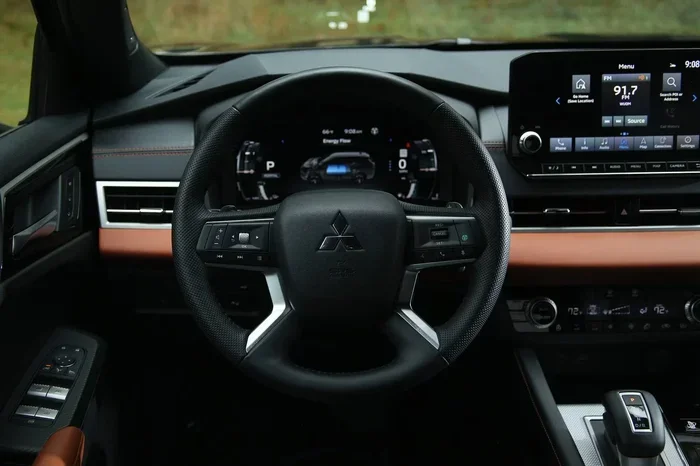
One of the best things about Bluetooth in the QX60 is steering wheel control. You can skip tracks, adjust volume, and pause playback without taking your hands off the wheel.
Look for the audio control buttons on the left side of your steering wheel. The “+” and “-” buttons adjust volume. The arrow buttons let you skip forward or go back to the previous track. Some models also have a dedicated phone or audio button for quick access.
Adjust Volume and Balance
The QX60 lets you control the volume separately from your phone. Use the volume knob on the dashboard or the steering wheel controls. You can also adjust the audio balance between speakers for a more customized listening experience.
For the best wireless audio experience, keep your phone within a reasonable range. Bluetooth typically works well up to 30 feet. But inside the car, the connection is always strong and stable.
Hands-Free Calling with Bluetooth
Bluetooth in the Infiniti QX60 does more than play music. It also enables hands-free calling, which is a major safety benefit while driving.
How to Make a Call
When you receive a call, the QX60 infotainment system will display the caller ID on the screen. Press the green phone button on the steering wheel to answer. Your voice will come through the car speakers, and the microphone will pick up your voice clearly.
To dial a number, use the touchscreen interface or voice commands. The QX60 supports voice-activated calling in most model years. Simply press the voice control button and say the name of the person you want to call.
Managing Call Audio
The system automatically pauses your music when a call comes in. When the call ends, your music resumes playing. This seamless transition is one of the most convenient features of car Bluetooth setup in the QX60.
If you want to adjust the microphone sensitivity or speaker volume for calls, you can do so in the Bluetooth settings menu. This helps ensure clear audio during every conversation.
Pairing Multiple Devices
The Infiniti QX60 supports pairing multiple phones with the system. This is great for families or anyone who shares the vehicle regularly.
Adding a Second Phone
Follow the same pairing steps described earlier. Go to the Bluetooth menu, select “Add New Device,” and search for the second phone. Each phone will get its own connection profile.
The QX60 can remember up to five different devices. When you start the car, it automatically connects to the last paired device. If you want to switch to a different phone, simply go to the Bluetooth menu and select the other device.
Managing Device Priority
You can set a priority order for your paired devices. The phone at the top of the list gets connected first when you start the car. This is helpful if you share the vehicle with a spouse or partner.
To change the priority, go to the Bluetooth settings and look for a “Device List” or “Priority” option. Rearrange the devices by dragging them into the order you prefer.
Troubleshooting Bluetooth Connection Issues
Even with a reliable system, you might run into occasional Bluetooth problems. Here are the most common issues and how to fix them.
Bluetooth Not Showing Up on the Car Screen
If your phone does not appear in the QX60 search list, try turning Bluetooth off and back on again. Also make sure your phone is set to be discoverable. Sometimes restarting both your phone and the car system resolves this issue quickly.
Another common fix is to delete old pairings from both devices. Go to your phone Bluetooth settings and remove the QX60 entry. Do the same in the car system. Then start the pairing process fresh.
Poor Audio Quality or Intermittent Connection
If your music keeps cutting out or sounds distorted, check a few things first. Make sure your phone is not too far from the car system. Also check if other wireless devices are causing interference.
Try turning off other Bluetooth devices in the car, like fitness trackers or tablets. These can sometimes compete for the same wireless signal. Moving your phone closer to the center console can also improve the connection.
Phone Connects but No Sound Plays
This issue usually happens when the audio source is not set correctly. Press the “Audio” or “Media” button and make sure “Bluetooth Audio” is selected. Some phones also have a separate setting for Bluetooth audio output. Check your phone settings to make sure media audio is turned on.
If you are still having trouble, Bluetooth troubleshooting often involves resetting the network settings on your phone. Go to your phone settings, find “Reset Network Settings,” and confirm. This clears all Bluetooth pairings and Wi-Fi connections, giving you a fresh start.
Tips for the Best Bluetooth Audio Experience
Getting the most out of your wireless connection in the QX60 is easy with a few simple tips. These small adjustments can make a big difference in your listening experience.
Keep Your Phone Charged
Bluetooth streaming uses more battery than normal phone use. If your phone battery is low, consider using a USB cable to charge while you listen. The QX60 has USB ports that can charge most phones while connected.
Use High-Quality Music Files
The quality of your music also matters. Streaming services like Spotify and Apple Music offer high-quality audio options. In the app settings, choose the highest available streaming quality for the best wireless music playback experience.
Update Your Software
Keep both your phone and your QX60 infotainment system updated. Software updates often include fixes for Bluetooth connectivity issues. Check for updates regularly to ensure smooth performance.
Avoid Obstructions
Bluetooth signals work best with a clear line of sight. Keep your phone in a cup holder or on the center console rather than in a deep pocket or bag. This helps maintain a strong and stable connection.
Comparing Bluetooth Options in the QX60
The Infiniti QX60 offers solid Bluetooth features across its lineup. Here is a quick look at what you can expect.
- Audio Streaming: Stream music wirelessly from any compatible app on your phone.
- Hands-Free Calling: Make and receive calls safely without touching your phone.
- Multiple Device Support: Pair up to five phones and switch between them easily.
- Steering Wheel Controls: Manage audio and calls directly from the wheel.
- Voice Commands: Use voice controls to dial numbers or skip tracks.
Overall, the vehicle Bluetooth system in the QX60 delivers a reliable and user-friendly experience. It is one of the features that makes this SUV a great choice for daily driving and long trips alike.
Final Thoughts
Playing Bluetooth music in your Infiniti QX60 is a straightforward process that anyone can master. From the initial smartphone pairing to managing multiple devices and troubleshooting connection issues, this guide has covered everything you need. The QX60 infotainment system makes wireless audio streaming simple and enjoyable.
Remember to keep your phone updated and your Bluetooth settings clean for the best performance. With just a few minutes of setup, you can enjoy your favorite playlists, podcasts, and hands-free calls every time you drive. Bluetooth connectivity transforms your daily commute into a more enjoyable and safer experience.
Take a few minutes today to connect your phone to your QX60. Once you experience the convenience of wireless audio, you will wonder how you ever drove without it.
Frequently Asked Questions
Can I connect both an iPhone and an Android phone to the QX60 Bluetooth system?
Yes, the Infiniti QX60 supports both iPhone and Android devices. The pairing process is similar for both. Simply follow the steps in the Bluetooth settings menu on your phone and the car system. Both platforms connect seamlessly for music streaming and hands-free calling.
How many phones can I pair with my Infiniti QX60 Bluetooth system?
The QX60 can remember up to five different phones at a time. Each phone gets its own connection profile. You can switch between them easily from the Bluetooth menu on the infotainment screen. This makes it great for families or anyone who shares the vehicle.
Why does my Bluetooth music keep cutting out in the QX60?
Intermittent Bluetooth connections are usually caused by interference or distance. Make sure your phone is close to the center console and not blocked by other objects. Also check that no other wireless devices are competing for the same signal. Restarting both devices often fixes the problem quickly.
Can I charge my phone while streaming Bluetooth music in the QX60?
Yes, you can charge your phone while using Bluetooth. The QX60 has USB ports that allow you to connect a charging cable alongside the Bluetooth connection. This is helpful for long drives when battery drain from streaming can be significant.
Does the QX60 Bluetooth system support voice commands for music?
Yes, the QX60 infotainment system supports voice commands for music control. You can skip tracks, adjust volume, and even request specific songs using voice prompts. Press the voice control button on the steering wheel to activate this feature.
What should I do if my phone will not pair with the QX60 Bluetooth system?
First, try turning Bluetooth off and back on both devices. If that does not work, delete the old pairing from both your phone and the car system. Then start the pairing process fresh. If the issue persists, resetting your phone network settings can resolve most connection problems.