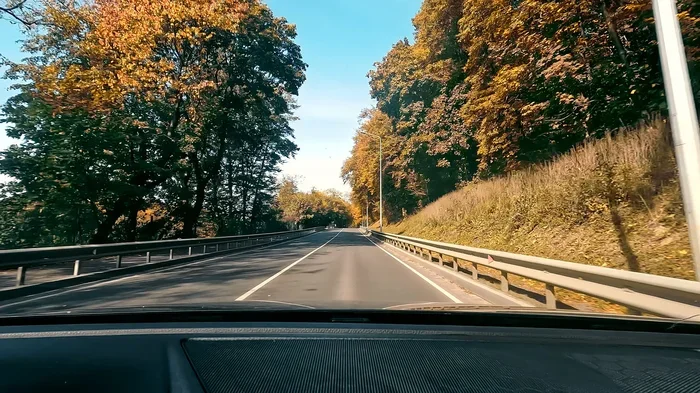
Car Drive Video Download Tips for Epic Road Adventures
Learning how to download car drive video footage is essential for every road trip enthusiast. Whether you use a dash cam, GoPro, or smartphone mount, saving your driving videos lets you relive every scenic moment. This guide covers the best tools, methods, and tips to make your car drive video download process fast and hassle-free.
There is something magical about hitting the open road. The wind in your hair. The sun painting the sky. The mountains rolling by your window. And if you are smart, you capture every second of it on camera. But here is the thing most people forget: recording is only half the battle. Car drive video download is where the real magic happens. Without the right method, those precious memories can stay trapped on a tiny SD card forever.
Whether you run a dash cam on your daily commute or mount a GoPro on your roof rack for a cross-country adventure, knowing how to get those files onto your computer or phone changes everything. In this guide, we walk you through every step of the car drive video download process. You will learn the best tools, avoid common pitfalls, and turn raw driving clips into share-worthy road trip content. Let us dive in.
Key Takeaways
- Use the right tools: Dedicated apps and software make car drive video download simple and fast.
- Check your file format: Knowing your video format prevents compatibility issues during transfer.
- Organize your footage: Create folders and naming systems to keep road trip videos easy to find.
- Back up everything: Always save copies to cloud storage or an external drive for safety.
- Edit before sharing: A quick trim or color boost makes your road trip vlog stand out.
- Avoid common mistakes: Don’t skip SD card backups or use low-quality transfer cables.
📑 Table of Contents
- Why Downloading Your Car Drive Videos Matters
- Best Tools and Apps for Car Drive Video Download
- How to Download Videos from Your Dash Cam
- Tips for Capturing Epic Road Adventure Footage
- How to Edit and Share Your Car Drive Videos
- Common Mistakes to Avoid When Downloading Car Videos
- Expert Insights: Pro Tips for Better Car Drive Videos
- Key Takeaways
- Conclusion
Why Downloading Your Car Drive Videos Matters
You might wonder why you even need to download car drive video files. Your camera keeps rolling. Your memory card has space. What is the rush? The truth is, leaving your footage on a small storage device is risky. Cards get lost. Cameras get stolen. Files get corrupted. One bad day on the road and years of memories disappear.
Here are the real reasons you should make car drive video download a habit after every trip:
- Preservation: Downloading creates a permanent backup of your driving footage and road trip memories.
- Sharing: You cannot easily share videos still sitting on a dash cam SD card with friends and family.
- Editing: To turn raw clips into a stunning road trip vlog, you need the files on a computer.
- Space management: Downloading frees up space on your camera so it is ready for the next adventure.
- Safety: If your dash camera captures an accident, having the file backed up on multiple devices is critical.
The bottom line is simple. Downloading your car drive video files protects your memories and unlocks their full potential. Do not let all those incredible scenic driving clips fade away on a forgotten memory card.
Best Tools and Apps for Car Drive Video Download
Not all download methods are created equal. The right tool depends on your camera type, your tech comfort level, and how often you hit the road. Let us break down the best options for car drive video download.
Built-in Camera Software
Many modern dash cams and car camera systems come with companion apps. Think of brands like BlackVue, Thinkware, or Vantrue. These apps connect to your camera through Wi-Fi or Bluetooth. You can preview clips right on your phone and pull them down with a few taps. This is the easiest method for casual users who want a quick car drive video download without extra software.
The downside? Transfer speeds can be slow. Large files from high-resolution dash cams take time to move over a wireless connection. Still, for everyday use, built-in apps work surprisingly well.
Dedicated Desktop Software
If you want speed and control, desktop software is your best friend. Programs like DashCam Viewer, VLC Media Player, and Wondershare Uniconverter handle car drive video download like pros. They read almost every dash cam file format and let you preview, trim, and export clips without quality loss.
Here is a quick comparison of popular tools:
- VLC Media Player: Free, open-source, and plays nearly every video format. Great for quick playback and basic trimming.
- DashCam Viewer: Built specifically for dash cam files. Shows GPS maps and lets you bookmark key moments.
- Wondershare Uniconverter: Paid but powerful. Handles file format conversion and batch downloads easily.
- GoPro Quik: Perfect if you use a GoPro car mount setup. Auto-edits and downloads in one click.
Cloud-Based Solutions
For the tech-savvy road tripper, cloud storage offers a modern approach to car drive video download. Apps like Google Drive, Dropbox, and iCloud let you upload clips directly from your phone or computer. The benefit is clear: your footage lives safely in the cloud, accessible from any device.
Just be mindful of storage limits. High-definition driving video capture files can eat up space fast. A one-hour 4K clip can take 20 GB or more. Choose a plan with enough room, or compress your files before uploading.
How to Download Videos from Your Dash Cam
Now that you know the tools, let us get into the actual process. Downloading car drive video from a dash cam is straightforward once you know the steps. Here is a simple walkthrough.
Step 1: Remove the SD Card
Most dash cams store footage on a microSD card. Power off your camera first. Then gently eject the card. This prevents data corruption and keeps your car drive video download process clean and safe.
Step 2: Insert the SD Card into Your Computer
You need a card reader. Most laptops have one built in. If not, a cheap USB adapter works perfectly. Insert the microSD card (use an adapter if needed) and wait for your computer to recognize it.
Step 3: Locate and Copy Your Files
Open your file explorer or Finder. Navigate to the SD card drive. You will see folders, usually labeled by date. Open the folder for the trip you want to save. Look for files ending in .mp4 or .avi. These are your actual video clips.
Select the files you want. Right-click and choose Copy. Then paste them into a folder on your computer. This simple car drive video download method works with almost every dash cam brand.
Step 4: Eject and Reinsert Safely
Once the transfer is complete, eject the SD card properly. Reinsert it into your dash cam. This ensures your camera keeps recording without any issues. Always keep a backup copy of your files before reusing the card.
Quick Tips for Smooth Downloads
- Use a high-quality card reader to avoid slow transfer speeds.
- Never pull the SD card out while the camera is still writing files.
- Label your folders by date and location for easy sorting later.
- Check file sizes before transferring. Corrupted files are often much smaller than normal.
Tips for Capturing Epic Road Adventure Footage
Downloading is only part of the equation. The real goal is capturing jaw-dropping car adventure footage that makes people feel like they are riding shotgun. Here are proven tips to level up your road trip recording game.
Choose the Right Mounting Position
Your camera angle makes or breaks a driving vlog. A GoPro car mount on the dashboard gives a natural front-facing view. Mounting on the windshield with a suction cup captures wider scenery. For interior shots, try a vent mount or a sticky mount on the dashboard.
Experiment with angles before your trip starts. You want footage that feels immersive and cinematic, not just a boring straight-ahead view.
Use the Right Settings
Shooting in 4K gives you flexibility during editing. But if storage is limited, 1080p at 60 frames per second still looks fantastic for scenic driving clips. Set your car camera recording to a high bit rate for sharper details in fast-moving scenes like highway merges or winding mountain roads.
Plan Your Route Around Visual Highlights
The best road trip vlogs are not just about driving. They are about the journey. Plan stops at scenic overlooks, coastal roads, and iconic landmarks. Your car drive video footage will feel richer and more storytelling when you capture these moments intentionally.
Keep Your Lens Clean
It sounds obvious, but a dirty lens ruins everything. Dust, rain, and fingerprints blur your footage and make driving video capture look amateur. Carry a microfiber cloth and wipe your lens before every drive. A clean lens makes a massive difference in video quality.
How to Edit and Share Your Car Drive Videos
You have downloaded your clips and backed them up. Now what? Editing is where your raw road trip footage transforms into something magical. You do not need to be a professional editor. A few simple steps go a long way.
Start with a Free Editor
DaVinci Resolve and CapCut are both free and powerful. They handle driving video editing beautifully. Import your downloaded clips, trim out boring stretches, and add transitions between scenic moments. You will be surprised how good your car adventure footage looks with just a little polish.
Add Music and Text
Background music sets the mood for any road trip vlog. Use royalty-free tracks from sites like Epidemic Sound or YouTube Audio Library. Add text overlays for location names, dates, and fun captions. These small touches make your videos feel professional and engaging.
Export for the Right Platform
When you are ready to share, choose the right export settings. For YouTube or Vimeo, 1080p or 4K at a high bit rate works best. For Instagram or TikTok, vertical 1080×1920 is the sweet spot. Getting the video file transfer settings right ensures your clips look crisp on every screen.
Share Your Road Trip Memories
Upload your finished videos to social media or send them directly to friends and family. Car video sharing brings people into your adventure, even if they could not join the trip. It also inspires others to plan their own epic road journeys.
Common Mistakes to Avoid When Downloading Car Videos
Even experienced road trippers make mistakes with car drive video download. Learning from others saves you time, frustration, and lost footage. Here are the most common errors and how to avoid them.
Skipping the Backup Step
This is the number one mistake. People download their clips, celebrate, and then forget to make a second copy. A single backup is not enough. Follow the 3-2-1 rule: keep three copies, on two different storage types, with one stored offsite. Use an external hard drive and a cloud service together for peace of mind.
Using Cheap or Damaged Cables
If you download wirelessly or via USB, the cable matters more than you think. Cheap cables cause slow transfers, dropped connections, and sometimes data corruption. Invest in a quality USB-C or micro-USB cable from a reputable brand. Your dash camera download sessions will be faster and more reliable.
Ignoring File Formats
Not all devices play every video format. Some dash cams record in proprietary formats that need special software to play. Before you start a long trip, check what format your camera uses and make sure you have the right player installed. File format conversion ahead of time saves headaches later.
Overwriting Footage Too Soon
Dash cams often loop recording, which means old files get overwritten. If you have not downloaded a clip yet, do not let the camera keep rolling on the same card. Download first, then format the card in-camera. This keeps your road trip videos safe and accessible.
Forgetting to Check File Integrity
After downloading, always play your files back before deleting them from the SD card. A file that looks fine on the card might be corrupted. Play it on at least two different devices to be sure. This simple habit prevents the heartbreak of discovering a broken file weeks later.
Neglecting Storage Management
High-resolution driving video capture files are huge. Without a storage plan, you will run out of space quickly. Use a tool like WinDirStat or DaisyDisk to find and delete duplicate or unnecessary files. Keep a dedicated folder for each trip and archive old trips to external drives.
Expert Insights: Pro Tips for Better Car Drive Videos
We asked experienced road vloggers and dash cam enthusiasts for their top advice on car drive video download and recording. Here is what the pros have to say.
Start with a clean slate. Format your SD card in the camera before every trip. This ensures optimal performance and reduces the chance of file errors during car recording setup. A fresh card also gives you the most reliable storage for long drives.
Invest in a high-endurance SD card. Regular cards are not built for the constant write-and-erase cycle of dash cams. High-endurance cards from brands like Samsung PRO Endurance or SanDisk Max stay reliable for thousands of hours of recording. They are a small cost for big peace of mind.
Use GPS tagging when possible. Many dash cams and action cameras embed GPS data into your video files. This metadata is gold for creating location-tagged road trip vlogs. It also helps you organize clips by route and distance, making the editing process much smoother.
Download within 24 hours. Get into the habit of transferring your files the same day you return from a trip. The longer footage sits on a card, the higher the risk of accidental deletion or card failure. A quick car drive video download session after every adventure keeps your archive growing and your memories safe.
Key Takeaways
- Download regularly: Make car drive video download part of your post-trip routine to protect your memories.
- Use the right tools: Apps like VLC, DashCam Viewer, and GoPro Quik simplify the download and editing process.
- Back up everything: Always keep multiple copies on different devices and cloud services.
- Check file formats: Knowing your video format prevents compatibility issues and saves time.
- Edit for impact: A few simple edits transform raw driving clips into engaging road trip content.
- Avoid common mistakes: Skip cheap cables, always make backups, and never overwrite footage you have not saved.
- Follow pro habits: Format cards before trips, use high-endurance SD cards, and download within 24 hours.
Conclusion
Car drive video download is more than a technical task. It is the bridge between capturing moments on the road and preserving them forever. Every scenic overlook, every mountain pass, every sunset over the highway deserves to be saved and shared. With the right tools, a solid process, and a few smart habits, you can turn raw driving clips into a library of unforgettable road trip memories.
Start today. Download your latest footage, organize your files, and share your adventure with the world. The open road is full of stories waiting to be told. Your car drive video download journey starts now. Happy trails and happy filming.
Frequently Asked Questions
What is the best format for car drive video download?
MP4 is the most widely compatible format for car drive video download. Most dash cams and action cameras record in MP4, which plays on virtually every device. If your camera uses a different format, free tools like VLC Media Player or HandBrake can convert files easily without losing quality.
How do I download dash cam videos wirelessly?
Many modern dash cams offer Wi-Fi connectivity through a companion app. Simply connect your phone to the camera’s Wi-Fi network, open the app, browse your clips, and tap download. This wireless car drive video download method is convenient but can be slower than using an SD card reader for large files.
Can I download car drive videos directly to my phone?
Yes, if your camera supports Bluetooth or Wi-Fi transfer. Some dash cams and GoPro cameras have dedicated apps that let you browse and download clips straight to your phone. For cameras without wireless features, you can remove the SD card, use a phone-compatible adapter, and transfer files manually.
How much storage do I need for road trip video downloads?
A one-hour 1080p video takes about 5 to 10 GB of space. A one-hour 4K clip can use 20 GB or more. For a week-long road trip with several hours of footage, plan for at least 100 GB of storage. An external hard drive or a generous cloud storage plan handles this easily.
What should I do if my downloaded video file is corrupted?
First, try re-downloading the file from the original source, whether that is the SD card or the camera. If the corruption persists, use a video repair tool like Video Repair Tool or VLC’s built-in repair feature. To prevent corruption in the future, always eject SD cards safely and avoid downloading files while the camera is still recording.
How can I speed up my car drive video download process?
Use a USB 3.0 card reader instead of a wireless connection for the fastest transfer speeds. Batch-download all clips from a trip at once rather than one by one. Close other apps on your computer during transfer to free up processing power. These simple steps make car drive video download faster and more efficient.