How Do I Pair My iPhone to My Car A Step by Step Guide
Pairing your iPhone to your car is easier than you think. This step by step guide walks you through Bluetooth setup, Apple CarPlay connection, and fixes for common issues. You will learn how to stream music, make hands free calls, and use navigation right from your car screen.
Have you ever gotten into your car and wished your iPhone would just connect already? You are not alone. Millions of drivers ask themselves how do I pair my iPhone to my car every single day. The good news is that it is usually a quick and simple process. Whether you drive a new sedan or an older truck, you can get your phone linked to your car in just a few minutes.
In this guide, we will walk you through every step. You will learn about Bluetooth pairing, Apple CarPlay, and how to fix common connection problems. We will also share tips to make your iPhone car connection smoother than ever. By the end, you will feel confident connecting your phone to any vehicle.
Let us get started. No tech skills are needed. Just follow along, and your iPhone connectivity will be up and running in no time.
Key Takeaways
- Bluetooth pairing is the most common way to connect your iPhone to your car.
- Apple CarPlay offers a smarter and safer driving experience with your iPhone.
- Most modern cars support wireless or USB iPhone connection.
- Restart and reset steps can fix most Bluetooth pairing problems.
- Hands free calling and audio streaming work once pairing is complete.
- Older cars may need a Bluetooth adapter to connect with your iPhone.
📑 Table of Contents
- Understanding Bluetooth Pairing Basics
- How to Pair iPhone to Car via Bluetooth
- Using Apple CarPlay for a Smarter Connection
- Troubleshooting Common Pairing Issues
- Tips for a Better iPhone Car Experience
- What to Do If Your Car Does Not Support Bluetooth
- Comparing Wireless vs Wired iPhone Car Connections
- Final Thoughts
Understanding Bluetooth Pairing Basics
Before you dive into the steps, it helps to understand what Bluetooth pairing actually means. Bluetooth is a wireless technology that lets devices talk to each other over short distances. When you pair your iPhone to your car, you are creating a secure wireless link between the two.
Once paired, your car can do several cool things:
- Stream music from your iPhone through your car speakers.
- Make and receive phone calls hands free.
- Use Siri to send messages or get directions.
- Sync your contacts so you can call anyone without picking up your phone.
The whole process relies on your car infotainment system. This is the screen and controls in your dashboard. Every car brand handles this a little differently, but the basic steps are the same across the board.
What You Need Before You Start
Here is a quick checklist to make sure you are ready:
- A working iPhone with the latest iOS update installed.
- A car with Bluetooth capability. Most cars made after 2012 have this built in.
- A clean Bluetooth list on both your phone and car. Remove old or unused pairings if needed.
- A quiet moment to focus on the setup process.
Once you have these ready, you are good to go. The next section will show you exactly how do I pair my iPhone to my car step by step.
How to Pair iPhone to Car via Bluetooth
Now let us get into the actual steps. This is the core process for how do I pair my iPhone to my car using Bluetooth. Follow along carefully, and you will be connected in no time.
Step 1: Turn on Bluetooth on Your iPhone
Open the Settings app on your iPhone. Tap on Bluetooth and toggle it on. You should see a spinning animation as your iPhone searches for nearby devices. Keep Bluetooth on and your iPhone close to your car.
Step 2: Enable Bluetooth on Your Car
Go to your car’s infotainment screen. Look for a Settings or Phone menu. Find the Bluetooth option and turn it on. Some cars call this vehicle Bluetooth settings or phone connection. Your car will now start searching for nearby devices.
Step 3: Find Your iPhone on the Car Screen
On your car’s display, you should see your iPhone name appear in the list of available devices. Tap on it. Your car may show a pairing passkey or a random number. This is a security measure to make sure the right devices connect.
Step 4: Confirm the Pairing Code
Check your iPhone screen. You should see the same passkey displayed. Tap Pair or Connect on your iPhone. Do the same on your car screen if prompted. Within a few seconds, your devices will be linked.
Step 5: Test the Connection
Play some music on your iPhone. It should now come through your car speakers. Try making a call to test the hands free calling feature. If both work, you are all set!
Quick Tip: If your car does not show your iPhone, make sure both devices are close together. Move your phone closer to the center console or the gear shift. Sometimes distance can interfere with the initial pairing.
Using Apple CarPlay for a Smarter Connection
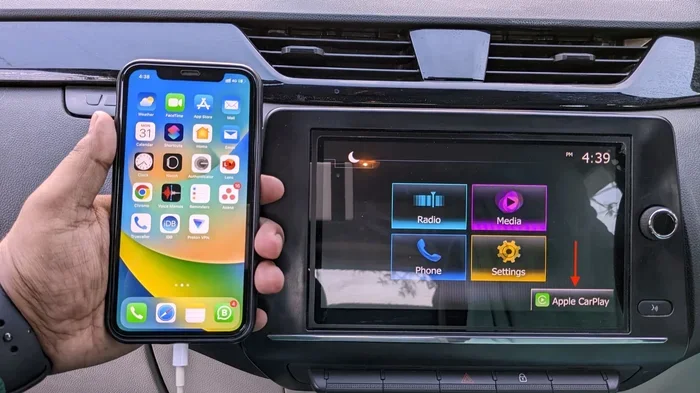
Apple CarPlay takes your iPhone car connection to the next level. CarPlay mirrors your iPhone interface on your car screen. This gives you access to maps, music, messages, and calls in a safe and driver friendly way.
Not all cars support CarPlay, but most newer models do. Here is how to set it up:
Wireless CarPlay Setup
Wireless CarPlay does not need a cable at all. Your iPhone connects to your car over Wi-Fi and Bluetooth. Here is how to get it going:
- Make sure your car supports wireless CarPlay. Check your car manual or the infotainment menu.
- On your iPhone, go to Settings > General > CarPlay.
- Select your car from the list of available vehicles.
- Follow the on screen prompts to complete the setup.
Once set up, CarPlay will launch automatically when you get in the car. You can use Siri for voice commands, which keeps your eyes on the road.
Wired CarPlay Setup
If your car does not support wireless CarPlay, you can use a Lightning cable. Here is what to do:
- Plug your iPhone into the USB port in your car.
- Your car screen should detect the connection and launch CarPlay.
- If it does not, go to your car settings and select CarPlay manually.
Expert Insight: Wired CarPlay tends to be more stable than wireless. If you experience connection drops, try switching to a wired setup. It is also faster for loading maps and music.
What Can You Do with CarPlay?
CarPlay opens up a lot of useful features:
- Navigation with Google Maps, Waze, or Apple Maps.
- Music streaming from Spotify, Apple Music, or Podcasts.
- Hands free messaging using Siri to read and reply to texts.
- Podcast and audiobook playback through your car speakers.
- Voice calls without ever touching your phone.
Using CarPlay makes how do I pair my iPhone to my car feel like a complete upgrade, not just a basic connection.
Troubleshooting Common Pairing Issues
Sometimes things do not go smoothly. Bluetooth troubleshooting is a normal part of the process. Here are the most common issues and how to fix them.
iPhone Not Showing Up on Car Screen
This is the most common problem. Try these steps:
- Turn Bluetooth off and back on from your iPhone settings.
- Restart your iPhone completely.
- Restart your car infotainment system (turn the car off and back on).
- Delete the old pairing from both devices and try again.
Connection Keeps Dropping
If your iPhone car connection keeps disconnecting, here is what might be happening:
- Another device may be connected to your car. Disconnect it and try again.
- Your iPhone may be low on battery. Some phones reduce Bluetooth power to save energy.
- Other wireless devices nearby could be causing interference.
- Your car’s Bluetooth may need a firmware update. Check with your dealer.
Audio Sounds Crackly or Low Quality
Audio issues can be frustrating. Try these fixes:
- Check the volume on both your iPhone and your car.
- Make sure your iPhone is not connected to a Bluetooth device in your pocket or bag.
- Restart the Bluetooth connection by turning it off and on.
- If using CarPlay, try switching from wireless to wired.
Can Not Make or Receive Calls
If calls are not working, check your car settings. Go to Phone Settings on your car infotainment and make sure hands free calling is enabled. Also check that your iPhone has cellular signal. No signal means no calls, even when paired.
Common Mistakes to Avoid:
- Do not pair in a moving car. Pull over first.
- Do not ignore software updates. Both your iPhone and car need the latest software.
- Do not pair too many devices at once. Keep your iPhone as the primary device.
Tips for a Better iPhone Car Experience
Once your iPhone connectivity is working, you can make it even better with a few simple habits.
Keep Your Software Updated
Both iOS updates and car firmware updates can improve Bluetooth performance. Go to Settings > General > Software Update on your iPhone regularly. For your car, check with your dealer or manufacturer’s app.
Use a Good Charging Cable
If you use wired CarPlay, the cable matters. A cheap or damaged cable can cause connection issues. Invest in a high quality Lightning or USB C cable that is MFi certified (Made for iPhone).
Clean Your Charging Port
Dust and lint can build up in your iPhone charging port. This can cause a weak or unstable connection. Use a soft brush or compressed air to keep it clean.
Set Up Siri for Safer Driving
Siri is your best friend on the road. You can say “Hey Siri, call Mom” or “Hey Siri, play my road trip playlist” without touching your phone. Set up Siri by going to Settings > Siri & Search and enabling Listen for Hey Siri.
Manage Your Bluetooth Devices
Over time, your iPhone can get cluttered with old Bluetooth pairings. Go to Settings > Bluetooth and forget devices you no longer use. This keeps your connection list clean and helps your iPhone find your car faster.
Use Screen Time While Driving
Apple’s Do Not Disturb While Driving feature can reduce distractions. It silences notifications and auto-replies to messages. You can set it up by going to Settings > Do Not Disturb > Do Not Disturb While Driving. This pairs well with your iPhone car connection for a safer drive.
What to Do If Your Car Does Not Support Bluetooth
Not every car has built in Bluetooth. If your older vehicle does not support it, you still have options to connect your iPhone car connection.
Bluetooth Car Adapter
A Bluetooth car adapter is a small device that plugs into your car’s audio system. It creates a wireless bridge between your iPhone and your car speakers. These adapters are affordable and easy to install. Popular brands include Belkin, Auxbeam, and Mpow.
FM Transmitter
An FM transmitter plugs into your car’s cigarette lighter and broadcasts audio over an FM frequency. Your car radio picks up the signal and plays your iPhone music. This is a budget friendly option for older cars.
Aux Cable
If your car has an aux input, a simple cable can do the job. Plug one end into your iPhone headphone jack (or use a Lightning to 3.5mm adapter) and the other into your car’s aux port. This gives you a direct audio connection without any pairing at all.
These options make it possible to enjoy iPhone connectivity even in older vehicles. You do not need a brand new car to get the benefits.
Comparing Wireless vs Wired iPhone Car Connections
When it comes to how do I pair my iPhone to my car, you have two main options: wireless and wired. Here is a quick comparison to help you decide.
| Feature | Wireless (Bluetooth / CarPlay) | Wired (USB / Aux Cable) |
|---|---|---|
| Convenience | Very high. No cables needed. | Moderate. You need to plug in a cable. |
| Audio Quality | Good. May vary by car system. | Excellent. Direct digital or analog connection. |
| CarPlay Support | Full wireless CarPlay on newer cars. | Full CarPlay support on all compatible cars. |
| Charging | No charging through Bluetooth. | Phone charges while connected. |
| Stability | Can occasionally drop or lag. | Very stable and consistent. |
| Setup Time | Quick one time setup. | Plug and play every time. |
| Best For | Newer cars with wireless CarPlay. | Older cars or users who want reliability. |
Most drivers today prefer wireless for its convenience. But if you care about the best audio quality and rock solid stability, a wired connection is hard to beat. Many people use both depending on the situation.
No matter which method you choose, the goal is the same: a seamless iPhone car connection that makes every drive more enjoyable and safer.
Final Thoughts
Connecting your iPhone to your car is one of the best upgrades you can make. It gives you music, navigation, hands free calling, and so much more right at your fingertips. Whether you use Bluetooth pairing, Apple CarPlay, or a simple aux cable, the process is straightforward and well worth the effort.
Remember, how do I pair my iPhone to my car is a question with a simple answer. Follow the steps in this guide, troubleshoot any issues that come up, and enjoy a smarter driving experience. Your car and your iPhone were made to work together.
Take a few minutes today to set everything up. Once it is done, you will wonder how you ever drove without it. Safe travels and happy connecting!
Frequently Asked Questions
Can I pair my iPhone to any car?
Most cars made after 2012 support Bluetooth and can pair with an iPhone. If your car is older, you can use a Bluetooth adapter, FM transmitter, or aux cable to get the same connection. Check your car manual to confirm what options are available.
Why does my iPhone keep disconnecting from my car?
Disconnections can happen for several reasons. Your phone may be low on battery, another device may be connected to your car, or there could be interference from other wireless devices. Try restarting both your iPhone and your car infotainment system to fix the issue.
Do I need Apple CarPlay to connect my iPhone to my car?
No, Apple CarPlay is optional. Basic Bluetooth pairing works without CarPlay and lets you make calls and stream music. CarPlay adds a richer interface with maps, Siri, and app support. It is available on most cars made after 2016.
How do I remove a paired iPhone from my car?
Go to your car’s infotainment settings and find the Bluetooth menu. Look for your iPhone name and select Forget Device or Delete. You can also remove the car from your iPhone by going to Settings > Bluetooth and tapping the info icon next to your car name.
Is it safe to use Bluetooth in my car?
Yes, Bluetooth uses encrypted signals and is considered very safe. The pairing passkey adds an extra layer of security. Bluetooth is a low power technology and has been used safely in millions of devices for many years.
Can I connect my iPhone to multiple cars?
Yes, your iPhone can be paired with multiple cars. When you get into a different car, go to your Bluetooth settings and select that car from the list. Your iPhone will remember each pairing and switch between them easily.
=== CONCLUSION ===
How do I pair my iPhone to my car is a question with a clear and simple answer. You now have all the steps you need to get connected. From Bluetooth pairing basics to Apple CarPlay setup, this guide covers it all. You also know how to fix common problems and get the most out of your iPhone car connection.
Take action today. Spend a few minutes pairing your devices, and you will enjoy a safer, more connected driving experience every time you hit the road. Your iPhone connectivity will feel seamless, and your drives will never be the same again.