How Do I Pair a New Bluetooth Device to My Car Right Now
Wondering How Do I Pair a New Bluetooth Device to My Car? This guide gives you simple, step-by-step instructions to connect any phone or device to your car’s Bluetooth system. You’ll discover quick pairing steps, common fixes for connection issues, and expert tips to make car Bluetooth pairing a breeze.
Ever found yourself staring at your phone, wondering how to get it connected to your car’s sound system? You’re not alone. How Do I Pair a New Bluetooth Device to My Car? It’s a question many drivers ask, and the answer is simpler than you think.
Modern cars come with Bluetooth built right in. Whether you want to stream music, make hands-free calls, or use navigation apps, connecting your phone wirelessly is a game-changer. Bluetooth pairing lets you keep your eyes on the road and hands on the wheel. In this guide, we’ll walk you through the entire process, from preparation to troubleshooting.
Maybe you just bought a new phone and want to transfer everything to your car. Or perhaps your old Bluetooth connection stopped working and you need to set it up again. Whatever the reason, this guide has you covered. We’ll explain everything in plain English, with no confusing tech talk. We’ll cover everything you need to know. You’ll learn the exact steps for different car brands, discover common mistakes to avoid, and find expert tips to make your connection rock-solid. By the end, you’ll be able to connect phone to car Bluetooth in under two minutes. Let’s get started.
Key Takeaways
- Know Your Car’s Bluetooth System: Understanding your infotainment setup makes pairing faster and easier.
- Put Devices in Discoverable Mode: This is the most critical step for successful Bluetooth pairing.
- Follow the Simple 4-Step Process: Enable Bluetooth, search, select, and pair.
- Troubleshoot Common Issues: Learn quick fixes for when your phone won’t connect or audio drops.
- Keep Your Software Updated: Regular updates prevent compatibility problems and improve performance.
- Use Expert Tips for Seamless Streaming: Set default audio sources and manage multiple devices.
📑 Table of Contents
Why Bluetooth Pairing Matters for Your Car
Bluetooth has become a standard feature in almost every new vehicle. But why is it so important? The answer lies in convenience and safety. When you pair a Bluetooth device to your car, you unlock a world of wireless features that make driving more enjoyable.
The Benefits of Wireless Connection
Imagine this: you get into your car, and your favorite playlist starts playing automatically. You don’t need to plug in any cables. Your phone charges wirelessly, and you can answer calls with a single tap on the steering wheel. That’s the power of a wireless connection. A car Bluetooth system eliminates the clutter of wires and gives you a clean, modern driving experience.
With audio streaming, you can listen to Spotify, Apple Music, or any app directly through your car speakers. The sound quality is often better than a phone speaker. Plus, you can access your phone contacts and recent calls without ever touching your device. This seamless integration is what makes car Bluetooth pairing so valuable. You also get wireless audio that fills the cabin without any lag or distortion.
Hands-Free Calling and Safety
Safety should always come first. Hands-free calling is one of the biggest reasons people use Bluetooth in their cars. You can answer a call, talk, and hang up without taking your eyes off the road. Many systems also support voice commands, so you can dial a contact just by speaking.
Studies show that distracted driving causes thousands of accidents each year. Using a Bluetooth device for calls reduces this risk significantly. It keeps your hands on the wheel and your attention on the traffic. So, learning how to pair a new Bluetooth device to my car isn’t just about convenience; it’s about protecting yourself and others on the road.
Quick Tips for Better Bluetooth Performance
- Keep your phone within 10 feet of the car stereo for the strongest signal.
- Turn off other Bluetooth devices nearby that might cause interference.
- Restart both your phone and car infotainment system if you notice lag.
- Use a Bluetooth car adapter if your older car doesn’t have built-in Bluetooth.
Common Mistakes That Ruin Bluetooth Pairing
- Forgetting to turn on discoverable mode on your phone.
- Trying to pair too many devices at once, which confuses the system.
- Ignoring the car manual and missing a crucial step.
- Not updating the car’s software, which can cause compatibility issues.
Key Takeaways
- Wireless connection makes driving safer and more convenient.
- Hands-free calling reduces distractions and keeps you focused.
- Audio streaming lets you enjoy your favorite music through car speakers.
- Avoid common pairing mistakes to save time and frustration.
What You Need Before You Start Pairing
Before you dive into the pairing process, a little preparation goes a long way. Rushing in can lead to errors and frustration. Taking five minutes to check a few things will make the whole process smoother. You want to be confident that your car Bluetooth system is ready to accept a new connection.
Check Your Car’s Bluetooth Compatibility
Most cars made after 2015 have Bluetooth built in. But if you drive an older model, you might need a Bluetooth car kit or an FM transmitter. Check your car’s manual or look for a Bluetooth icon on the infotainment screen. The car infotainment system is the brain behind the wireless connection. It handles audio, calls, and sometimes even navigation.
If your car has a car stereo with Bluetooth, you’ll see a settings menu. Look for a “Bluetooth” or “Phone” option. If you don’t see it, your car might not support wireless audio. In that case, a Bluetooth FM transmitter can plug into the cigarette lighter and broadcast audio to an unused FM frequency. It’s a simple car Bluetooth adapter that works with almost any vehicle. These transmitters are affordable and easy to install.
Prepare Your Phone or Device
Make sure your phone’s Bluetooth is turned on and it’s fully charged. You don’t want your phone dying halfway through the process. Also, check that your phone’s software is up to date. Older phone software can sometimes cause Bluetooth compatibility issues. If you’re using an iPhone or Android, the steps are similar, but the menus might look slightly different.
For the best experience, delete any old Bluetooth pairings you no longer use. A cluttered Bluetooth list can slow down the phone pairing process. This simple cleanup helps the car stereo find your device faster. You should also turn off other nearby Bluetooth devices like smartwatches or tablets. They can interfere with the Bluetooth pairing process.
Gather Your Car Manual
Every car is a little different. The car manual is your best friend when it comes to Bluetooth settings. It will tell you exactly how to put your car in discoverable mode. Some cars require you to press and hold a button on the steering wheel. Others have a dedicated Bluetooth button on the center console. The manual also lists the default PIN, which is often 0000 or 1234.
Expert Insight: “I always tell my friends to read the first three pages of the Bluetooth section in their car manual. It saves so much time,” says Mark, a certified automotive technician with 15 years of experience. “Knowing the exact steps for your specific model prevents a lot of guesswork.”
Key Takeaways
- Check if your car has built-in Bluetooth or needs an adapter.
- Update your phone software and clear old pairings before starting.
- Keep your car manual handy for model-specific instructions.
- A Bluetooth car kit or FM transmitter can add Bluetooth to older cars.
How Do I Pair a New Bluetooth Device to My Car: Step-by-Step Guide
Now for the main event. Once you’ve done the prep work, the actual Bluetooth pairing process is quick and easy. We’ll walk you through each step. These steps work for most cars, from Toyota to Ford to BMW. Follow along and you’ll be connected in no time.
Step 1: Turn on Your Car and Infotainment System
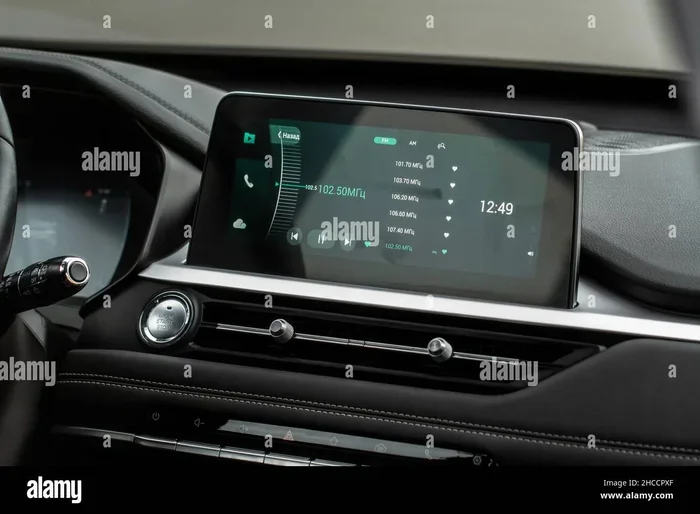
Start your car and let the engine run. Press the power button on your infotainment system to wake up the screen. You don’t need to drive; just having the car in accessory mode is fine. The car stereo needs to be active to search for new devices. Wait for the home screen to appear. This usually takes just a few seconds.
Step 2: Enable Bluetooth on Your Phone
On your phone, open the Settings app. Tap on “Bluetooth” and make sure the toggle is turned on. Your phone will immediately start scanning for nearby devices. You should see a list of available Bluetooth devices appear. This is where the magic begins. Make sure you’re not already connected to another device like a smartwatch, as that can confuse the search.
Step 3: Put Your Car in Discoverable Mode
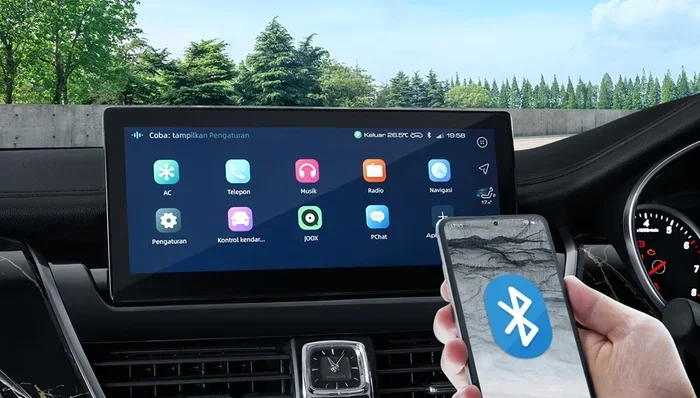
On your car’s infotainment screen, look for a “Bluetooth” or “Phone” menu. Select “Add New Device” or “Search for Devices.” The system will now become discoverable, meaning it’s actively looking for phones to connect. This mode usually lasts for a few minutes, so work quickly. Some cars require you to hold a button on the steering wheel to enter this mode. Consult your car manual if you’re unsure.
Step 4: Search and Select the Device
Back on your phone, you should see your car’s name appear in the list of available devices. It might say something like “Toyota Audio” or “Ford SYNC.” Tap on it. The phone and car will now exchange information. This process takes just a few seconds. You’ll see a progress bar or a spinning icon while they negotiate the connection.
Step 5: Confirm the Pairing Code
A random four-digit number will appear on both your car screen and your phone. Check that they match, then tap “Pair” or “Connect” on both devices. Once confirmed, your car Bluetooth is linked to your phone. You’ll see a confirmation message on the screen. This step is a security feature that prevents unauthorized devices from connecting.
After pairing, you might notice a few new features. Your car’s screen may now show incoming call IDs and text message notifications. You can control music playback directly from the steering wheel controls. Some cars even let you adjust the volume using the car’s volume knob, which now controls the Bluetooth audio stream. These small conveniences add up to a much better driving experience.
That’s it! You’ve successfully paired a new Bluetooth device to your car. Now you can start streaming music and making calls.
Comparison Table: Bluetooth Pairing Steps by Car Brand
| Car Brand | Steps to Pair | Notes |
|---|---|---|
| Toyota | 1. Press the “Setup” button. 2. Select “Bluetooth.” 3. Choose “Add Device.” 4. Follow on-screen prompts. | Uses the Entune system. Default PIN is often 0000. |
| Ford | 1. Tap the phone icon on the SYNC screen. 2. Select “Add Device.” 3. Set SYNC to discoverable. 4. Choose your phone from the list. | SYNC 3 and 4 have slightly different menus. |
| BMW | 1. Press the “Phone” button on the iDrive controller. 2. Select “Add New Device.” 3. Make car discoverable. 4. Confirm on both screens. | iDrive system may require a PIN. Check the manual. |
| Honda | 1. Go to “Settings” on the screen. 2. Tap “Bluetooth.” 3. Select “New Device.” 4. Pair from your phone. | HondaLink supports both Apple and Android. |
| Chevrolet | 1. Press the “Phone” button on MyLink. 2. Choose “Bluetooth.” 3. Tap “Add Device.” 4. Follow prompts. | Chevrolet’s system is straightforward and fast. |
Quick Tips: If your car doesn’t appear on your phone, toggle Bluetooth off and on again. Also, make sure your phone isn’t connected to another device like a smartwatch, as that can interfere. Restarting both devices solves 90% of pairing issues.
Common Mistakes: Many people skip the step of putting the car in discoverable mode. Without it, your phone can’t find the car stereo. Another mistake is selecting the wrong device from the list. Double-check the car name before tapping. Finally, don’t ignore the pairing code confirmation; it’s a security feature that prevents unauthorized connections.
Key Takeaways
- Follow the five simple steps for a successful Bluetooth pairing.
- Know your car brand’s specific menu path to save time.
- Always confirm the pairing code on both screens.
- Toggle Bluetooth off and on if the device doesn’t show up.
Troubleshooting When Bluetooth Won’t Connect
Even with perfect preparation, things can go wrong. Don’t panic. Bluetooth troubleshooting is easier than you think. Let’s look at the most common problems and how to fix them fast. A little patience goes a long way.
Phone Not Showing Up in Car Menu
This is the most common issue. Your phone is ready, but the car can’t see it. First, check that your phone is in discoverable mode. On most phones, you need to go to Bluetooth settings and tap “Make Discoverable” or “Visible to All.” If that option isn’t there, try turning Bluetooth off and back on. This forces the phone to re-scan.
Next, check the car’s Bluetooth settings. Is the car set to search for new devices? Some systems have a “Search” button you need to press. Also, make sure you’re not already connected to another device. Many cars only allow one active Bluetooth connection at a time. If you previously paired a different phone, delete that connection first. This clears the way for the new phone pairing.
Connection Drops Frequently
A stable wireless connection should last the entire drive. If your audio keeps cutting out, the problem is likely interference. Bluetooth operates on the 2.4 GHz frequency, which is shared by Wi-Fi routers, microwaves, and even USB 3.0 ports. Move your phone away from these devices. Also, keep your phone in a central console or cup holder, not in a back pocket. The closer your phone is to the car stereo, the stronger the signal.
Another cause is outdated software. Check for updates for your car’s infotainment system. Many manufacturers release Bluetooth settings updates that improve stability. For your phone, simply updating the operating system often fixes connection drops. A Bluetooth device that is too far away or blocked by metal will also lose signal. Keep your phone within the Bluetooth range of about 30 feet.
No Audio or Distorted Sound
You’re connected, but no music plays. This usually happens because the car audio system is set to the wrong input. On your car’s screen, look for an “Audio Source” or “Media” button. Select “Bluetooth Audio” or the name of your phone. If you still hear nothing, check the volume on both the car stereo and your phone. Sometimes the phone volume is muted or turned all the way down.
Distorted or crackly sound often points to a weak signal. Move your phone closer to the car’s antenna, which is usually near the rear window. If you’re using a Bluetooth car adapter, ensure it’s plugged in properly and has power. A loose adapter causes audio dropouts and static. You can also try switching to a different FM frequency if you’re using a transmitter.
Bluetooth Settings Reset After Turning Off
If your car forgets the pairing every time you turn off the engine, it’s a settings issue. Go to the Bluetooth menu on your car and look for an option like “Save Device” or “Auto-Connect.” Make sure it’s turned on. Some cars have a “Trusted Devices” list. Add your phone to that list so it stays paired permanently.
Also, check your phone’s settings. On iPhone, go to Settings > Bluetooth and tap the “i” icon next to your car. Make sure “Connect Automatically” is enabled. On Android, look for “Auto-connect” in the Bluetooth device details. This simple toggle prevents the need to re-pair every time. It’s a small fix that saves a lot of hassle.
Quick Tips for Smooth Bluetooth Troubleshooting
- Restart both devices before trying advanced fixes.
- Delete old pairings and start fresh if problems persist.
- Keep your phone and car software up to date.
- Use a high-quality Bluetooth FM transmitter if you’re using an adapter.
- Avoid placing your phone near metal objects or other electronics.
Common Mistakes That Cause Bluetooth Failures
- Not putting the car in discoverable mode before searching.
- Pairing in a crowded area with many Bluetooth signals (like a parking lot).
- Ignoring the pairing code confirmation, which can lead to failed connections.
- Using a damaged USB cable or adapter that causes interference.
Key Takeaways
- Check discoverable mode and car search settings first.
- Interference from other electronics is a top cause of dropped connections.
- Always select the correct audio source after pairing.
- Enable auto-connect to save time and avoid re-pairing.
Expert Tips for a Seamless Car Bluetooth Experience
You’ve paired your device. Now let’s make sure it works flawlessly every time. These expert tips will take your car Bluetooth experience to the next level. They’re simple adjustments that make a big difference. Think of them as fine-tuning your wireless connection.
Keep Your Devices Updated
Software updates are like tune-ups for your Bluetooth connection. Car manufacturers release updates that fix bugs and improve Bluetooth compatibility. Check your car’s infotainment system for updates at least once a month. On your phone, simply turn on automatic updates. An outdated phone can cause slow pairing and audio glitches.
If your car supports over-the-air updates, you’ll see a notification on the home screen. For older cars, you might need to visit a dealership. A quick update can solve many Bluetooth troubleshooting issues you didn’t even know you had. It also ensures your Bluetooth settings remain optimized.
Manage Multiple Paired Devices
Most car stereos can remember between three and ten paired devices, depending on the brand and model. This is great for families. When you start the car, it usually connects to the last device used. But if you want to switch, go to the Bluetooth menu and manually select a different phone. You can also set priority levels on some systems, so your phone always connects first.
Expert Insight: “I keep my wife’s phone and my phone paired at all times. When she drives, the car automatically connects to hers because it was the last device used. It’s seamless,” says Sarah, a daily commuter. “The key is to delete old pairings you no longer need. A cluttered list slows everything down.”
Use Voice Commands for Safety
Once your phone is paired, you can use voice commands to make calls and send texts. Press the voice button on your steering wheel and say “Call Mom” or “Play jazz playlist.” This keeps your hands on the wheel and eyes on the road. Most car infotainment systems support voice dialing through Bluetooth.
Apple CarPlay and Android Auto also work over Bluetooth, giving you access to Siri and Google Assistant. These voice assistants can read your phone contacts aloud and help you navigate without touching your phone. It’s the safest way to use hands-free calling while driving. You can also ask for directions or reply to messages using voice commands.
Set Default Audio Source
Some cars default to the radio when you start the engine, even if your phone is connected. To fix this, go to the audio settings and set the default source to “Bluetooth Audio.” Now, every time you start the car, your music starts playing automatically. This small tweak saves you from pressing buttons every time.
You can also adjust the balance and fade settings so the Bluetooth audio comes through the front speakers clearly. Many people don’t realize they can fine-tune the sound profile for phone calls versus music. A balanced setup makes both sound great. Your car audio system will thank you.
Quick Tips for a Better Bluetooth Experience
- Delete unused pairings to keep the device list clean.
- Set your phone’s “Do Not Disturb” mode to allow calls from favorites only while driving.
- Use a Bluetooth car speaker if you want to share audio with passengers.
- Keep a Bluetooth car adapter in your glove box for emergencies.
Common Mistakes That Ruin the Bluetooth Experience
- Leaving your phone on silent mode, so you miss call notifications.
- Not setting the default audio source, causing the radio to play over Bluetooth.
- Pairing in a crowded area, which can cause the car to connect to a stranger’s device.
Key Takeaways
- Regular updates keep your Bluetooth pairing stable and fast.
- Manage multiple devices to avoid confusion in family cars.
- Voice commands add a layer of safety and convenience.
- Setting a default audio source ensures music starts instantly.
Final Thoughts: Enjoy Your Connected Drive
Pairing a new Bluetooth device to your car doesn’t have to be a headache. With the right preparation and a few simple steps, you can be streaming music and making hands-free calls in minutes. We’ve covered everything from the basics of Bluetooth pairing to advanced troubleshooting and expert tips.
Remember, How Do I Pair a New Bluetooth Device to My Car is a skill that anyone can learn. Once you’ve done it a couple of times, it becomes second nature. The key is to stay patient, follow the steps, and use the troubleshooting tips when needed. A strong wireless connection transforms your daily commute into an enjoyable experience. You’ll wonder how you ever drove without it.
Take a few minutes today to connect your device. You’ll be glad you did. Car Bluetooth technology keeps you connected, informed, and safe. So go ahead, pair that device, and hit the road with confidence. Your connected drive awaits. Happy listening!