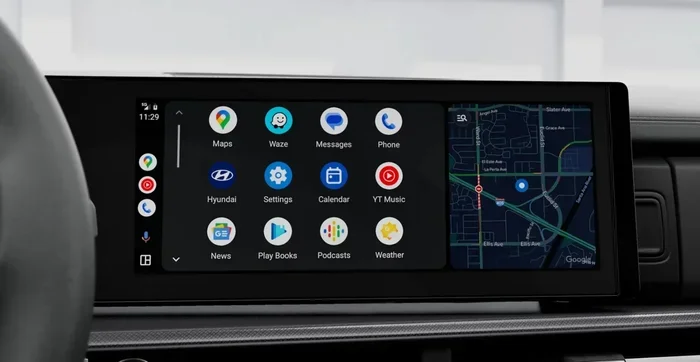
How to Make Android Auto Full Screen on Your Hyundai
Making Android Auto full screen on your Hyundai is simple once you know the right steps. This guide walks you through connecting your phone, adjusting display settings, and troubleshooting common issues so you can enjoy a full screen Android Auto experience every time you drive. You will learn wireless and wired options, display optimization tips, and expert advice for the best results.
There is something really satisfying about a clean, full screen Android Auto display on your Hyundai. It makes navigation, music, and messaging feel so much more natural while you are on the road. Whether you just bought a new Hyundai or have been driving one for years, getting Android Auto to fill your entire touchscreen is a game changer. The good news is that it is easier than most people think. In this guide, we will walk you through every step, from the initial connection to fixing common problems. You will also find helpful tips to make the experience even better.
Many Hyundai owners struggle with Android Auto not filling the screen properly. Sometimes the display shows black bars on the sides. Other times the interface looks small and cramped. These issues are almost always fixable with a few simple adjustments. This article covers everything you need to know about Android Auto full screen setup on Hyundai vehicles. We will keep things clear and practical so you can get back to enjoying your drive without any fuss.
Key Takeaways
- Easy Setup: Connecting Android Auto to your Hyundai takes just a few simple steps, whether you use a cable or go wireless.
- Full Screen Is Achievable: Adjusting a few display settings in your Hyundai infotainment system will give you the full screen experience you want.
- Troubleshooting Is Straightforward: Most common Android Auto display issues have quick and easy fixes you can do at home.
- Wireless and Wired Both Work: You can choose between a USB cable or wireless connection depending on your Hyundai model and preference.
- Optimization Matters: Small tweaks to your Hyundai touchscreen and phone settings can make a big difference in display quality.
- Avoid Common Mistakes: Skipping software updates or using incompatible cables are the most frequent reasons Android Auto does not display properly.
📑 Table of Contents
- Understanding Android Auto on Hyundai Vehicles
- Step-by-Step Guide to Making Android Auto Full Screen on Your Hyundai
- Troubleshooting Common Android Auto Display Issues
- Optimizing Your Hyundai Display for the Best Android Auto Experience
- Wireless vs Wired Android Auto on Hyundai
- Expert Tips for Getting the Most Out of Android Auto on Your Hyundai
- Final Thoughts on Android Auto Full Screen Setup
Understanding Android Auto on Hyundai Vehicles
What Is Android Auto and Why Use It?
Android Auto is Google’s smartphone projection system designed to keep you connected while driving safely. It mirrors the most important parts of your Android phone onto your car’s infotainment screen. You get access to navigation, music, messages, and phone calls all in one place. The interface is built specifically for use behind the wheel, with large buttons and voice commands. On a Hyundai, Android Auto works through the car’s multimedia system, creating a seamless bridge between your phone and your vehicle.
The beauty of Android Auto is that it reduces distractions. Instead of picking up your phone while driving, you interact with a simplified interface on your dashboard. You can ask Google Assistant to read your messages, change songs, or pull up directions. This makes hands-free driving much easier and keeps your eyes on the road. For Hyundai owners, the integration is especially smooth because Hyundai designs its infotainment systems to work well with both Apple CarPlay and Android Auto.
Which Hyundai Models Support Android Auto?
Most modern Hyundai vehicles come with Android Auto compatibility built in. Models from the last several years generally support it, including the Tucson, Sonata, Elantra, Santa Fe, Kona, and Palisade. However, the exact experience can vary depending on your model year and the infotainment system your Hyundai uses. Older models may require a wired connection, while newer ones often support wireless Android Auto. It is always a good idea to check your specific Hyundai manual or visit the Hyundai website to confirm compatibility for your exact model.
If you are unsure whether your car supports this feature, you can look for the Android Auto icon in your infotainment menu. If it is there, you are good to go. Some Hyundai models may need a software update to enable full Android Auto functionality, so keeping your system up to date matters more than you might think.
Step-by-Step Guide to Making Android Auto Full Screen on Your Hyundai
Step 1: Connect Your Phone to the Hyundai
The first step is connecting your phone to your Hyundai’s infotainment system. If you are using a USB cable, plug one end into your phone and the other into the car’s USB port. Most Hyundai models have a dedicated USB port for smartphone integration located on the center console or the armrest. Once connected, your phone should prompt you to allow Android Auto to access your car’s display. Tap “Allow” and wait for the connection to establish.
If you prefer a wireless connection, the process is slightly different. Make sure your phone and your Hyundai are both connected to the same Wi-Fi network or use Bluetooth for the initial pairing. On your Hyundai touchscreen, go to the settings menu and look for the wireless Android Auto option. Select your phone from the list of available devices. This is very similar to pairing your phone to your car with Apple CarPlay, but the steps are specific to the Android ecosystem.
Once connected, Android Auto should launch automatically. At this point, you might notice that the display does not fill the entire screen. That is completely normal and easy to fix. The next steps will show you exactly how to adjust things.
Step 2: Enable Full Screen Mode on Android Auto
Getting Android Auto to display in full screen on a Hyundai is mostly about adjusting settings on both your phone and the car’s infotainment system. Start by opening the Android Auto app on your phone. In the app settings, look for a display or screen option. Some versions of Android Auto have a “Full Screen” toggle that you can switch on. This tells the app to use every pixel of the available display space.
On the Hyundai side, navigate to the infotainment settings. Look for a display or screen layout option. Some Hyundai models let you choose between different viewing modes, including a full screen display mode and a split view mode. If your Hyundai offers a split view, make sure it is turned off or adjusted so that Android Auto takes up the entire screen. You may need to experiment with these settings a bit to find the perfect configuration.
Another thing to check is your phone’s screen rotation setting. Make sure your phone is set to allow rotation, as some Hyundai systems rely on the phone’s orientation to determine how to display Android Auto. If your phone is locked in portrait mode, the display might not fill the screen properly.
Step 3: Adjust Display Settings on Your Hyundai
Now that Android Auto is connected, you can fine-tune the display settings directly on your Hyundai’s touchscreen. Go to the Settings menu on your infotainment system and look for “Display” or “Screen Settings.” Here, you can adjust brightness, contrast, and screen orientation. Increasing the brightness can make the full screen display more vivid and easier to read in bright sunlight.
Some Hyundai models also have a setting called “Screen Mode” or “Display Mode.” Switching this to “Day” or “Night” mode can change how Android Auto appears on your screen. Night mode reduces glare for safer night driving, while day mode makes everything brighter and more vibrant. Try both modes to see which one gives you the best full screen experience.
If you notice that the Android Auto interface still does not fill the screen completely, try restarting both your phone and the car’s infotainment system. A simple reboot can resolve many display glitches. Turn off the car, unplug your phone, wait a few seconds, and then reconnect. This refreshes the connection and often fixes minor display issues.
Troubleshooting Common Android Auto Display Issues
Android Auto Not Going Full Screen
If your Android Auto still does not fill the screen after following the steps above, do not worry. This is one of the most common issues Hyundai owners report, and it usually has a simple solution. First, check that your phone’s screen resolution and aspect ratio are compatible with your Hyundai’s infotainment system. Some phones have unusual screen proportions that can cause display problems.
Next, make sure your Android Auto app is up to date. Google releases updates regularly that fix display bugs and improve compatibility. Open the Google Play Store on your phone, search for Android Auto, and check for updates. Updating the app takes only a minute and can resolve many full screen issues.
You should also check your Hyundai’s software version. Go to your infotainment settings and look for a “Software Update” or “System Update” option. If an update is available, install it. Hyundai frequently releases updates that improve Android Auto performance and fix display issues. Keeping both your phone and your car’s software current is one of the best ways to prevent display problems.
Touchscreen Not Responding Properly
Sometimes the issue is not about the screen size but about touch responsiveness. If your Hyundai touchscreen is not responding well to taps during Android Auto use, try cleaning the screen with a soft microfiber cloth. Dirt and grease can interfere with touch sensitivity. Also, make sure your phone screen is clean, especially at the edges where it connects to the car’s display system.
If cleaning does not help, try removing any screen protector that might be interfering with touch input. Some thick or poorly aligned screen protectors can block touch signals from reaching the infotainment system. After removing the protector, test Android Auto again to see if the touchscreen responds better.
Optimizing Your Hyundai Display for the Best Android Auto Experience
Display Settings to Check
To get the most out of Android Auto on your Hyundai, take a few minutes to optimize your display settings. Start with brightness. Set it to automatic if your Hyundai supports it, so the screen adjusts to lighting conditions throughout your drive. This not only improves visibility but also reduces eye strain during long trips.
Next, check the text size and icon size within the Android Auto app itself. You can adjust these in your phone’s accessibility settings. Larger text and icons can make the full screen display easier to read while driving, which is especially helpful for navigation. On your Hyundai, you can also adjust the font size in the infotainment settings under “Display” or “Accessibility.”
Another important setting is the screen timeout. Make sure your Hyundai’s infotainment system does not go to sleep too quickly while you are using Android Auto. A longer screen timeout keeps the display active during your drive and prevents the annoying flicker that happens when the screen dims or turns off mid-navigation.
Tips for Better Visibility While Driving
Visibility is critical for safe driving, and your Android Auto display plays a big role in that. Position your phone so that the screen is at a comfortable viewing angle. Most Hyundai center consoles allow you to adjust the angle of the infotainment screen slightly. If your car does not have this feature, try adjusting your seat position to find the best viewing angle.
Avoid using Android Auto with the screen brightness set too low, especially during daytime driving. A dim screen is hard to read and can be distracting. Conversely, during nighttime driving, lower the brightness to avoid glare. Many Hyundai models also offer a “Night Mode” for the infotainment display that reduces blue light and makes the screen easier on your eyes after dark.
Keep your windshield clean, too. Smudges and streaks can make it harder to see the Android Auto display, especially at night. A quick wipe with a glass cleaner before your drive can make a surprising difference in screen clarity.
Wireless vs Wired Android Auto on Hyundai
Benefits of Wireless Connection
Wireless Android Auto is becoming increasingly popular among Hyundai owners, and for good reason. It eliminates the need for a cable, which means no fumbling with cords every time you get in the car. Once your phone is paired, Android Auto connects automatically whenever you start your Hyundai. The convenience factor alone makes wireless connection worth it for many people.
Wireless connections also reduce wear and tear on your phone’s charging port and the car’s USB port. Over time, frequent plugging and unplugging can damage these ports. With wireless Android Auto, you avoid this issue entirely. The connection is also generally more stable once it is set up properly, which means fewer disconnections and interruptions during your drive.
When to Use a Cable Instead
Despite the convenience of wireless connection, there are times when a cable is the better choice. If your Hyundai does not support wireless Android Auto, a USB cable is your only option. Even on models that do support wireless, a cable connection can sometimes provide a more stable and faster data transfer. This is especially true if you use data-heavy apps like real-time navigation with live traffic updates.
A cable connection also charges your phone while you drive, which is a big advantage if your phone battery tends to drain quickly. If you notice that your phone battery drops rapidly when using wireless Android Auto, switching to a cable can help keep your phone powered up. Just make sure you use a high-quality USB cable that supports data transfer, not just charging. Cheap cables are one of the most common causes of Android Auto connection problems.
Expert Tips for Getting the Most Out of Android Auto on Your Hyundai
Quick Tips for Daily Use
Here are some practical tips that experienced Hyundai owners swear by. First, pin your favorite Android Auto apps to the home screen for quick access. You can do this within the Android Auto app settings on your phone. This saves you time when you need to jump between navigation, music, and messaging without digging through menus.
Second, use voice commands as much as possible. Saying “Hey Google” while driving lets you control Android Auto without taking your hands off the wheel or your eyes off the road. You can ask it to find gas stations, send texts, play specific songs, or adjust the volume. This is one of the best features of smartphone integration in modern cars.
Third, organize your phone’s notification settings so that only the most important alerts come through on your car’s display. Too many notifications can be distracting and clutter the Android Auto interface. You can customize which apps send notifications to your car in the Android Auto settings on your phone.
Common Mistakes to Avoid
One of the biggest mistakes people make is ignoring software updates. Both your phone and your Hyundai’s infotainment system need to stay current for Android Auto to work properly. Outdated software is the number one cause of display issues, connection drops, and compatibility problems. Make it a habit to check for updates at least once a month.
Another common mistake is using a damaged or low-quality USB cable. A faulty cable can cause your Android Auto to disconnect frequently or display incorrectly. If your cable is frayed, bent, or old, replace it. A good quality cable costs just a few dollars and can save you a lot of frustration. Also, avoid using your phone while it is in a thick or metal phone case, as these can interfere with wireless connections.
Finally, do not forget to check your car interface settings regularly. Hyundai occasionally changes default settings after software updates, which can affect how Android Auto displays. Taking a few minutes every couple of weeks to review your display and connectivity settings can prevent surprises the next time you get behind the wheel.
Final Thoughts on Android Auto Full Screen Setup
Getting Android Auto to display in full screen on your Hyundai is a straightforward process once you know what to do. Start with a solid connection, adjust your display settings on both your phone and the car, and troubleshoot any issues that come up. The tips and tricks in this guide should help you achieve a clean, full Android Auto display on your Hyundai every single time.
Remember that the best Android Auto experience comes from keeping everything updated and using quality accessories. A good cable, up-to-date software, and properly configured settings make all the difference. Once you have everything dialed in, you will wonder how you ever drove without it. Take a few minutes today to work through these steps, and enjoy a better, safer, and more connected driving experience in your Hyundai.
Frequently Asked Questions
Can I Use Android Auto on Any Hyundai Model?
Most Hyundai models from the last several years support Android Auto. Check your infotainment system for the Android Auto icon or consult your owner’s manual to confirm compatibility. If your model is older, you may need an aftermarket adapter to use Android Auto.
Why Does Android Auto Not Go Full Screen on My Hyundai?
This is usually caused by display settings on your phone or car. Check that full screen mode is enabled in the Android Auto app settings, and make sure your Hyundai’s infotainment display settings are not set to a split or limited view. Updating both your phone and your car’s software can also resolve this issue.
Do I Need a Cable to Use Android Auto on My Hyundai?
Not necessarily. Many newer Hyundai models support wireless Android Auto, which connects through Bluetooth or Wi-Fi. However, if your Hyundai does not support wireless, you will need a USB cable. A high-quality cable that supports data transfer is essential for the best experience.
Can I Use Android Auto and Navigation at the Same Time?
Yes, Android Auto is designed to let you use multiple apps simultaneously. You can run navigation while playing music or receiving calls. The full screen display on your Hyundai makes it easy to switch between apps or view them in a split layout if your car supports it.
How Do I Update Android Auto on My Hyundai?
Update Android Auto through the Google Play Store on your phone. For your Hyundai’s infotainment system, go to Settings and look for “Software Update.” Keeping both your phone and your car updated ensures the best Android Auto performance and compatibility.
Is Android Auto Safe to Use While Driving?
Android Auto is designed with safety in mind. It provides a simplified interface with large buttons and voice controls through Google Assistant. This makes it much safer than using your phone directly while driving. Always use voice commands when possible and keep your eyes on the road.