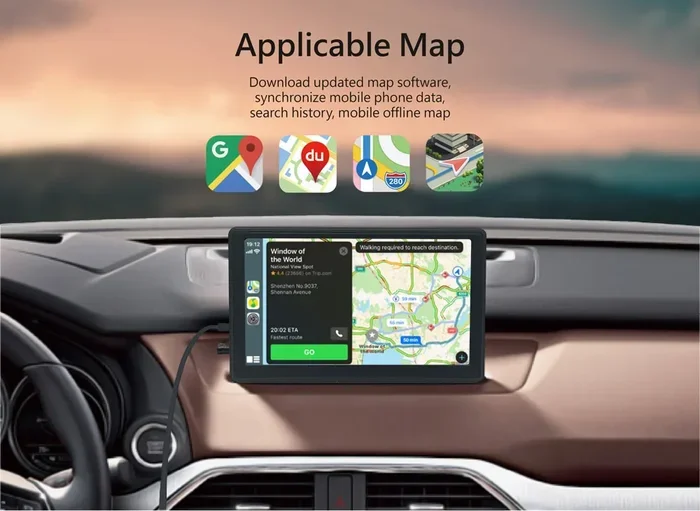
Does CarPlay Use Bluetooth or Wi-Fi for Wireless Streaming
Does CarPlay use Bluetooth or Wi-Fi? The answer is both. Apple CarPlay can connect through Bluetooth, Wi-Fi, or a USB cable depending on your car and setup. Wireless CarPlay uses a combination of Bluetooth and Wi-Fi, while wired connections rely solely on a USB cable. Understanding how each connection type works helps you troubleshoot issues and get the best experience.
Does CarPlay use Bluetooth or Wi-Fi? This is one of the most common questions iPhone users ask when they want to go wireless in their car. The short answer is that Apple CarPlay uses both technologies depending on how you connect. When you go wireless, CarPlay uses Bluetooth for the initial pairing and Wi-Fi for the actual data streaming. When you use a cable, it skips both wireless methods entirely.
Knowing which connection method your car uses matters a lot. It affects speed, audio quality, and whether you can see video on your screen. It also determines how you troubleshoot when things go wrong. This guide breaks down everything you need to know about CarPlay Bluetooth vs Wi-Fi connections. You will learn how each one works, when to use which, and how to fix the most common problems.
Many drivers assume CarPlay is just Bluetooth. That is not true. Bluetooth handles the phone-to-car handshake, but Wi-Fi does the heavy lifting for maps, video, and apps. Understanding this difference makes a huge impact on how you use Apple CarPlay wireless features every day.
Key Takeaways
- CarPlay uses both Bluetooth and Wi-Fi: Wireless CarPlay pairs via Bluetooth and streams data over Wi-Fi for a faster, richer experience.
- Wired CarPlay only uses USB: A physical cable connection handles both audio and data without needing Wi-Fi.
- Bluetooth alone is not enough for full CarPlay: Bluetooth handles initial pairing and audio, but Wi-Fi carries the heavy data load for maps and video.
- Wireless CarPlay setup is simple: Most modern cars and iPhones support it with just a few taps.
- Connection issues are common but fixable: Restarting, resetting network settings, and updating software solves most problems.
- Wireless CarPlay offers more convenience: No cables to plug in, but it may use more battery and data.
📑 Table of Contents
How CarPlay Connects to Your Car
Apple CarPlay is a smart mirror for your iPhone. It projects your phone’s key apps onto your car’s display. You can access maps, music, messages, and phone calls safely while driving. But how does it actually connect? The answer depends on whether you are using a wired or wireless setup.
CarPlay supports three connection methods. The first is a USB cable. The second is Bluetooth. The third is Wi-Fi. Most modern cars support at least one wireless method. Older vehicles may only offer a USB connection. Each method has its own strengths and limitations. Let us break them down one by one.
The Basics of CarPlay Connectivity
When you plug in your iPhone with a USB cable, CarPlay launches automatically. The cable handles all data transfer. No Bluetooth or Wi-Fi is needed. This is the most reliable connection method available. It also delivers the fastest data speeds because USB bypasses wireless limitations entirely.
Wireless CarPlay works differently. The phone and the car’s infotainment system first pair through Bluetooth. Bluetooth handles the initial handshake and authentication. Once paired, CarPlay switches to Wi-Fi for the actual data stream. This two-step process is why wireless CarPlay connection setup takes a few extra seconds the first time you use it.
Bluetooth alone cannot handle everything CarPlay needs. It lacks the bandwidth for video and real-time map data. That is why Wi-Fi kicks in for the heavy lifting. Think of Bluetooth as the doorbell and Wi-Fi as the hallway that connects you to everything inside.
What CarPlay Needs to Work
For CarPlay setup to work wirelessly, you need a few things in place. Your iPhone must be running iOS 13 or later. Your car must support wireless CarPlay. Both devices need Wi-Fi and Bluetooth turned on. Your car’s infotainment system must be CarPlay-compatible.
Some older cars do not support wireless CarPlay natively. In those cases, you can use a wireless CarPlay adapter. These small devices plug into your car’s USB port and add wireless capability. They cost between 50 and 150 dollars. They are a great option if you love your car but want the wireless experience.
Compatibility is the biggest factor. Not every car brand supports every CarPlay feature. Check your car’s manual or the manufacturer’s website to confirm support. Also, make sure your iPhone is updated to the latest iOS version. Updates often improve CarPlay compatibility and fix bugs.
Does CarPlay Use Bluetooth or Wi-Fi?
This is the core question, and the answer is more nuanced than most people think. CarPlay Bluetooth vs Wi-Fi is not an either-or situation. It is a both-and setup for wireless connections. Each technology plays a different role in the overall experience.
Understanding Bluetooth in CarPlay
Bluetooth is the first step in any wireless CarPlay connection. When you enter your car, your iPhone and the car’s system find each other through Bluetooth. Bluetooth handles the initial pairing and authentication. It also manages basic audio streaming for phone calls and voice prompts.
Bluetooth has its limits, though. It uses a short-range radio signal. The maximum speed is much lower than Wi-Fi. This means Bluetooth alone cannot deliver maps, video, or app data in real time. It is perfect for the handshake but not for the heavy data work.
Bluetooth also handles audio in the background. When a navigation prompt plays or a voice assistant responds, Bluetooth carries that audio to your car speakers. It works reliably and uses very little power. This is why Bluetooth remains an essential part of CarPlay Bluetooth connection even when Wi-Fi is doing the main work.
Understanding Wi-Fi in CarPlay
Wi-Fi is where the magic happens for wireless CarPlay. Once the Bluetooth handshake is complete, CarPlay creates a dedicated Wi-Fi network between your iPhone and your car. This network carries all the rich data that Bluetooth cannot handle.
Wi-Fi enables CarPlay video streaming, real-time map rendering, and fast app loading. It also supports CarPlay mirroring with smoother animations and a higher refresh rate. The difference between Bluetooth-only and Wi-Fi-enabled CarPlay is night and day.
Wi-Fi does use more battery than Bluetooth. It also consumes more data if you are using features that require internet access, like live traffic updates. However, for most drivers, data usage is minimal because maps and apps cache content locally on the phone.
Bluetooth vs Wi-Fi: Key Differences
Here is a simple comparison of how Bluetooth and Wi-Fi work within CarPlay:
- Role: Bluetooth handles pairing and basic audio. Wi-Fi handles data streaming and app content.
- Speed: Bluetooth is slower. Wi-Fi is much faster and can handle video and maps smoothly.
- Range: Both work within a short range inside the car. Bluetooth reaches about 30 feet. Wi-Fi works within the car’s cabin.
- Battery Impact: Bluetooth uses less power. Wi-Fi uses more power because it maintains a continuous high-speed connection.
- Setup: Bluetooth pairs once and remembers the device. Wi-Fi connects automatically after the initial Bluetooth pairing.
The bottom line is clear. Does CarPlay use Bluetooth or Wi-Fi? It uses both for wireless connections. Bluetooth opens the door. Wi-Fi walks you through the room.
Wireless CarPlay vs Wired CarPlay
Choosing between wireless and wired CarPlay depends on your car, your habits, and your preferences. Both methods have real benefits. Understanding them helps you make the best choice for your daily drive.
What Wireless CarPlay Offers
Wireless CarPlay is the most convenient option. You do not need to plug in a cable every time you get in the car. As long as your iPhone and your car are paired, CarPlay launches automatically. This seamless experience is why most people prefer the wireless route.
Wireless CarPlay setup also means no cable clutter on your dashboard. No fumbling with a USB port in the dark. No dealing with a cable that frays or stops working after a few months. It just works, and that matters when you are trying to keep your eyes on the road.
The wireless experience also supports CarPlay audio streaming at higher quality. Because Wi-Fi carries the data, you get smoother navigation animations and faster app responses. Some users report that CarPlay latency is noticeably lower on wireless connections compared to older USB setups.
When Wired CarPlay Still Makes Sense
Wired CarPlay is not obsolete. In fact, it still has some strong advantages. The biggest one is reliability. A USB cable connection is more stable than a wireless one. You do not have to worry about signal drops or interference from other devices.
Wired connections also charge your iPhone while you drive. This is a big deal for people with long commutes or road trips. Wireless CarPlay can drain your battery faster, especially if you use navigation and music simultaneously.
Some older cars only support wired CarPlay. If your car was made before wireless CarPlay became standard, a USB connection is your only option. A CarPlay USB cable is inexpensive and widely available. For these situations, wired CarPlay works perfectly fine.
How to Set Up Wireless CarPlay
Setting up Apple CarPlay wireless is easier than most people think. The process takes only a few minutes. Once it is done, your phone connects automatically every time you get in the car. Here is how to get it running.
Prerequisites for Wireless Connection
Before you start, make sure you have everything you need. Your iPhone should be running iOS 13 or later. Your car must support wireless CarPlay natively or through an adapter. Both Bluetooth and Wi-Fi must be enabled on your iPhone. Your car’s infotainment system should be powered on and in CarPlay mode.
Also, make sure your car is in park or neutral. Some systems will not activate CarPlay while the car is in drive. This is a safety feature, not a bug. If your CarPlay connection issues start with the car not recognizing the phone, check that the gear selector is in the right position.
Step-by-Step Setup Guide
Follow these steps to set up wireless CarPlay for the first time:
- Turn on your car’s infotainment system.
- Press the CarPlay button on your car’s display or select CarPlay from the source menu.
- On your iPhone, go to Settings > General > CarPlay.
- Select your car from the list of available vehicles.
- Follow any on-screen prompts to complete the pairing.
- Once paired, CarPlay should launch automatically every time you get in the car.
If your car does not appear on the list, make sure Bluetooth and Wi-Fi are both turned on. Restart your iPhone and try again. Sometimes a simple restart fixes the problem. Also, check that your car’s firmware is up to date. Manufacturers release updates that improve CarPlay compatibility and fix bugs.
Common CarPlay Connection Problems and Fixes
Even with the best setup, CarPlay connection issues can happen. They are frustrating, but most are easy to fix. Here are the most common problems and how to solve them.
CarPlay Won’t Connect via Wi-Fi
If wireless CarPlay refuses to connect, the first thing to check is your Wi-Fi and Bluetooth settings. Both must be enabled. Sometimes a software update changes these settings without you noticing. Go to Settings > Wi-Fi and Settings > Bluetooth and make sure both are turned on.
Next, try turning Airplane Mode on for 10 seconds and then off again. This resets all wireless connections and often fixes the problem. If that does not work, restart your iPhone. A fresh start clears out any temporary glitches that might be blocking the connection.
Also check if your car’s infotainment system needs a restart. Most systems have a power-off and power-on option in the settings menu. A quick reboot of both devices solves the majority of CarPlay troubleshooting cases.
Bluetooth CarPlay Keeps Disconnecting
If your CarPlay connection drops randomly, Bluetooth interference might be the culprit. Other Bluetooth devices in the car, like headphones or a smartwatch, can compete for the same signal. Try turning off unnecessary Bluetooth devices and see if the connection stabilizes.
Another common fix is to forget the CarPlay pairing on both your iPhone and your car, then pair them again from scratch. Go to Settings > General > CarPlay on your iPhone and remove the car. Do the same on your car’s infotainment system. Then pair fresh.
If the problem persists, reset your iPhone’s network settings. This clears all Wi-Fi passwords, Bluetooth pairings, and cellular settings. You will need to reconnect to your Wi-Fi network afterward, but it often fixes stubborn wireless CarPlay connection problems.
Is Wireless CarPlay Worth Using?
For most drivers, the answer is yes. Wireless CarPlay offers a cleaner, more convenient experience. No cables, no clutter, and automatic connections every time you get in the car. The convenience factor alone makes it worth it for daily commuters and frequent drivers.
However, there are a few things to keep in mind. Wireless CarPlay uses more battery than wired. If you have a long drive and no charger, you might notice your phone draining faster. It also uses slightly more data for live traffic and streaming, though the impact is minimal for most people.
Pros and Cons of Wireless CarPlay
- Pros: No cables needed, automatic connection, cleaner dashboard, smoother video and map rendering, supports CarPlay mirroring with better refresh rates.
- Cons: Uses more battery, slightly higher data usage, can be less stable than wired in areas with weak Wi-Fi signals, may require a CarPlay wireless adapter for older cars.
Expert Tips for the Best Experience
Here are some quick tips to get the most out of your CarPlay wireless experience:
- Keep your iPhone and car firmware updated. Updates often improve connection stability and speed.
- Restart both devices once a month to clear out temporary connection issues.
- Use a Wall Charger or a high-quality car charger to keep your iPhone powered during long drives.
- If your car supports it, set CarPlay to launch automatically when you connect. This saves you a step every time.
- Clear your car’s infotainment cache periodically. A full cache can slow down CarPlay performance and increase CarPlay latency.
Conclusion
Does CarPlay use Bluetooth or Wi-Fi? The answer is clear: wireless CarPlay uses both. Bluetooth handles the initial pairing and basic audio, while Wi-Fi carries the rich data for maps, video, and apps. Wired CarPlay skips both and uses a USB cable for everything. Understanding this difference helps you troubleshoot problems, set up your system correctly, and enjoy the best possible experience.
Wireless CarPlay is a game-changer for daily driving. It is convenient, clean, and delivers a smooth experience once it is set up. Even if your car does not support it natively, a wireless CarPlay adapter can add the feature for a reasonable cost. Take a few minutes to set it up properly, keep your devices updated, and you will wonder how you ever drove without it.
The next time someone asks you does CarPlay use Bluetooth or Wi-Fi, you will know the full answer. Share what you have learned with friends and family. A good CarPlay connection makes every drive safer, smarter, and more enjoyable. Now go enjoy the ride.
Frequently Asked Questions
Can CarPlay work with only Bluetooth and no Wi-Fi?
No, CarPlay needs Wi-Fi for full functionality in wireless mode. Bluetooth handles the initial pairing and basic audio, but Wi-Fi is required for maps, video, and app data. Without Wi-Fi, wireless CarPlay will not work properly.
Why does my CarPlay keep disconnecting from Wi-Fi?
CarPlay Wi-Fi disconnections are usually caused by interference, outdated software, or network settings. Try turning Airplane Mode on and off, restarting both your iPhone and car system, or resetting network settings. Keeping both devices updated also helps prevent frequent disconnections.
Do I need a special cable for wired CarPlay?
You need a USB cable that supports data transfer, not just charging. Many standard charging cables only provide power and will not work with CarPlay. Use the cable that came with your iPhone or a certified Lightning or USB-C data cable for reliable CarPlay USB cable connections.
Does wireless CarPlay use a lot of battery?
Yes, wireless CarPlay uses more battery than wired. The constant Wi-Fi and Bluetooth connection drains your iPhone faster, especially during long drives with navigation and music running. Using a car charger while using wireless CarPlay is highly recommended to avoid battery drain.
Can I use CarPlay if my car does not support wireless?
Yes, you can still use CarPlay with a wired USB connection. If you want wireless in a car that does not support it, you can buy a wireless CarPlay adapter. These devices plug into your car’s USB port and add wireless CarPlay capability to older infotainment systems.
Is CarPlay video streaming safe while driving?
CarPlay video features are designed with driver safety in mind. Most video content, like Netflix or YouTube, is locked while the car is in motion. Navigation and music apps work fully. Some apps allow limited video playback when the car is parked or in neutral, but safety restrictions are built in to prevent distracted driving.